Install on Windows
Follow these steps to install Espanso Dynamic Forms using a Windows installer.
Step 1: Download Installer
Download the latest version directly:
Espanso-Dynamic-Forms-Win-Setup.exe
Need a specific version?
Visit the Releases page on GitHub to download older versions.
Step 2: Run Installer
- Double-click the downloaded
.exefile - If Windows SmartScreen appears with a warning, click "More info" then "Run anyway"
About SmartScreen
Windows may show a warning because the installer isn't signed with an expensive code-signing certificate. The application is safe to install; you can review the source code on GitHub.
Step 3: Choose Installation Location
The default installation folder is:
C:/Program Files/Espanso Dynamic FormsYou can change this location if needed, but the default works for most users.
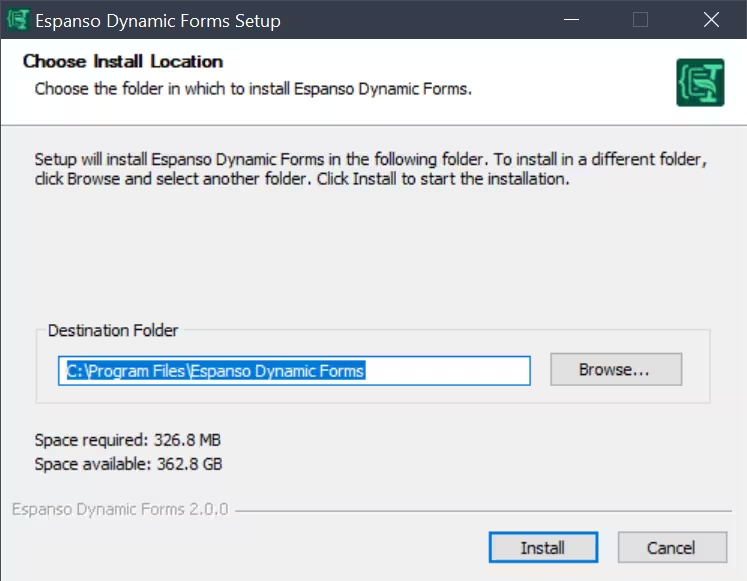
Step 4: Complete Installation
- Click "Install" to begin
- Wait for installation to finish (usually takes a few seconds)
- Click "Finish" to close the installer
The application does not start automatically. You'll launch it through Espanso triggers instead.
Alternative: Zip (no installer)
Releases also include a Windows zip — the unpacked app, same layout as after installation, but without running setup.
- On the Releases page, download the file named like
Espanso Dynamic Forms-<version>-win.zip(not the-Win-Setup.exeinstaller). - Extract the archive to a folder you control (for example under your user profile).
- In your Espanso match, use the full path to
EDF.exeinside that folder as the firstargsentry for the script (plus--form-configas usual).
What's Next?
Now that Espanso Dynamic Forms is installed, you need to configure Espanso to use it. Follow the Getting Started guide to create your first trigger.