Bubble size
You can resize Definer's Bubble by dragging it or by entering exact dimensions in Definer Options.
Method 1: Drag to Resize
Simply grab and drag the handle in the bottom right corner of the bubble. It's just like resizing a window on your computer.
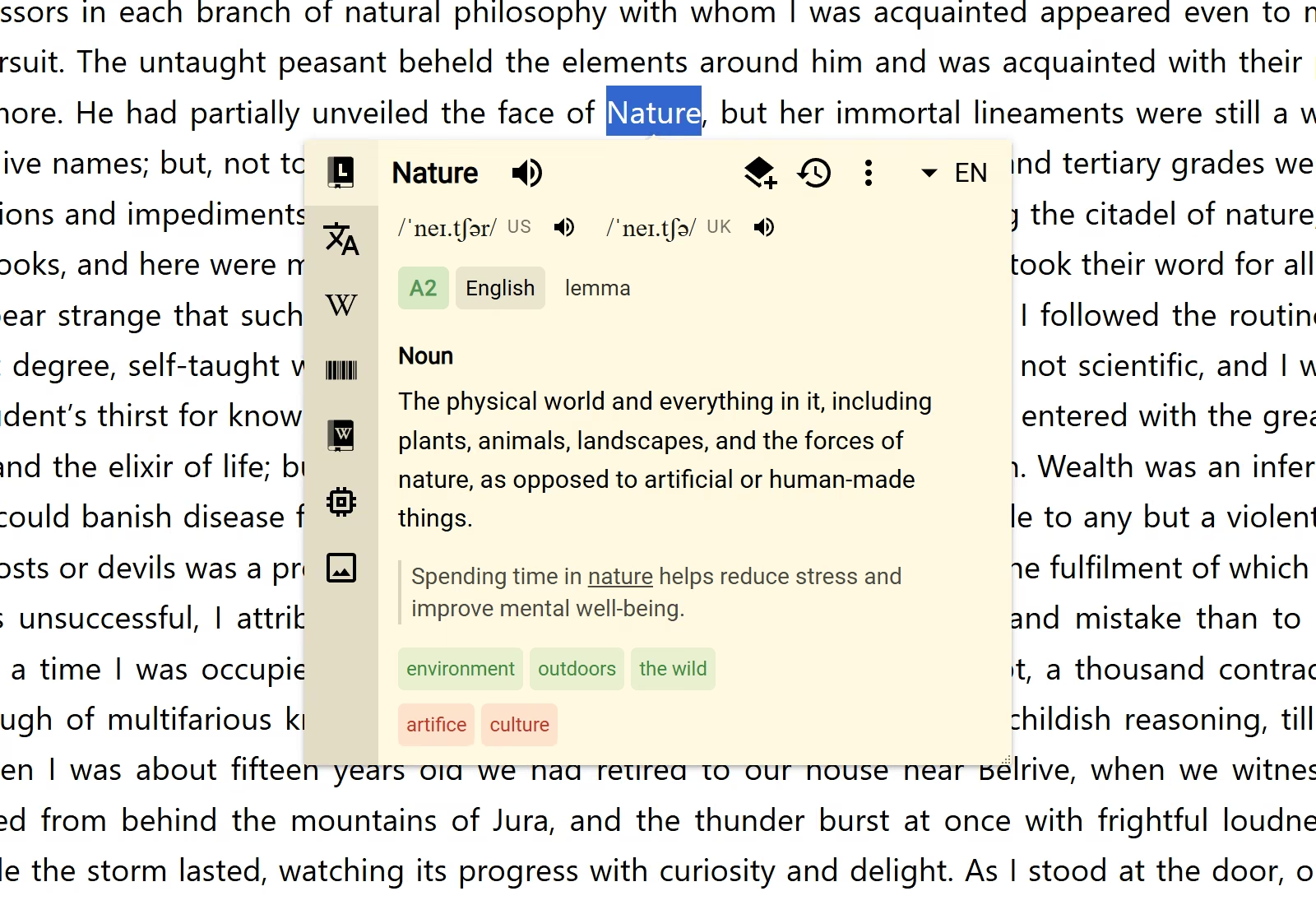
Resizing bubble by dragging handle
Method 2: Precise Dimension Control
To set exact dimensions:
- Go to Options → Bubble → Layout → Size
- Enter your desired height and width in pixels
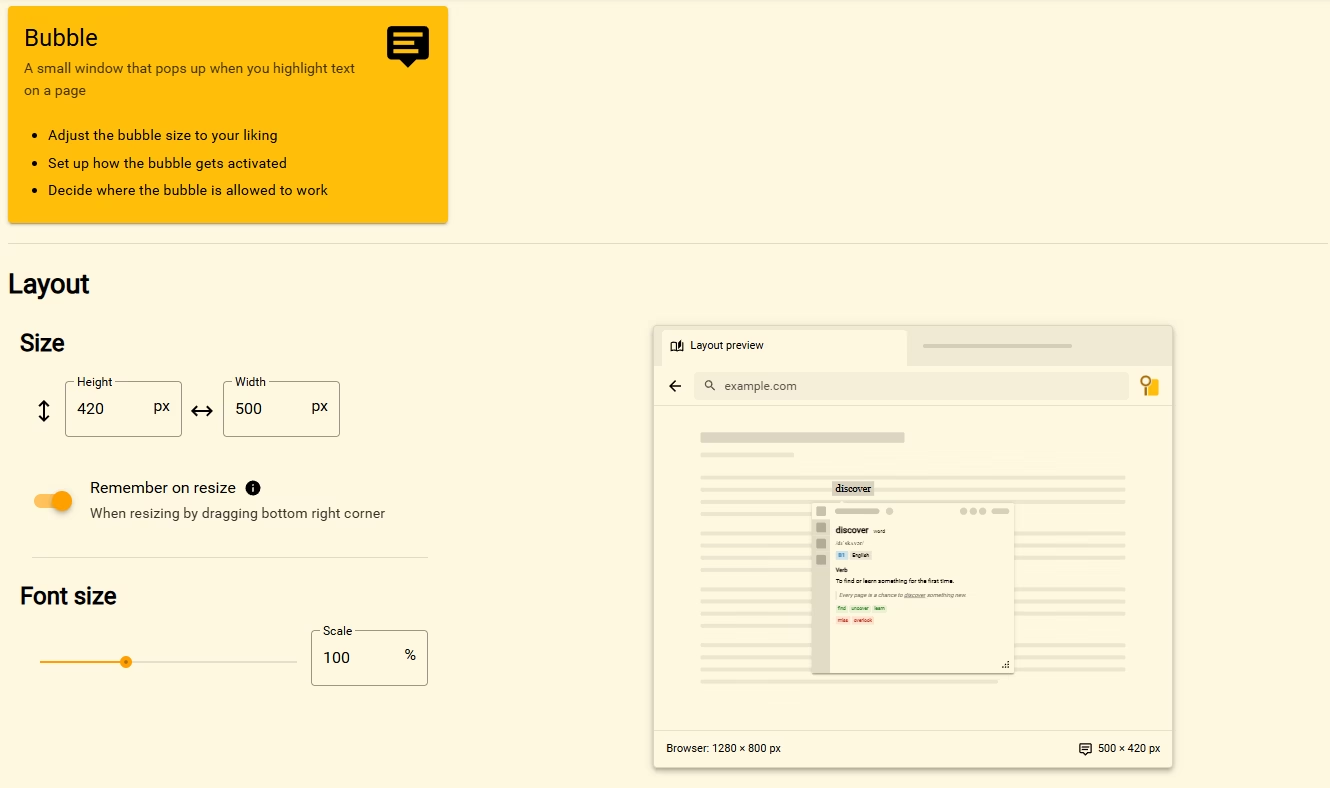
Setting bubble size in Options
Remember on Resize
By default, Definer remembers your manual size adjustments. But what if you want a consistent bubble size every time? "Remember on resize" option controls this behavior:
- Enabled (default): Bubble keeps the size you last dragged it to
- Disabled: Bubble always opens at the size specified in Definer Options, regardless of previous resizing
Resizing with memory disabled
Double-click to Restore
When the "Remember size" option is disabled, you can double-click the resize handle to instantly restore the bubble to its original size specified in Options. Perfect for when you've gone too far with your resizing experiments!
Double-clicking to restore original size