AI models
The model generates the AI Source response. The available choices depend on the provider you selected, so use Definer's Model menu as the current list for that provider.
Choose a model by the task
Start with a general-purpose model when you want explanations, translations, summaries, or writing help. Consider another model when you need a different balance of:
- response quality for your main task;
- supported languages or input types; and
- usage included with Definer or cost charged by an external provider.
A locked Lumetrium model is not available with the current Definer tier. An external or local provider may also reject a model that is unavailable to its account or installation.
Compare models in Preview
- Open Definer Options → Sources → AI → Settings → Main.
- Choose a model and enter a representative question in Preview.
- Keep the question and prompt settings unchanged, choose another available model, and run Preview again.
- Compare whether each response is correct, useful, and appropriately detailed for your task.
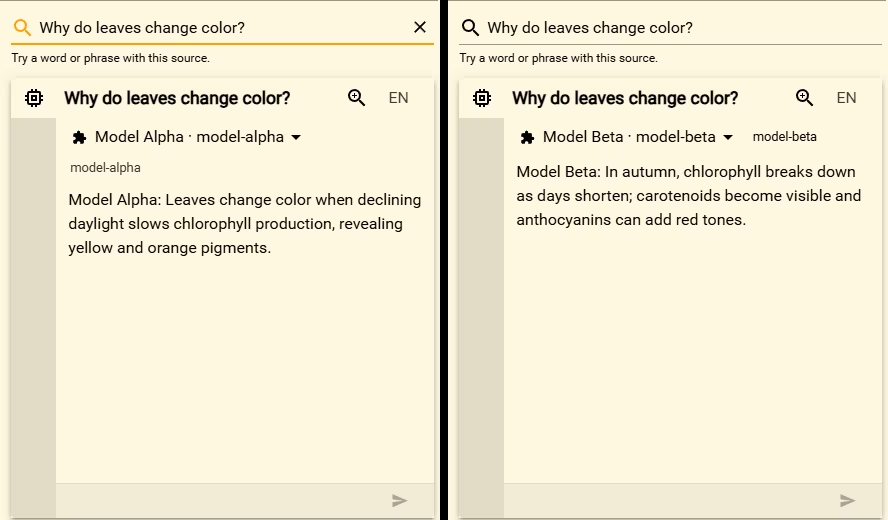
Use more than one example before deciding. A model that handles a short definition well may behave differently with translation, code, or a long page summary.
Compare cloud and local models
| Model location | What changes for you |
|---|---|
| Lumetrium AI | Definer provides the available model choices without a separate provider API key. |
| External provider | You use that provider's account, API key, model access, and billing. |
| Local provider | Ollama or LM Studio runs a downloaded model through your computer. The available models depend on that installation. |
See AI providers when you need to change where the model runs. For external and local model catalogs, follow the official resources linked from the relevant provider article.