Settings Sync
Settings Sync keeps the same Definer preferences available on devices where you load one cloud profile. A profile can include your Sources and their embedded Recipes, languages, appearance, Bubble behavior, shortcuts, and other settings.
It does not sync Lookups, Collections, Collection items, or global Recipes. Use Cloud History for selected lookup records and Cloud Sync for Collections, their items, and global Recipes. Use Backup and restore when you want a file you control.
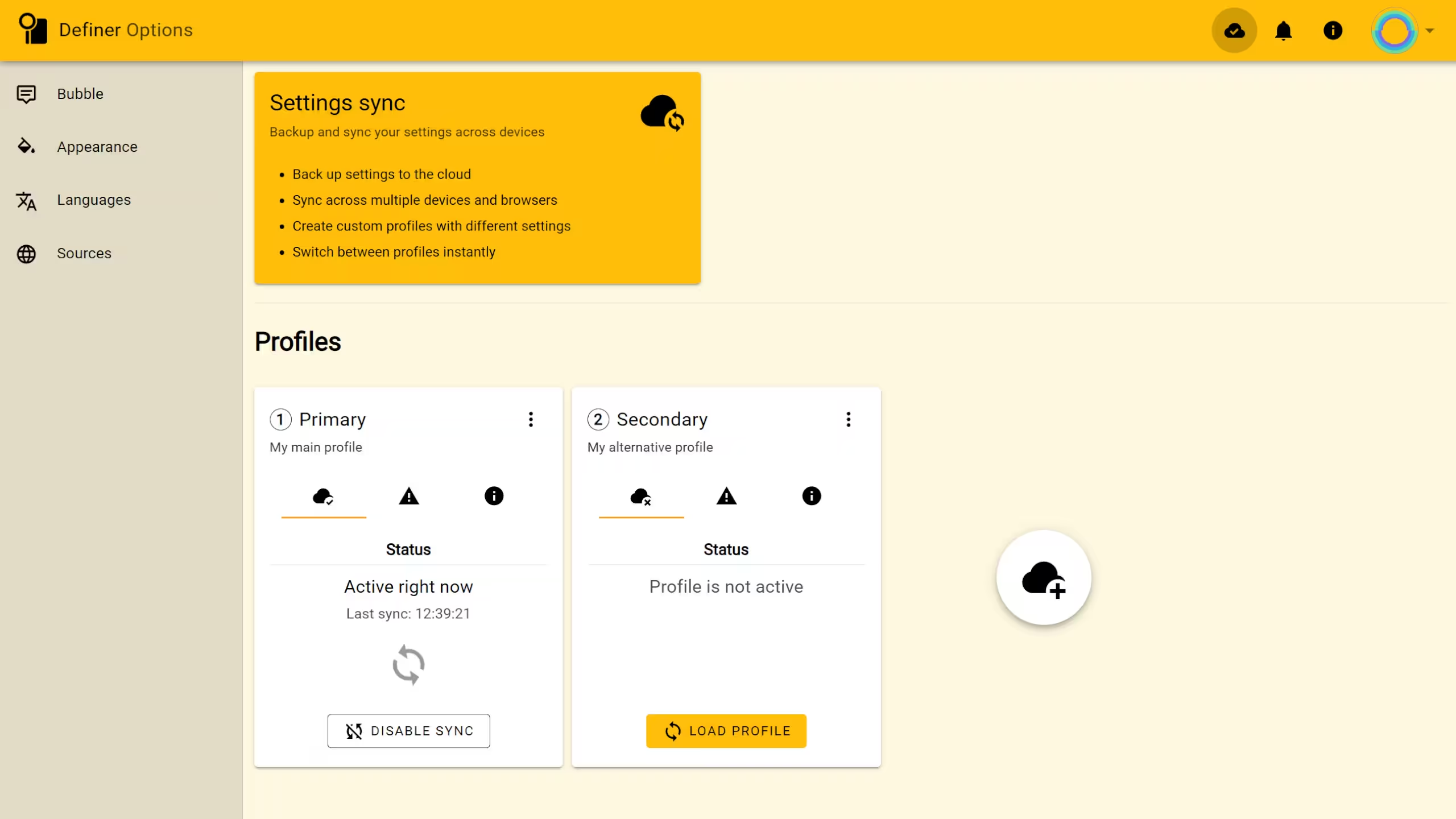
Start syncing settings
Sign in to your Definer account. If the account has no settings profile yet, Definer creates Primary from the current settings and activates it on this installation. The header status changes to In sync when the profile is connected and up to date.
When profiles already exist
Definer shows the available profiles. Select Load profile to use one of them, or select Create a new profile to make a separate profile from the current settings. You can close the chooser if you want to keep the current settings local.
After a profile becomes active, the header status changes to In sync. To return to the profile list later, open the cloud status icon in the Definer Options header and select Open sync options.
Load a profile on another installation
Sign in to the same account, open Open sync options, and find the profile you want.
Loading replaces the settings on this installation
Load profile applies the settings stored in that cloud profile. Create a backup first if you may need the current local setup again.
- Select Load profile on the cloud profile card.
- Confirm the profile switch.
- Check that the card says Active right now and the header status says In sync.
Changes made while the same profile is active can then reach the other signed-in installations that use it. If an installation is offline, its status changes until it can connect again.
Work with profiles
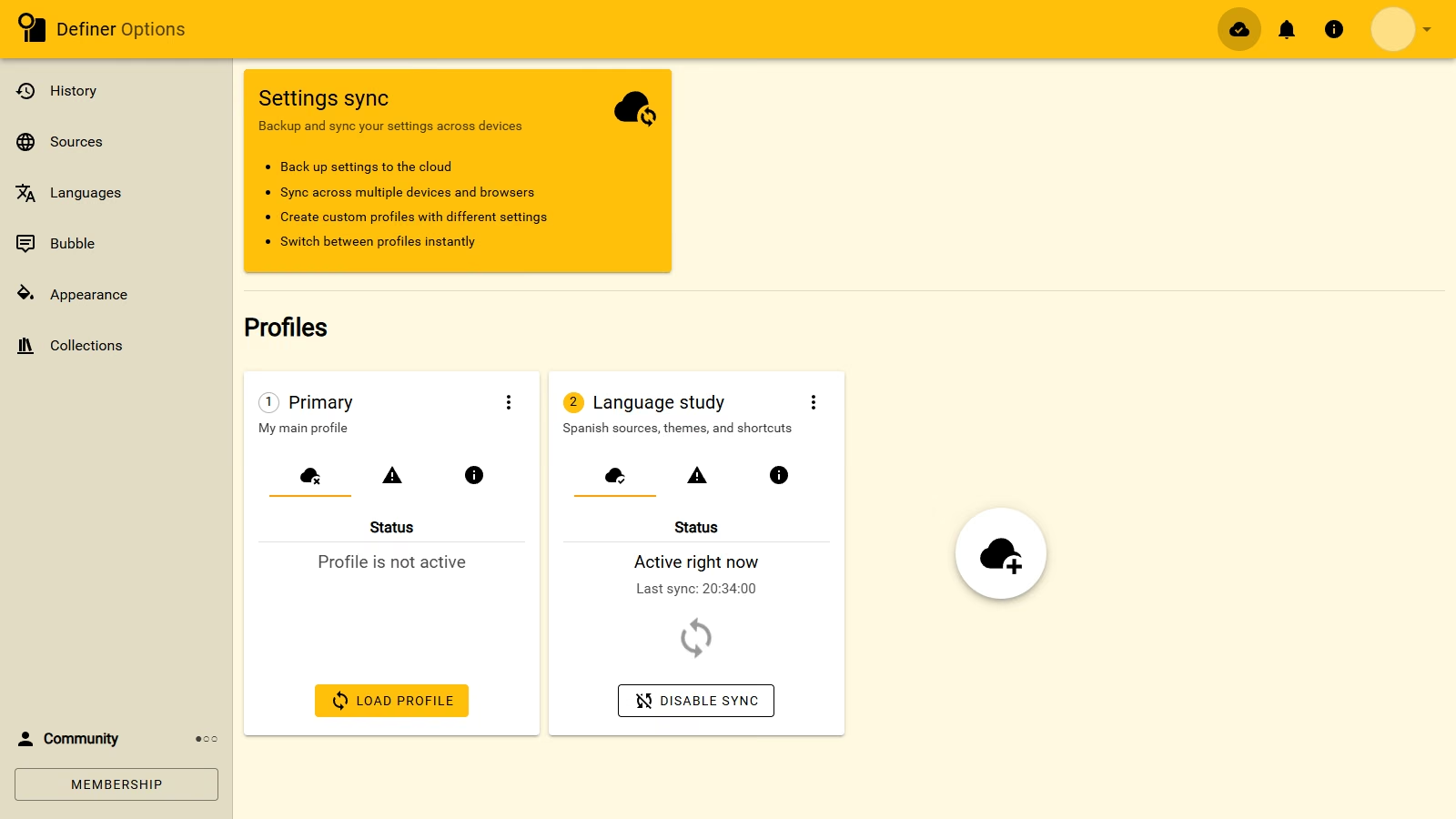
A settings profile belongs to your account. You can load it on another signed-in installation or keep separate profiles for different setups, such as work and language study. When no profile is active on the current installation, select Load profile on the one you want. Your membership determines how many profiles you can create and use. If you reach that limit, Definer shows the available membership action while leaving your saved profiles in place.
Create another profile
- Load the settings you want to use as the starting point.
- Select Create a new profile beside the profile cards.
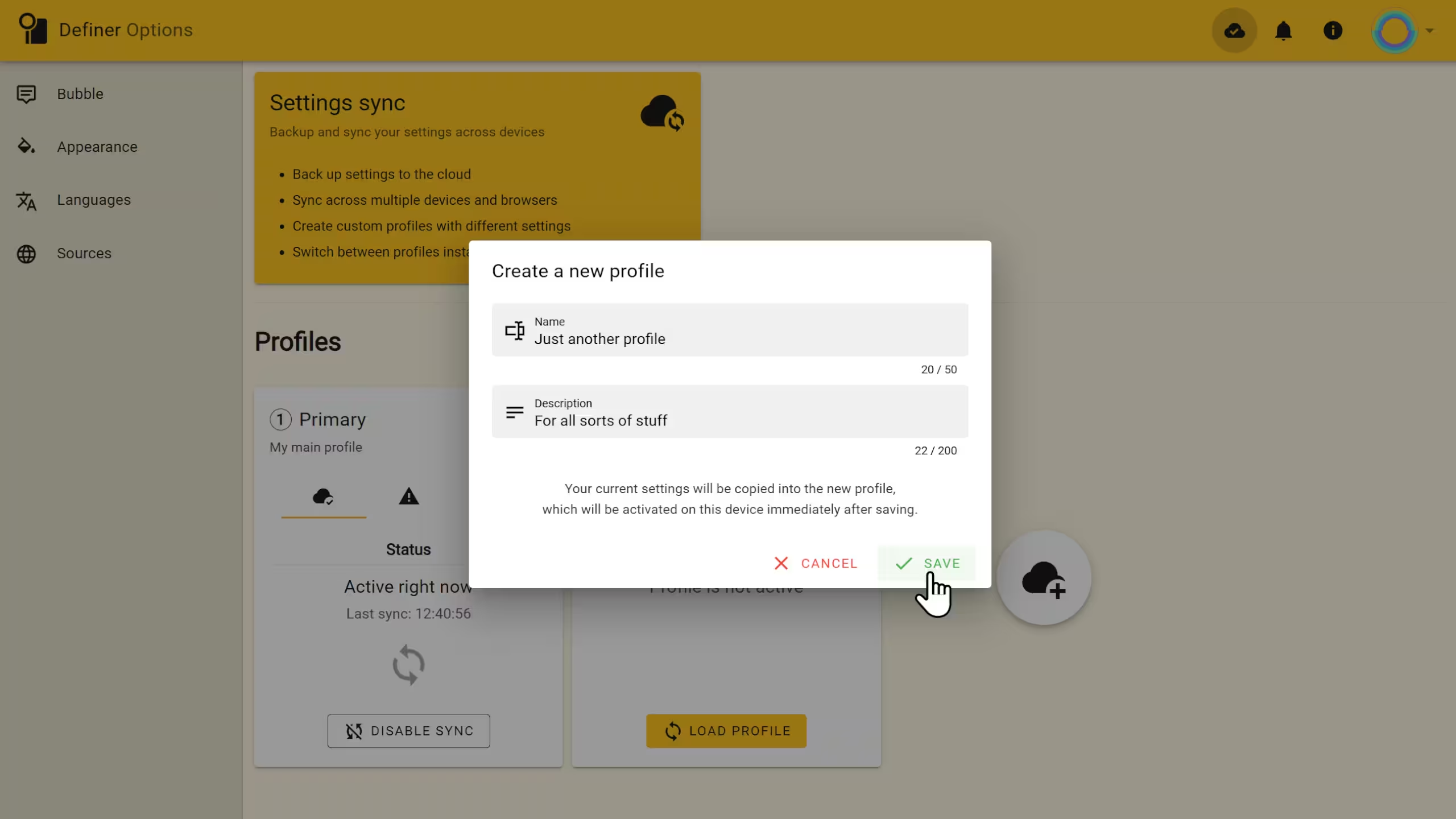
- Enter a unique Name and a Description, then select Save.
The new profile receives the settings that are active when you create it and becomes active on this installation.
Switch profiles
Select Load profile on another cloud profile. Definer replaces the current installation's settings with that profile and starts syncing later changes with installations using the same profile.
Disable Settings Sync
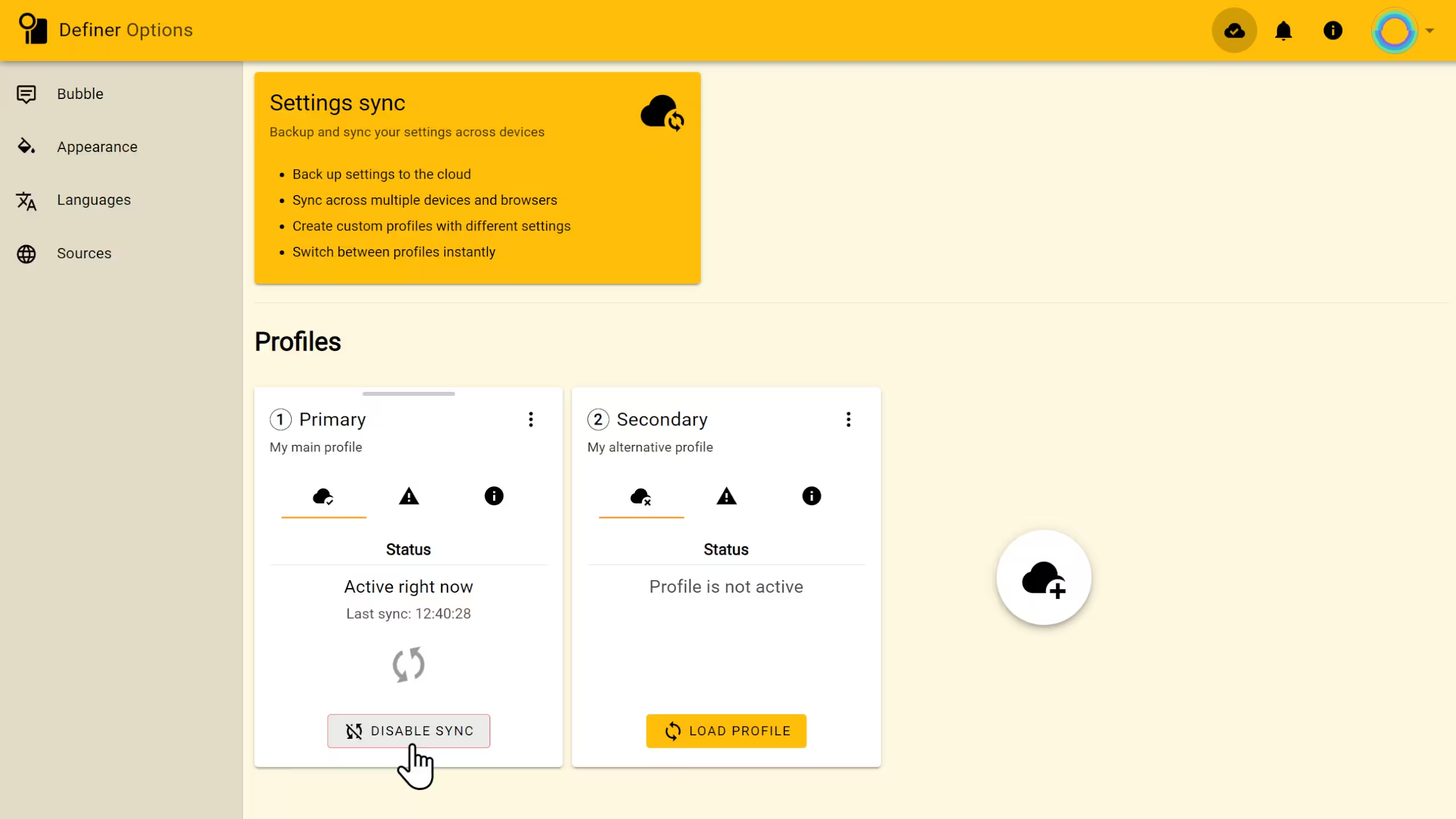
Select Disable sync on the active profile and confirm the change. The current settings stay on this installation, but later changes no longer move between it and the cloud profile.
Organize profiles
- Drag a profile card by its top handle to change the order.
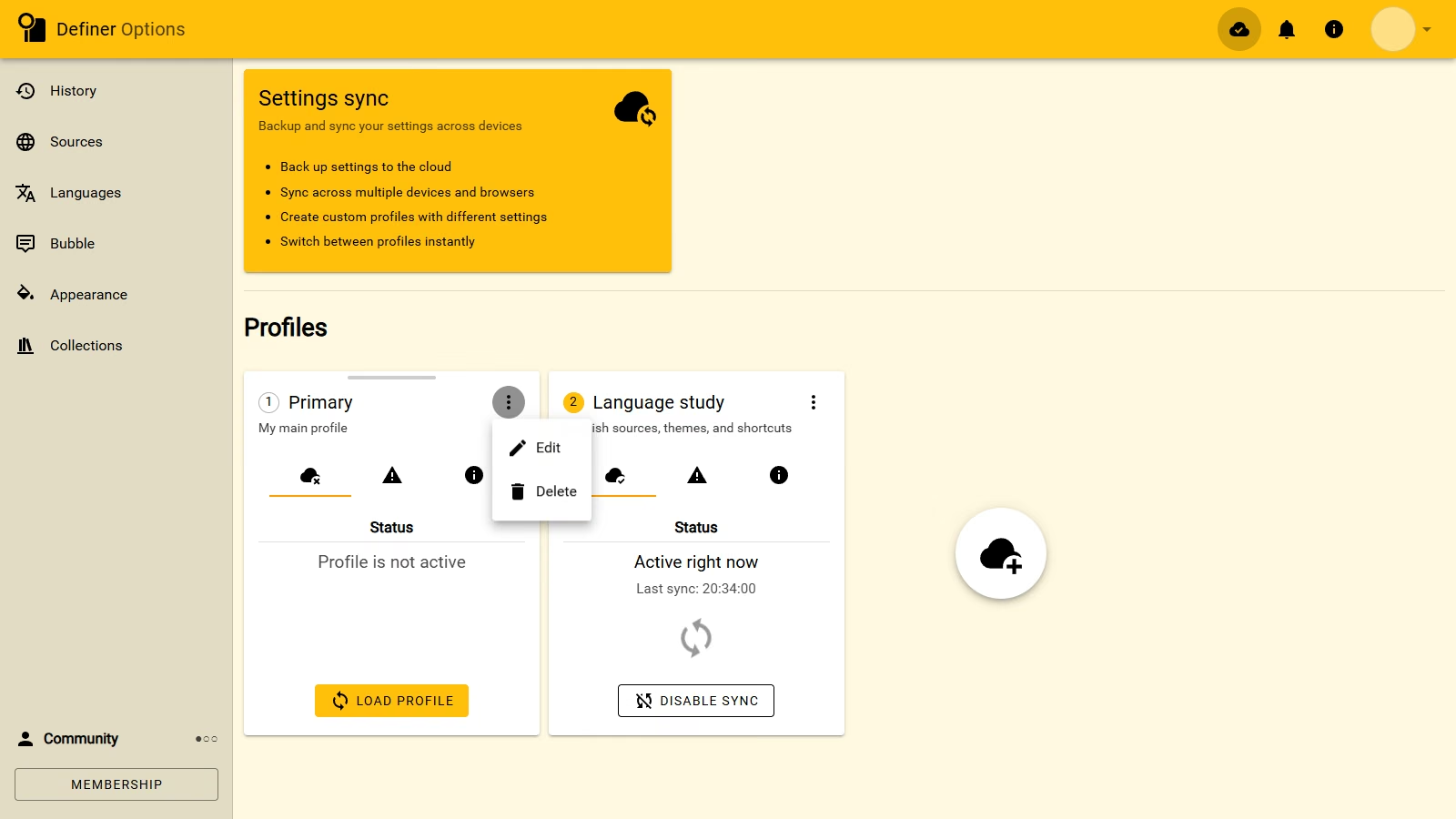
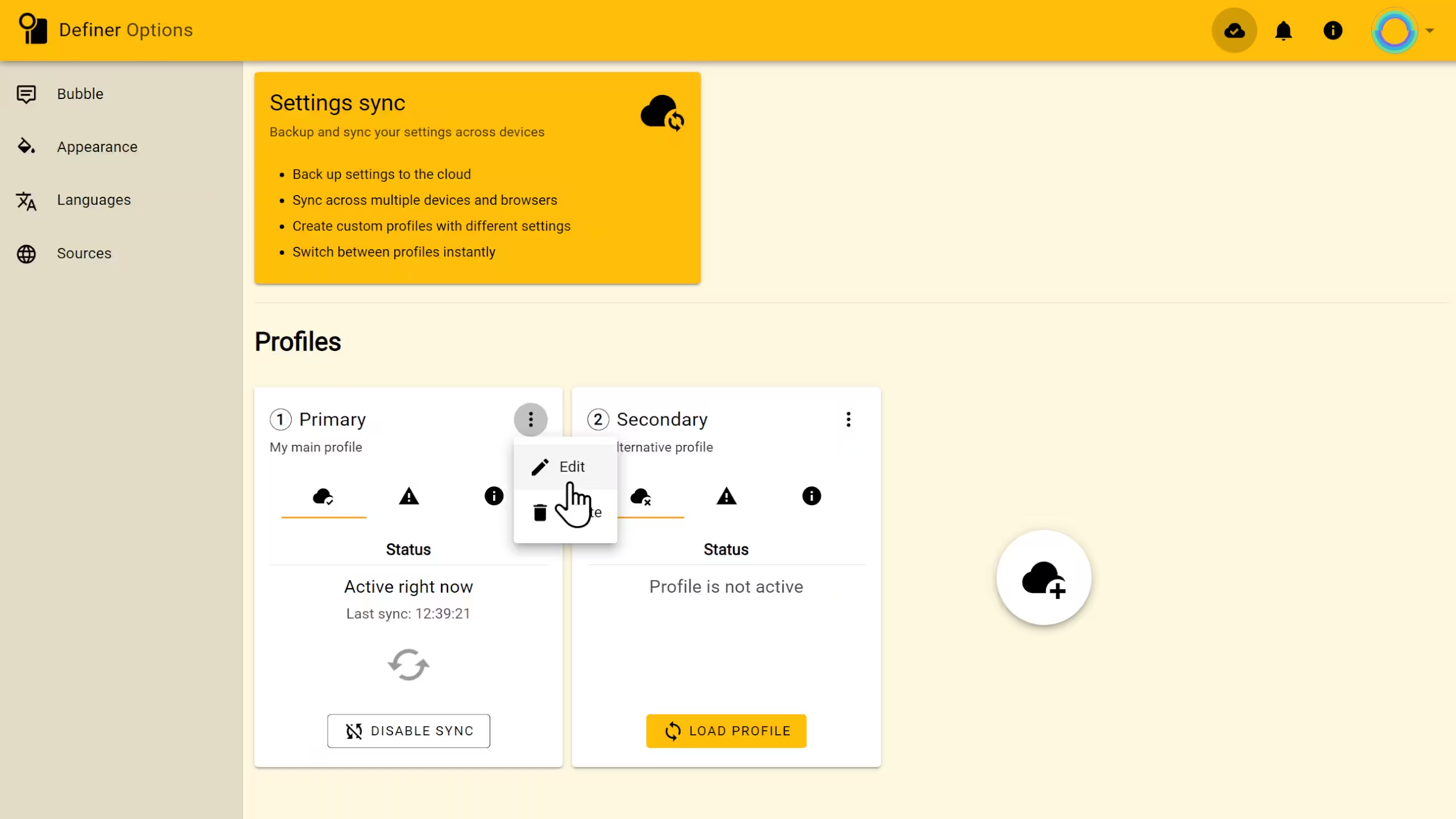
- Open the 3-dot Actions menu and select Edit to change its name or description.
Delete a profile
WARNING
Deleting a cloud profile disables it on every installation where it is active. The deletion cannot be undone.
Open the profile's 3-dot Actions menu, select Delete, and confirm the deletion.
Check sync status
The cloud icon in the Definer Options header gives the quickest status check:
- In sync means the active cloud profile is up to date.
- No sync means this installation is using local settings.
- Offline means Definer cannot reach the service. Check the connection and try again later.
- Sync failed means the latest settings change could not be synchronized. Open the sync options and check the active profile again after the connection recovers.
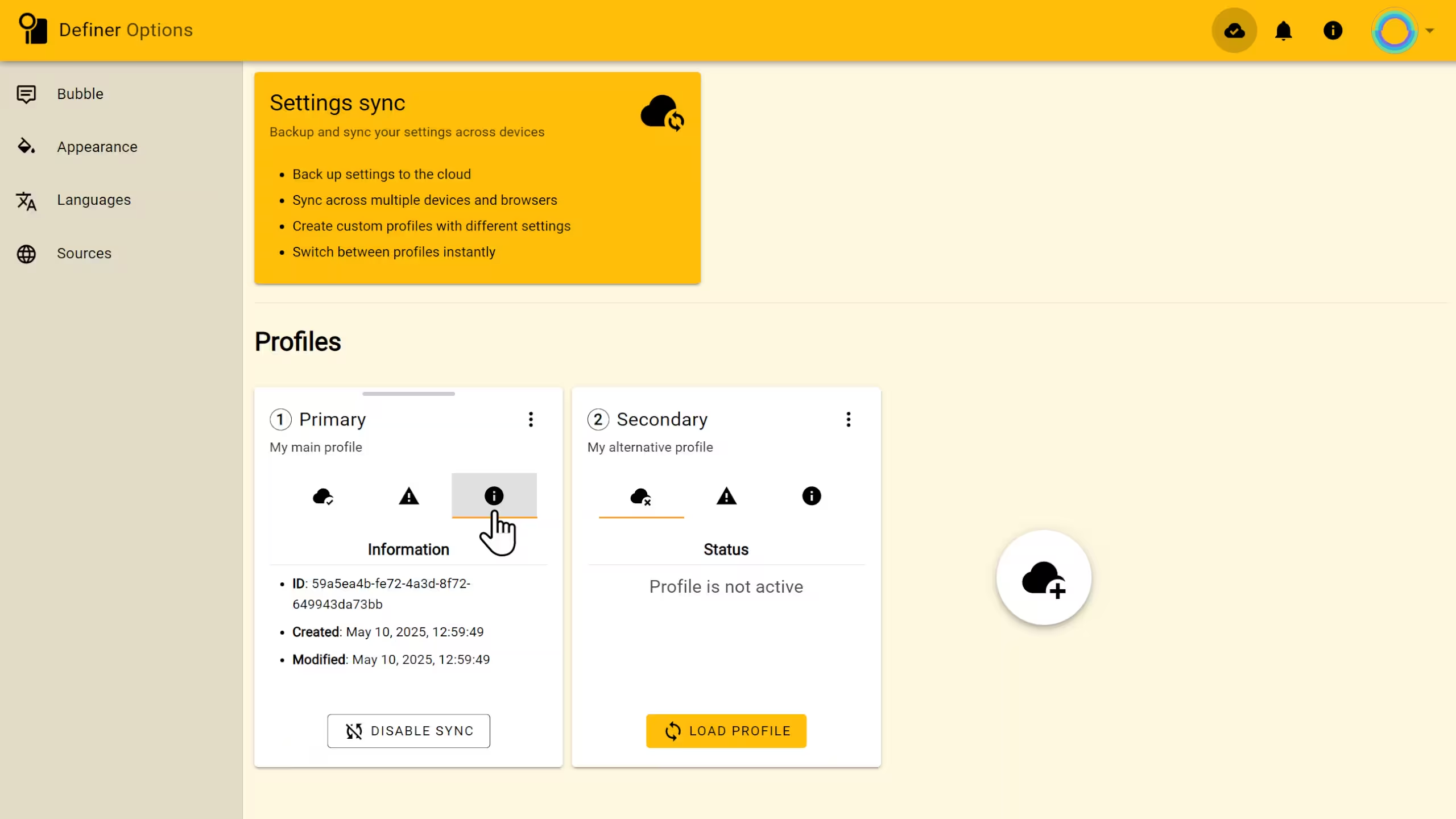
On a profile card, Status shows whether it is active and the last successful sync time. Alerts shows problems that need attention. Information shows the profile ID and its creation and modification dates.
Restoring Settings from a backup turns off Settings Sync on that installation. Review the restored setup, then return to sync options when you are ready to create or load a cloud profile again.