Test and troubleshoot Routines
The Routine editor lets you test one Step or the complete sequence against a source-result preview. Test before saving so you can see which Step changed the page, which values were collected, and where a problem began.
Open Definer Options → Sources → [source] → Settings → Routines, then create or edit a Routine. Enter a representative query above the preview before testing.
Test one Step
Open Steps, then select the test button in the header of the Step you want to check. Its tooltip is Test run this step.
The Step result shows Success or Error, together with any value the Step produced. Testing one Step is useful while you are choosing an element or adjusting a transformation.
Earlier Steps do not run automatically during this test. If the Step depends on an earlier Wait, Click, Input, or Script, prepare the preview first or test the complete Routine.
Test the complete Routine
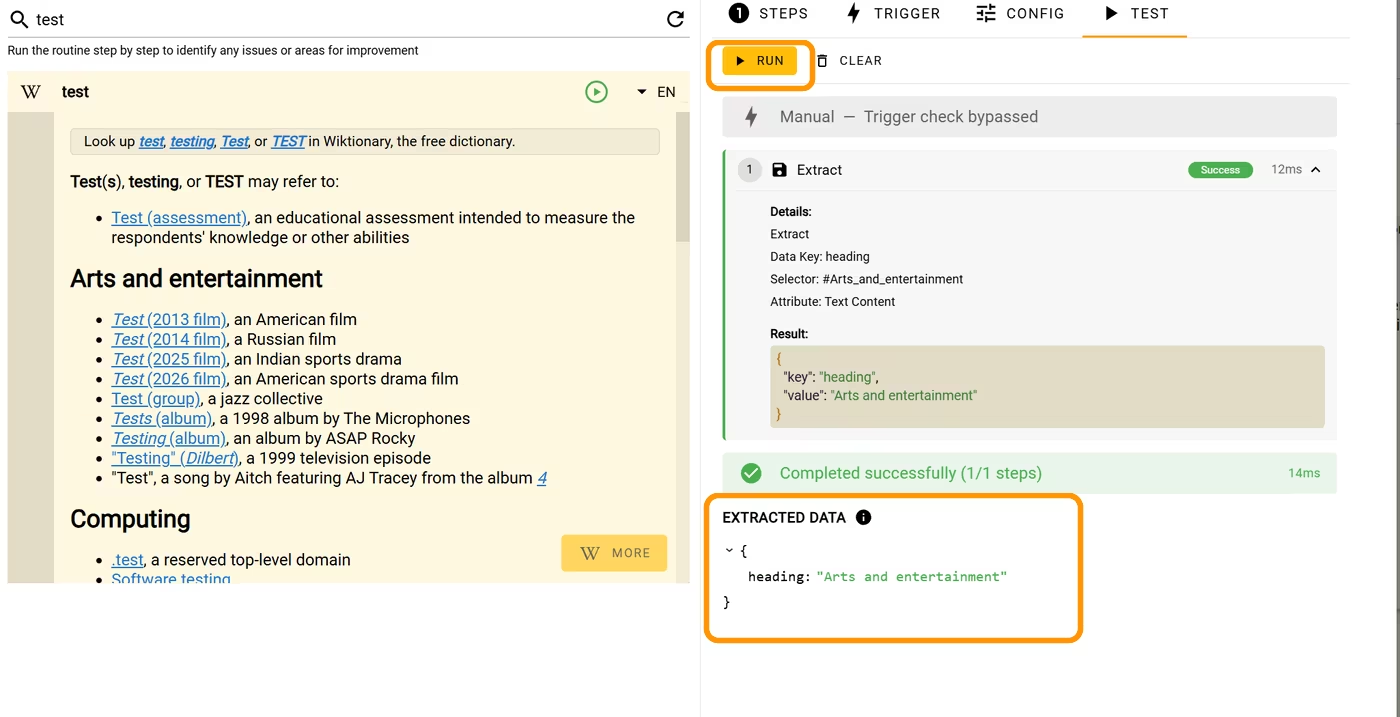
- Open Test.
- Select Run.
- Follow the Step log from top to bottom.
- Confirm the completion message and any values under Extracted Data.
Each log entry can show the Step details, result, warning, or error. Extracted Data is the combined output produced by Extract, Loop, and Script Steps with Data Keys.
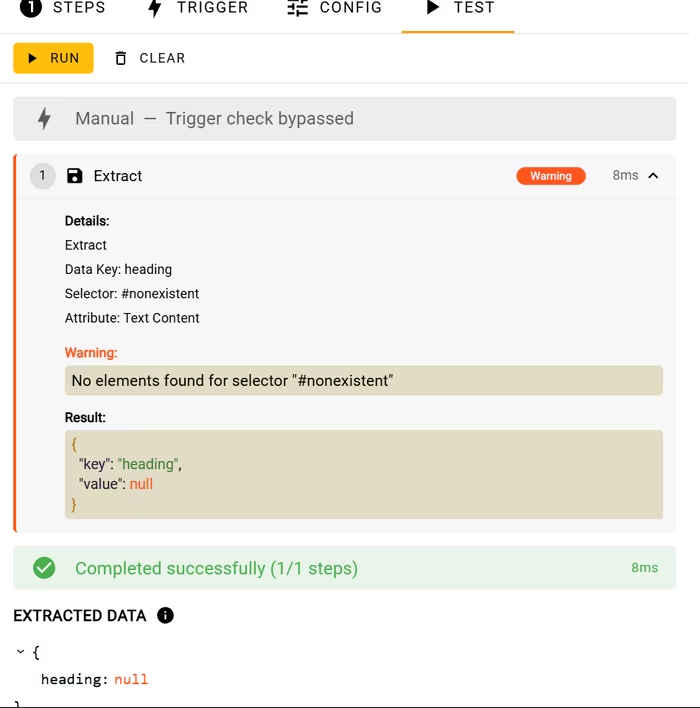
A selector that no longer matches produces an element-not-found warning and a null value.
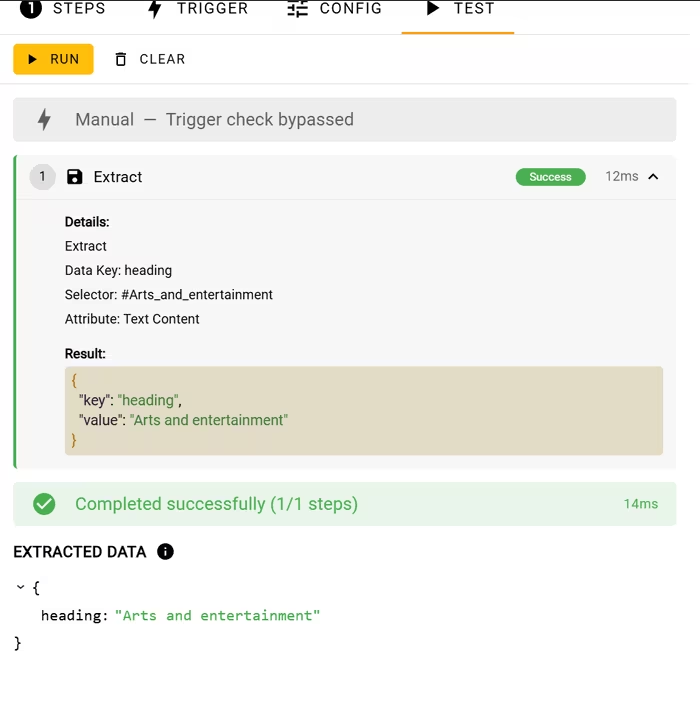
After picking the heading again, run the complete Routine and confirm both the successful Step result and the collected value.
Check the Trigger
For Page Has Element and URL Condition, Skip trigger check is enabled by default in the Test tab. This lets you test the Steps even when the current preview does not match the Routine's Trigger.
Turn Skip trigger check off when you want to verify either of these automatic conditions. A mismatched Trigger produces a skipped result instead of running the Steps. Leave it enabled for a Manual Trigger, then verify that Trigger from the Routines menu in a normal lookup.
For live condition feedback, open Trigger. Page Has Element and URL Condition show whether the current preview matches while you edit the fields.
Control a test
While a Routine is running, use:
- Pause to stop before the next action;
- Resume to continue a paused test; or
- Reset to stop the paused test and clear its progress.
When no test is running, select Clear to remove the current logs and extracted data. Clearing the Test tab does not delete the Routine.
Fix common results
Element not found or timed out
The page may have changed, the element may not have loaded yet, or the selector may match a different result layout.
Reload the preview, then use the crosshair picker to select the element again. Add a Wait Step before the failing Step when the content appears after a delay. Increase Timeout (ms) only when the page genuinely needs more time.
Invalid selector
Return to the selector field and use the crosshair picker. If you entered the selector yourself, confirm that the selected type is CSS or XPath as appropriate and remove incomplete syntax.
Empty extracted data
Confirm that the Extract or Loop Step has a Data Key and that its selector matches the intended element. For Extract, also confirm that Attribute contains the value you expect. A link normally needs Href, while an image URL normally needs Src.
If Skip if empty is enabled, an empty page value is intentionally omitted from Extracted Data.
Trigger condition not met
Open Trigger and compare the live status with the current preview. For URL Condition, compare Pattern with Current URL. For Page Has Element, pick the element again. If the page adds it only after the result opens, use an Always Trigger and put a Wait Step at the beginning of the Routine instead.
Turn Skip trigger check on only when you want to test the Steps independently of that condition.
Script permission is missing
Grant permission only for Script code you wrote or reviewed. Accept the browser's User scripts permission request, then test the Step again. If the permission remains unavailable, see the browser-specific guidance under Script.
The page navigated during the Routine
A Click or Script can move the source page to a different URL. Check the new preview before interpreting later selector errors.
If the Routine uses Every Open and Navigation, change the frequency or remove the navigation action when the Routine keeps starting again. See Control when and how a Routine runs.
Save the working Routine
When the complete test produces the expected page action or Extracted Data, select Save. Reopen the source in a normal lookup and verify the same result with the Routine's real Trigger.
The Test tab proves the configuration in the current preview. A third-party page can change later, so selectors tied to that page may need to be picked again.