Control when and how a Routine runs
A Trigger decides when a Routine starts. The Behavior settings decide whether an automatic Routine repeats, appears in the lookup header, stops after an error, or prevents later Routines from running.
Open Definer Options → Sources → [source] → Settings → Routines, then create or edit a Routine. Trigger choices are under Trigger. The other controls on this page are under Config → Behavior.
Choose how the Routine starts
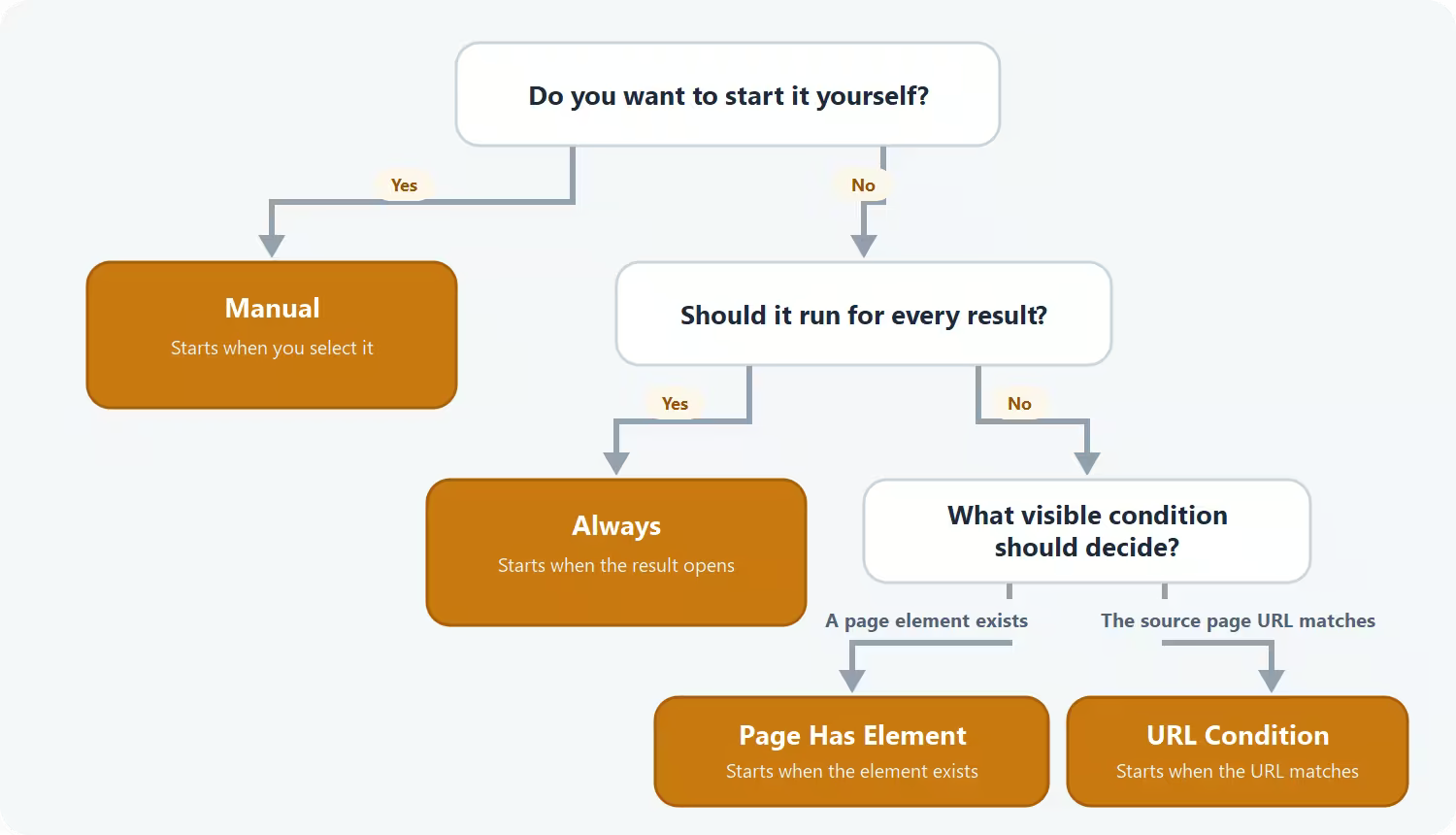
Choose the Trigger by the outcome you want:
| Trigger | Use it when |
|---|---|
| Always | The Routine should run automatically when the result first opens. |
| Page Has Element | The Routine should run only when a particular page element exists. |
| URL Condition | The Routine should run only on source pages whose URL matches your rule. |
| Manual | The Routine should wait until you select it from the lookup's Routines menu. |
Always
Choose Always when every result from this source needs the Routine. Use Run Frequency to decide whether it can repeat after the first open.
Page Has Element
Choose Page Has Element when a particular element is already present as the result opens and identifies the right kind of page.
Use the crosshair button in Selector to pick the element from the preview. The Trigger status below the fields shows whether the current preview matches.
URL Condition
Choose URL Condition when the source can open different kinds of pages. Choose the comparison under Condition, then enter the value under Pattern.
Choose the comparison that matches how specific your rule needs to be:
| Comparison | Use it for | Example pattern |
|---|---|---|
| Matches domain | Every page on one exact domain | www.example.com |
| Matches URL | One exact complete URL | https://example.com/example.html |
| URL contains | A recognizable part anywhere in the URL | /search |
| URL starts with | Every URL below a fixed prefix | https://example.com/docs/ |
| URL ends with | A shared ending, such as a file type | .pdf |
| Matches pattern | A browser-style match pattern across pages or subdomains | *://*.example.com/* |
| Matches regular expression | An advanced regular-expression rule | `example.(net |
Use Current URL below the fields to compare your rule with the page in the preview. Prefer the simplest comparison that describes the pages you want.
Manual
Choose Manual for an action you need only on demand. A manual Routine does not run automatically. Open the Routines button in a lookup and select the Routine when you want to run it.
Choose how often it repeats
Run Frequency applies to automatic Routines:
| Run Frequency | Observable behavior |
|---|---|
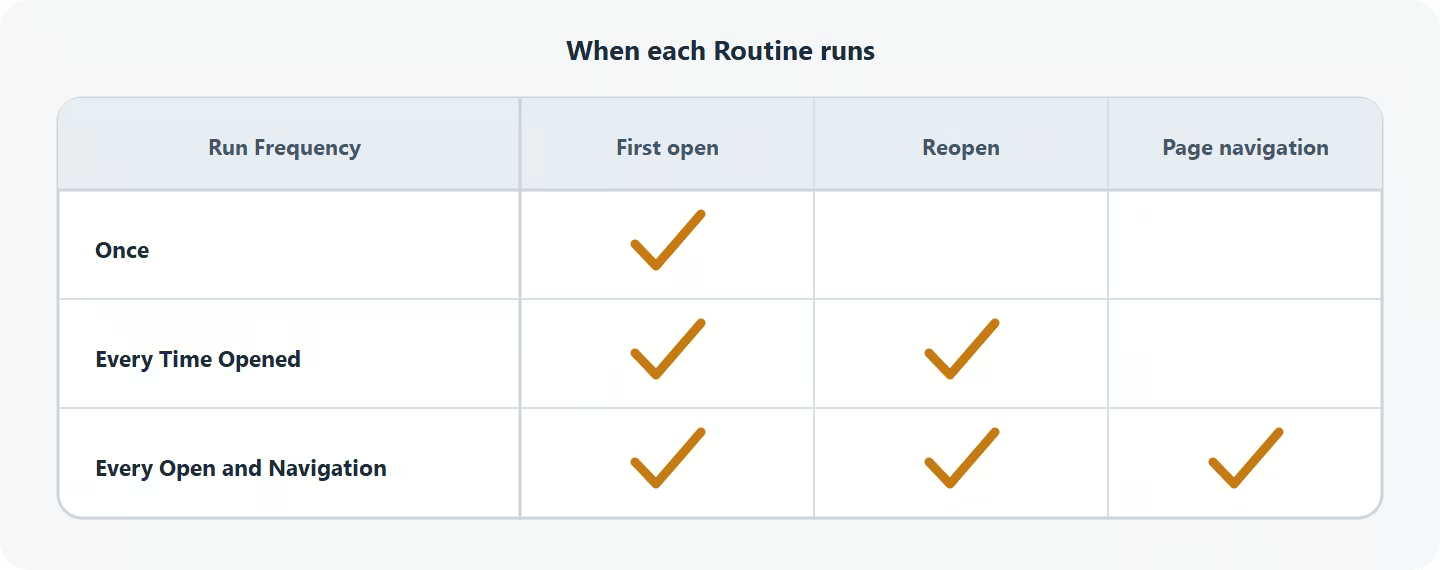
| Once | Runs only the first time that result is opened. |
| Every Time Opened | Runs whenever you open that result. |
| Every Open and Navigation | Runs when you open the result and whenever its source page navigates to another page. |
Check actions that can run twice
With Every Open and Navigation, a Click, Input, or Script that navigates can start the Routine from the beginning and repeat its actions. Use Once or Manual when repeating an action could submit a form or cause another unwanted change.
Show the Routines menu
Enable Show Routine Button when you want an automatic Routine's progress and controls in the lookup header. The button appears for the current source when at least one automatic Routine has this option enabled.
Manual Routines are always available from this button, so the option is not shown for a Manual Trigger.
Handle errors and later Routines
Enable Stop on Error when later Steps depend on every earlier Step succeeding. When it is disabled, Definer can continue to later Steps after a Step fails.
Enable Skip Remaining Routines when this Routine should prevent later automatic Routines for the same result from running. The order in Definer Options → Sources → [source] → Settings → Routines therefore matters. Drag the Routines into the order in which you want Definer to consider them.
The switch beside each Routine controls whether it is enabled at all.
Save and verify the behavior
Select Save, then open a representative lookup for the source.
- For an automatic Trigger, confirm that the Routine starts only when its condition matches.
- For a Manual Trigger, open Routines and confirm that the Routine is ready to run.
- If Show Routine Button is enabled, confirm that the button appears in the lookup header.
Use Test and troubleshoot Routines when a Trigger does not match the preview or a Routine starts more often than expected.