Liquid filters
A filter changes a value before Liquid inserts it into a supported field. Definer supports the standard LiquidJS filters and adds several filters for Definer-specific tasks. This page highlights 9 filters that are especially useful in Definer.
Place a filter after the value and a vertical bar (|):
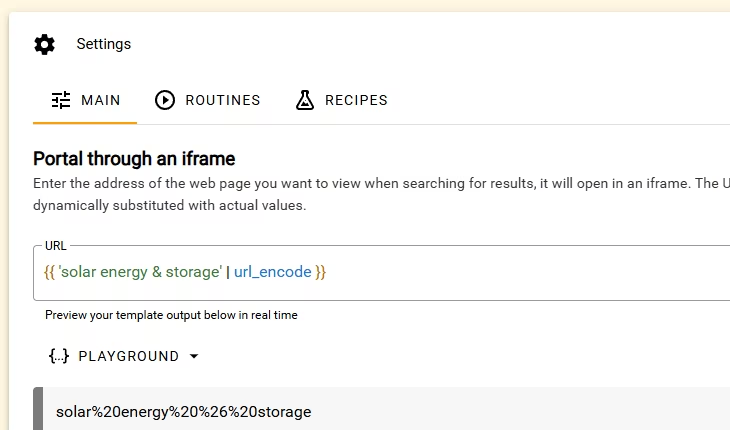
{{ value | filter_name }}The examples below use fixed sample values so you can compare the output directly. Open a Liquid-enabled field such as Definer Options → Sources → [Custom source] → Settings → URL or an AI prompt's Content field. In the helper below the field, open the menu currently labeled Variables, choose Playground, then paste an expression.
Build and read URLs
Use these filters when a value belongs inside a URL:
| Filter | Use it to | Tested example | Output |
|---|---|---|---|
url_encode | Encode spaces and special characters for a URL value. | {{ 'solar energy & storage' | url_encode }} | solar%20energy%20%26%20storage |
url_decode | Turn an encoded URL value back into readable text. | {{ 'solar%20energy' | url_decode }} | solar energy |
For example, this Custom source URL safely inserts the lookup text as a search parameter:
https://example.com/search?q={{ str | url_encode }}Use url_encode on the individual value, not on the complete URL.
Definer does not encode a URL again after Liquid fills it. Without url_encode, characters such as &, #, ?, and + can change the URL instead of remaining part of the search text. The Source Constructor adds the filter for you when you use its URL suggestion.
Make labels easier to read
Remove accents with unaccent
unaccent replaces accented letters with their base forms. It is useful when a website expects an unaccented search value or identifier.
{{ 'Crème brûlée' | unaccent }}Output:
Creme bruleeShow a language name with language_label
language_label turns a language code into a readable name. It accepts common 2-letter and 3-letter codes, regional or writing-system tags, and the value auto.
| Expression | Output |
|---|---|
{{ 'fr' | language_label }} | French |
{{ 'fr' | language_label: 'native' }} | Français |
{{ 'fr' | language_label: 'both' }} | French (Français) |
{{ 'auto' | language_label }} | Auto |
Use the default form for an English name, native for the language's own name, or both when both labels help the reader.
Add optional text
Use with_prefix or with_suffix when surrounding text should appear only when the input has content. Both filters accept any number of comma-separated arguments and join them in order without adding a separator.
This expression adds a label only when page_title is present:
{{ page_title | with_prefix: "Page: " }}With page_title set to Clean Energy Basics, the output is Page: Clean Energy Basics. When page_title is empty, the output is also empty.
Pass several arguments when the prefix needs more than one part:
{{ paragraph | with_prefix: "Context:", newline }}newline is a line break, so the paragraph begins on the next line. newline and tab are available in every Liquid field and do not need to be added as lookup variables.
with_suffix follows the same rule, but adds the supplied values after the input:
{{ page_title | with_suffix: " (archived)" }}With page_title set to Clean Energy Basics, the output is Clean Energy Basics (archived). If page_title is empty, the complete output is empty.
Mark an exact occurrence
mark escapes the input text and wraps one valid text range in <mark> tags by default. The range uses a start offset for its beginning and an end offset for the first position after it. For manually entered ranges, these offsets follow JavaScript UTF-16 string positions. Prefer a value's paired Definer range, such as paragraph with paragraph_range, when one is available.
For example, use a paragraph together with its matching range:
{{ paragraph | mark: paragraph_range }}With paragraph set to The bank raised its fees, but she sat on the bank of the river. and paragraph_range set to {"start":45,"end":49}, the output is:
The bank raised its fees, but she sat on the <mark>bank</mark> of the river.Text that already looks like HTML is escaped before Definer adds its own marker. If the input is empty, the range is missing, or the range falls outside the text, mark returns nothing instead of producing unmarked context.
To use another HTML tag, pass its name as the second argument:
{{ paragraph | mark: paragraph_range, "u" }}The tag name cannot contain attributes or other markup. An invalid tag name returns nothing.
Combine mark with with_prefix to add a complete context section only when the occurrence can be marked:
{{ paragraph | mark: paragraph_range | with_prefix: "Context:", newline }}See AI prompts for this pattern in a complete prompt.
Prepare Recipe content
These filters are especially useful in Recipes, although they work in other Liquid fields when the same kind of value is available.
Omit a duplicate with unless_same
unless_same returns the first value only when it differs from the comparison value. It ignores letter case and surrounding spaces during the comparison, then trims the value it returns.
{{ query | unless_same: data.headword }}With query set to Solar and data.headword set to solar, the output is empty. With query set to solar energy, the output is solar energy.
This is useful for aliases and labels that should not repeat a headword or title.
Convert Markdown with markdown_to_html
markdown_to_html converts Markdown into HTML for a rich-content Recipe field.
{{ '**Solar** energy' | markdown_to_html }}Output:
<p><strong>Solar</strong> energy</p>Use this filter in a field that displays rich content. A plain-text field will show the generated HTML as text.
Combine filters
Filters run from left to right. This example removes accents and then prepares the result for a URL:
{{ 'Crème brûlée' | unaccent | url_encode }}Output:
Creme%20bruleeTest a chain in the field's Playground before saving. If the result becomes empty, test one filter at a time to find which step changed it.
Use standard Liquid filters
Standard Liquid filters cover common tasks such as fallback values, letter case, text replacement, list handling, math, and dates. See the official LiquidJS filter reference for their names, arguments, and examples.
Common examples include default, upcase, downcase, strip, replace, first, join, size, and date.