Lookup results
Every result is information returned by one source for the current lookup and result language. Source icons let you move from a definition to a translation, explanation, image, or another kind of answer without starting the lookup again.
Read the result you need
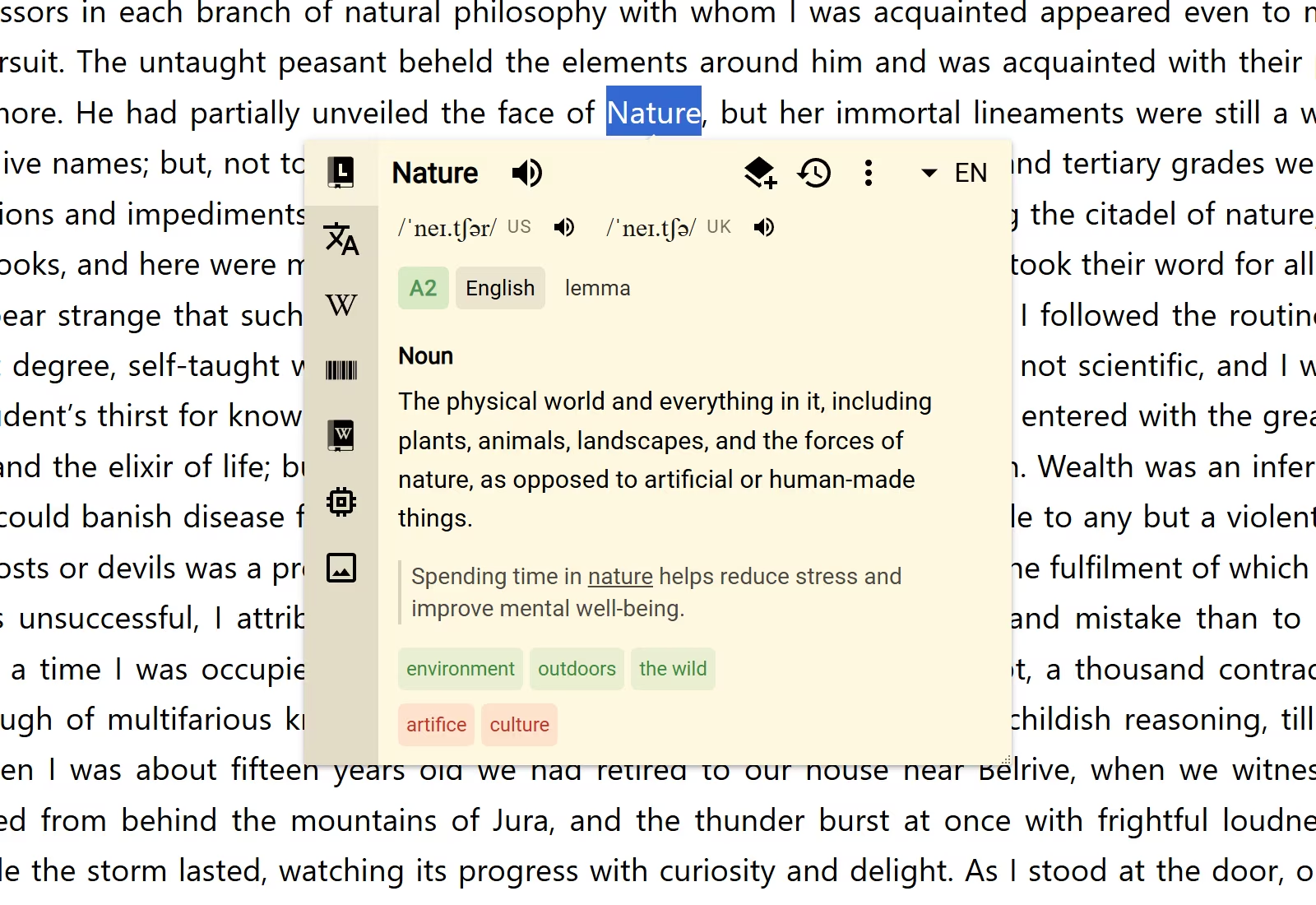
The query appears at the top of the Bubble or Extension Window. The selected source fills the main result area, while the other available sources remain one click away in the source bar.
Audio sources work a little differently. When they return pronunciation or speech, their playback controls appear beside the query.
Open another result
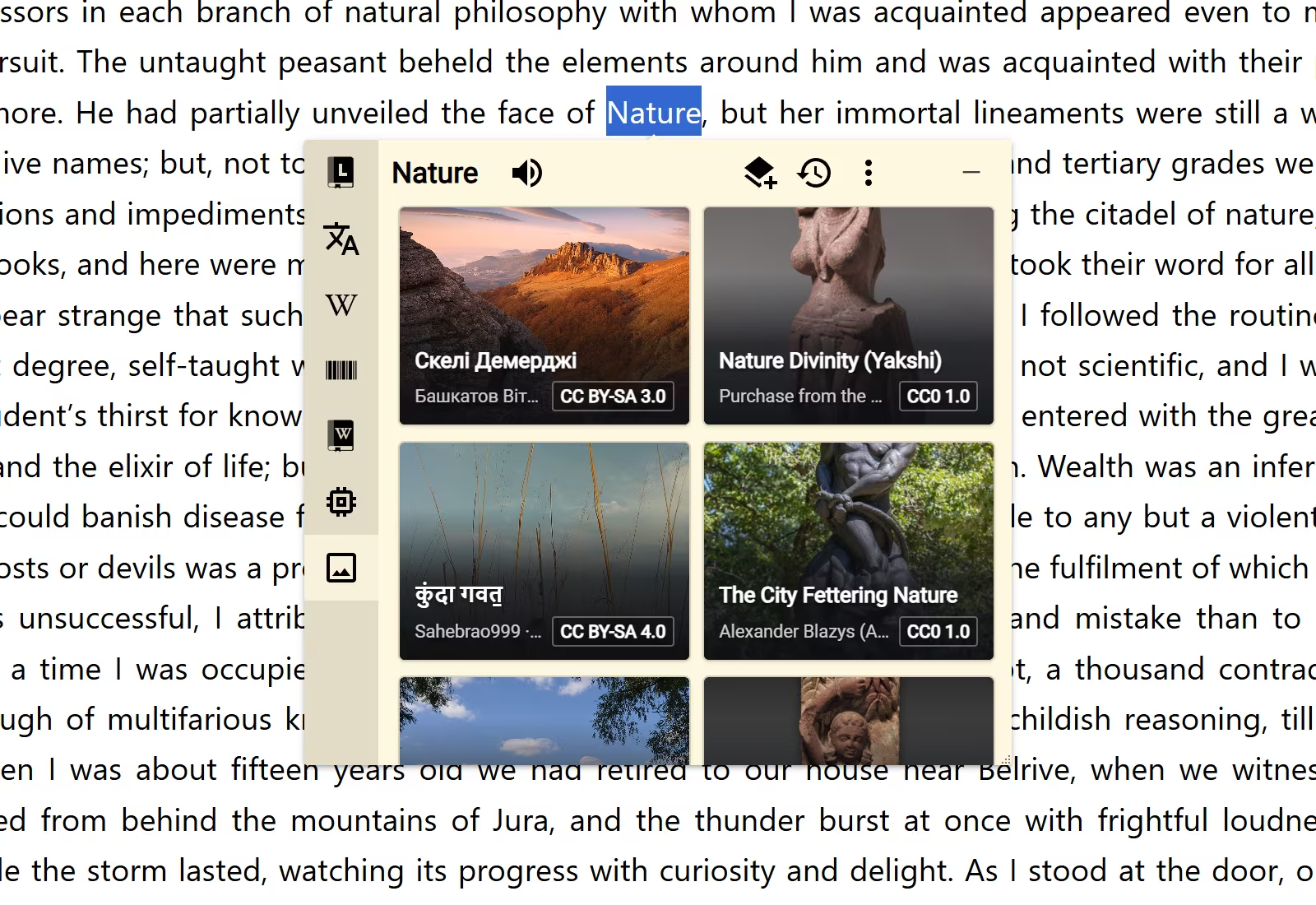
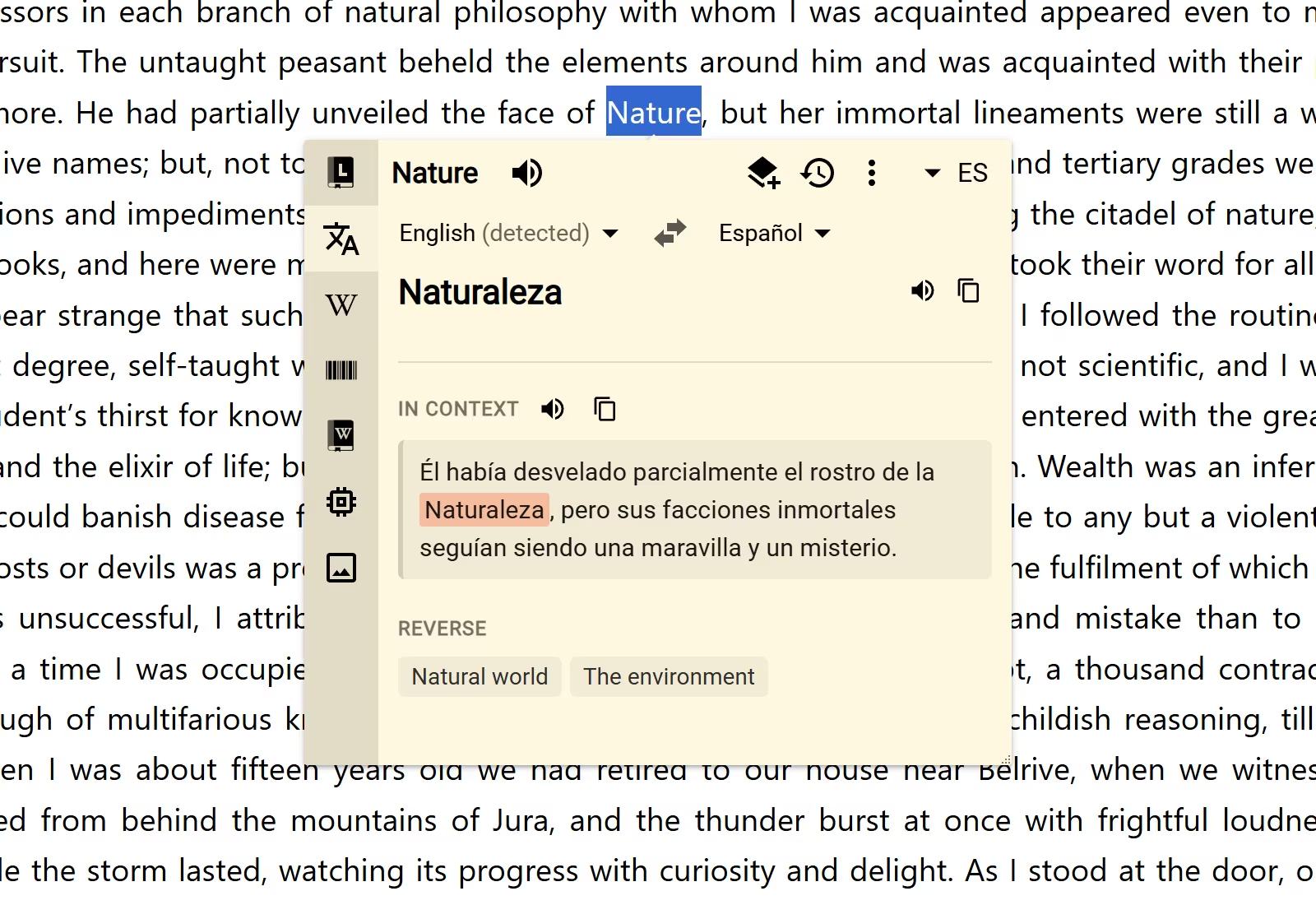
Select a source icon to open that source's result. The information can change completely because sources serve different purposes: a dictionary defines, a translator translates, an image source shows visual matches, and an AI source can answer a broader question.
When a language control appears in the header, use it to change the result language. Some sources also have their own source-language or target-language controls. Languages explains how Definer chooses among them.
Save something useful
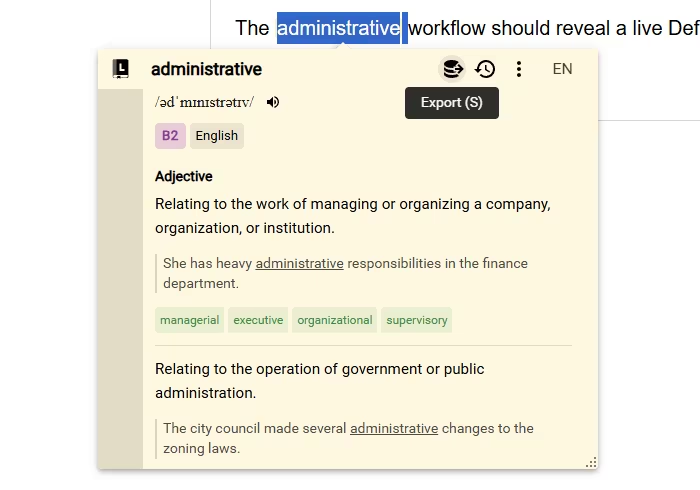
Use the stacked-layers-plus Save control when the open result contains something worth keeping. Definer turns it into a Collection item using a Recipe. Included sources already provide useful Recipes, so Save is ready without extra setup.
- Open the result you want.
- Select Save, or press S.
- Open Saves to find the new item with your other lookup-created items.
Open Definer Options → History → Saves when you want to browse everything you kept from lookup results.
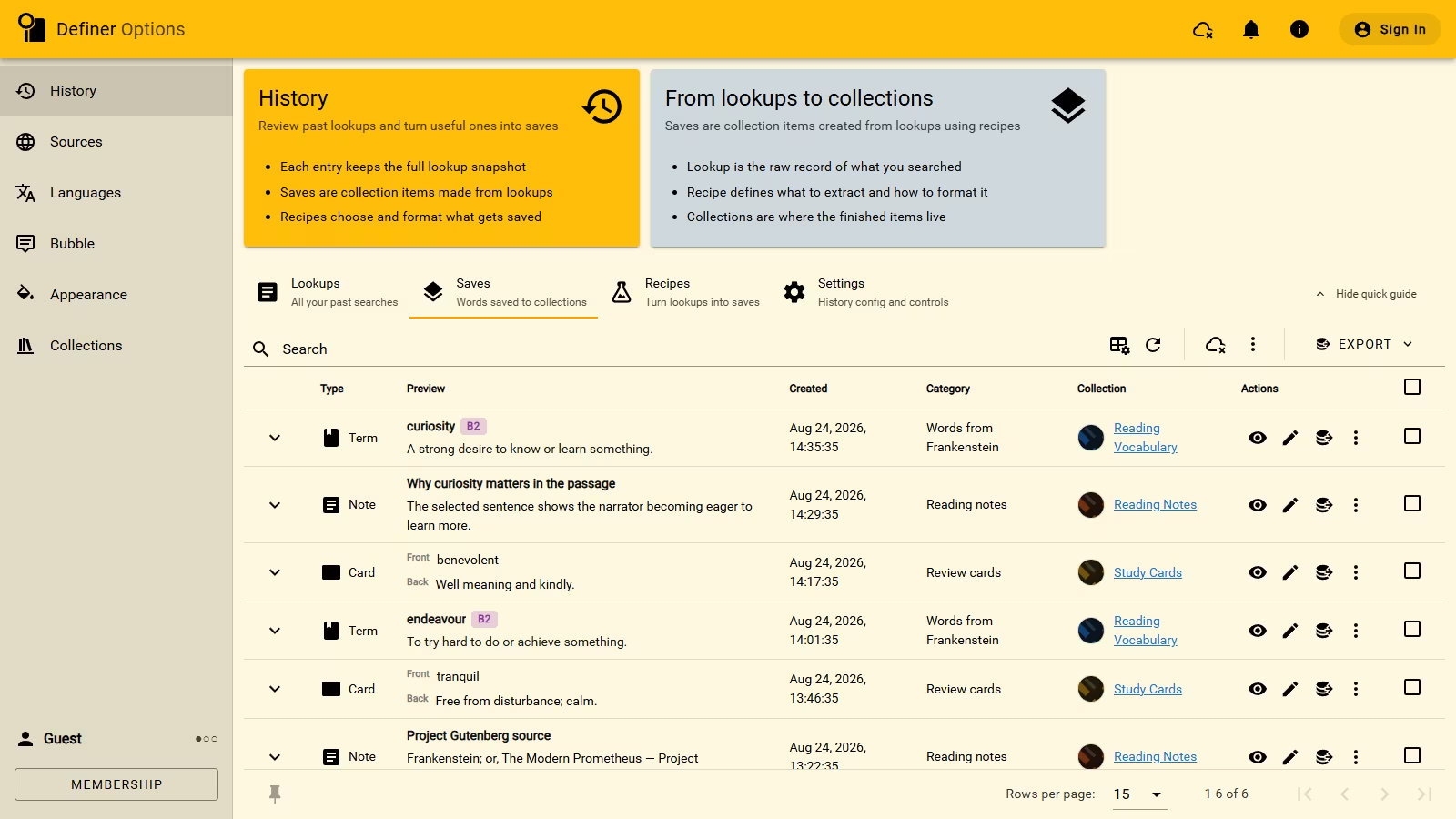
From there you can edit the item, move it to another Collection, or export it.
Return to an earlier lookup
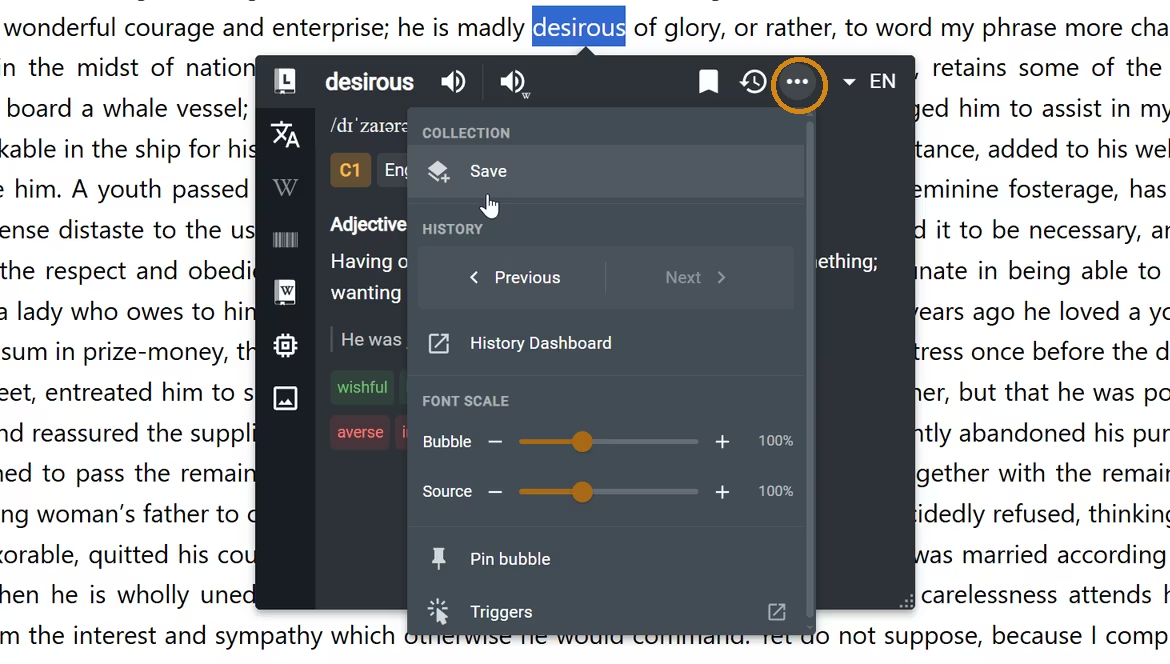
History is recorded automatically by default. The clock-shaped Recent control provides a short list while you are inside a lookup, and Previous or Next moves along the same timeline.
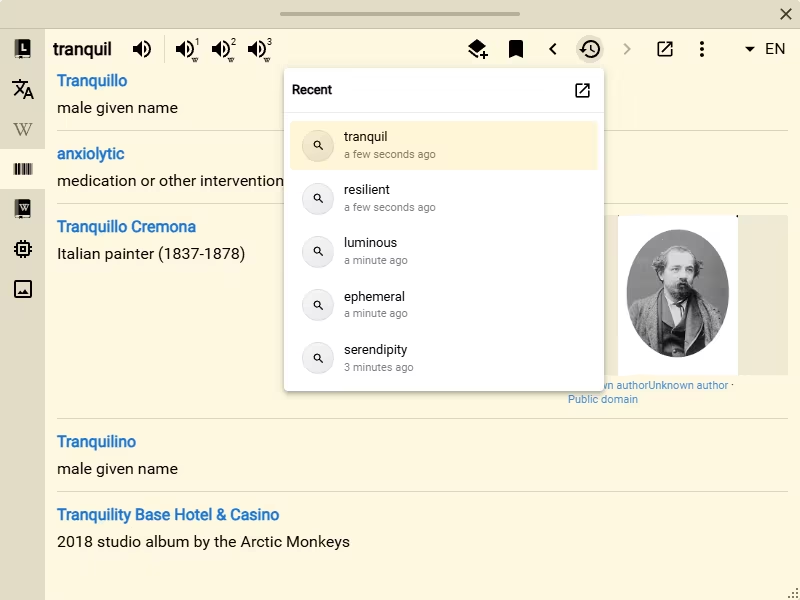
Open History when you want the complete list, search, or the full details that were kept with an earlier lookup.
Find a less common action
The header keeps common actions visible and moves the rest into More actions when space is limited. See Lookup controls for Routines, result scaling, manual History actions, and controls that belong only to the Bubble or Extension Window.