Export
Export sends your Collection items to a study app or creates files you can use in a spreadsheet or another tool. You can export from Collections, Saves, or a lookup, and the original items remain in Definer.
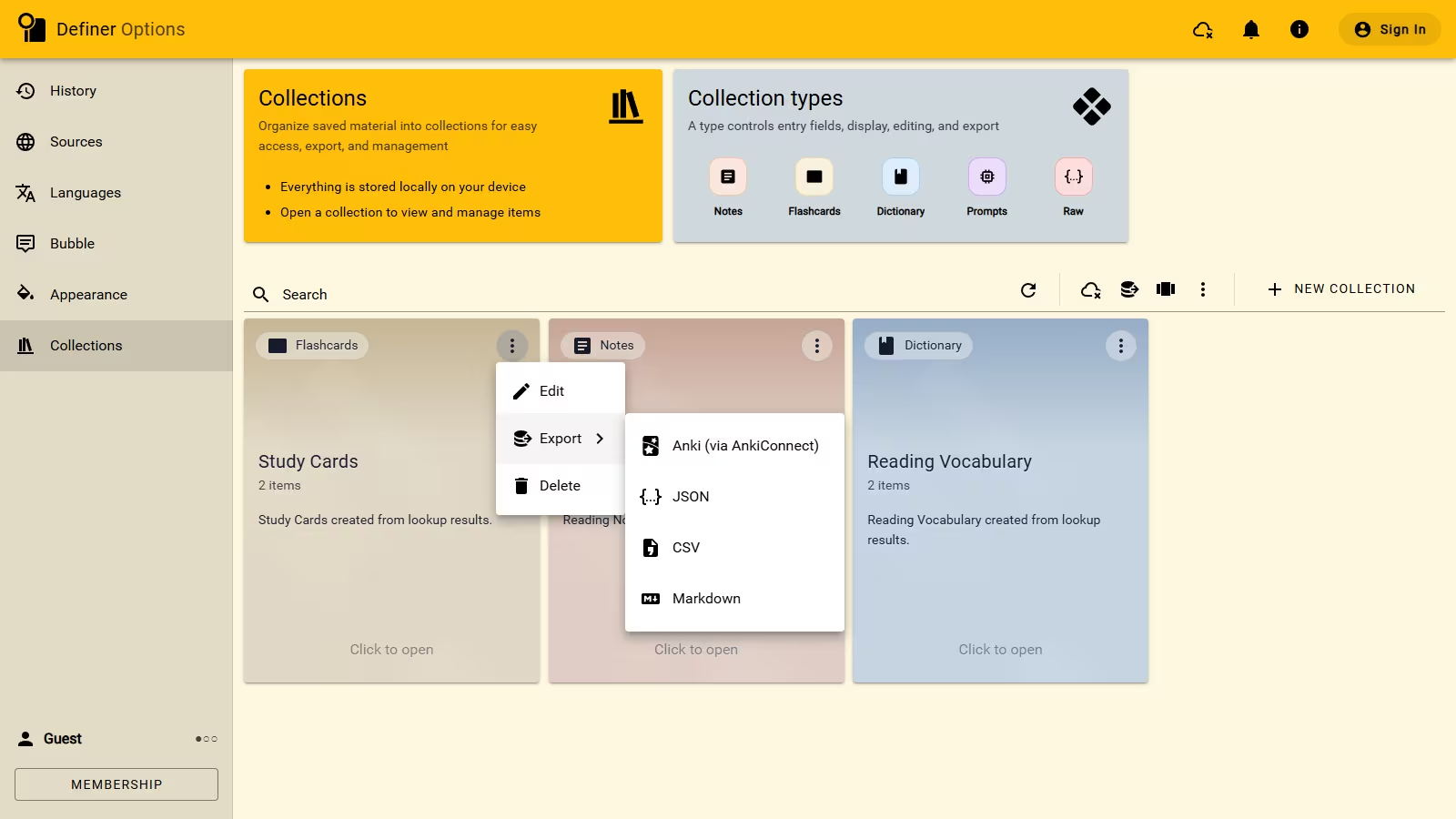
Definer supports four export targets: Anki (via AnkiConnect), CSV, JSON, and Markdown.
Choose an export target
| Target | Best fit | Result |
|---|---|---|
| Anki (via AnkiConnect) | Studying items as flashcards in desktop Anki | Cards added to the Anki deck you choose |
| CSV | Opening item data in a spreadsheet or table-based tool | One UTF-8 .csv file with one row per item |
| JSON | Keeping the richest structured representation for another tool or your own processing | One .json file containing the exported items and their Collections |
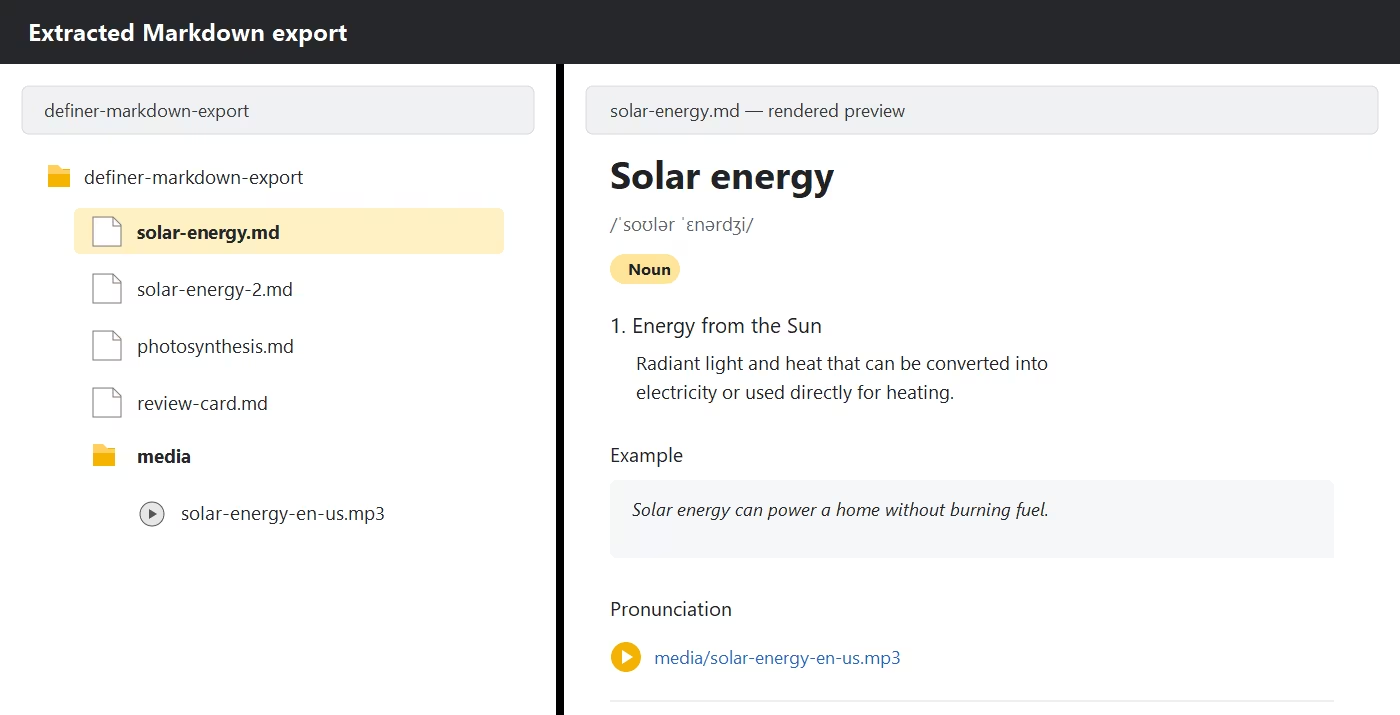
| Markdown | Reading or editing items as individual text files | One .zip archive with a .md file per item and included audio files when available |
An export file is not a Definer backup. Definer's Restore feature does not import these export formats. Use Backup and restore when you need a file that Definer can restore.
Choose what to export
Selected items or Collections take priority. When nothing is selected, Export All includes every record covered by that page, not only the current table page:
- On the Collections page, it exports the items from every Collection.
- Inside one Collection, it uses every item in that Collection.
- In History → Saves, it uses every Collection item created from a lookup.
- Inside one past lookup, it uses every save created from that lookup.
On the main Collections, Collection Items, and Saves lists, an active search or filter can hide records. Definer asks you to select the records you want or clear the search before exporting the full scope.
The fields visible in a list do not control the export. Each target uses the item's saved content, including supported Type-specific fields that are hidden from the table.
Open Export where you are working
The export control appears beside the items or lookup context it will use.
| Starting place | What you can export |
|---|---|
| Definer Options → Collections | Selected Collections, every Collection, or one Collection from its Actions → Export submenu |
| Definer Options → Collections → [Collection] → Items | Selected items, every item in the Collection, or one item from its row Export action |
| Definer Options → History → Saves | Selected lookup-created items, all lookup-created items, or one item from its row Export action |
| Definer Options → History → Lookups → [Lookup] → Overview | One saved item, or the saves shown for that lookup |
| Definer Options → History → Lookups → [Lookup] → Saves | Selected saves or every save from that lookup |
| A live lookup result, including the Bubble and Extension Window | Items created when you selected Save for that source result |
From a live result, Save first runs one or more Recipes to create Collection items. The control then becomes Export, with those newly created items ready to send to a target. If Show export menu on save is enabled under Definer Options → History → Settings → Controls → Save, the Export panel opens as soon as the save finishes.
Send items to Anki with AnkiConnect
Anki export creates cards in desktop Anki. Definer can turn Raw, Term, Card, Note, and Prompt items into Anki cards.
| Item Type | Front of the Anki card | Back of the Anki card |
|---|---|---|
| Raw | Name | Data formatted as JSON |
| Term | Term | Available meanings, examples, pronunciation, reading, and other Term details |
| Card | Front | Back |
| Note | Title or item name | Content |
| Prompt | Name | Instructions and saved Config |
Connect Definer to Anki
Before the first export:
- Install the desktop Anki app.
- In Anki, install the AnkiConnect add-on.
- Keep Anki open, then choose Anki (via AnkiConnect) from a Definer Export menu.
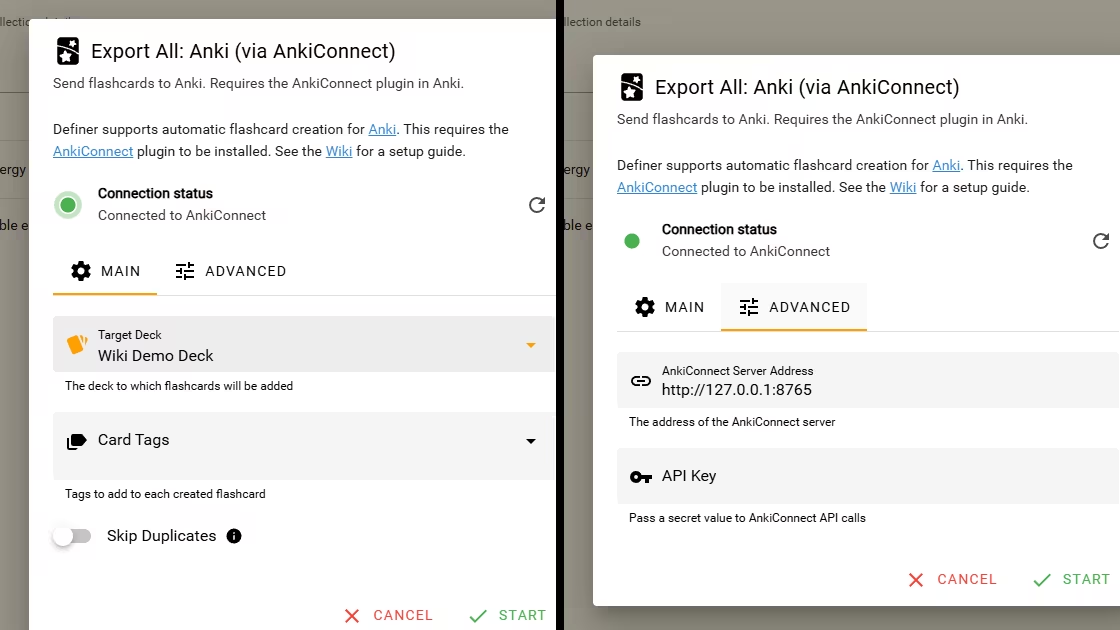
- Wait for Connected to AnkiConnect, choose Target Deck, and select Start.
The default AnkiConnect Server Address is http://127.0.0.1:8765. Change it under Advanced only when your AnkiConnect setup uses another address. If AnkiConnect requires a key, enter it under Advanced → API Key.
Control tags and duplicates
Use Card Tags to add the same Anki tags to every card in the export.
Turn on Skip Duplicates when repeating an export should not add another card with the same content in its first field. Duplicate card scope controls where AnkiConnect checks:
- Target Deck Only checks the deck selected for this export.
- Entire Collection checks across the complete Anki collection, including its other decks. Here, Collection is Anki's term, not a Definer Collection.
The compact Export panel in a live lookup shows the connection, Target Deck, and Connection settings. Use an Export menu in Collections or Saves when you need the full Card Tags, duplicate, or API key controls.
Check the result
The completed report separates processed items, added cards, skipped items, and failures. Open the target deck in Anki to review the new cards.
If Definer cannot connect, confirm that desktop Anki is open, AnkiConnect is installed, and the address matches its configuration. Select Refresh Status after correcting the setup.
CSV
CSV gives you one row per Collection item in a UTF-8 file. Definer chooses columns from the exported item Types and flattens structured values, such as Term senses and pronunciations, into readable cells. Raw Data is serialized as JSON inside its cell.
- Select the items or Collections you want.
- Open Export and choose CSV.
- Wait for Completed. The browser download starts automatically.
Open the file in a spreadsheet app or another tool that accepts CSV. A mixed-Type export can have blank cells where a column does not apply to an item.
JSON
JSON preserves the richest structured representation of the exported items. It includes Collection information and keeps nested values such as Term senses, Prompt settings, and Raw Data in structured form.
- Select the items or Collections you want.
- Open Export and choose JSON.
- Wait for Completed. The browser downloads one
.jsonfile.
Choose JSON when another tool or script needs the saved structure rather than a flat table. Definer cannot restore this file as a backup.
Markdown
Markdown creates a ZIP archive even when you export one item. Inside it, each item has its own .md file. Items with the same filename receive a numbered suffix so that both files remain in the archive.
The Markdown reflects the item Type:
- Terms become dictionary-style pages with their available senses, pronunciation, reading, and components.
- Cards separate Front and Back, converting rich content to Markdown where possible.
- Notes contain their title and content.
- Prompts include their template in a Liquid code block and any saved Config.
- Raw items include their Data in a JSON code block.
When a Term has pronunciation audio, Definer adds available recordings under a media folder and points the Markdown to those files. If a recording cannot be included, its original audio link can remain in the item.
- Select the items or Collections you want.
- Open Export and choose Markdown.
- Wait for Completed, then open the downloaded
.ziparchive.