Use Liquid in Recipes
In a Recipe, Liquid lets a field use values that change with the current lookup and Source result. Plain text still works, and you do not need Liquid for every Recipe.
This article covers the values available in Recipe fields. Other Definer editors that support Liquid may provide different values.
You can follow the first example in the Recipe editor you already have open. If you want a complete Recipe-building walkthrough first, use Create or edit a Recipe.
Add the lookup text to a field
This example adds the current lookup text to Category, a field available for every Recipe output Type.
Preview the change
Continue in the Recipe editor that brought you here. To open another custom Recipe, use Definer Options → History → Recipes → [Recipe] → Edit.
In Visual Editor, find Category and enter:
liquidLookup: {{ query }}Enter a sample lookup in Query.
Confirm that Preview shows
Lookup:followed by the sample text.
Save the change
- For a custom Recipe, select Save.
- For a built-in Recipe, add
- customto Recipe Name, then select Save as copy. The built-in stays unchanged.
Try it
Use a live result from the Source this Recipe belongs to. If Choose Recipes is not available, turn on the Recipe picker first.
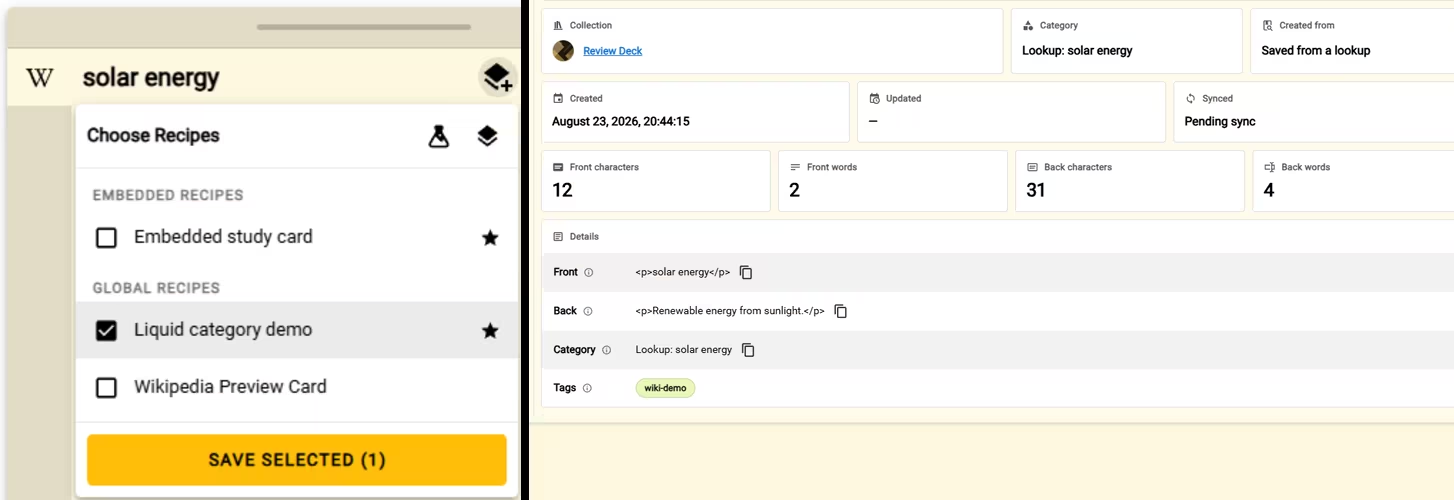
- Open Choose Recipes, select the Recipe you saved, and select Save selected (1).
- Open Export → Saves. Expand the newest item and confirm that Category starts with
Lookup:.
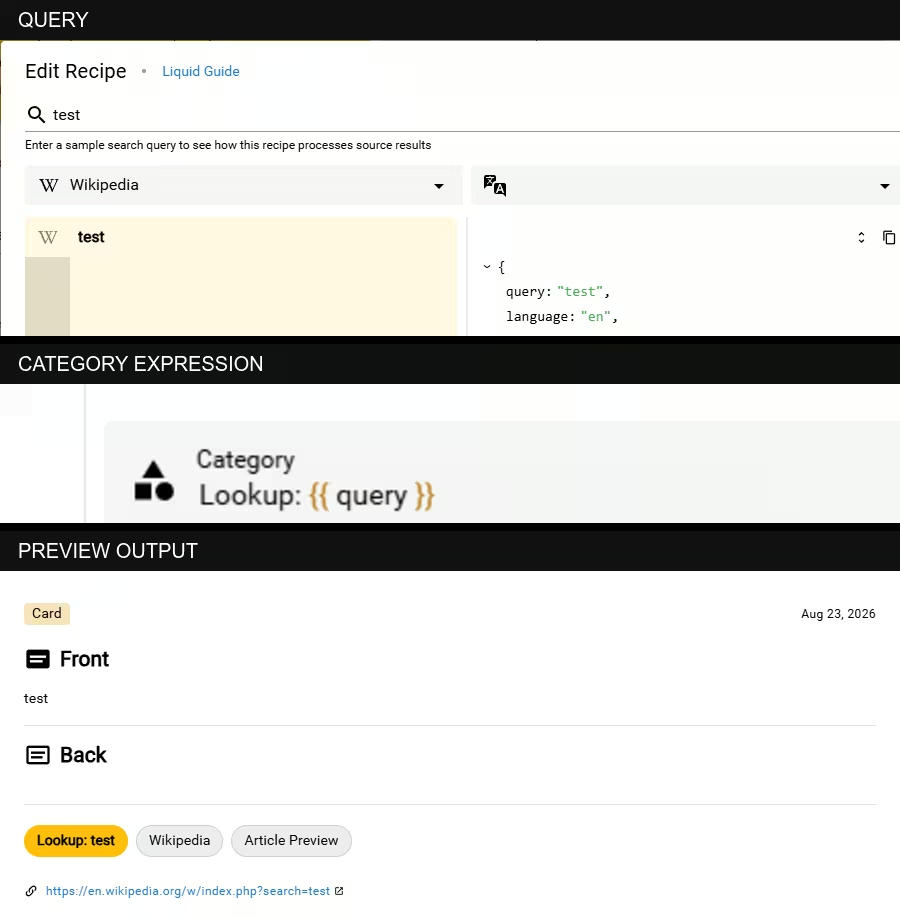
The parts inside {{ and }} form a Liquid expression. Here, query is the text used for the lookup.
Find values in the current data
The editor's data panel shows values available for the current Preview. Follow the visible path from the top level to the value you want:
queryis the text used for the lookup.languageis the language code for the current result.datacontains the information returned by the current Source.sourcedescribes the current Source.resultdescribes the current source result.lookupcontains information about the lookup as a whole.
For example, a title inside data becomes data.title in Liquid. If a value is nested more deeply, join each level with a dot.
Transform or replace a value
Filters follow a value after a vertical bar (|). They change the output without changing the source result.
| Goal | Example |
|---|---|
| Use a fallback in a plain-text field | {{ data.title | default: query }} |
| Use uppercase text | {{ data.title | upcase }} |
| Use lowercase text | {{ data.title | downcase }} |
| Show a language name | {{ language | language_label }} |
| Remove HTML before inserting text into rich content | {{ data.extract | strip_html | escape }} |
| Show HTML special characters as text in rich content | {{ data.title | escape }} |
Liquid output is not escaped automatically. In a rich-content field, escape displays HTML special characters as text. Use strip_html first when you also want to remove HTML tags. Plain-text fields such as a Note title do not need HTML escaping.
See Liquid filters for URL encoding and other filters that are especially useful in Definer.
Show content conditionally
Use if when a field should change depending on whether a value is present. This example uses the custom Wikipedia note from Create a blank Recipe.
Open Definer Options → History → Recipes → Wikipedia note → Edit. In Visual Editor, open Content and replace the Content mapping with:
{% if data.extract %}
{{ data.extract | strip_html | escape }}
{% else %}
No article summary was returned.
{% endif %}
Enter photosynthesis in Query. With an article summary, Preview shows the plain-text summary. Without one, it shows No article summary was returned. Select Save, then run the Recipe to create an item when you want to keep the change.
Repeat content from a list
Some Wikipedia results include a table of contents in data.toc. In the same Wikipedia note Recipe, replace the Content mapping with this example to keep the first three section names:
{% if data.toc.first %}
Sections:
{% for item in data.toc limit: 3 %}
- {{ item.text | escape }}
{% endfor %}
{% endif %}
Enter photosynthesis in Query and check Preview. If the current result has no table of contents, the block produces no output. Check the data panel before using a list path from another Source. Select Save, then run the Recipe to create an item when you want to keep the change.
Fix a Liquid template
Preview is empty
Check that the value exists in the current data panel and that its path is spelled correctly. A path from one Source may not exist in another.
Preview reports a syntax error
Check matching {{ }} or {% %} markers, filter names, and closing tags such as {% endif %} or {% endfor %}.
Rich content displays unexpected HTML
Liquid does not escape output automatically. Add escape, or use strip_html | escape when the source value contains HTML that you do not want to keep.
After a repair, check Preview, select Save, run the Recipe, and inspect the created item.
LiquidJS reference
Definer uses LiquidJS and adds its own lookup values and filters. For syntax beyond the common tasks above, see the official LiquidJS guides: