Extension Window
The Extension Window opens from the Definer icon in your browser toolbar. Use it when you want to type a word, phrase, or question instead of starting with selected page text.
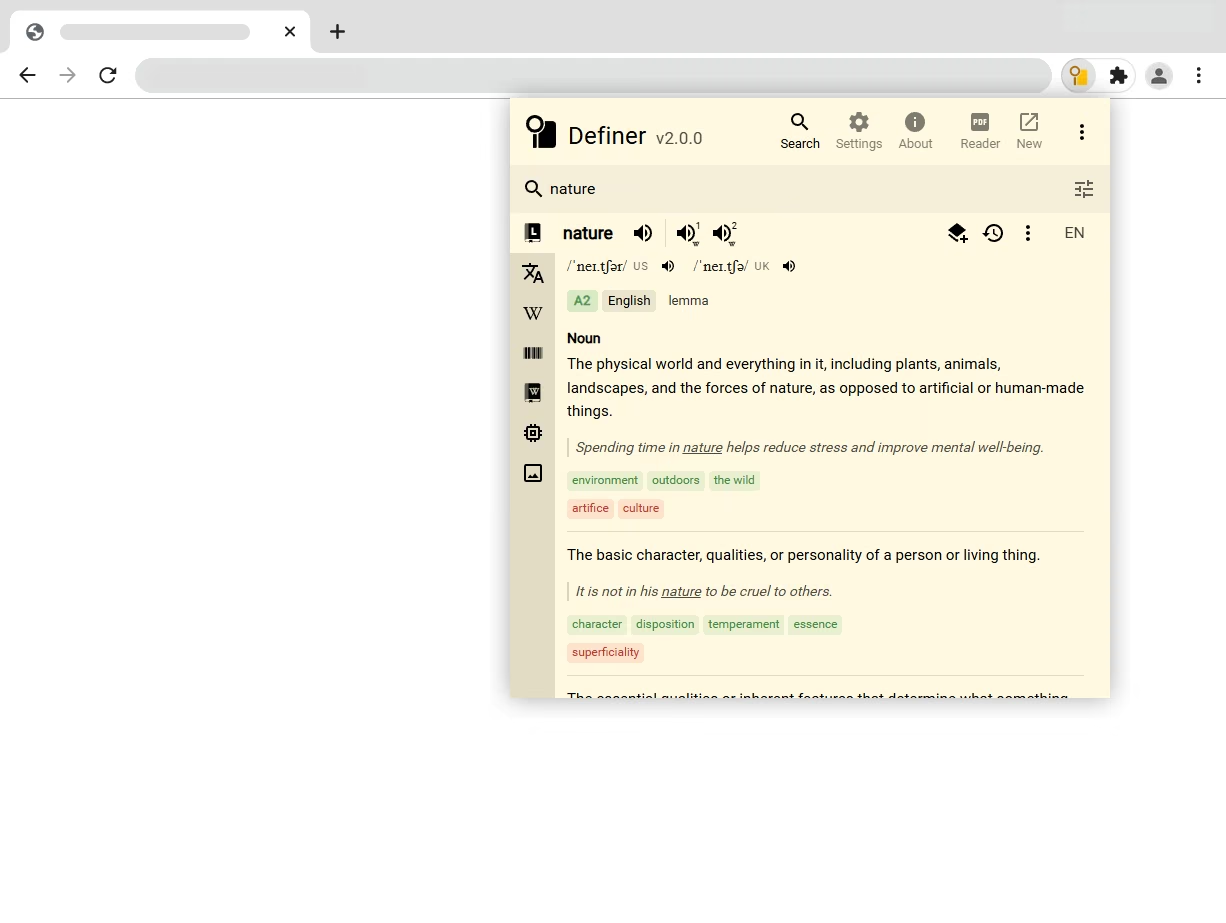
If text is already selected on the page, opening the Extension Window uses that selection for the lookup.
Use the pages
The tabs at the top separate lookups, quick settings, and information about Definer.
Search
Enter a word, phrase, or question in the search bar. The result uses the same source icons, language choices, Save, History, Recent, Previous, Next, and Routine controls as Definer's other result surfaces. See Lookup results for these shared controls.
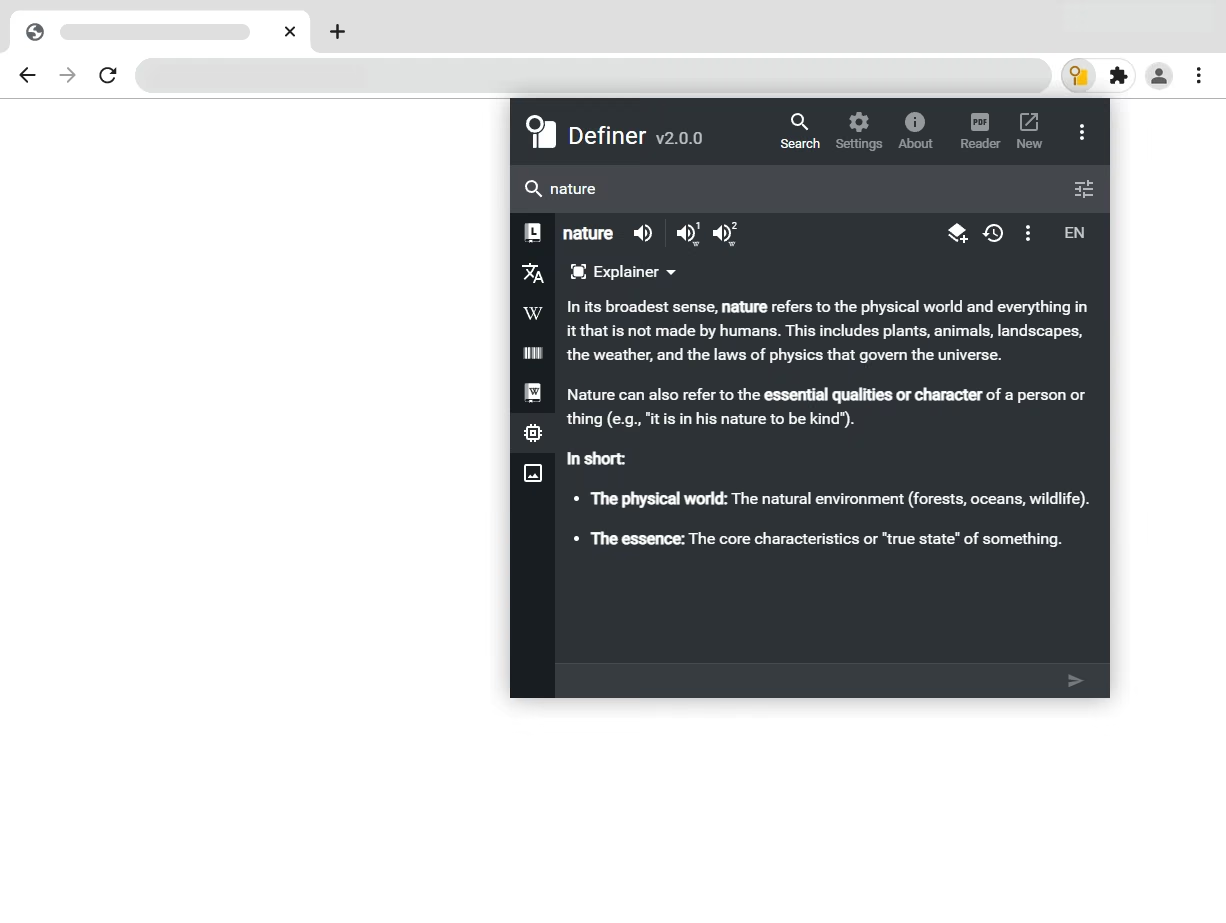
Select the tuning icon to open Search Preferences.
Autosend
- Enabled: Get results immediately as you finish typing (default)
- Disabled: Press "Enter" to submit your search
Keyboard Shortcut
You can open the Extension Window quickly using the keyboard shortcut. By default, it's set to "Ctrl + Alt + G".
Settings
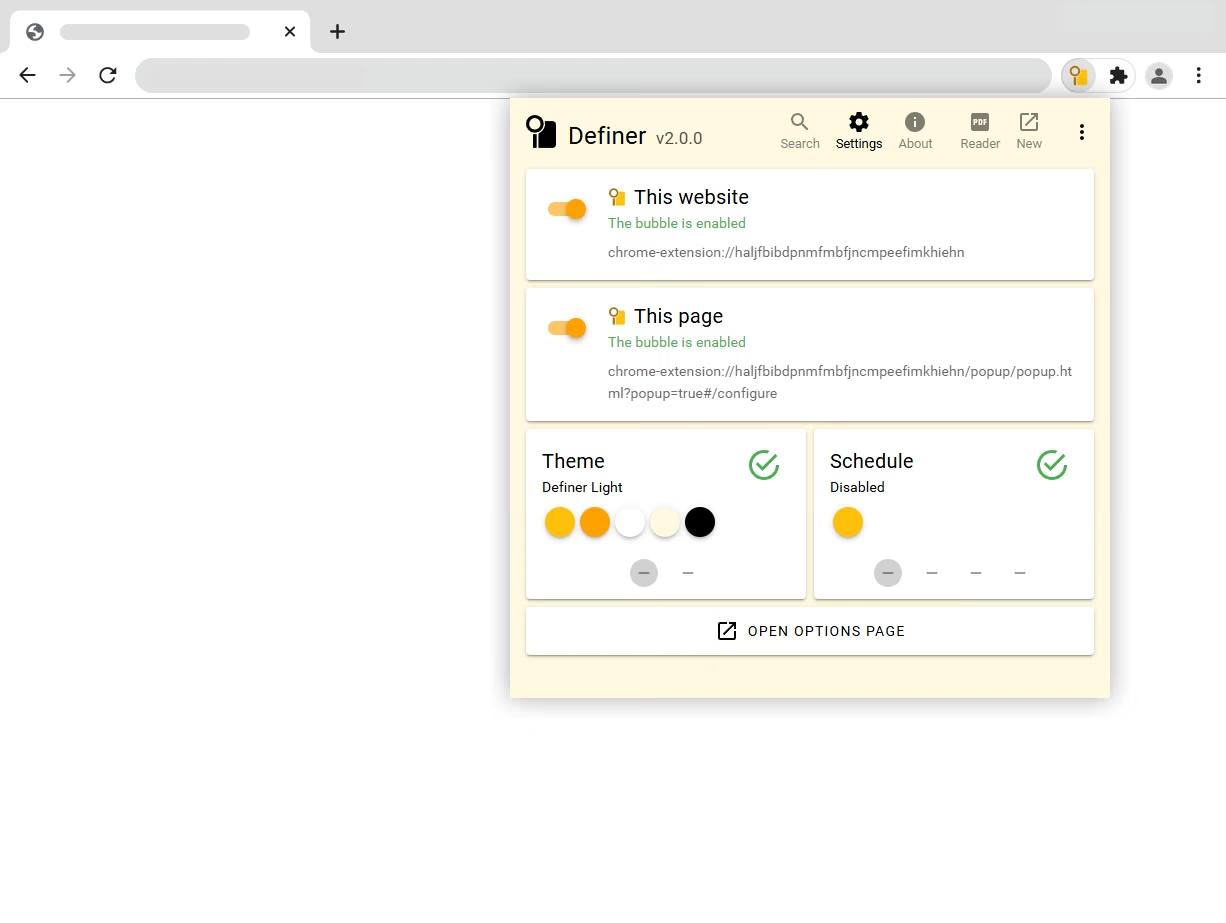
The Settings page provides convenient access to frequently used customization options without needing to visit the full options page.
URL Rules
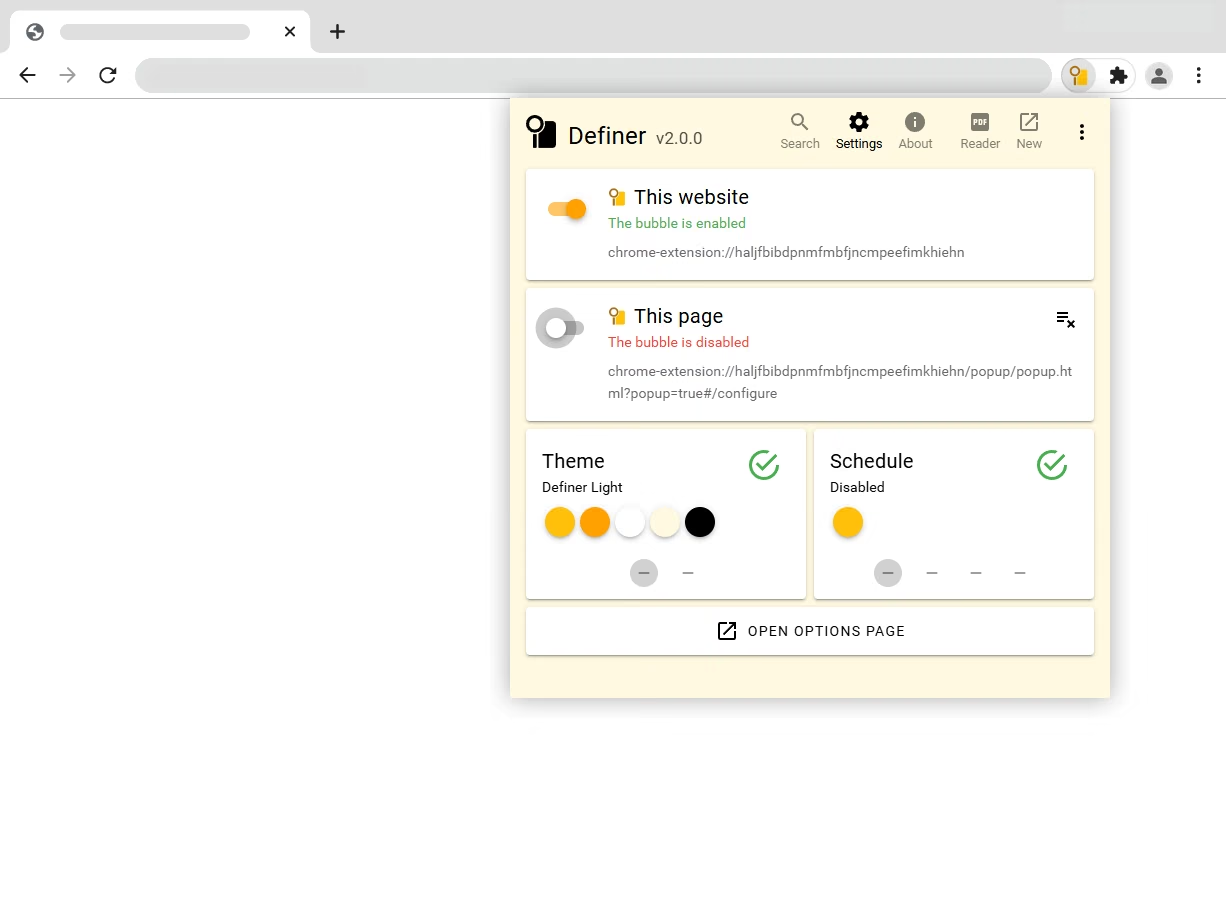
Adjust Bubble behavior for the page currently open in the browser. You can turn the Bubble on or off for:
- The entire domain you're browsing
- Just the specific page you're currently viewing
Themes and Schedules
Quickly change the current theme and schedule with just a few clicks:
- Theme: Change visual appearance of Definer
- Schedule: Set up automatic theme switching based on time of day (perfect for transitioning between light and dark modes)
Full Options Page
Need more advanced customization? Click OPEN OPTIONS PAGE button to launch Definer Options in a new tab, where you'll find all available settings.
About
The About page provides information about Definer and its parent project Lumetrium.
Detached mode
Detached mode lets you free the Extension Window from the browser toolbar so you can resize it and position it anywhere on your screen. This is useful if you want to keep the extension window open while working on other tasks or if you prefer a more flexible layout.
To use detached mode:
- Open the Extension Window by clicking the Definer icon
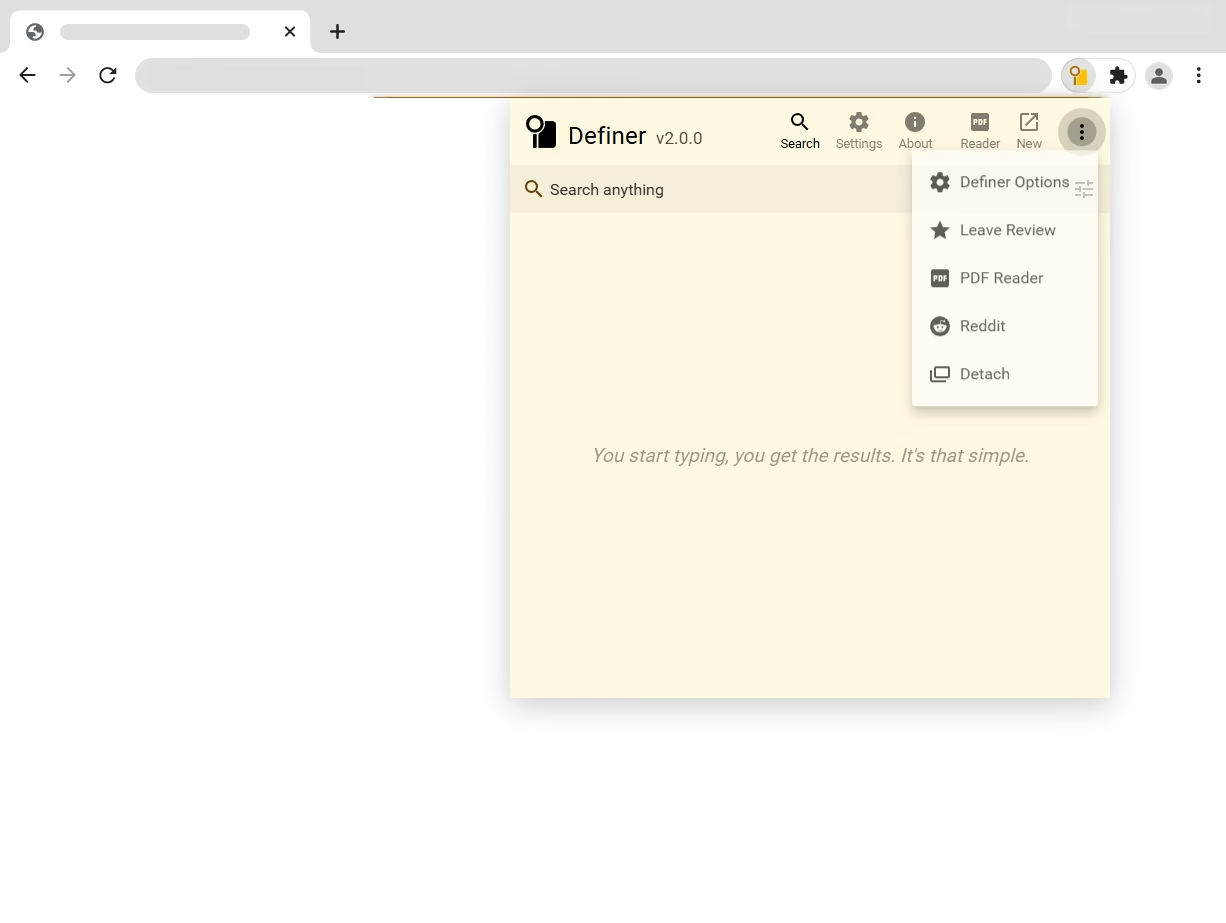
- Click the three vertical dots (⋮) in the top-right corner
- Select "Detach" from the dropdown menu
Once detached, you can move, resize, and reference the window while working elsewhere on your screen.
PDF Reader
Select Reader in the Extension Window header to open Definer's PDF Reader. You can also open the three-dot menu shown above and select PDF Reader. The reader accepts a local file or a PDF web address.
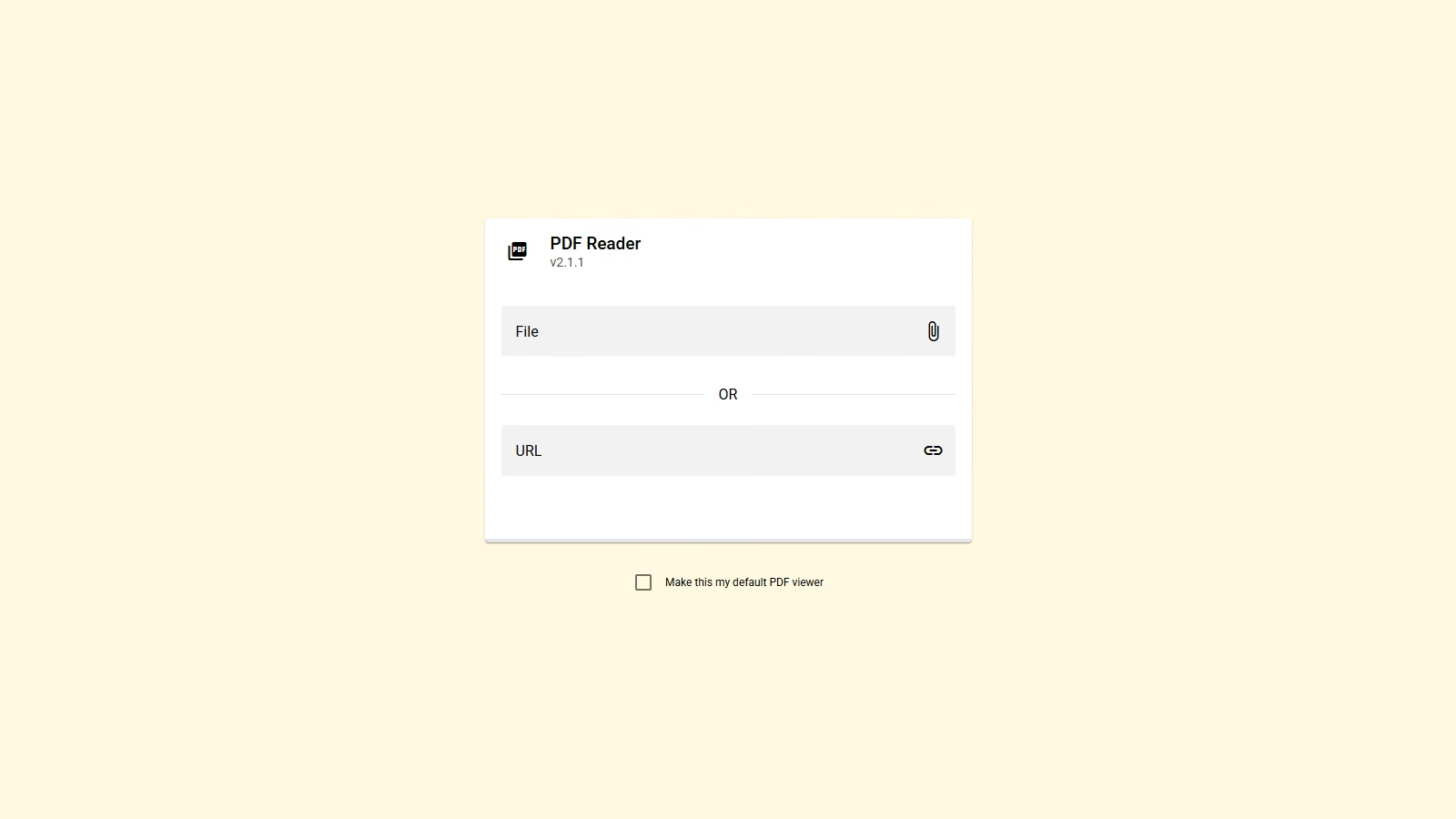
For more details about working with PDFs in Definer, visit the PDF Reader article.
Extension Window vs Bubble
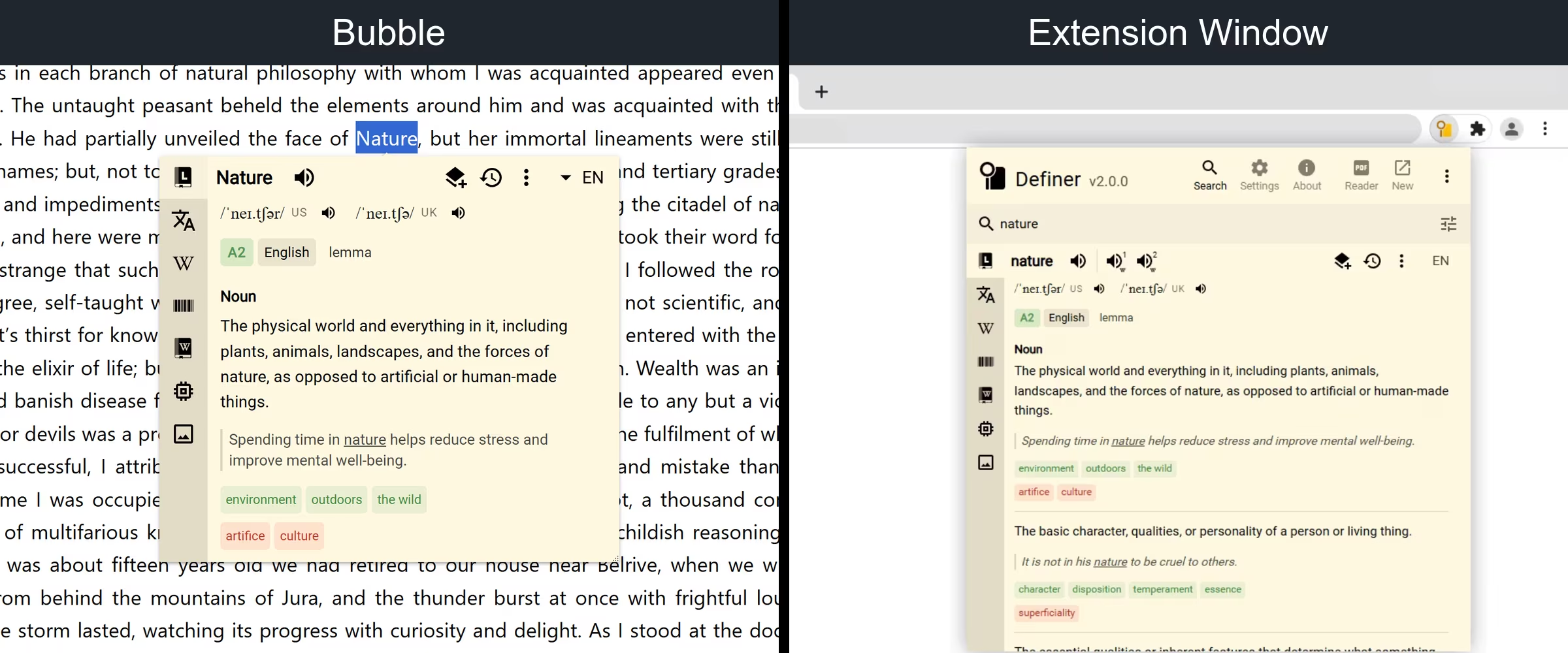
Since both the Popup Bubble and the Extension Window are "popping up" in some way, it's easy to confuse them. However, they serve different purposes and have different functionalities:
| Bubble | Extension Window |
|---|---|
| Appears over text highlighted with mouse | Opens from browser toolbar |
| Designed for quick, contextual lookups on select | Lets you type your query directly |
| Floats above your content | Fixed position in your browser |
| Focused on delivering immediate information | Offers quick customization and management |