Using Definer on Android
While Definer is a desktop browser extension, you can still use it on your Android device. This requires a mobile browser that supports installation of desktop extensions.
Currently, the best options are Firefox for Android, Microsoft Edge Canary, or Lemur Browser. Firefox for Android is recommended because it can install Definer directly from Mozilla Add-ons.
Firefox for Android (Recommended)
Firefox for Android is the easiest way to install Definer on Android.
1. Install Firefox for Android
First, install Firefox for Android from the Google Play Store.
2. Install Definer
- Open Firefox for Android and navigate to Definer on Mozilla Add-ons.
- Tap Add to Firefox.
- Confirm the installation when Firefox asks.
That's it! Once installation is complete, the Definer onboarding page should open automatically. If it doesn't, open the browser menu, tap Add-ons, select Definer, and open its settings.
Microsoft Edge
Microsoft is gradually rolling out extension support on its Android browser. The easiest Microsoft Edge option is Edge Canary, the development version of the browser. Installing extensions on the stable version of Edge is possible but is a significantly more technical process.
Edge Canary
Definer is officially available on Microsoft Edge Add-ons, and Edge Canary can install it directly by its ID.
What is Edge Canary?
Edge Canary is a testing and development version of the Edge browser. As such, it gets new features first, but may occasionally be less stable than the regular version.
1. Install Edge Canary
First, install Edge Canary from the Google Play Store.
2. Enable Developer Options
To install extensions from outside the curated list, you first need to enable developer options within the browser.
- Open Edge Canary and navigate to
Menu (...)>Settings>About Microsoft Edge. - Tap on the
Build number(e.g.,128.0.2655.0) seven times in a row. - You'll see a "Developer options are now enabled!" confirmation.
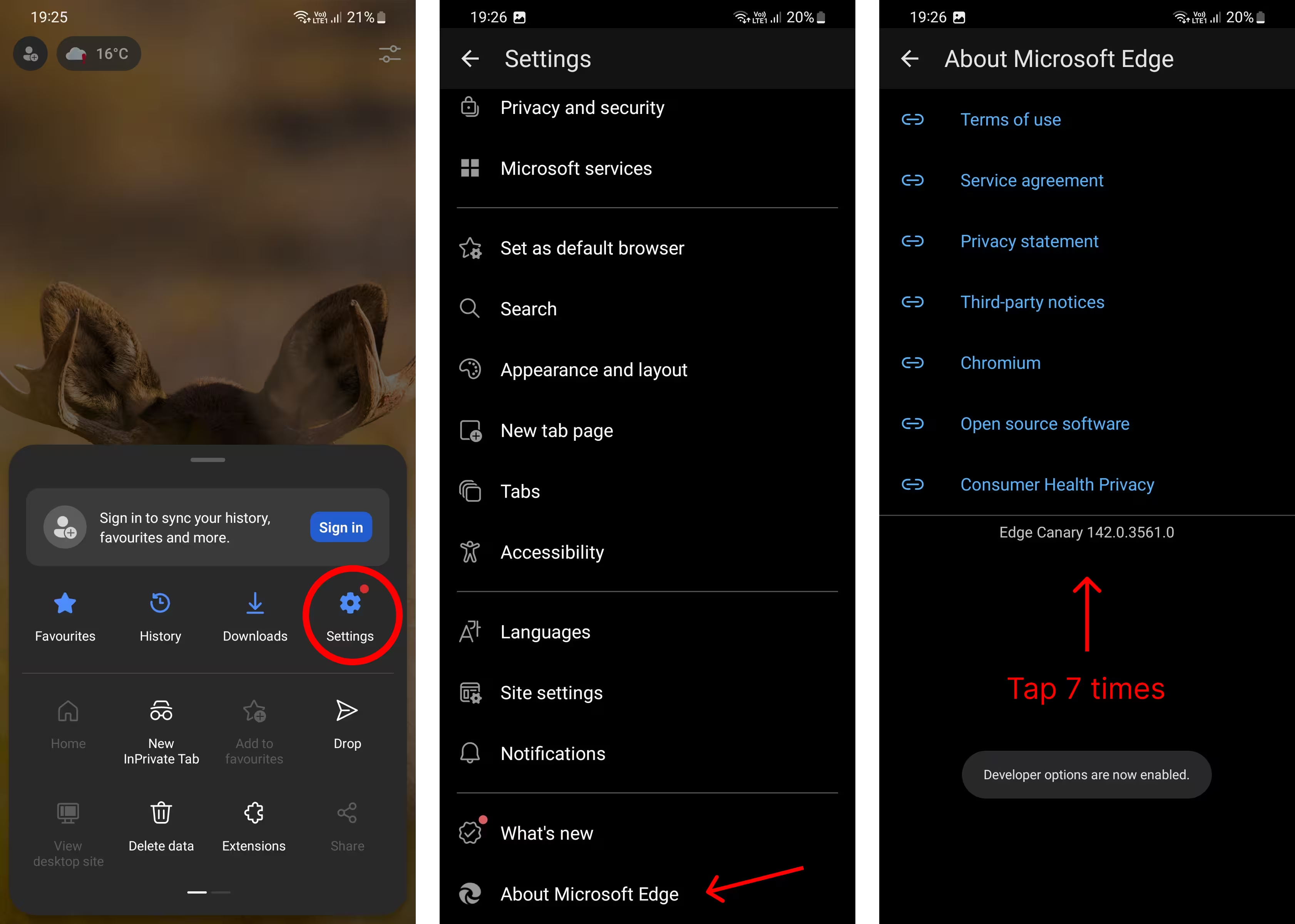
3. Install Definer
- Go back to
Settingsand open the newDeveloper Optionsmenu. - Select
Extension install by ID. - Paste the following ID into the text field (QR Code):
bmjggedeimdncfelfdcphnmbknkmfffp- Tap
OK. Edge will find and install Definer.
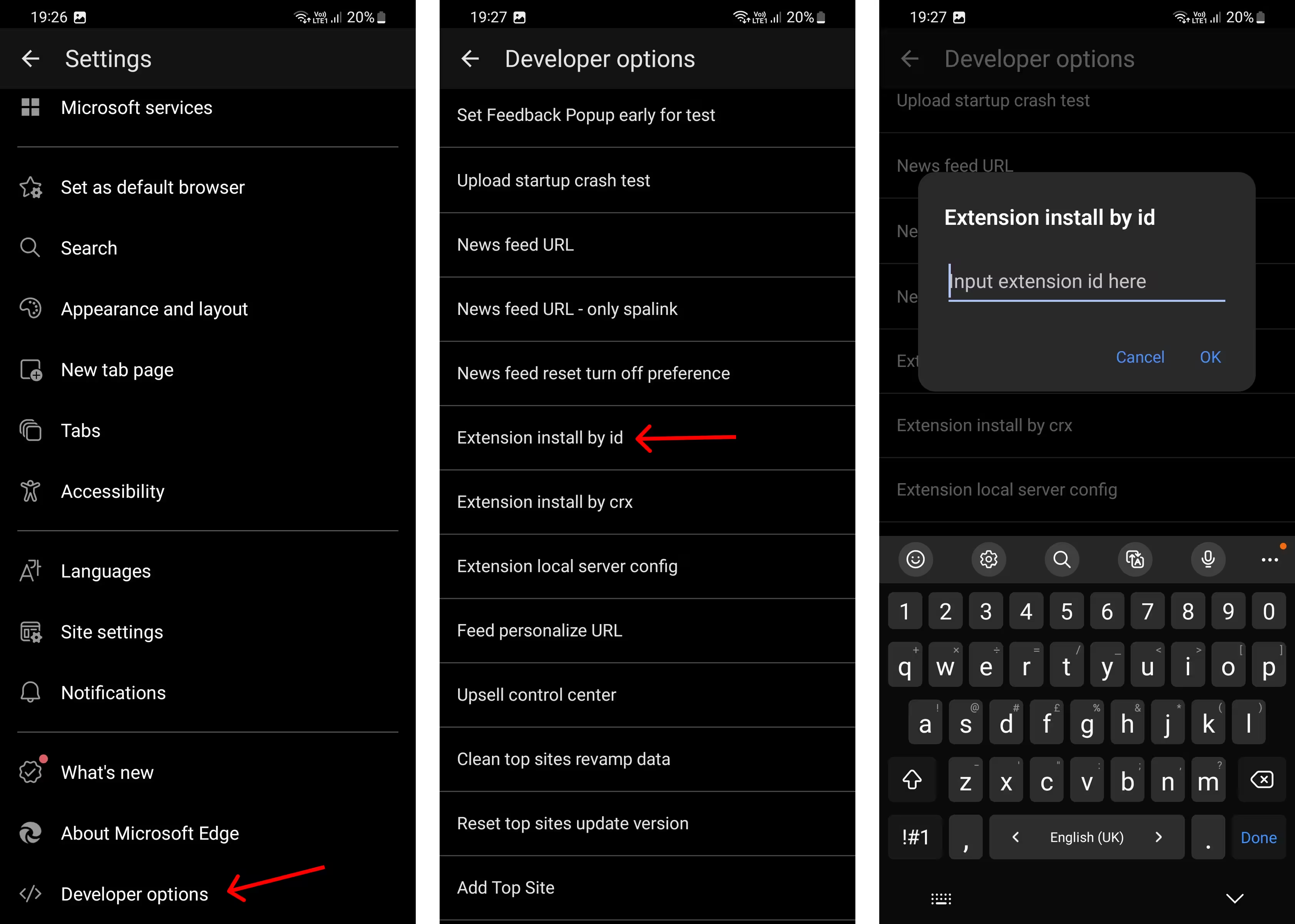
Once installation is complete, the Definer onboarding page should open automatically. If it doesn't, you can access extension settings by going to Menu (...) > Extensions, tapping on Definer, and then tapping Settings (cog icon).
Edge Stable
It's possible to install extensions on the regular, stable version of Microsoft Edge for Android as well. However, it requires connecting your phone to a computer and using developer tools, which is a bit more technical.
If you're comfortable with that, see this community guide:
Lemur Browser
Lemur Browser is an Android browser specifically built to provide a desktop-like extension experience on mobile. Setup is simpler than with Edge Canary.
1. Install Lemur Browser
Download and install Lemur Browser from the Google Play Store.
2. Install Definer
- Open Lemur Browser and navigate to Definer's page on the Chrome Web Store.
- Tap the "Add to Chrome" or "Get" button on the store page.
That's it! Lemur will install the extension, and you'll be ready to use Definer. You can manage the extension and access its settings through the browser's main menu.
What's Next?
Once you have Definer installed on your Android browser, it works just like it does on desktop. Simply highlight any text to get instant definitions, translations, and more. Mobile experience might feel a bit different due to touch interfaces, but all core functionality remains the same.