Use Definer with PDFs
Using translation and dictionary extensions with PDFs can be tricky since most PDF readers don't play well with browser extensions. Fortunately, Definer offers multiple solutions to help you use its features on PDF documents.
Options for using Definer with PDFs
1. Built-in PDF Reader
The simplest solution is Definer's own PDF Reader.
This built-in reader is fully compatible with all of Definer's features.
To access it:
- Select Definer's icon in your browser toolbar.
- Open the three-dot menu.
- Select PDF Reader.
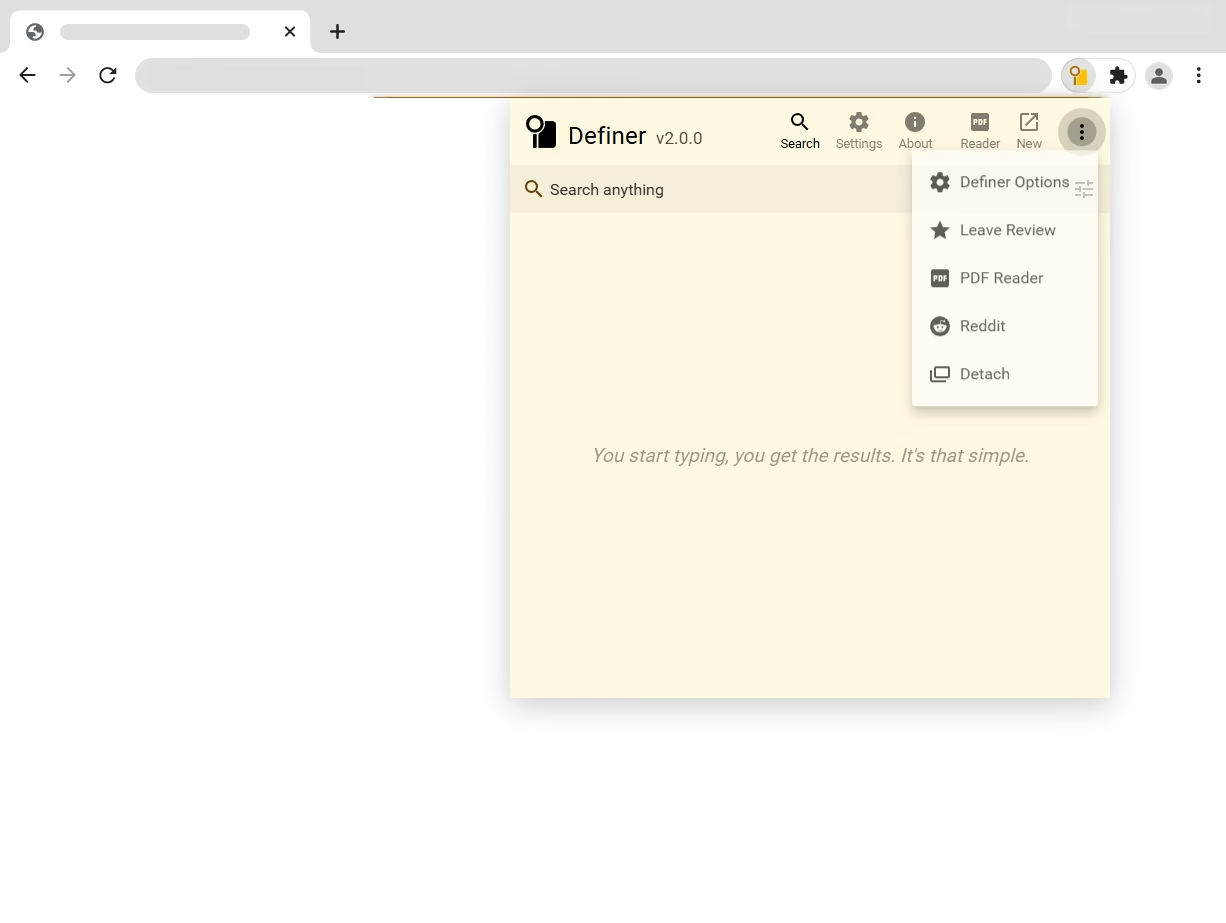
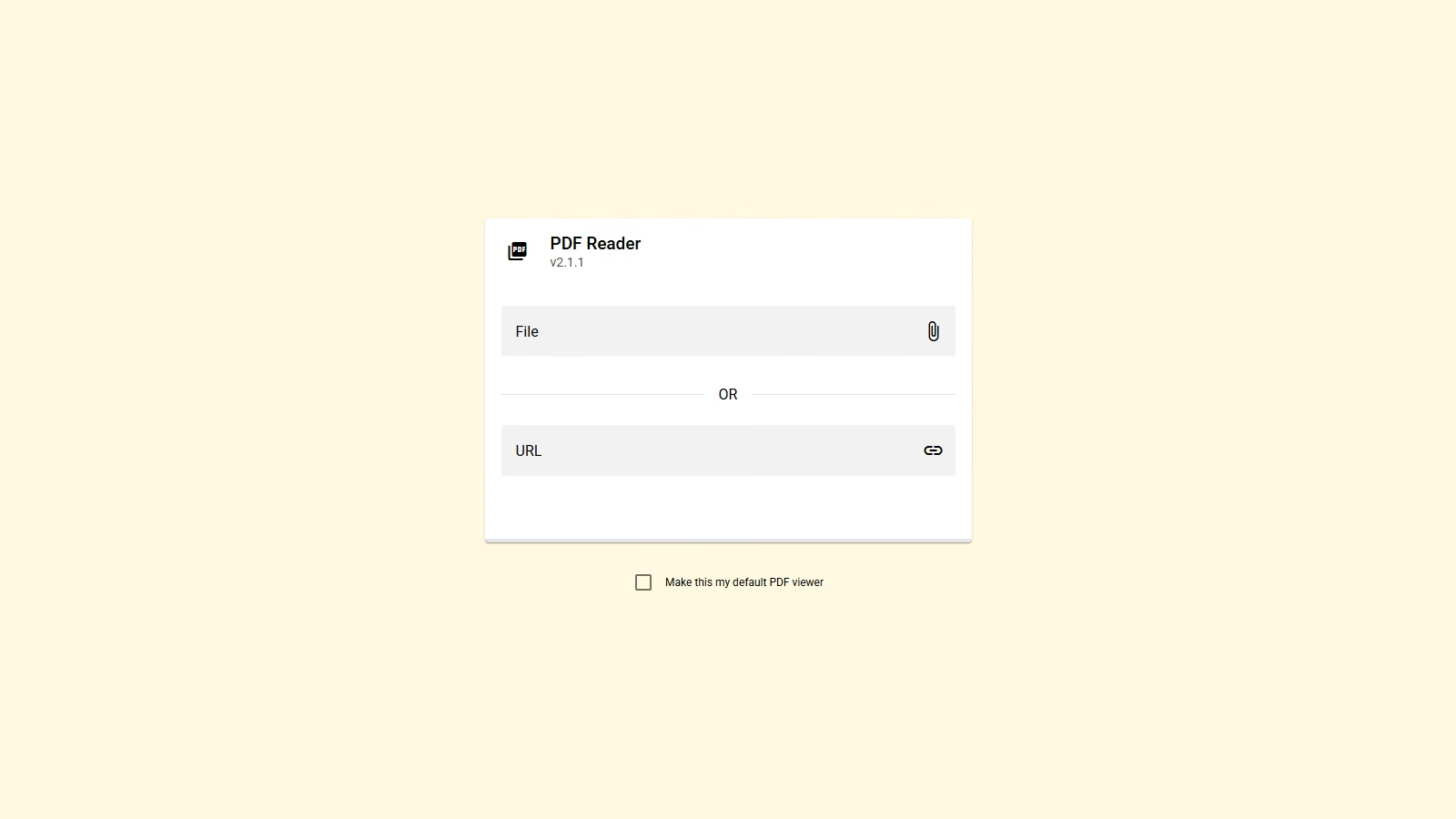
You have several options for opening PDFs in the built-in reader:
Open a PDF file from your computer
Select File and choose a PDF file from your device. This is a simple and reliable method for accessing locally stored PDFs.
Open a PDF from a web address
Enter the PDF address under URL. This allows you to open files stored online without downloading them first. The file loads and displays automatically once you finish typing the URL.
Open PDFs directly from the web
When a PDF is open in the browser, select Definer's toolbar icon and then select Reader. Definer passes the current PDF address to its integrated reader. For a PDF stored on your device, use File in the reader instead.
How it looks
The built-in PDF reader follows the theme you select in Definer's settings.
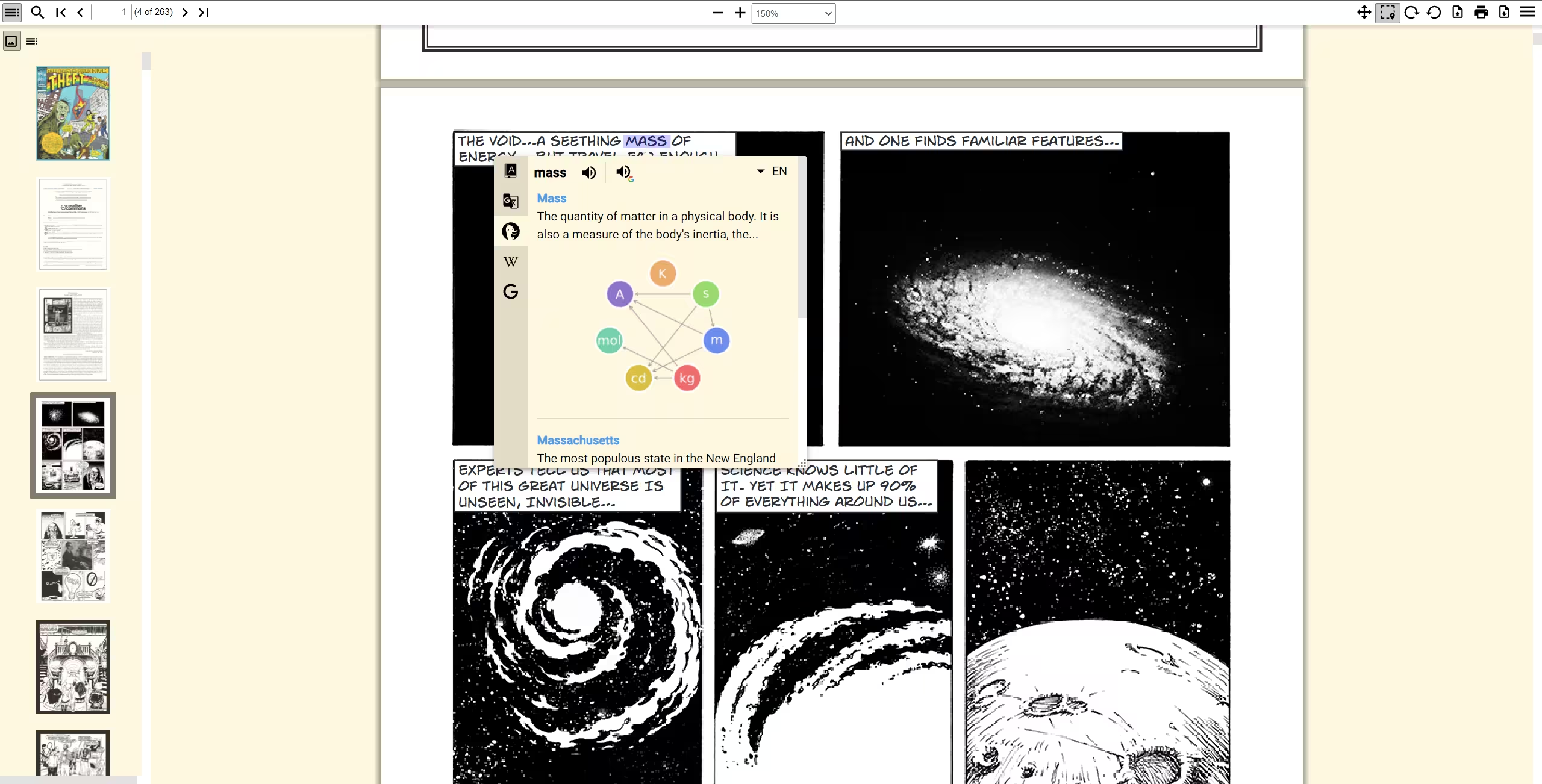 Light theme
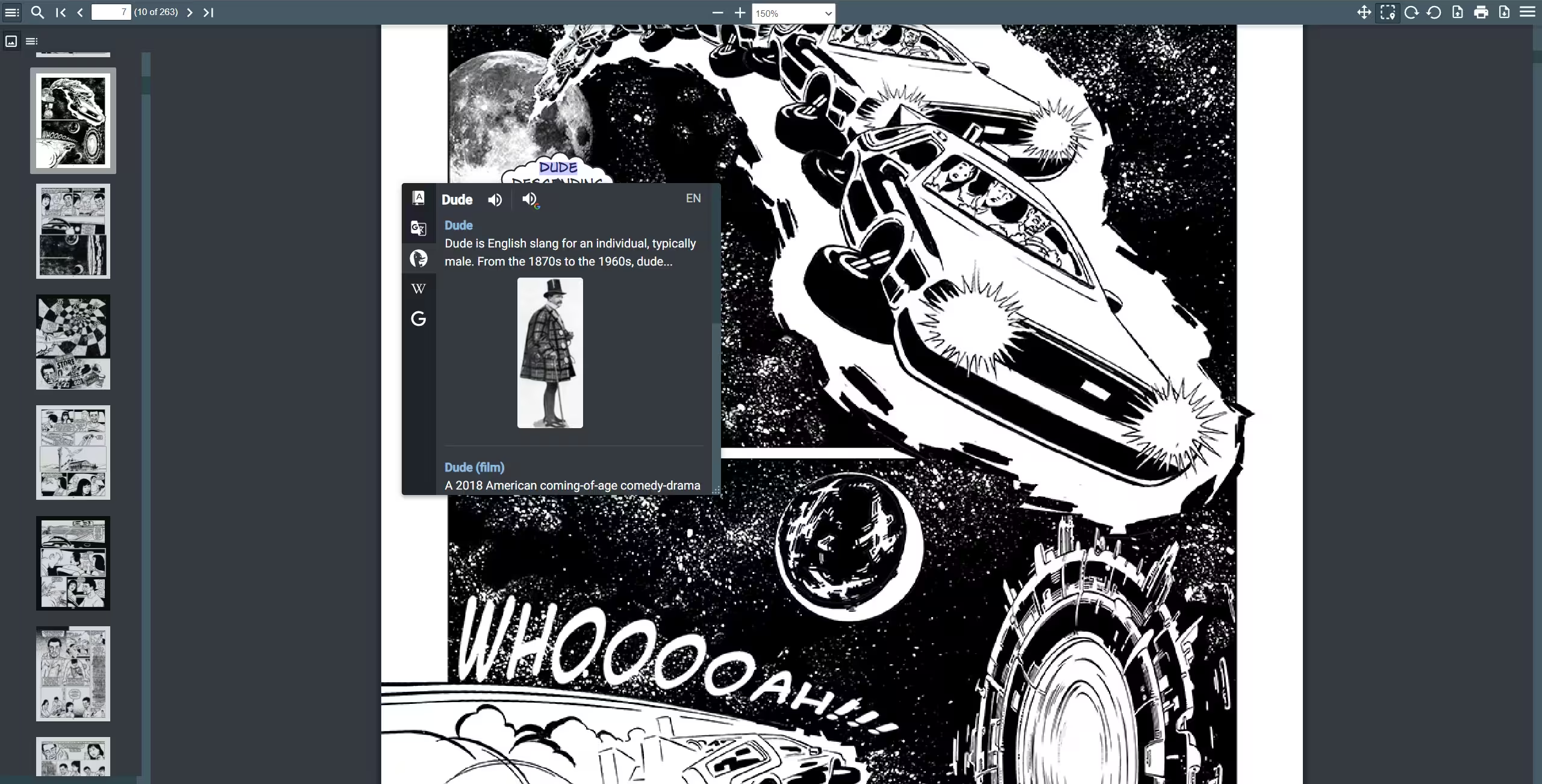 Dark theme
2. Native PDF viewer support (Chromium browsers only)
Definer also works within default PDF viewers in Chromium-based browsers.
Supported browsers
Definer works in native PDF readers of Google Chrome, Microsoft Edge, Brave, Opera, Vivaldi, Yandex Browser, Zen Browser, and other Chromium-based browsers.
One limitation is that only right-click menu activation works (not double-click or other triggers).
To use it:
- Select text in PDF
- Right-click and choose "Define [text]" from the context menu
- A floating bubble will appear, allowing you to position the popup anywhere on screen
Watch a quick demonstration:
3. Compatible third-party PDF readers
Some online PDF viewers render documents in a way that works with Definer:
- PDFescape: After uploading your PDF, enable "Select text" mode in the top toolbar to use Definer's features.
4. Convert PDF to EPUB
If the above options don't work for your needs:
- Convert your PDF to EPUB format using an online converter like CloudConvert
- Open the EPUB file in reader.ttsu.app, which is a free e-book reader that fully supports Definer
Note that conversion quality depends on the PDF structure – documents with complex layouts might not convert cleanly.
Choose the method that works best for your specific PDF and reading preferences!