Custom
The Custom source displays a website chosen from the lookup text. Use it for a dictionary, translator, search tool, or reference website that is not already available as a built-in Source.
Create a Custom source
Start with a working search address from the website you want to use. Definer's Constructor can replace the example search term with the text from each lookup.
- Visit the website and search for an example word or phrase.
- Copy the result page's address.
- Open Definer Options → Sources → New source → Constructor and paste the address into Website URL.
- Choose Custom, then select Use suggestion when Suggested URL appears.
- Enter a different Test query. When the expected page appears in Preview, select Add source.
The suggested address safely inserts the lookup text into the website's search address. For advanced customization, see Lookup variables.
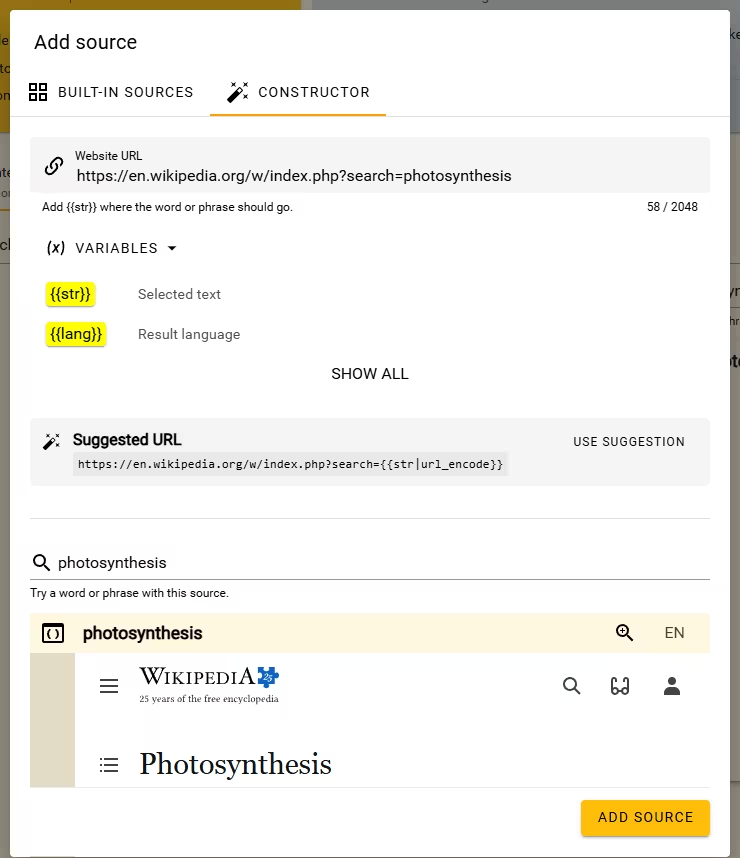
After applying the suggestion, try another query and confirm that the Preview opens the matching page.
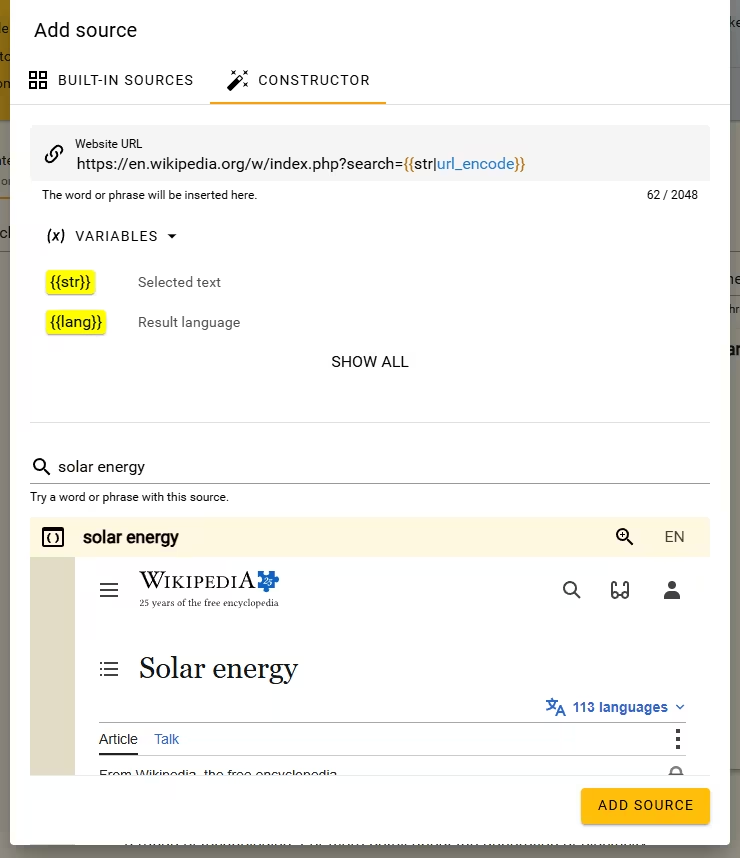
The Source is added to Content sources and works like the other Sources in a lookup. If the Preview remains blank or opens the wrong page, copy a normal result-page address from the website and try the Constructor again.
Adjust the source
Open Definer Options → Sources → [custom source] → Settings when you want to change its URL, appearance, or Routines.
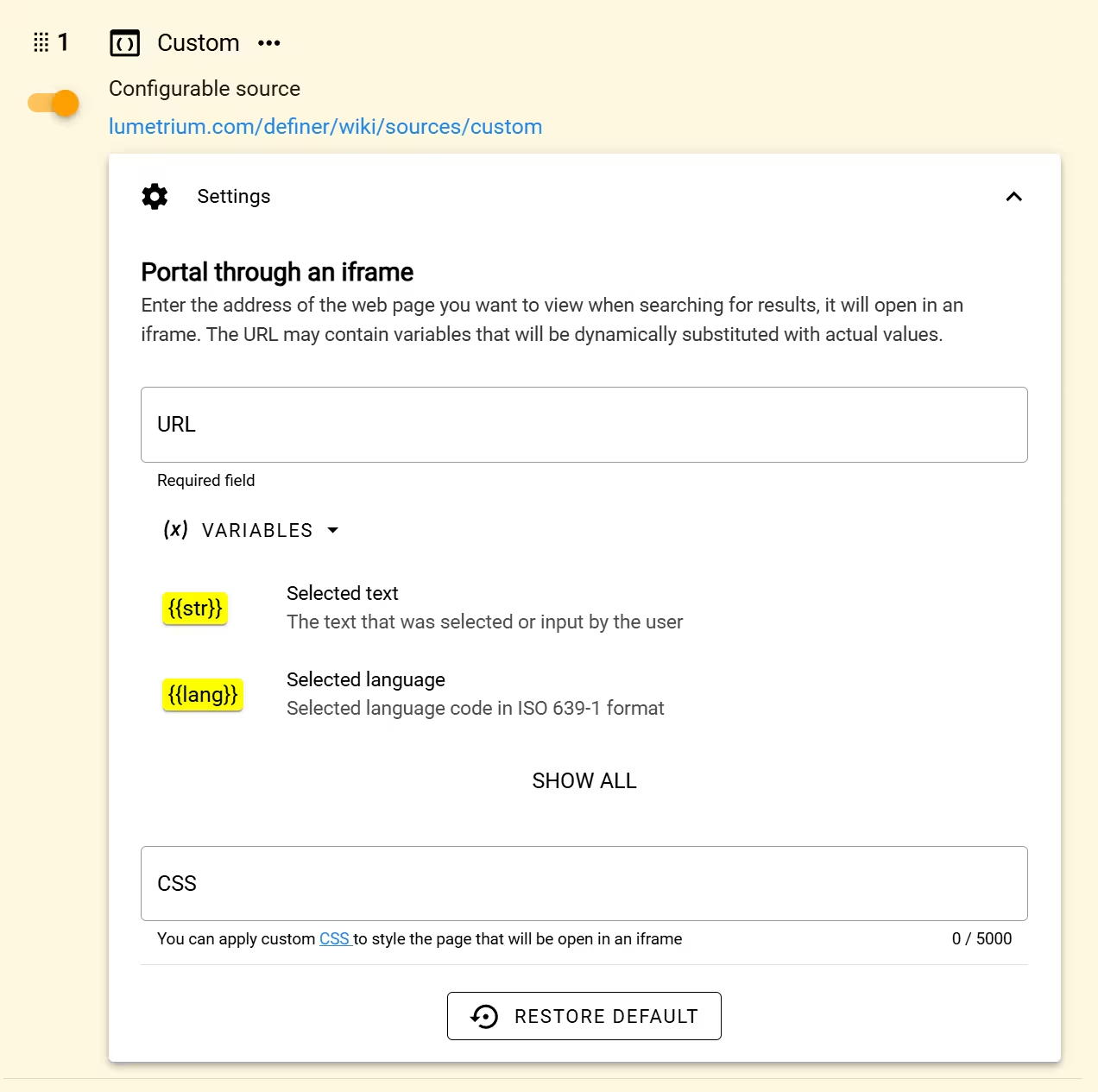
Change the URL
The URL field controls which page opens for each lookup. The Constructor creates the ordinary lookup-text expression for you. Use Lookup variables when the address should also use the page title, surrounding sentence, language, or another available value.
CSS
CSS, short for Cascading Style Sheets, is what styles webpages. It allows you to customize how your target website appears inside Definer. CSS can keep the result focused and readable across the Bubble, Extension Window, and other result surfaces.
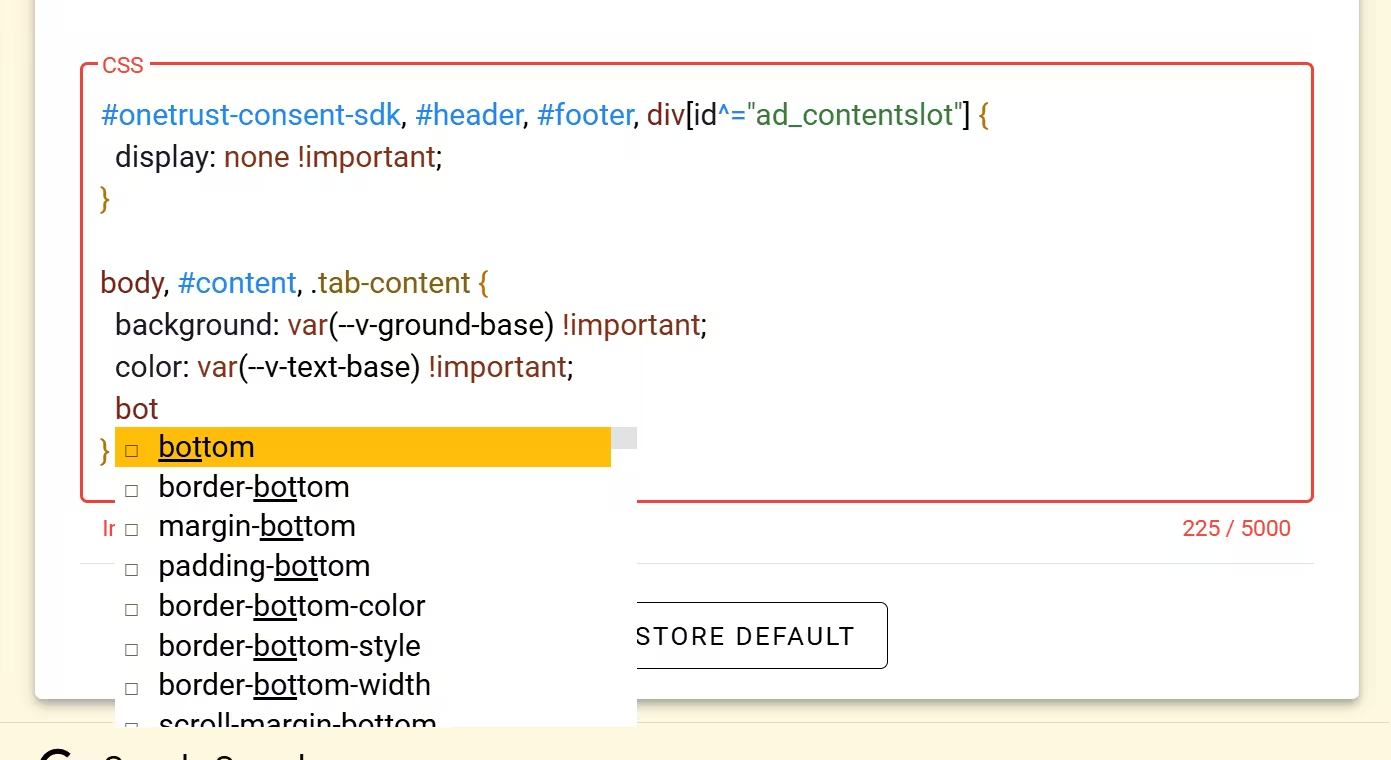
Why use CSS?
With CSS, you can:
- Make content more compact in a narrow result
- Remove cookie modals, navigation menus, and other distracting elements
- Adjust font sizes and colors for improved readability
- Match the website's appearance to Definer's color scheme
NOTE
Style changes only affect how the website appears inside Definer, not the original website.
Start without CSS
The CSS field is optional. You have several options:
- Leave it empty to display the website as-is
- Add CSS later when you know what you want to change
Add Routines
Custom sources start without a built-in Routine. Add one when the displayed page needs an action or contains data you want Definer to collect.
Open Definer Options → Sources → [custom source] → Settings → Routines, then select Create Routine. See Routines for the complete workflow.
Troubleshooting
Cookies on Firefox
If you're experiencing issues with Custom source in Firefox, it may be due to the browser's Enhanced Tracking Protection setting. This feature blocks third-party cookies, which many integrated websites need to function properly.
To fix this problem, follow this troubleshooting guide for Firefox. It explains how to disable or adjust Enhanced Tracking Protection so that your websites function as expected when viewed through Custom source.