Lookup controls
This is a compact reference for controls that can appear in a Bubble or Extension Window. The main Lookup results article covers the everyday flow.
The complete layout is easier to recognize in a real lookup than in a numbered diagram. The query and audio controls are at the top-left, Sources run down the left edge, and Save, Recent, More actions, and the result language are grouped at the top-right.
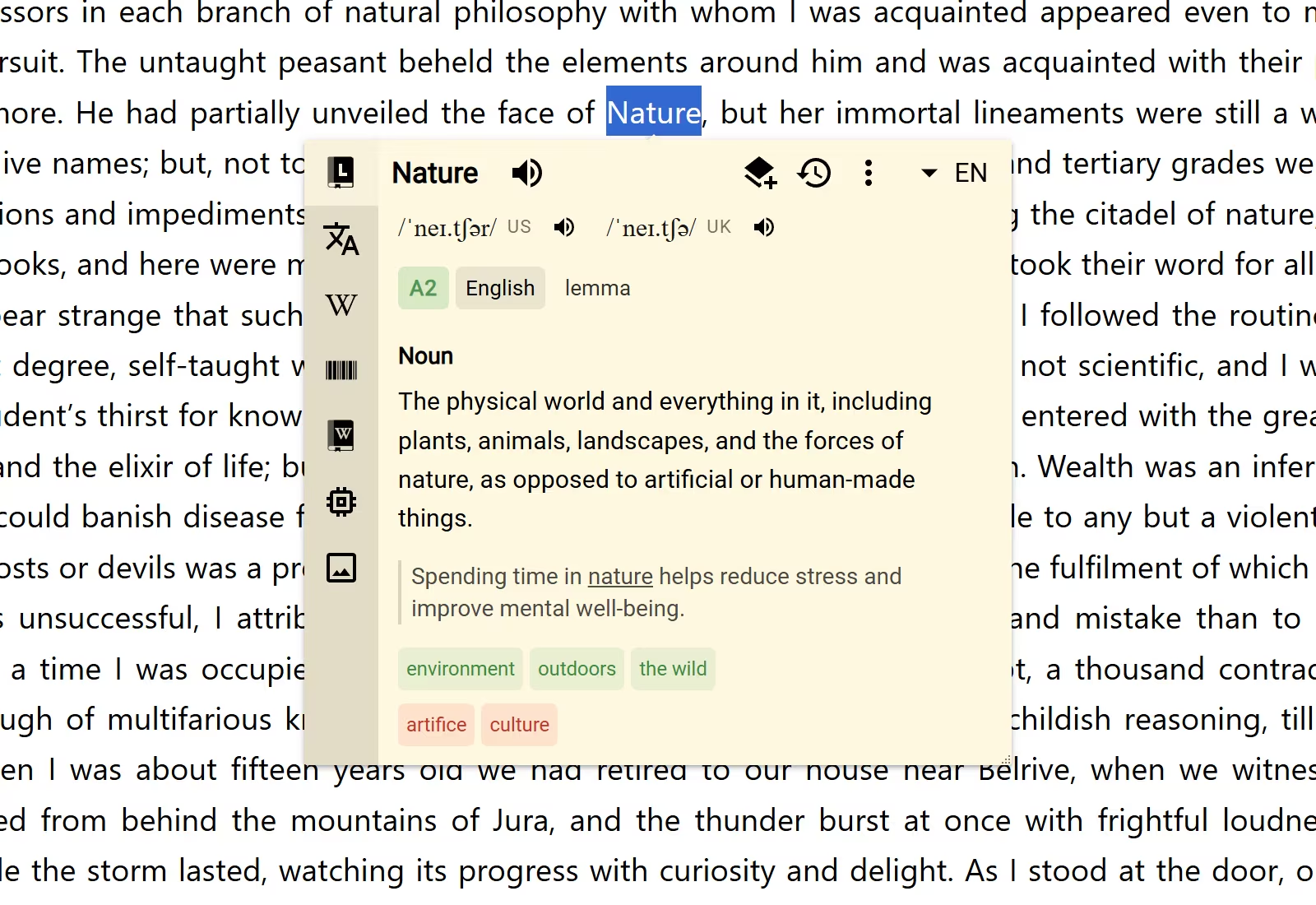
Query, sources, and language
- Select the query in the header to edit it and start a related lookup.
- Select a source icon to open that source's result.
- Use the language control when the open source offers another result language.
- Use the audio buttons beside the query for pronunciation or speech.
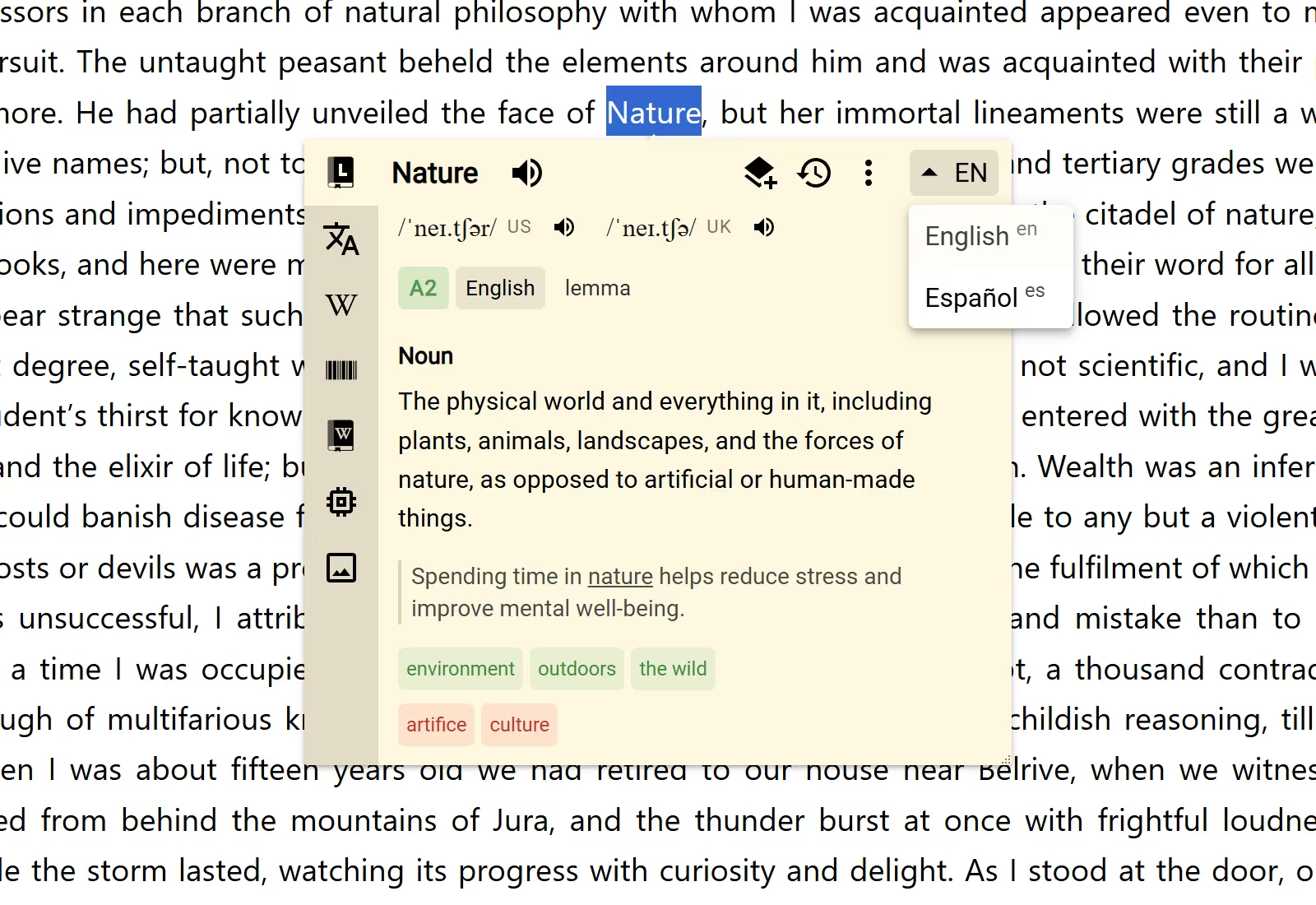
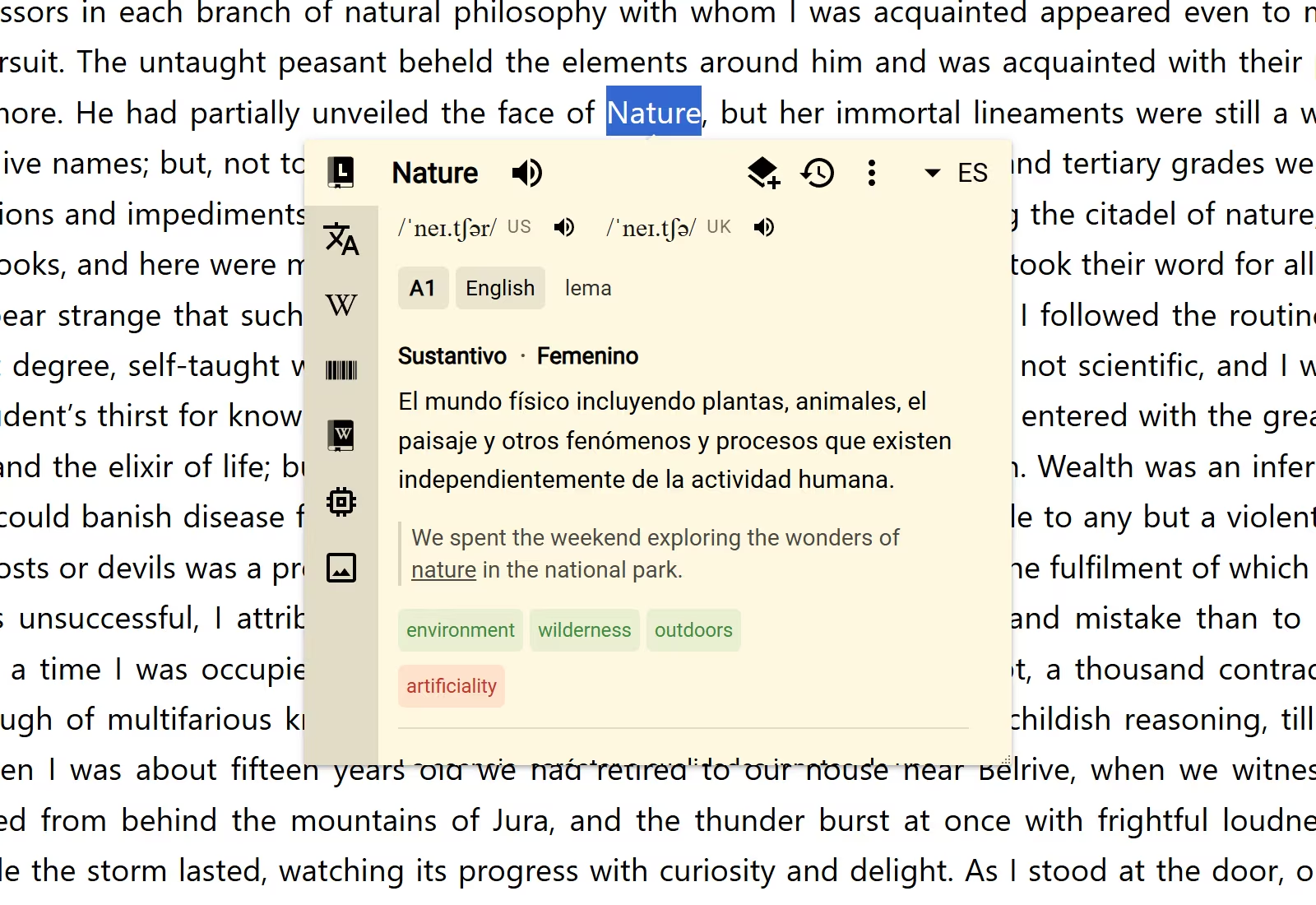
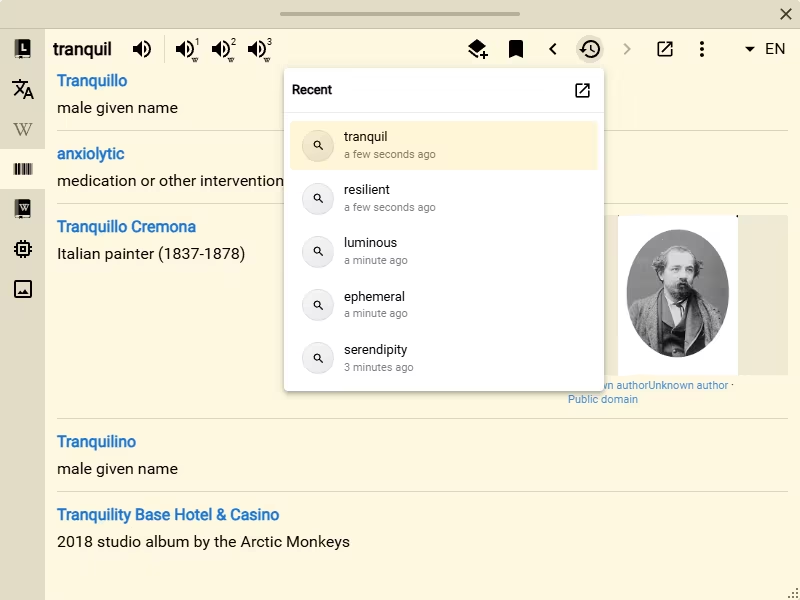
Save and History
- Save creates a Collection item from the open result. The default hotkey is S.
- Recent opens up to 10 recent lookups.
- Previous and Next move through the History timeline.
- Add to History records the lookup manually when automatic recording is off.
- History Dashboard opens Definer Options → History → Lookups.
You can change which of these actions stay in the header under History settings.
Routines and result scale
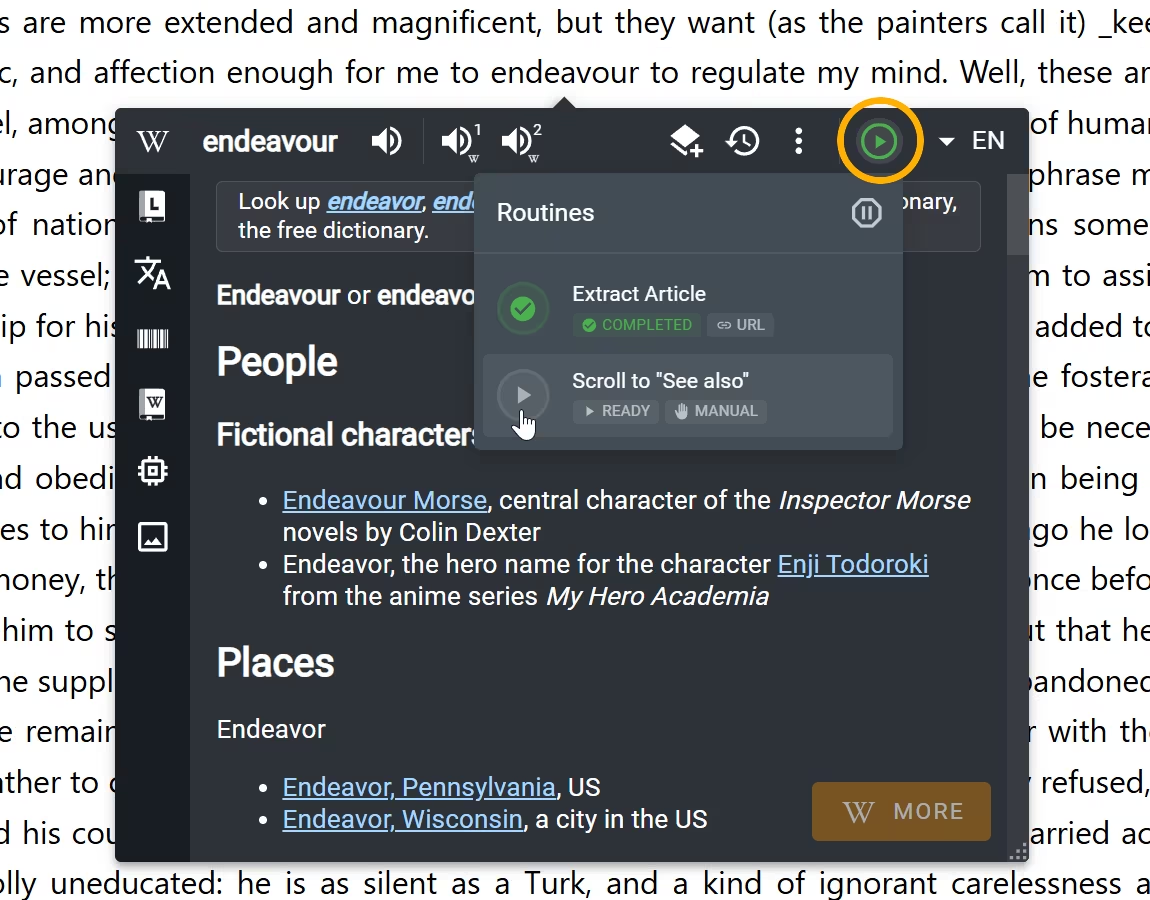
- Routines shows actions supplied by the open source. See Use Routines in a lookup.
- Source scale changes only the open source result.
- Font scale in More actions changes the whole lookup workspace.
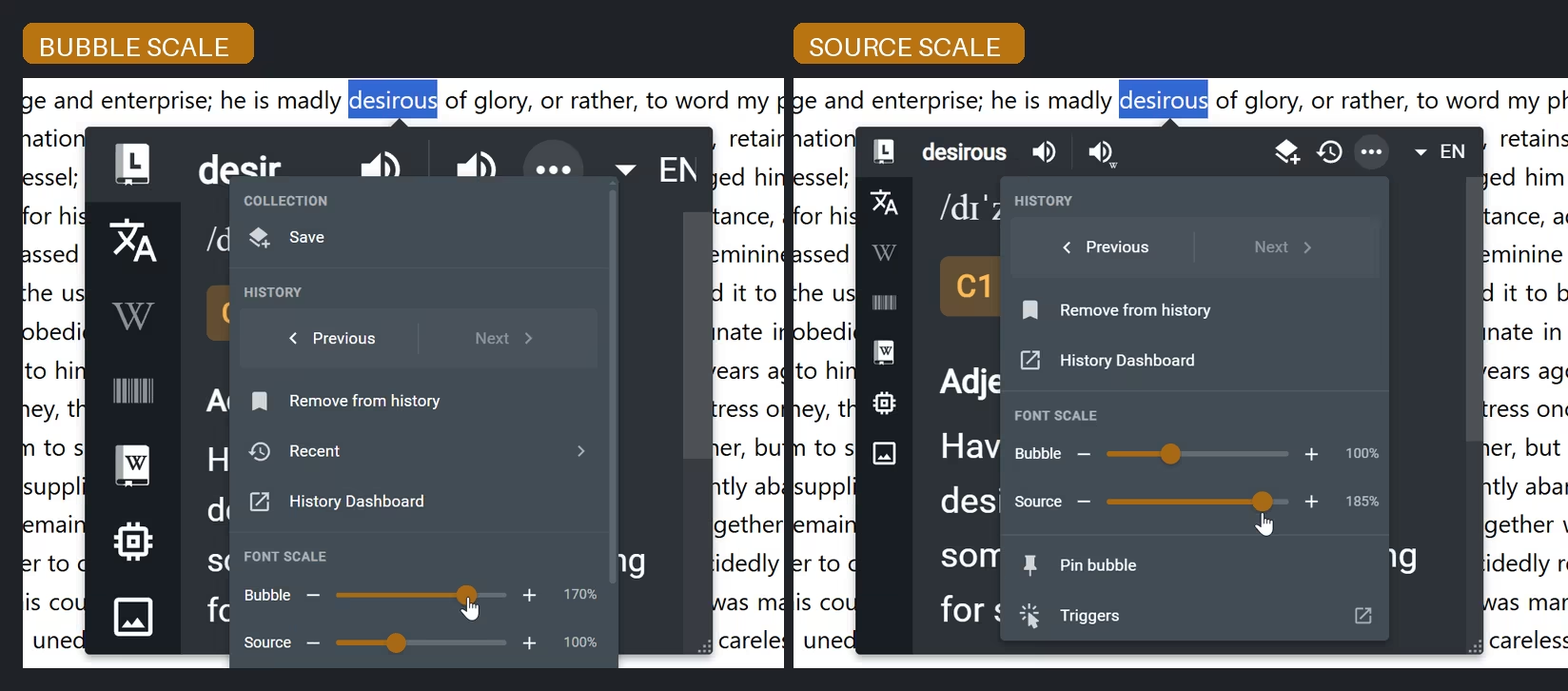
More actions
The three-dot menu holds actions that do not fit in the current width. A narrow Bubble can therefore show fewer header buttons than the Extension Window without removing the actions themselves.
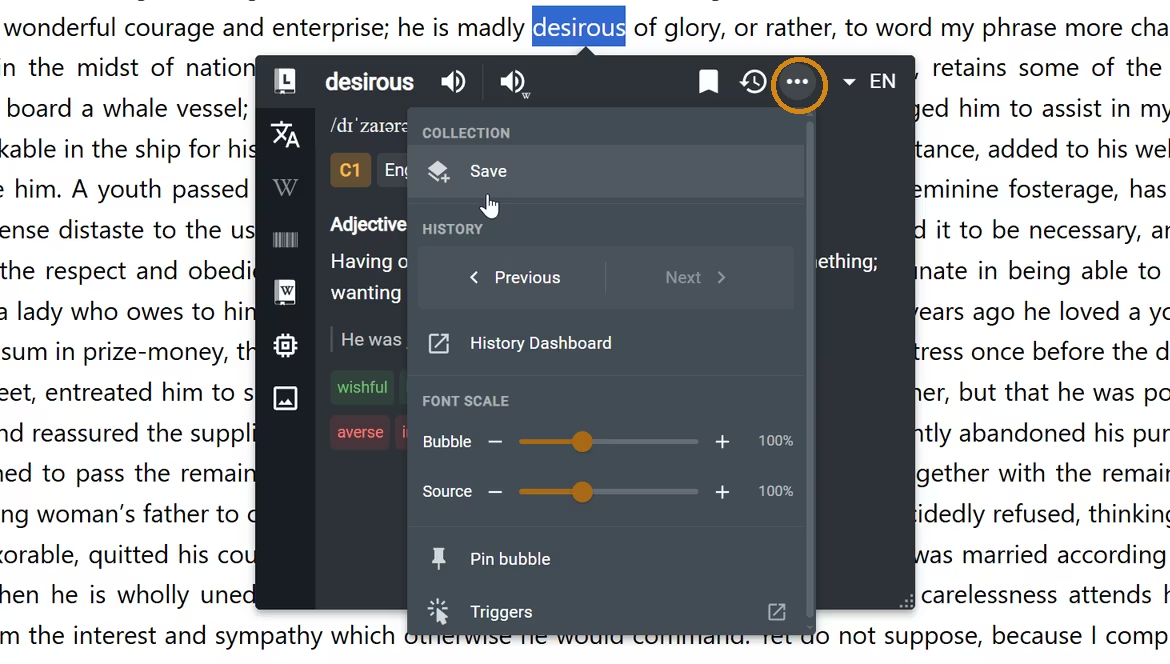
Controls that affect the window rather than the result are covered by Bubble and Extension Window. Examples include pinning the Bubble or opening the result in a separate window.