Manage an Offline Dictionary source
Each Offline Dictionary source chooses one installed package and controls how its entries are matched, loaded, and displayed. You can use the same package in several sources while giving each source different settings.
Open Definer Options → Sources → Content sources, choose an Offline Dictionary source, then open Settings → Main.
Choose or reuse a package
Open Dictionary package and choose an installed dictionary. The source preview updates for that package.
To use the same package with different settings:
- Open Definer Options → Sources → Content sources and select New source.
- On Built-in sources, select Offline Dictionary. Definer adds an enabled source to the Content list.
- Open the new source's Settings → Main and choose the package under Dictionary package.
The two sources can now use different matching, result, loading, and appearance choices without duplicating the installed package.
Choose how entries are found
The main settings appear in this order:
| Setting | Choices and effect | Default |
|---|---|---|
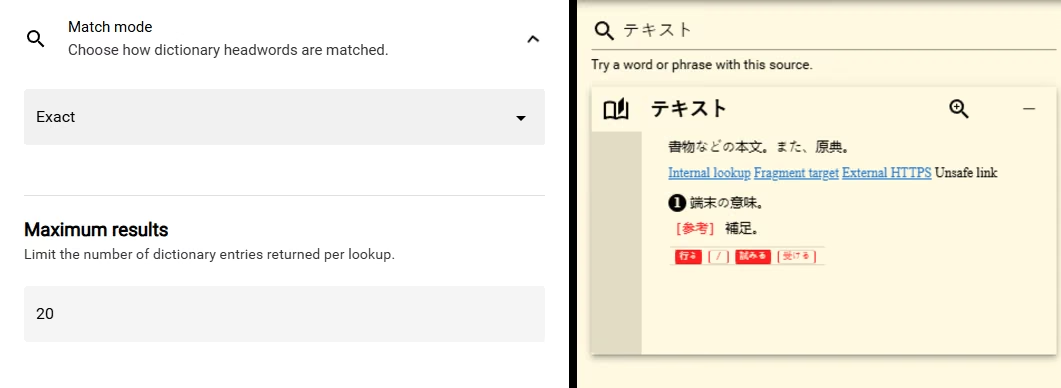
| Match mode | Exact returns matching headwords. Prefix also returns headwords that begin with the query. | Exact |
| Maximum results | Sets how many matching dictionary entries the source can show, from 1 to 50. | 20 |
Use Prefix when you often search partial headwords. Keep Exact when you want a smaller set of direct matches.
Check a change in Preview
- Enter a representative headword in Test query.
- Change one setting.
- Confirm that Preview: Offline Dictionary shows the expected entries or presentation.
The settings update as you change them. There is no separate save step.
Adjust colors and Custom CSS
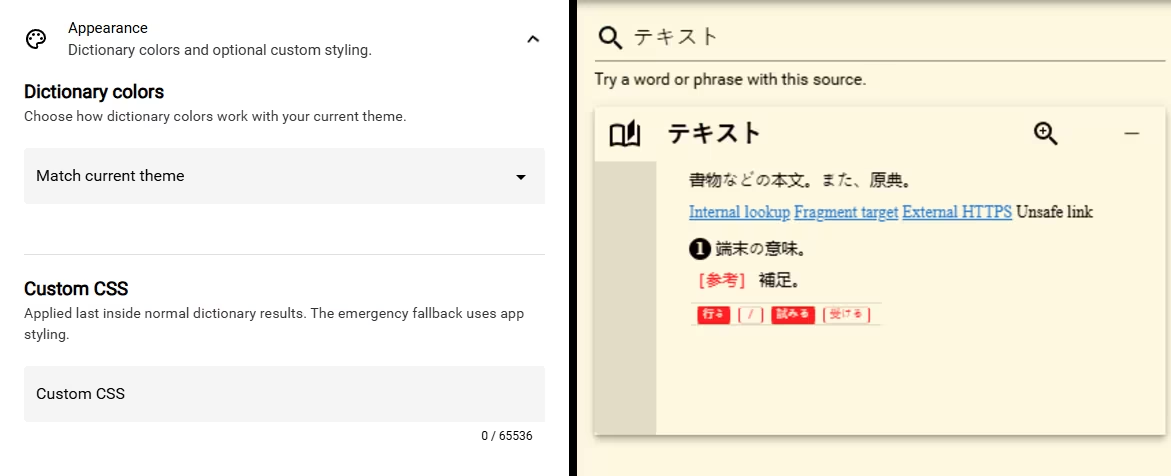
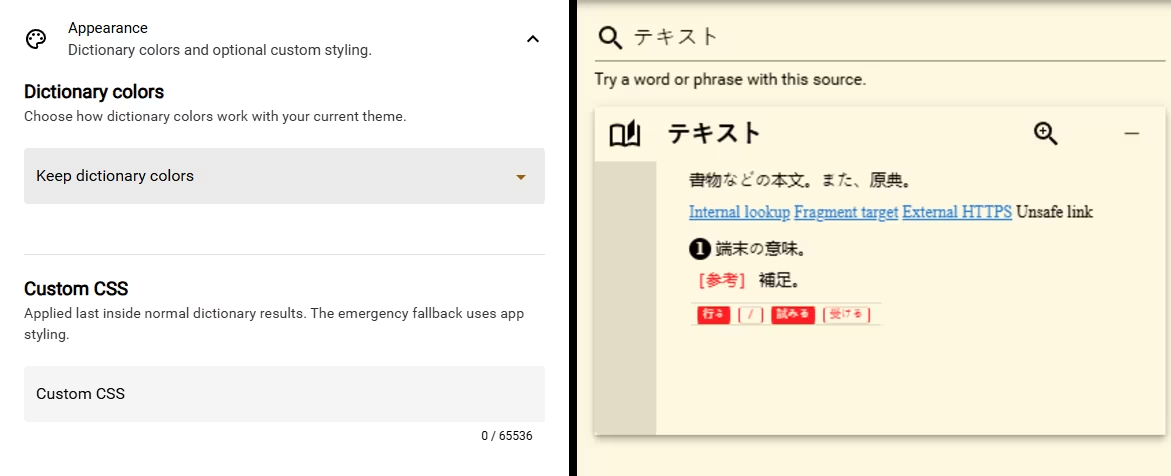
Expand Appearance to choose how the dictionary works with Definer's theme:
- Match current theme adapts the dictionary colors to the active Definer theme.
- Keep dictionary colors keeps the colors supplied by the dictionary.
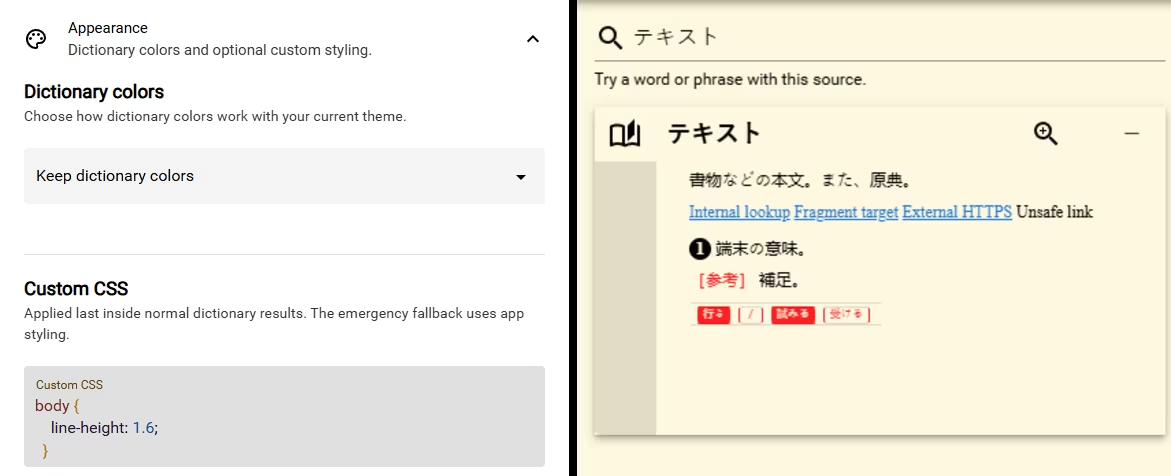
Use Custom CSS for a source-specific adjustment after choosing the color mode. For example, this increases spacing inside the dictionary result:
body {
  line-height: 1.6;
}
Enter the code in Settings → Main → Appearance → Custom CSS, then check it in Preview. Remove the code to return to the dictionary's normal styling.
Remove an installed dictionary
Removing a package affects every source that uses it
Removing a dictionary package from this device makes every Offline Dictionary source that uses it stop working until you import the same package again. Saved lookup text remains available, but dictionary media and styling may not.
- Open Dictionary package.
- Select the trash icon labeled Remove from this device beside the package.
- Review the confirmation and select Remove dictionary.
- Wait for the removal message, then choose or import another package for affected sources.
Keep the package available
Settings Sync, Backup and restore, and a source export can preserve the Offline Dictionary source and its settings. They do not include the dictionary package files. Import the same package separately on every device where you want the source to work.
Offline Dictionary is marked Experimental. Keep the original package somewhere you can access again before removing it from Definer or moving your setup to another device.