Languages
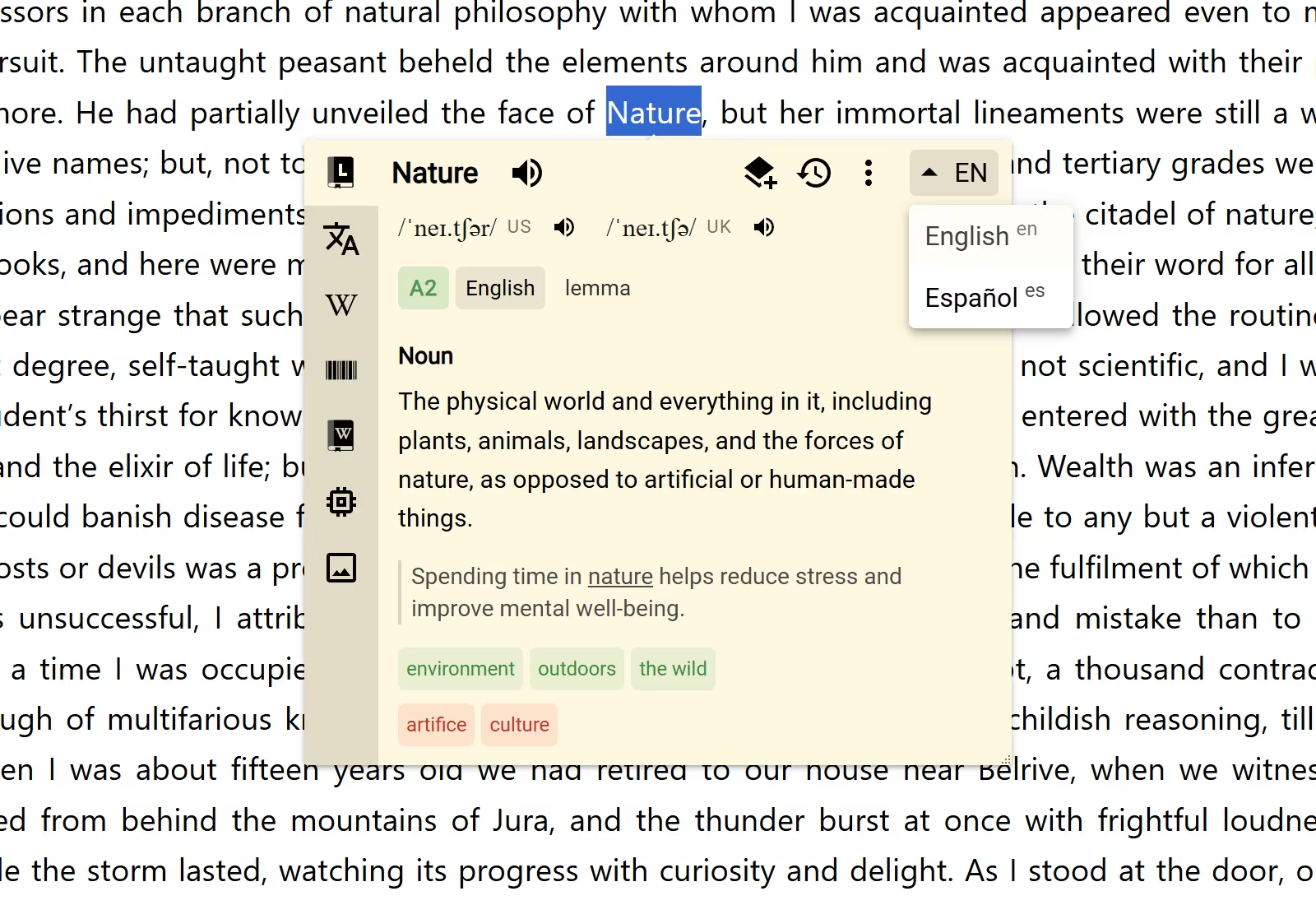
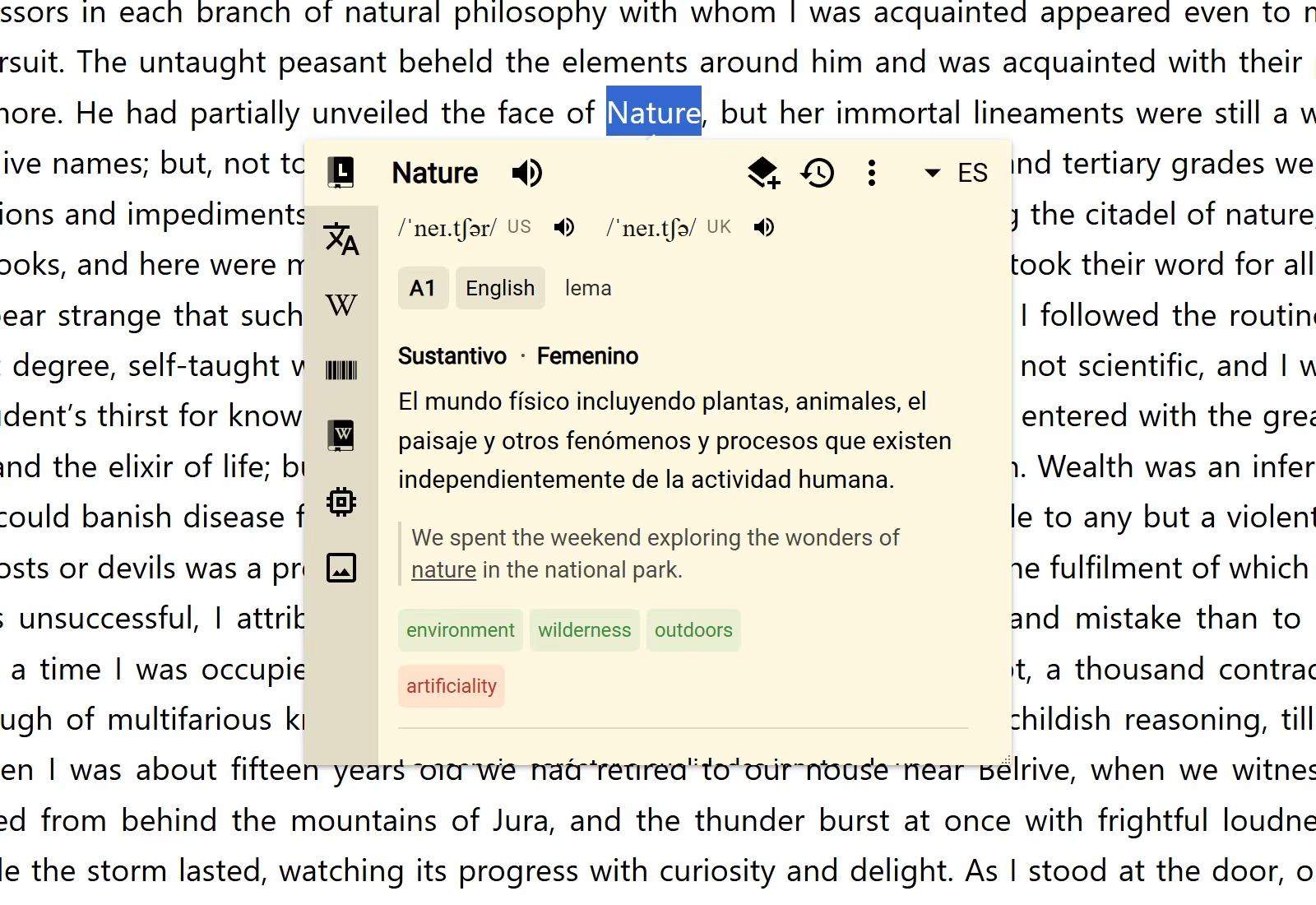
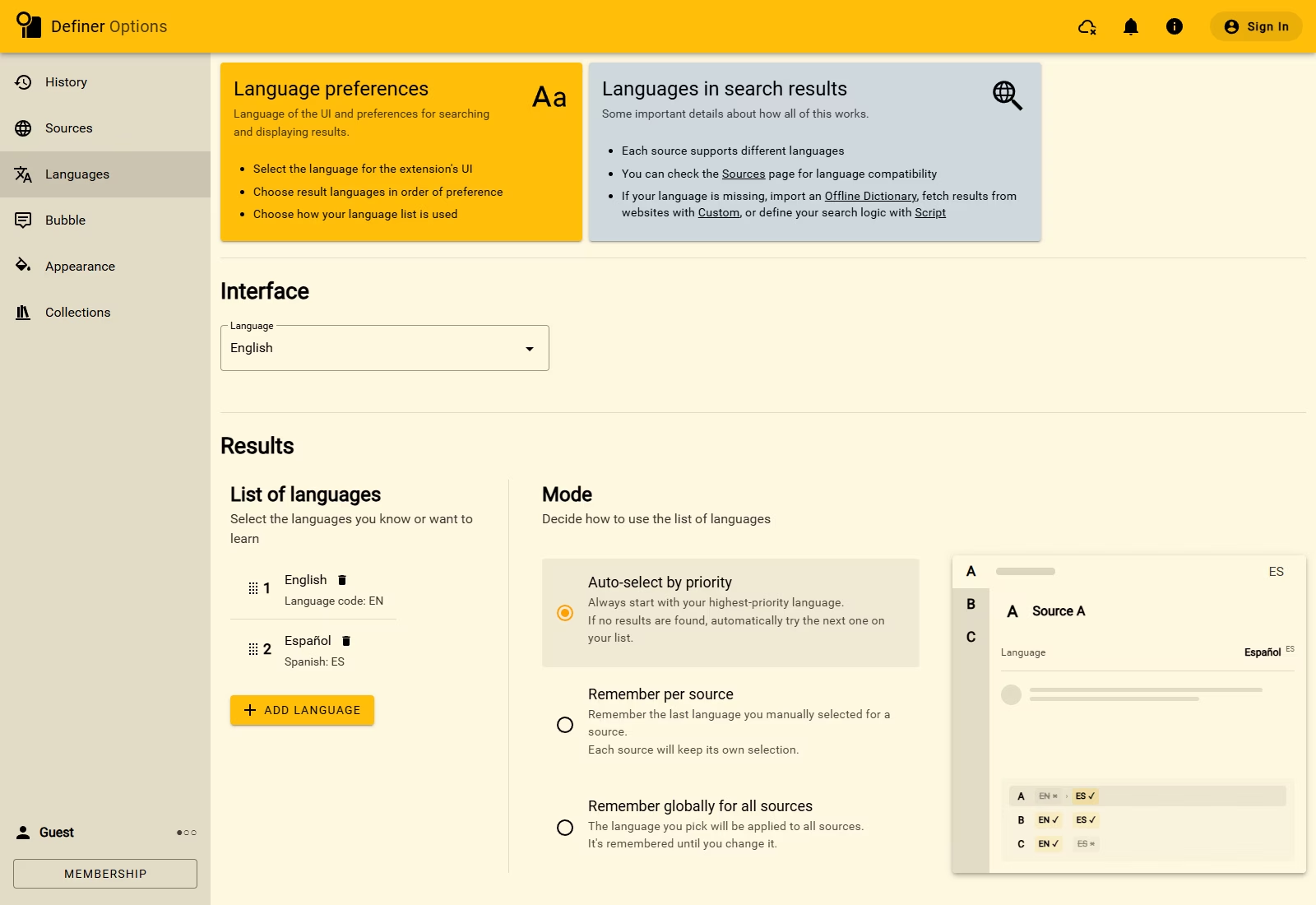
Definer can use one language for its menus and a different set of languages for lookup results. This lets you keep the interface familiar while looking up content in the languages you read, study, or translate. Open Definer Options → Languages to change both.
Interface
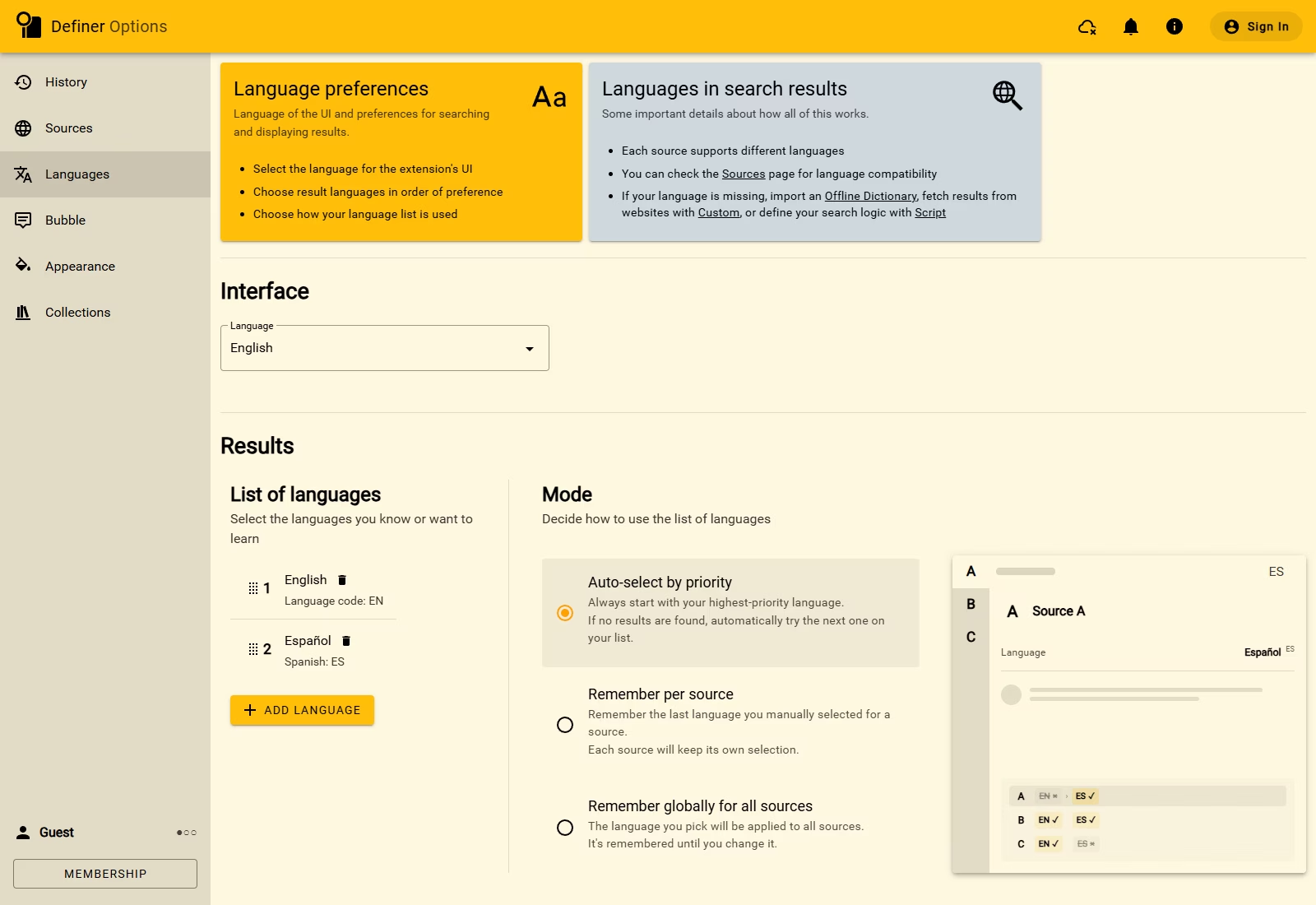
The interface language changes Definer's menus, buttons, settings, and other labels. It does not change the languages used for lookup results.
- Open Definer Options → Languages.
- Under Interface, open Language and choose a language. The interface changes immediately.
When you first use Definer, it tries the first language in your browser preferences. If Definer does not have an interface translation for that language, it uses English.
Results
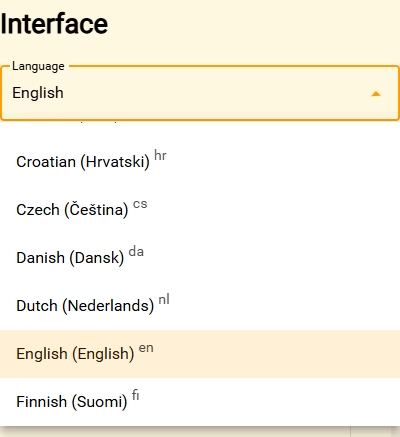
The result-language list contains the languages you want Sources to use for lookups. Its order matters: the language at priority 1 is your first choice. Definer starts the list with the first non-English language in your browser preferences, when available, followed by English. You can change the list at any time.
Each Source supports its own languages. Adding a language makes it available to compatible Sources, but it does not make every Source support that language.
Add a result language
- Open Definer Options → Languages.
- Under Results, select Add language.
- Search by name, native name, or language code, then select a language. It appears at the end of the list.
Regional and writing-system choices appear separately when they are available. For example, you can choose a general language or a more specific variant when the distinction matters to you.
If Add language opens a membership message, you have reached the number of result languages included with your current plan. A lock marks another saved language outside that allowance.
Change priority or remove a language
- Drag the handle beside a priority number to move that language. The first language in the list has priority 1.
- Select the trash button beside a language and confirm to remove it. Definer keeps at least one result language in the list.
These changes apply immediately.
Check which languages a source supports
Open Definer Options → Sources and find the Source. When its card includes a supported or unsupported language list, expand it to check compatibility. Languages from your result list appear first, which makes an unsupported choice easier to spot.
If a Source does not support the language you want, choose another Source or another result language.
Choose a mode
Mode controls how Definer chooses a result language at the start of a lookup and what happens after you switch languages manually.
| Mode | What Definer does | Choose it when |
|---|---|---|
| Auto-select by priority | Starts with your highest-priority language. If a Source has no result in that language, Definer tries the next language in your list. | You want a predictable first choice with automatic fallbacks. |
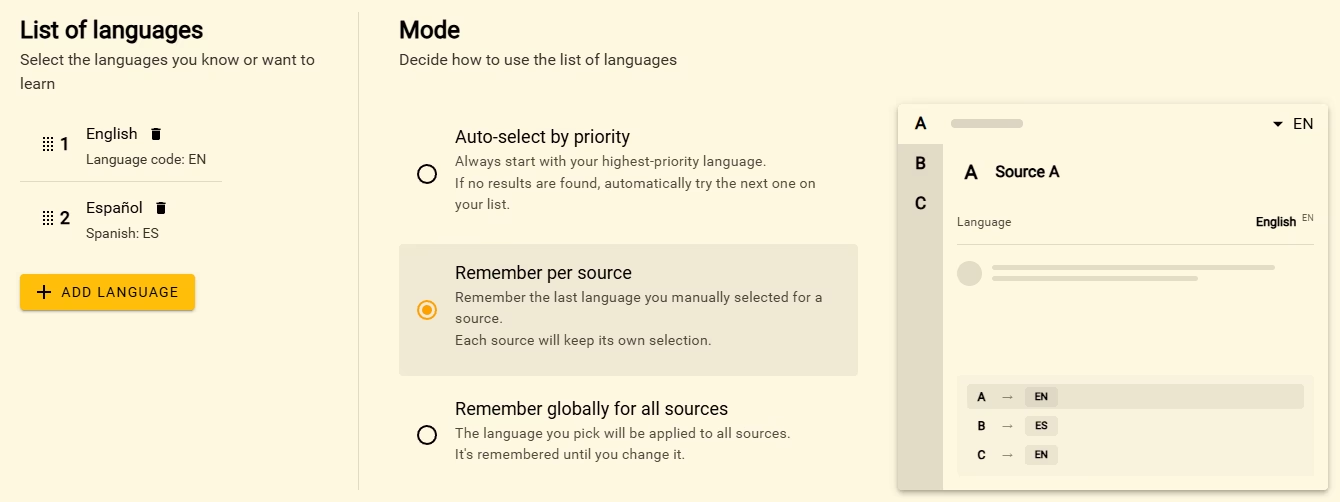
| Remember per source | Remembers the last language you selected separately for each Source. | Different Sources are more useful to you in different languages. |
| Remember globally for all sources | Applies your selection across Sources that use the result-language list and remembers it for future lookups. Sources with their own language controls keep their own choices. | You usually want to switch the whole lookup to one language. |
Select the mode you want under Results. The change applies immediately.
Switch the language during a lookup
The lookup header shows the current result language. When a down arrow appears beside its language code, you can open the language picker.
- Select the language code and arrow in the lookup header.
- Select a language from the list. The active Source changes to that result language.
With Auto-select by priority, the next lookup starts from your priority list again. The two remember modes keep your manual choice according to the mode you selected.