Collection items
An item Type gives saved information the fields and editor that fit it best. Choose the Type by what you want to do with the item, not by the Collection it is in. A single Collection can contain any combination of the five Types.
Choose a Type
| Type | Choose it when you want to keep |
|---|---|
| Raw | A JSON value or flexible structured data that does not fit another Type |
| Term | A word or phrase with meanings, examples, pronunciation, spelling, or language details |
| Card | A front-and-back item for review or export to Anki |
| Note | A title and free-form rich-text content |
| Prompt | Reusable AI instructions, with optional AI settings |
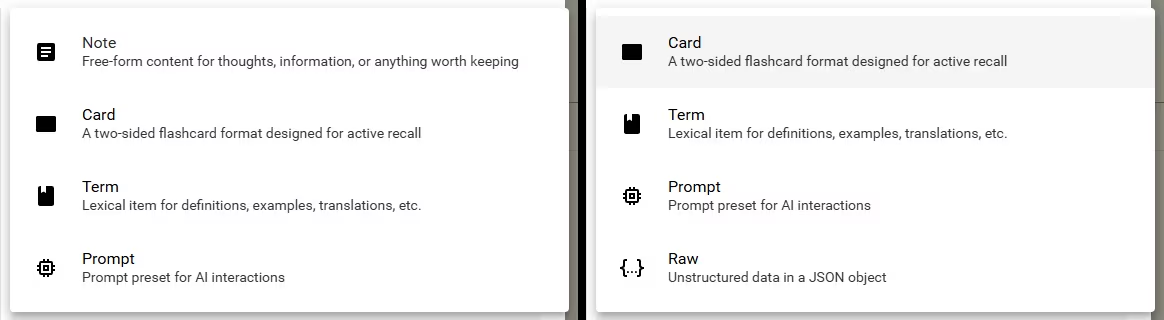
If the information fits more than one Type, choose the structure you expect to edit later. For example, choose Term for several meanings and pronunciations, Card for a question and answer, or Note for free-form reference material.
Create an item
- Open Definer Options → Collections → [Collection] → Items.
- Select New Item, New Term, New Card, New Note, or New Prompt, depending on the Collection Type.
- Choose Type if you want a different structure, then fill the main fields.
- Select Save. The item appears in the Collection.
A Collection Type only supplies the starting Type. You can choose another Type in the editor without moving to a different Collection.
Use the item editor
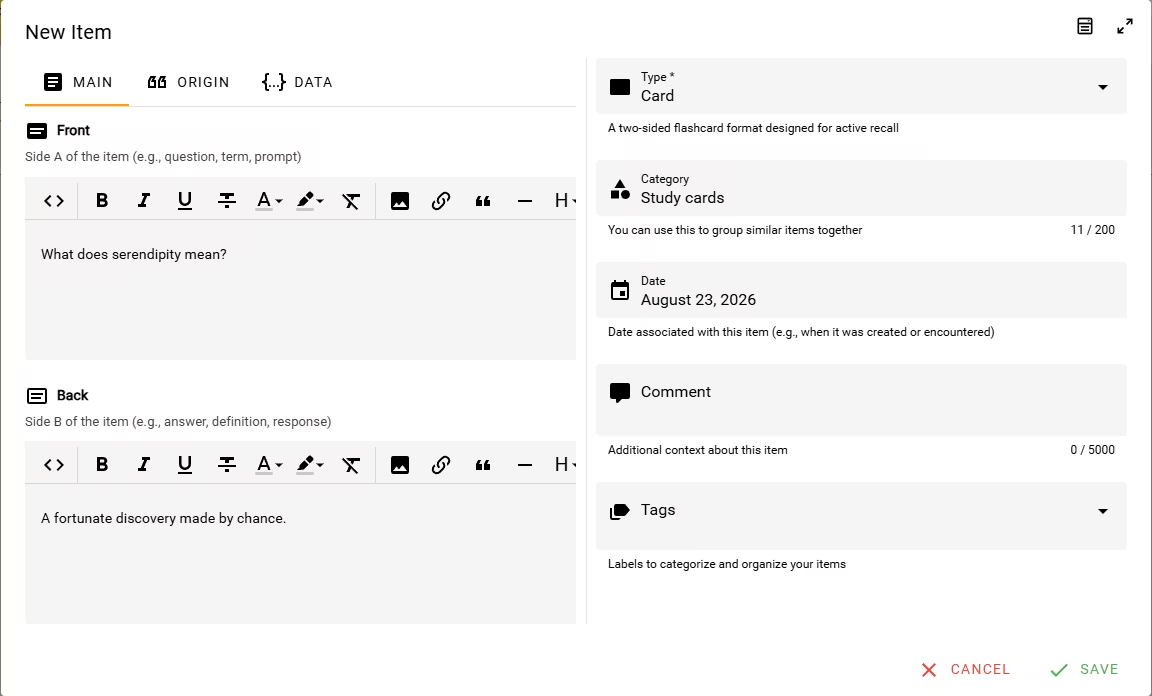
The editor menu offers three ways to inspect or change an item:
- Visual Editor shows fields and Type-specific tabs.
- JSON Editor exposes the complete item as JSON for advanced changes.
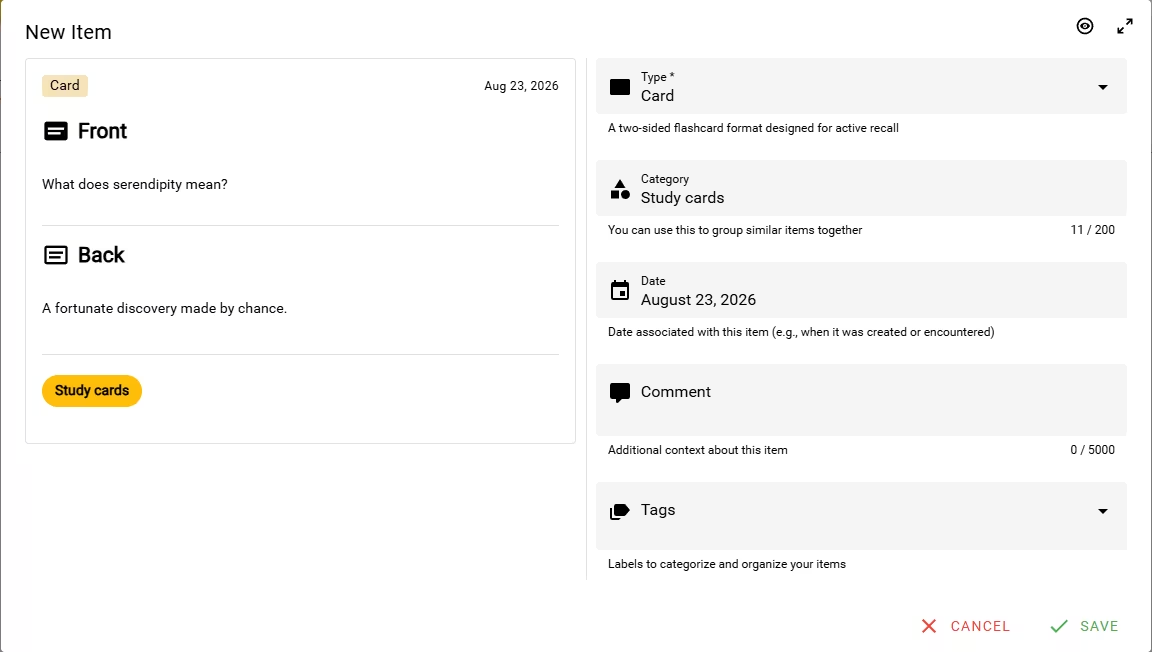
- Preview shows how the item will look.
Common fields such as Category, Date, Comment, and Tags are available beside the Type-specific content. You do not need to fill every field.
Work with each Type
Raw
Raw items have Name and Data. Use them for flexible JSON data that does not fit another Type. See Raw data items.
Term
Term items can hold several senses and pronunciations, along with spelling, components, and other language details. See Term items.
Card
Cards have a rich-text Front and Back. Use them for questions and answers, paired concepts, or material you plan to export to Anki.
Note
Notes have Title and Content. The content editor supports formatted text, links, lists, and other rich-text elements, which makes Notes a good fit for explanations and reference material.
Prompt
Prompts store reusable AI instructions. They can also retain a specific provider, model, and generation choices when you want the prompt to carry those settings. See Prompt items.
Change an existing item's Type
WARNING
Saving a different Type keeps common fields such as Category and Tags, but removes the previous Type's specialized content. Duplicate the item first when you want to keep that content.
Open Edit Item, choose another Type, fill the new Type's fields, review Preview, and select Save. The item stays in the same Collection.
Changing Type also changes the fields available in Visual Editor.
Organize items in a Collection
Open Definer Options → Collections → [Collection] → Items. When Search is empty, drag an item by its handle to change its position.
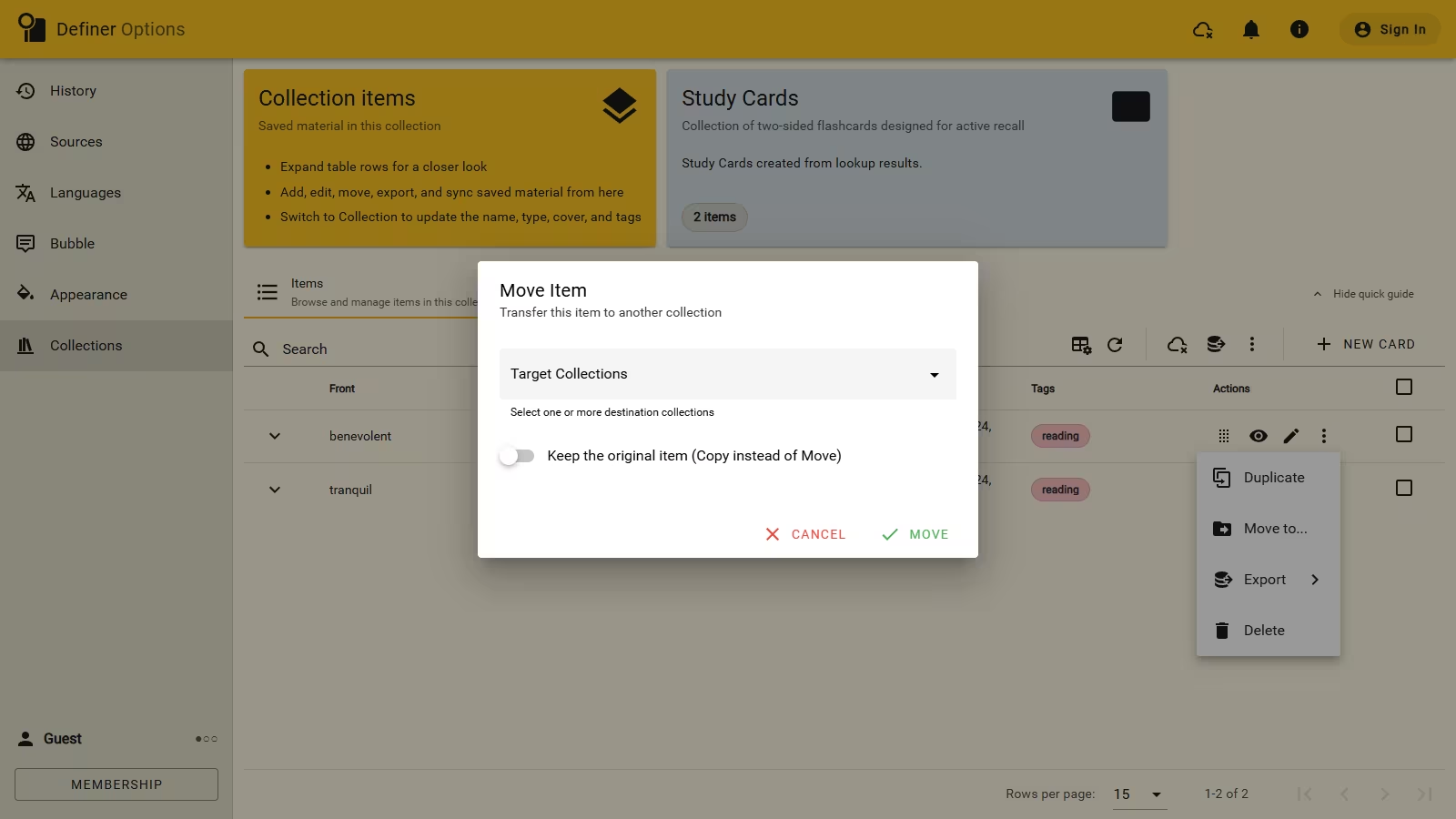
Open an item's Actions menu to:
- Duplicate it directly after the original;
- choose Move to... and one or more destination Collections;
- choose Export; or
- Delete it.
In Move Item, turn on Keep the original item (Copy instead of Move) when the item should remain in its current Collection as well. To move or copy several items together, select them first, open the page-level Actions menu, and choose Move to....
Delete several items
Select the items, open the page-level Actions menu, and choose Delete {N} selected, where {N} is the number you selected. With nothing selected, the same menu offers Delete all for the current Collection.
WARNING
Deleted items cannot be recovered.