Backup and restore
Backup and restore lets you download selected Definer data as a file, then bring it back later or move it to another Definer installation. A backup can contain Lookups, Collections, global Recipes, and Settings.
This is separate from Settings Sync, which keeps preferences aligned across signed-in installations. A backup is a file you control and can also include data that sync does not cover. You do not need a Definer account to create or restore one.
Choose what to include
The Contents switches control what Definer exports or restores:
| Content | What the backup contains | What Restore does |
|---|---|---|
| Lookups | Local lookup history, including searched text, recorded source results, and page context. | Adds or updates lookups from the backup. |
| Collections | Your Collections and all their items. | Merges the backup with your existing Collections. |
| Recipes | Global Recipes used across compatible Sources. | Merges the backup with your existing Recipes. |
| Settings | Your preferences and custom configuration. This can include saved API keys. | Replaces your current preferences. |
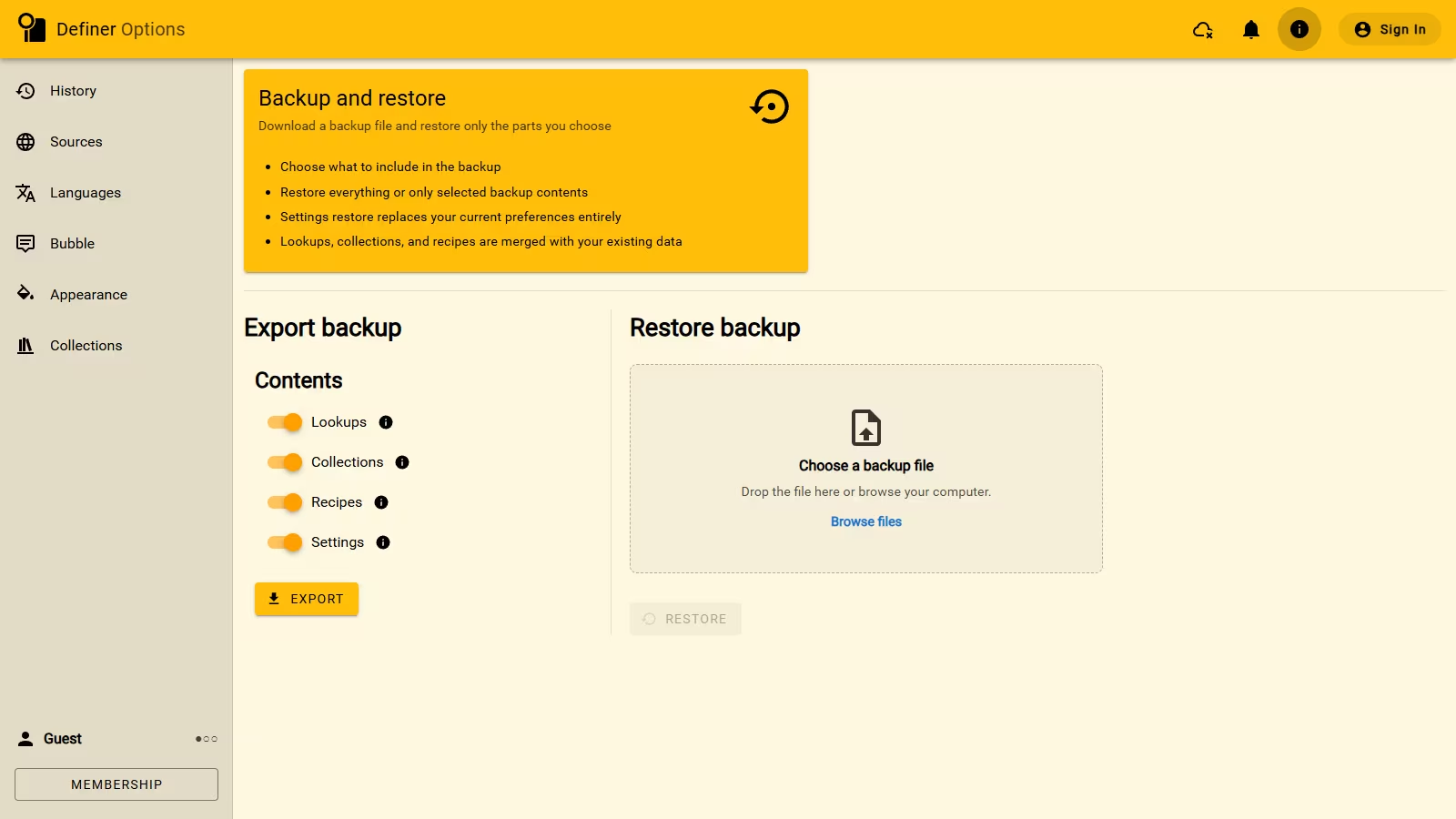
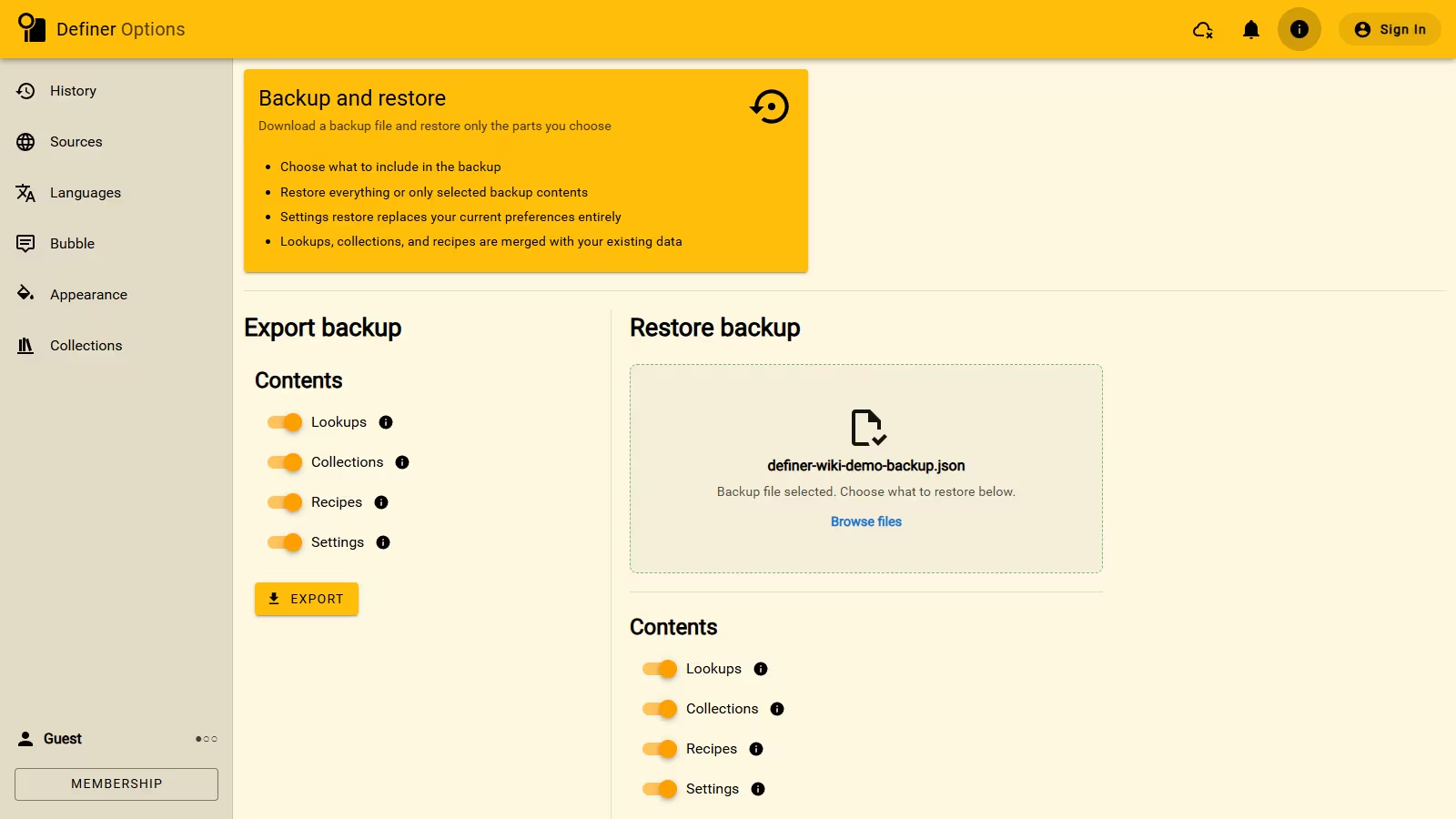
All four are selected when you open Export backup. After you choose a file under Restore backup, Definer shows only the content available in that file and selects it for restore. Turn off anything you do not want to include.
Create a backup
Keep the backup file private
Backup files are not encrypted. Lookups, Collections, and Recipes can contain personal information, and Settings can include saved AI provider API keys. Store the file somewhere private, and do not share it with anyone you do not trust.
- In Definer Options, open the Help menu (the information icon) and select Backup.
- Under Export backup, turn off any content you do not want in the file.
- Select Export.
- Wait for Backup export completed. Your browser downloads a
.jsonbackup file. If the download does not start, use the download link shown in the completion message.
Keep more than one backup if you make frequent changes. A newer backup does not update or delete files you downloaded earlier.
Restore a backup
Definer does not clear Lookups, Collections, or Recipes before restoring them. When the backup belongs to the same account, records with matching IDs are updated to the versions in the backup. This means an older backup can replace newer changes to those matching records. Records that do not match are added.
When the backup was created under a different account, Definer gives the restored records new IDs and adds them as copies for the current account or installation.
Restoring Settings replaces your preferences
Turn off Settings if you want to keep your current preferences. Restoring Settings also turns off Settings Sync on this installation. You can enable sync again after the restore.
- In Definer Options, open the Help menu (the information icon) and select Backup.
- Under Restore backup, drop a Definer
.jsonbackup file into Choose a backup file, or select Browse files. - Under Contents, turn off anything you do not want to restore.
- Select Restore.
- Wait for Backup restore completed.
Recover from a problem
- If Definer says the file is invalid, choose a
.jsonbackup created by Definer. - If the backup contains no supported content, choose a different backup file.