History settings
History works automatically for most people. Its settings let you change what Definer remembers, whether new lookups are kept with your account, and which History actions stay close to the result.
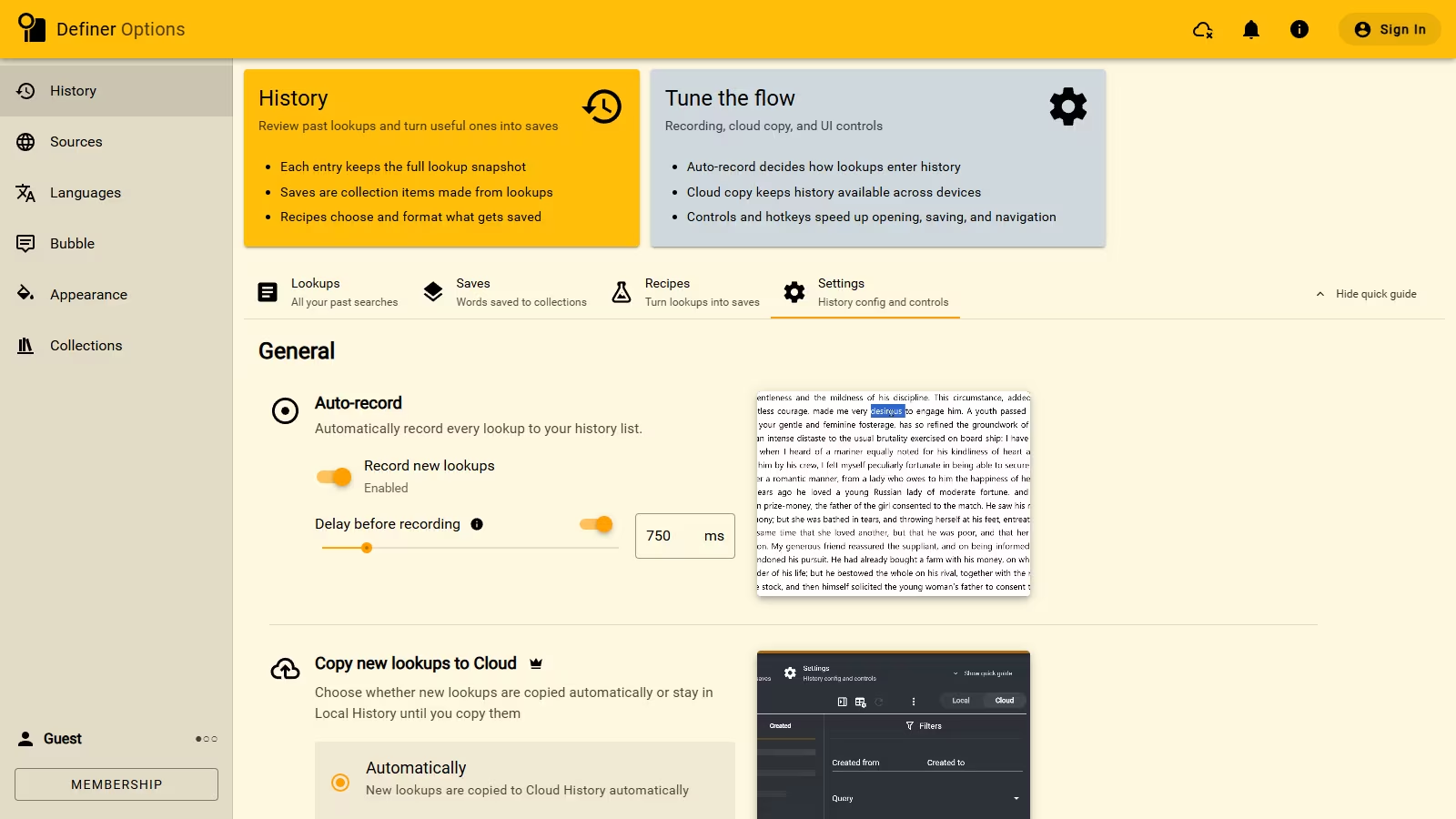
Open Definer Options → History → Settings.
Let Definer remember lookups
Record new lookups is on by default. Delay before recording prevents a lookup you close immediately from filling the timeline; the default delay is 750 ms.
Turn recording off when you want to add lookups manually with Add to History.
Keep new lookups in Cloud History
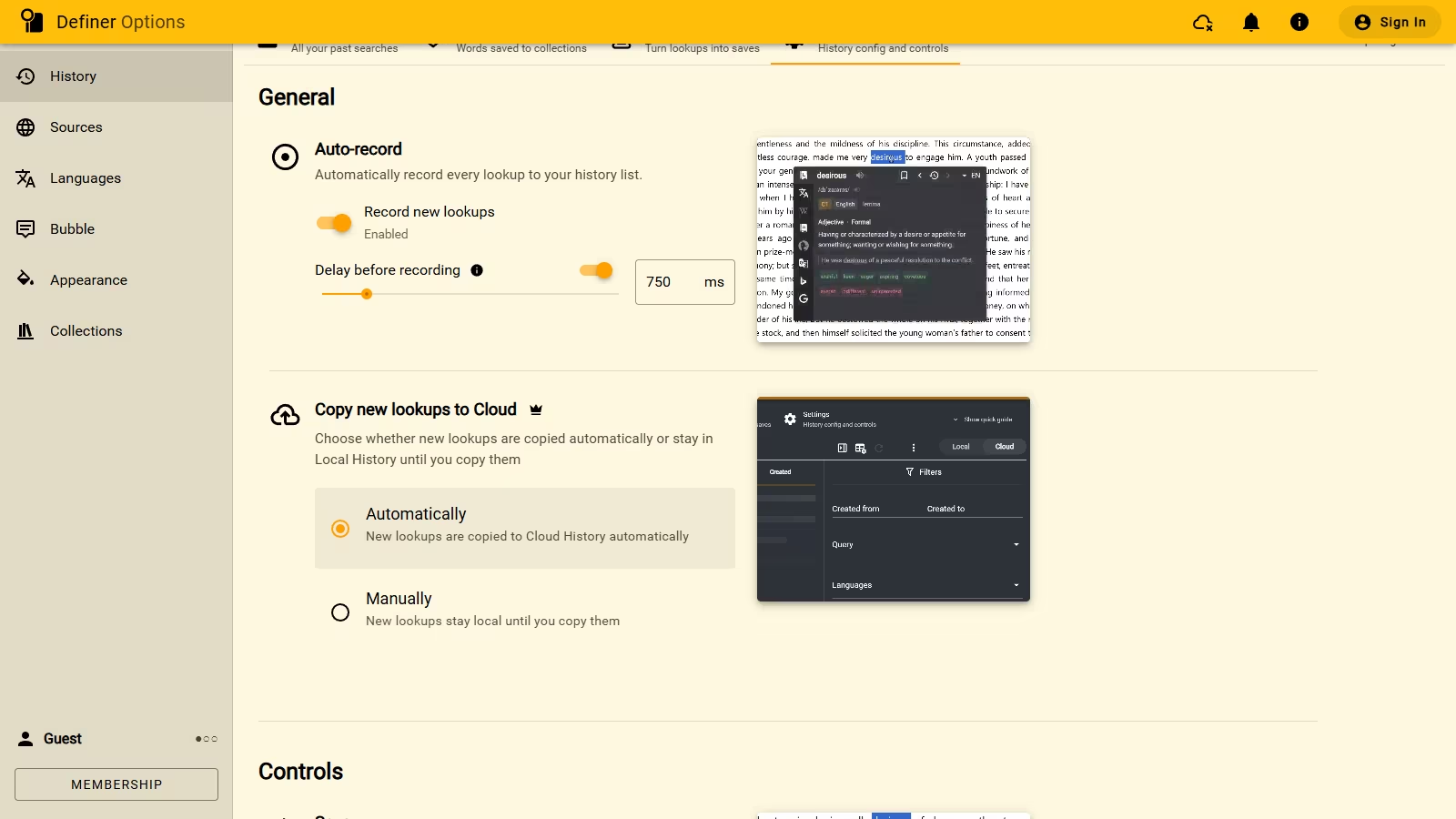
Copy new lookups to Cloud controls what happens after a new lookup is recorded:
- Automatically keeps it with your account. This is the default and requires membership.
- Manually leaves Cloud copying to you.
This setting affects future lookups. See Cloud History for the cross-device benefits and Move Cloud History for older lookups.
Keep useful controls nearby
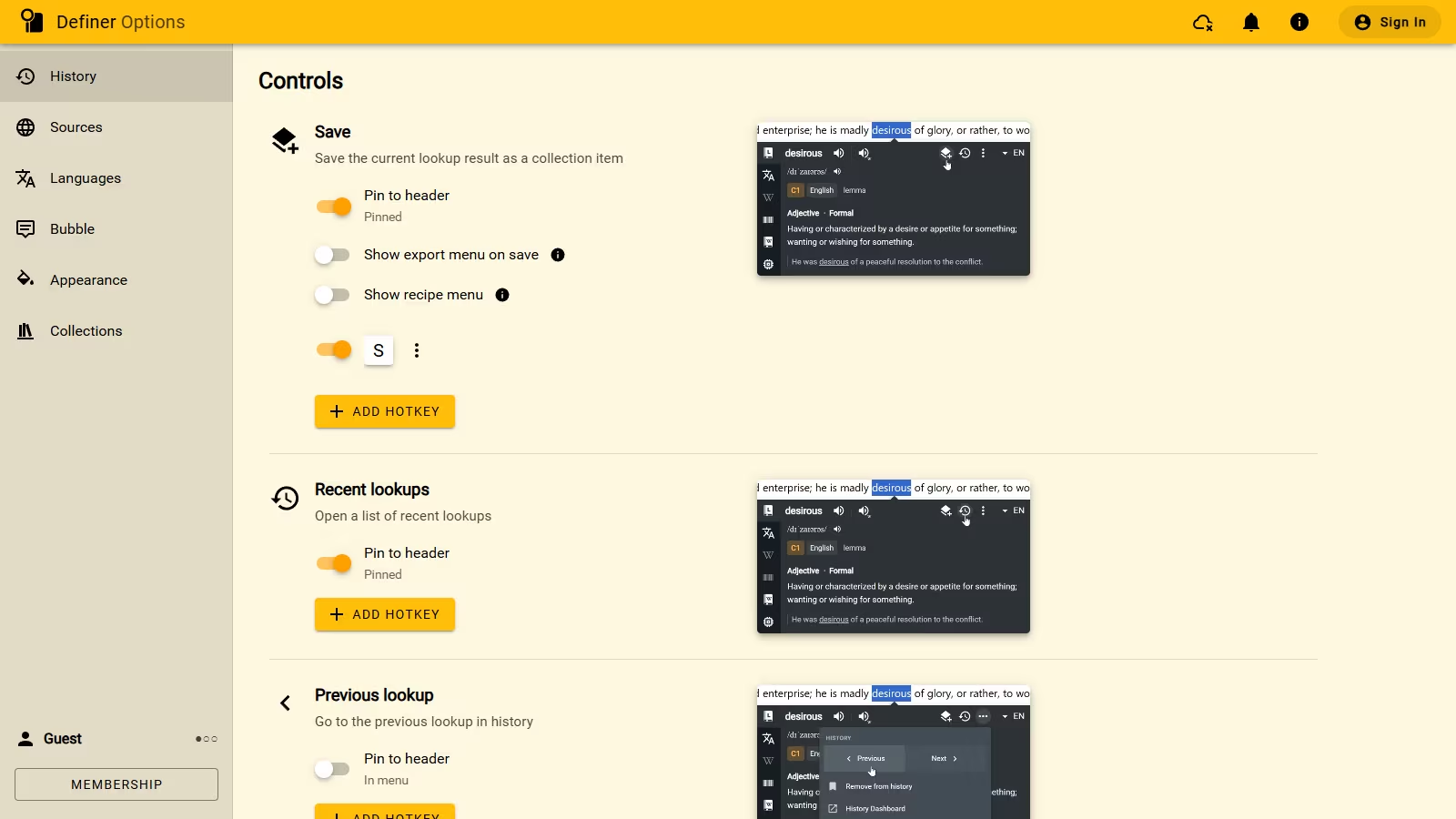
Under Controls, Pin to header keeps an action in the lookup header when enough space is available. With the switch off, the action remains in More actions.
The default header includes Save and Recent lookups. Previous lookup, Next lookup, Add to History, and History Dashboard remain in the menu.
Save also offers two optional behaviors:
- Show export menu on save opens export choices after the item is created.
- Show recipe menu lets you select one or more matching Recipes before saving.
Add or change hotkeys
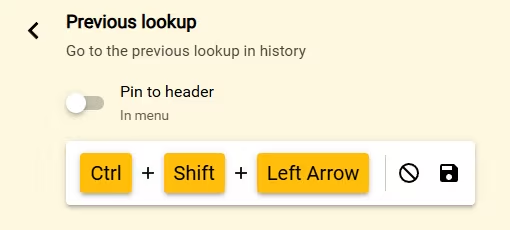
The default Save hotkey is S. Other History controls do not have default hotkeys.
- Find the control under History → Settings → Controls.
- Select Add hotkey and press the key combination you want.
- Save it, then try it in a lookup.
You can disable, edit, or remove the hotkey from the same control section.