Cloud Sync
Cloud Sync keeps your Collections, their items, and global Recipes available across signed-in Definer installations. Changes made on one installation can appear on the others.
Cloud Sync requires a membership. It is separate from Cloud History, which copies lookups between Local and Cloud History, and Settings Sync, which uses profiles for Definer settings.
Sync Collections
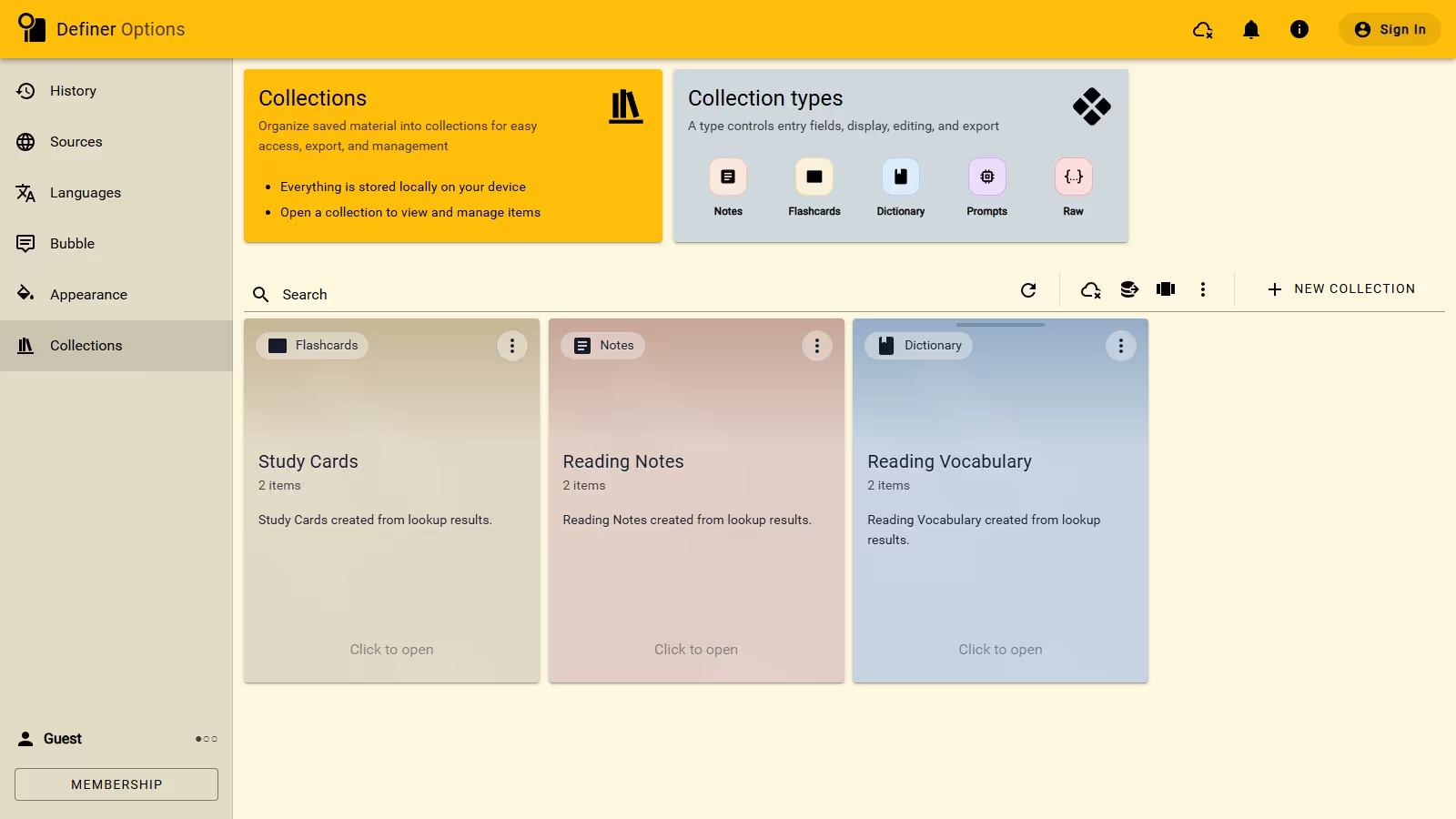
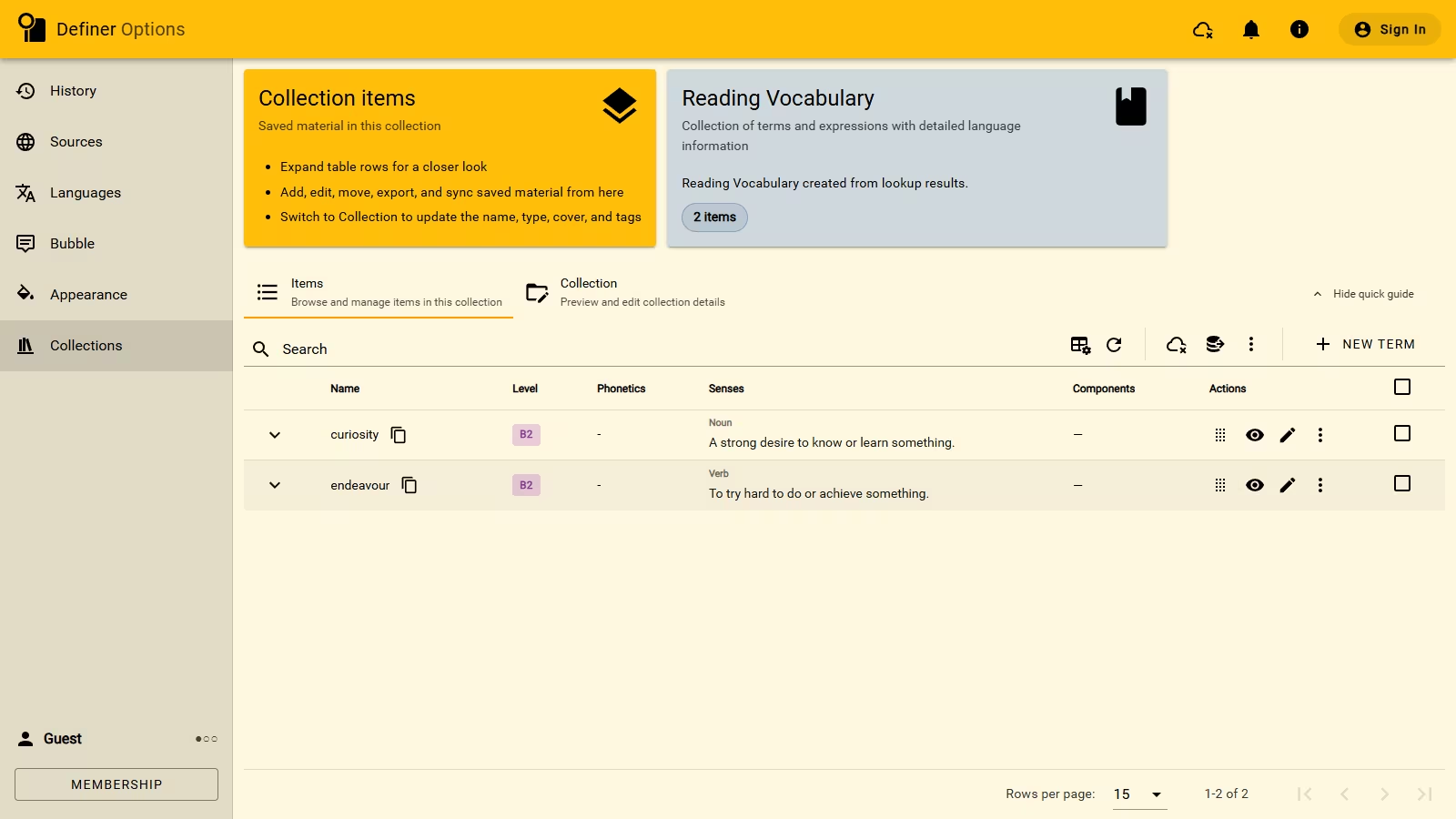
The Collections page and the Items page each have a cloud control. Turn on both controls to sync your complete Collection library: one control covers the Collections themselves, and the other covers the items stored inside them.
- Open Definer Options → Collections.
- Select the cloud button in the Collections toolbar, then select Enable Sync.
- Open any Collection and select Items.
- Select the cloud button above the item list, then select Enable Sync.
- Wait for both controls to show Synced.
The Collections page shows the library whose names, types, descriptions, covers, and order are synced.
The control above an item list applies to items in all Collections, not only the Collection you opened.
Sync global Recipes
- Open Definer Options → History → Recipes.
- Select the cloud button in the Recipes toolbar, then select Enable Sync.
- Wait for the control to show Synced.
This control covers global Recipes. Embedded Recipes belong to a Source and are included with that Source in Settings Sync.
Check sync status
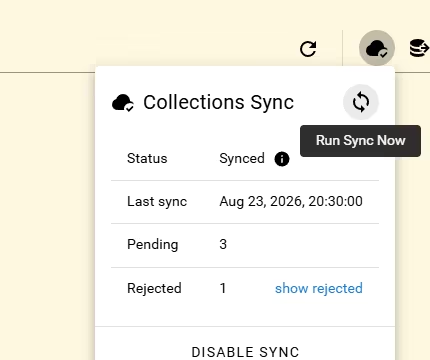
Open a cloud control to see its status, last completed sync, pending changes, and rejected changes. Select Run Sync Now when you want Definer to check for changes immediately.
Disable Sync stops syncing that content on the current installation without deleting its local copy.
Fix a sync problem
If the status is Failed, check that Definer is online, then select Run Sync Now.
If Rejected is greater than 0, select Show rejected. Open the sync alert on an affected item to read the reason and make any requested change.
Use Copy error when you need to include the displayed message in a support request.
For a downloadable copy of your Definer data, use Backup and restore.