Edit a Routine as JSON
JSON Editor lets advanced users edit Routine settings as JSON. It is useful for copying repeated structures, reviewing several settings at once, or making a precise change that would take longer through individual fields.
Use Visual Editor for a first Routine. Before a large JSON change, duplicate the Routine so the original remains available.
Open JSON Editor
Open Definer Options → Sources → [source] → Settings → Routines, then create or edit a Routine. Open the mode menu near the upper-right corner and choose JSON Editor.
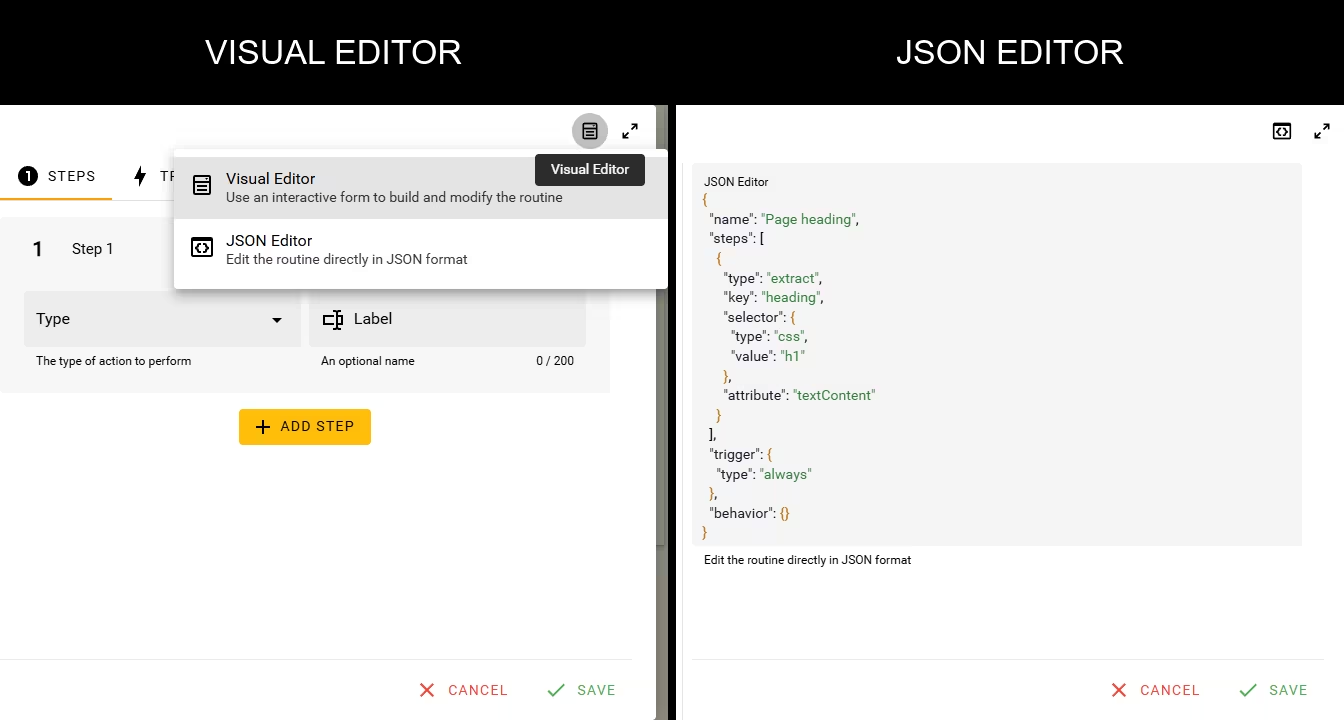
JSON Editor reports invalid JSON syntax, but correct syntax does not guarantee that every field forms a working Routine. Switch back to Visual Editor and use Test before selecting Save.
Start with a complete Routine
This Routine collects the first h1 text and converts it to uppercase:
{
  "name": "Collect heading",
  "desc": "Collect the first page heading",
  "steps": [
    {
      "type": "extract",
      "key": "heading",
      "selector": {
        "type": "css",
        "value": "h1"
      },
      "attribute": "textContent",
      "multiple": false,
      "skipIfEmpty": true,
      "transforms": [
        {
          "type": "uppercase"
        }
      ]
    }
  ],
  "trigger": {
    "type": "always"
  },
  "behavior": {
    "runFrequency": "once",
    "showUiButton": true
  }
}
After entering the JSON, switch to Visual Editor. Load a result in the preview, open Test, and select Run. A successful result shows heading under Extracted Data. Select Save only after that checkpoint.
Routine object
JSON Editor exposes these top-level fields:
| Field | Accepted value | Purpose |
|---|---|---|
name | String | Name shown in the Routines list and lookup menu. |
desc | String | Optional description shown with the Routine. |
steps | Array of Step objects | Actions that run from first to last. |
trigger | Trigger object | Condition that starts the Routine. |
behavior | Behavior object | Repeat, menu, error, ordering, and output-group choices. |
Change only the fields documented below. Definer manages the Routine's source, list placement, and other surrounding details.
Every Step object requires type and can include an optional string label. The other fields depend on its type.
Selectors and conditions
Selector object
Steps and Triggers that target a page element use this shape:
{
  "type": "css",
  "value": ".result-title"
}
type accepts css or xpath. value is the corresponding selector.
Condition object
Wait and Until Condition Loop conditions use a type and, when needed, a comparison value:
{
  "type": "textContains",
  "value": "Ready"
}
The accepted condition types are:
type | Extra fields | Condition |
|---|---|---|
textContains | value | Element text contains the value. |
textEquals | value | Element text equals the value. |
textMatches | value | Element text matches the regular expression. |
countEq | value | Number of matches equals the value. |
countGt | value | Number of matches is greater than the value. |
countLt | value | Number of matches is less than the value. |
attrContains | attributeName, value | Named attribute contains the value. |
attrEquals | attributeName, value | Named attribute equals the value. |
hasClass | value | Element has the named class. |
isVisible | None | Element is visible. |
isHidden | None | The first matched element is hidden, or no element is present. |
Trigger objects
Use one of these four Trigger shapes.
Always
{
  "type": "always"
}
Page Has Element
{
  "type": "element",
  "selector": {
    "type": "css",
    "value": ".results"
  }
}
URL Condition
{
  "type": "url",
  "urlMode": 3,
  "query": "/search"
}
urlMode uses the same choices shown under Condition:
urlMode | Visual Editor label |
|---|---|
1 | Matches domain |
2 | Matches URL |
3 | URL contains |
4 | URL starts with |
5 | URL ends with |
6 | Matches pattern |
7 | Matches regular expression |
Manual
{
  "type": "manual"
}
Behavior object
All Behavior fields are optional:
{
  "dataKey": "article",
  "runFrequency": "onOpen",
  "showUiButton": true,
  "stopOnError": true,
  "terminal": false
}| Field | Accepted value | Observable effect |
|---|---|---|
dataKey | String | Places the Routine's collected values under this shared name. |
runFrequency | once, onOpen, or onNavigation | Matches Once, Every Time Opened, or Every Open and Navigation. |
showUiButton | Boolean | Shows controls for an automatic Routine in the lookup header when true. |
stopOnError | Boolean | Stops later Steps after an error when true. |
terminal | Boolean | Skips later automatic Routines after this Routine runs when true. |
When omitted, runFrequency behaves as once, showUiButton behaves as true for an automatic Routine, and the other Boolean fields behave as false.
Run frequency, showUiButton, and terminal do not change a Manual Routine. A Manual Routine waits in the Routines menu.
Step objects
Extract
{
  "type": "extract",
  "label": "Read title",
  "key": "title",
  "selector": {
    "type": "css",
    "value": "h1"
  },
  "attribute": "textContent",
  "multiple": false,
  "skipIfEmpty": true,
  "transforms": [
    {
      "type": "uppercase"
    }
  ]
}
key names the collected value. attribute accepts textContent, innerHTML, outerHTML, value, class, href, src, or attr. When it is attr, add customAttributeName.
Set multiple to true to build a list from the matches; empty transformed values are omitted from that list. Set skipIfEmpty to true to omit an empty single value.
transforms is an ordered array created by Transformations → Functions in the Visual Editor. Build and test the sequence there before adjusting its JSON. A transformation has a type and the fields shown for that function.
For a custom Liquid transformation, omit transforms and use liquidTemplate instead. The extracted value is available as value, and lookup values use the names from Lookup variables:
{
  "type": "extract",
  "key": "title",
  "selector": {
    "type": "css",
    "value": "h1"
  },
  "attribute": "textContent",
  "liquidTemplate": "{{ value | strip | upcase }}"
}
See Liquid basics for template syntax.
Loop
{
  "type": "loop",
  "key": "results",
  "selector": {
    "type": "css",
    "value": ".result"
  },
  "mode": "count",
  "count": 5,
  "children": [
    {
      "type": "extract",
      "key": "title",
      "selector": {
        "type": "css",
        "value": ".title"
      },
      "attribute": "textContent"
    }
  ]
}
Use mode: "count" for the Visual Editor's Matching Elements mode, and use count to limit how many matching elements are processed. children accepts Extract, Script, Click, Input, Scroll, Remove, and Wait Steps. It does not accept another Loop or Adblock.
Use mode: "condition" for Until Condition, when the child Steps should repeat until a condition matches:
{
  "type": "loop",
  "key": "loadAttempts",
  "selector": {
    "type": "css",
    "value": ".results-status"
  },
  "mode": "condition",
  "condition": {
    "type": "textEquals",
    "value": "Complete"
  },
  "timeout": 10000,
  "children": [
    {
      "type": "click",
      "selector": {
        "type": "css",
        "value": ".load-more"
      },
      "timeout": 1000
    },
    {
      "type": "wait",
      "mode": "delay",
      "timeout": 500
    },
    {
      "type": "extract",
      "key": "status",
      "selector": {
        "type": "css",
        "value": ".results-status"
      },
      "attribute": "textContent"
    }
  ]
}
Definer checks condition before the first repetition, then checks again after each repetition. If the condition matches, the output list contains one item for each time the child Steps ran. If the Loop reaches timeout first, it ends with an error and does not add a partial list to Extracted Data.
Wait
A fixed delay needs only mode and timeout:
{
  "type": "wait",
  "mode": "delay",
  "timeout": 1000
}
To wait for an element, use mode: "visible", selector, and timeout. To wait for a condition, use mode: "condition", selector, condition, and timeout.
Input
{
  "type": "input",
  "selector": {
    "type": "css",
    "value": "input[name='query']"
  },
  "value": "{{ str }}",
  "mode": "insert",
  "timeout": 1000
}
mode accepts insert or emulateTyping. value supports Liquid, including lookup names such as {{ str }}.
Click
This example opens the first collapsed disclosure control. Replace the selector with a harmless control you picked from the preview before testing it.
{
  "type": "click",
  "selector": {
    "type": "css",
    "value": "button[aria-expanded='false']"
  },
  "timeout": 1000
}
Scroll
Scroll to an element with target: "element" and a selector. Scroll to an offset with target: "pixels" and pixels. Scroll to a page-height percentage with target: "percentage" and percentage.
{
  "type": "scroll",
  "target": "percentage",
  "percentage": 75
}
Remove
{
  "type": "remove",
  "selector": {
    "type": "css",
    "value": ".sidebar"
  },
  "mode": "hide",
  "timeout": 1000
}
mode accepts delete or hide.
Adblock
{
  "type": "adblock",
  "useDefaultFilterLists": true,
  "filterListUrls": []
}
Custom filterListUrls must contain trusted HTTPS URLs. See Use the Adblock Step before adding them.
Script
Script can read the source page and available lookup variables, change the page, and make requests allowed by that page. Run only code you wrote or reviewed, and test it without personal data first.
{
  "type": "script",
  "key": "queryLength",
  "code": "const query = definer.lookup.getVariable('str'); return query?.length;",
  "timeout": 5000
}
key is optional. When it is present, Definer collects the return value under that name. Routine Script supports definer.lookup.getVariable('name') for lookup data. See Routine Steps for permission, wait-limit, and safety guidance.
Validate and save
- Confirm that JSON Editor shows no syntax error.
- Switch to Visual Editor and inspect Steps, Trigger, and Config.
- Load a representative preview.
- Open Test, select Run, and confirm the page action or Extracted Data.
- Select Save, then reopen the Routine and confirm that the JSON remains as expected.
If Visual Editor or Test reports an unknown or invalid value, correct it before selecting Save. Use the duplicated Routine to recover from a larger change that does not validate.