Change font size in the Bubble
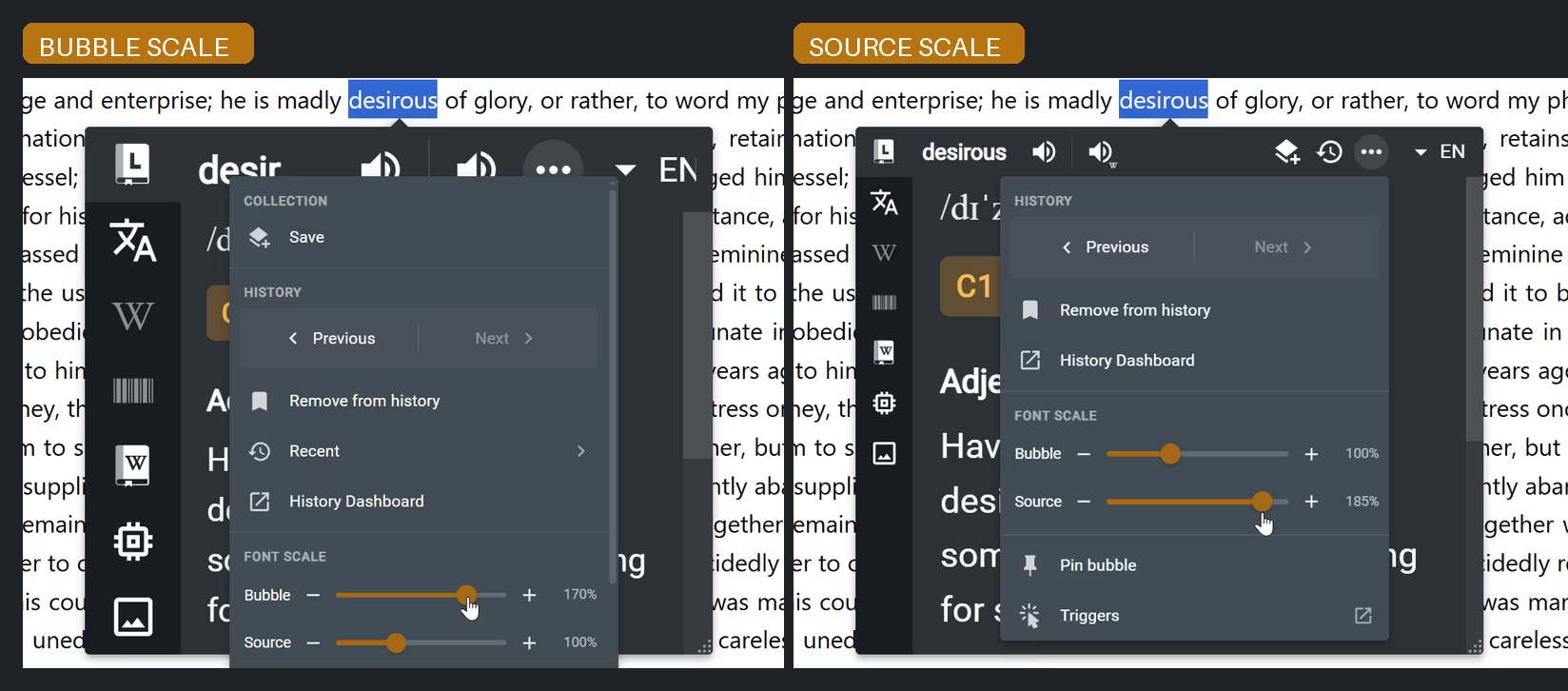
Font scale makes the Bubble easier to read without changing the page underneath it. The Bubble control scales the main Bubble interface and results. The Source control scales only the current source result, so you can enlarge dense content without making the rest of the Bubble larger.
Change font size during a lookup
- Open the Bubble and select the vertical three-dot More actions button.
- Under Font scale, move the Bubble or Source slider.
- Watch the Bubble update and stop at a comfortable size.
The Source scale is remembered separately for each Source.
Set the Bubble scale from Options
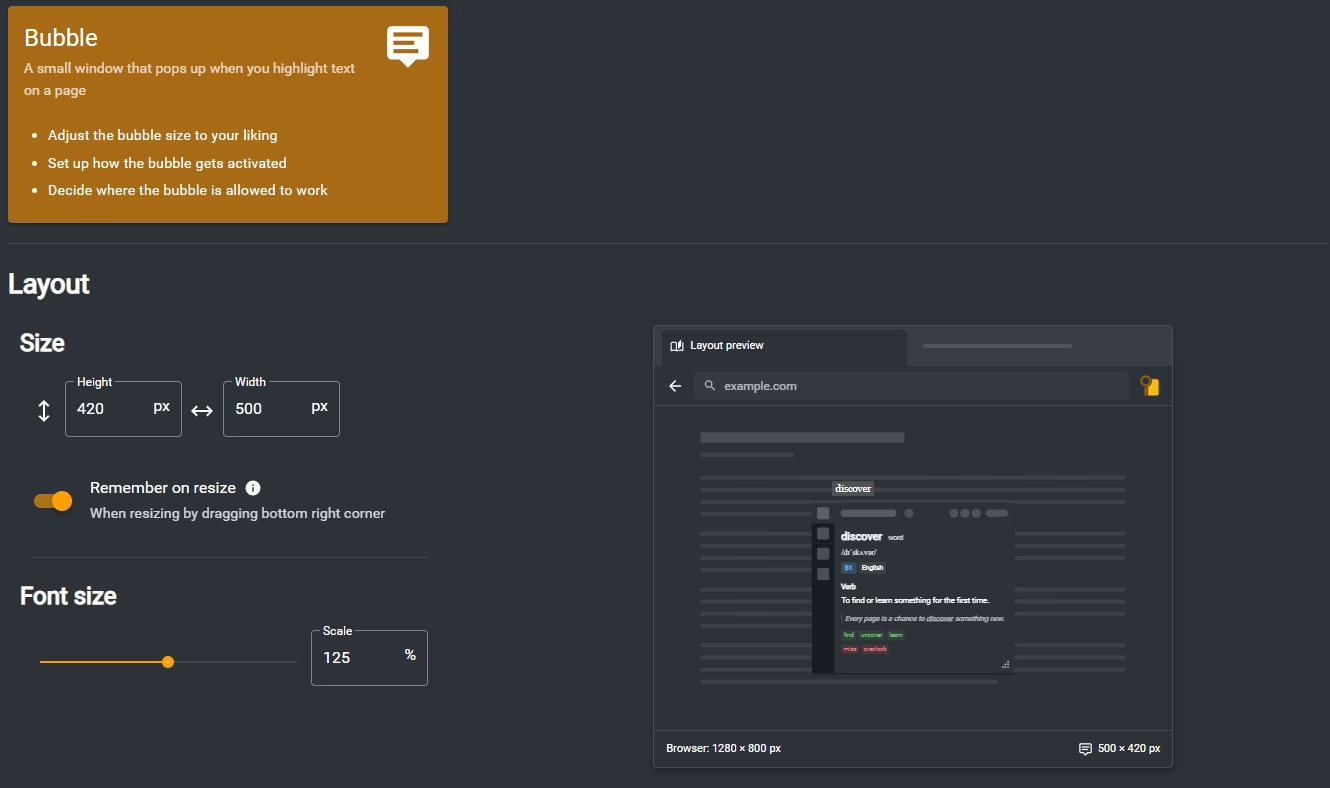
Use this route when the Bubble is not open or when you prefer to adjust it from settings.
- Open Definer Options → Bubble → Layout → Font size.
- Move the Scale slider.
- Open a Bubble and confirm that its interface uses the selected size.
Change typography elsewhere in Definer
Bubble font scale does not resize other Definer pages. To change fonts or text size more broadly, use Themes.