Bubble
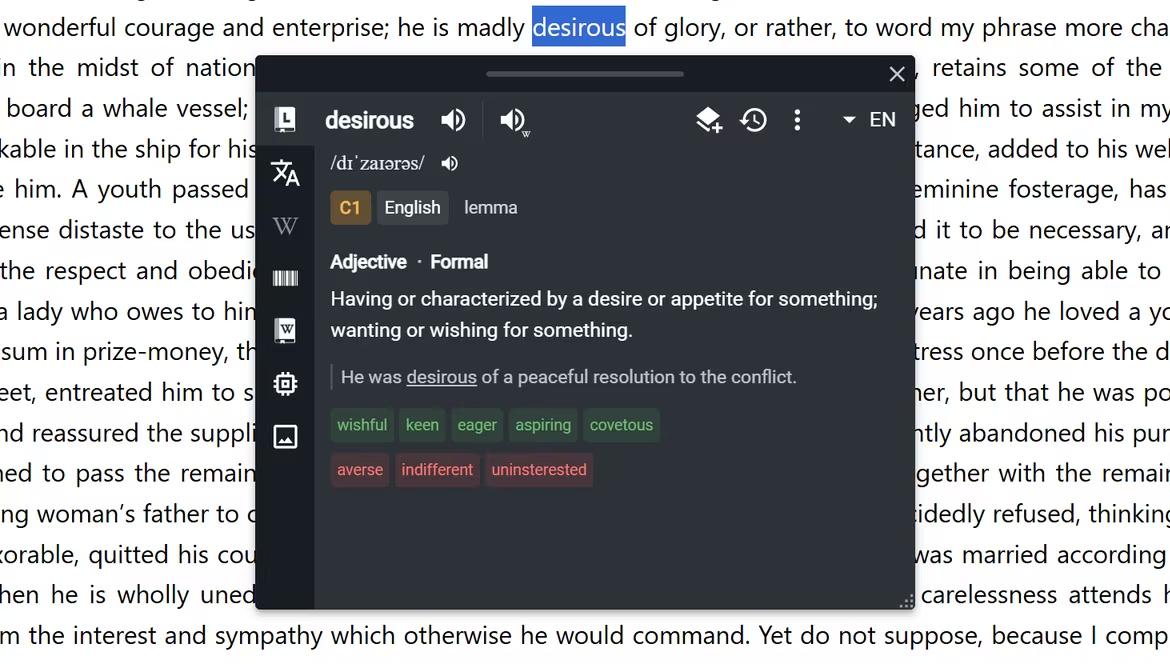
The Bubble places lookup results from your Sources over the page you are reading, close to the selected text. Use it when you want to check something and continue reading without switching tabs.
Open a lookup on the page
Select text and use one of your Bubble Triggers. The Bubble opens near the selection and keeps the current page visible. The exact gesture depends on the Triggers you have enabled.
Use Bubble controls
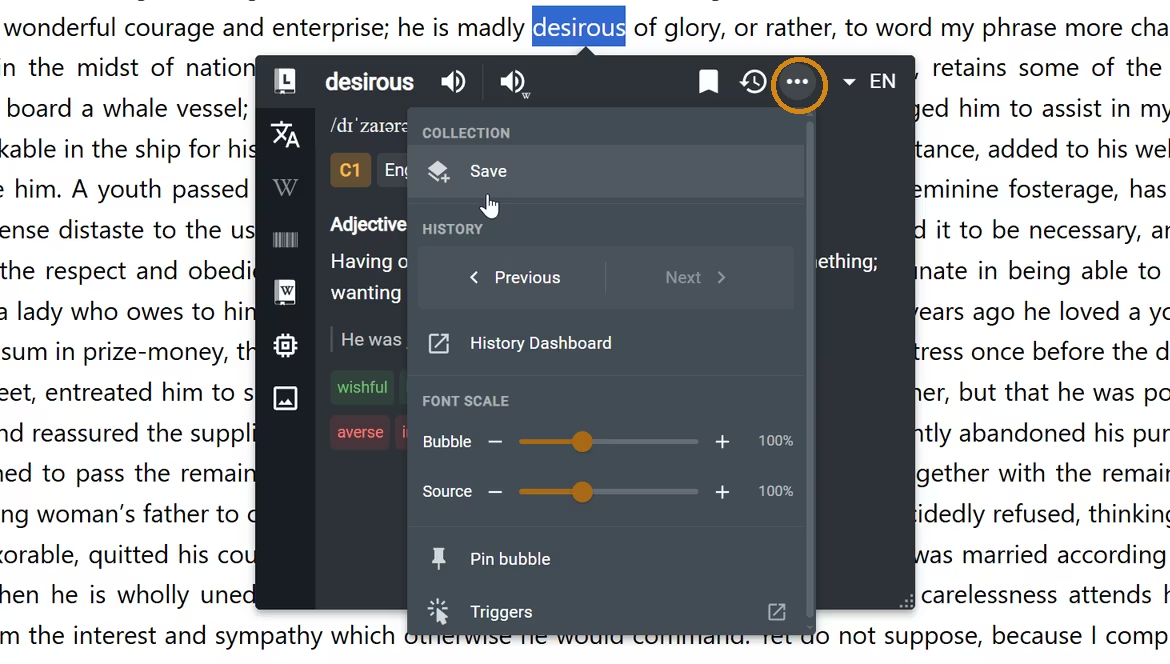
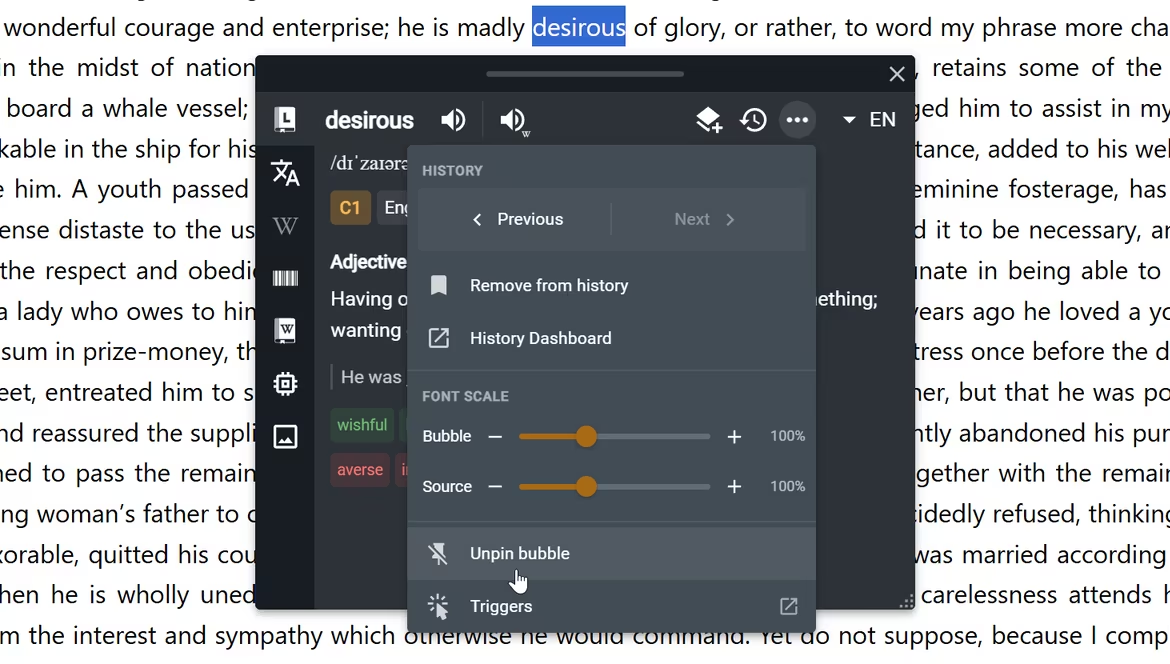
The Bubble header keeps lookup actions close to the result. Select the vertical three-dot More actions button to open controls that are not currently shown as header buttons.
Open More actions
The available controls depend on the current lookup and your settings.
| Control | What you can do |
|---|---|
| Collection | Save the current source result as a collection item with Recipes, or open its export choices after saving. |
| History | Move to the previous or next lookup, add or remove the current lookup from History, open recent lookups, or open the History Dashboard. |
| Font scale | Change the size of the main Bubble interface or only the current source result. |
| Pin bubble or Unpin bubble | Keep the Bubble open as a movable window, or return it near the selected text. |
| Triggers | Open the settings that control how the Bubble appears. |
Keep actions in the header
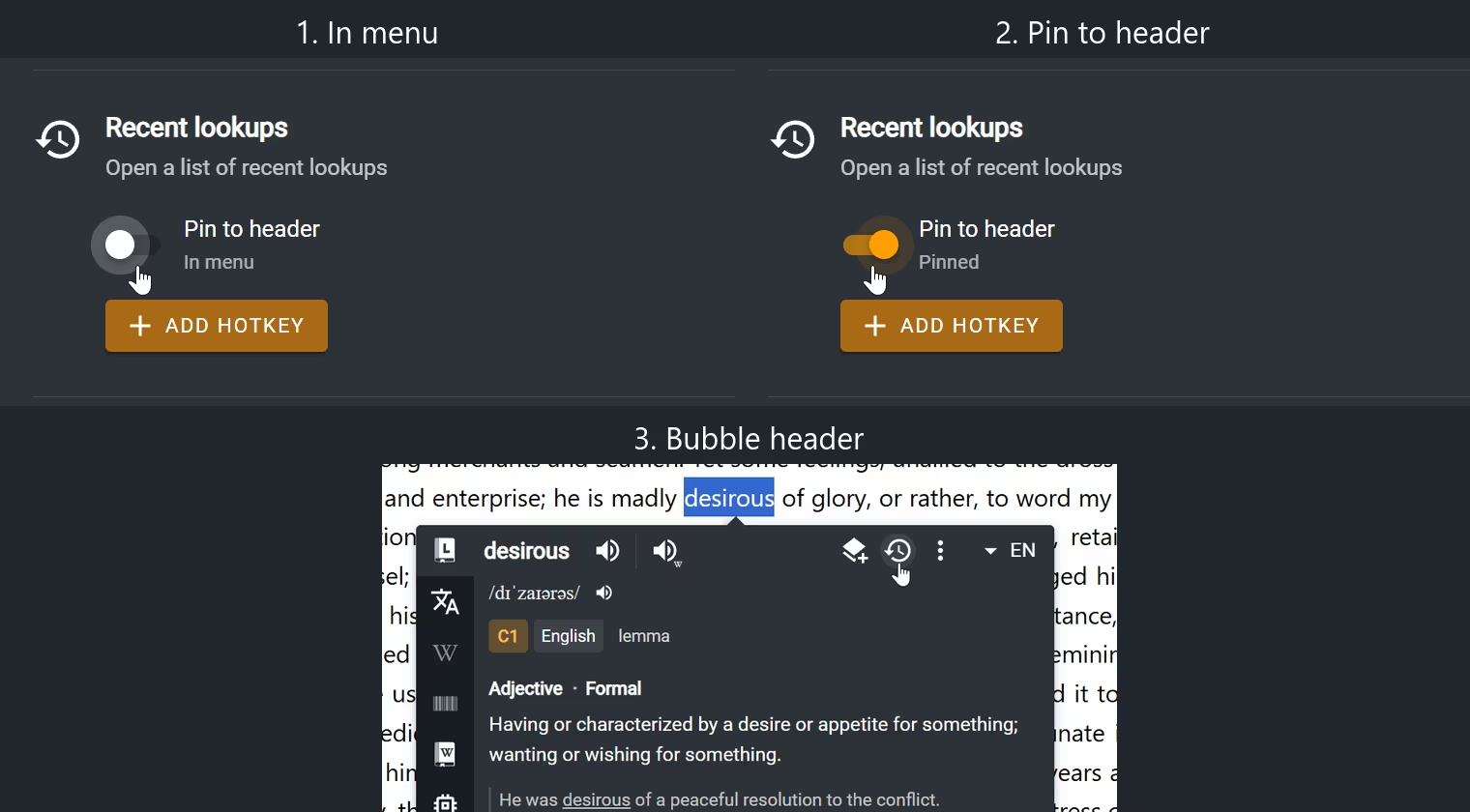
You can pin Save, Recent lookups, Previous lookup, Next lookup, Add to History, and History Dashboard.
- Open Definer Options → History → Settings → Controls.
- Find the action you want and turn on Pin to header.
- Return to a lookup. The action should appear in the Bubble header when it is available.
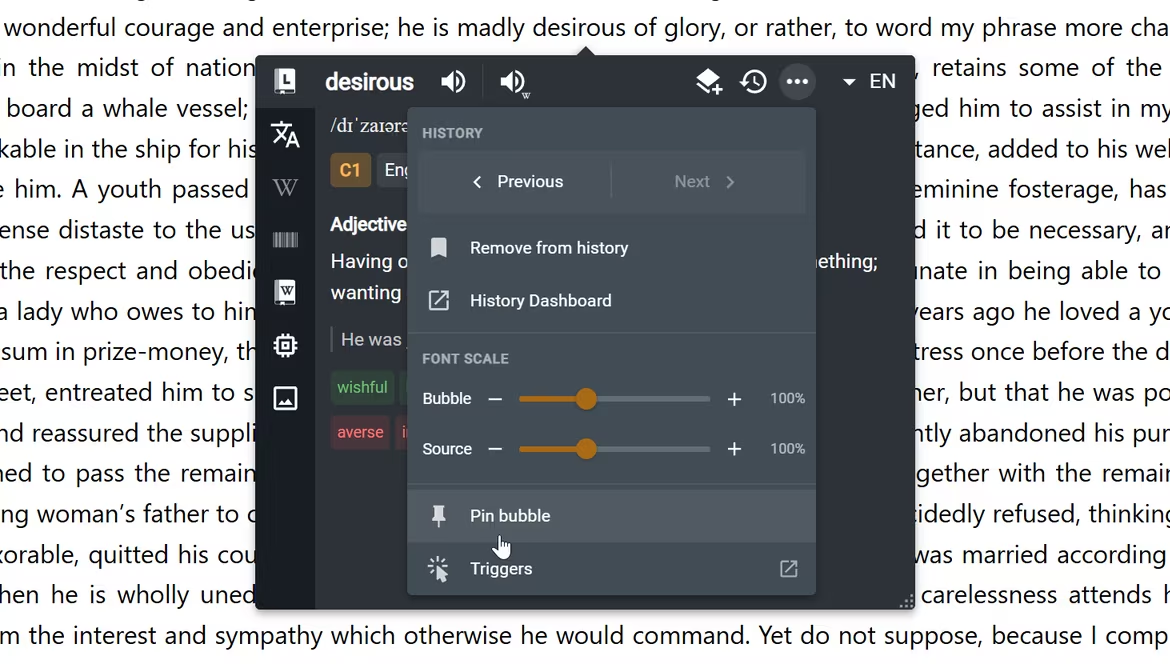
If the Bubble becomes too narrow for all pinned actions, Definer keeps the remaining actions in More actions instead.
In a narrow Bubble, Recent lookups moves back into More actions.
Use the Routines button
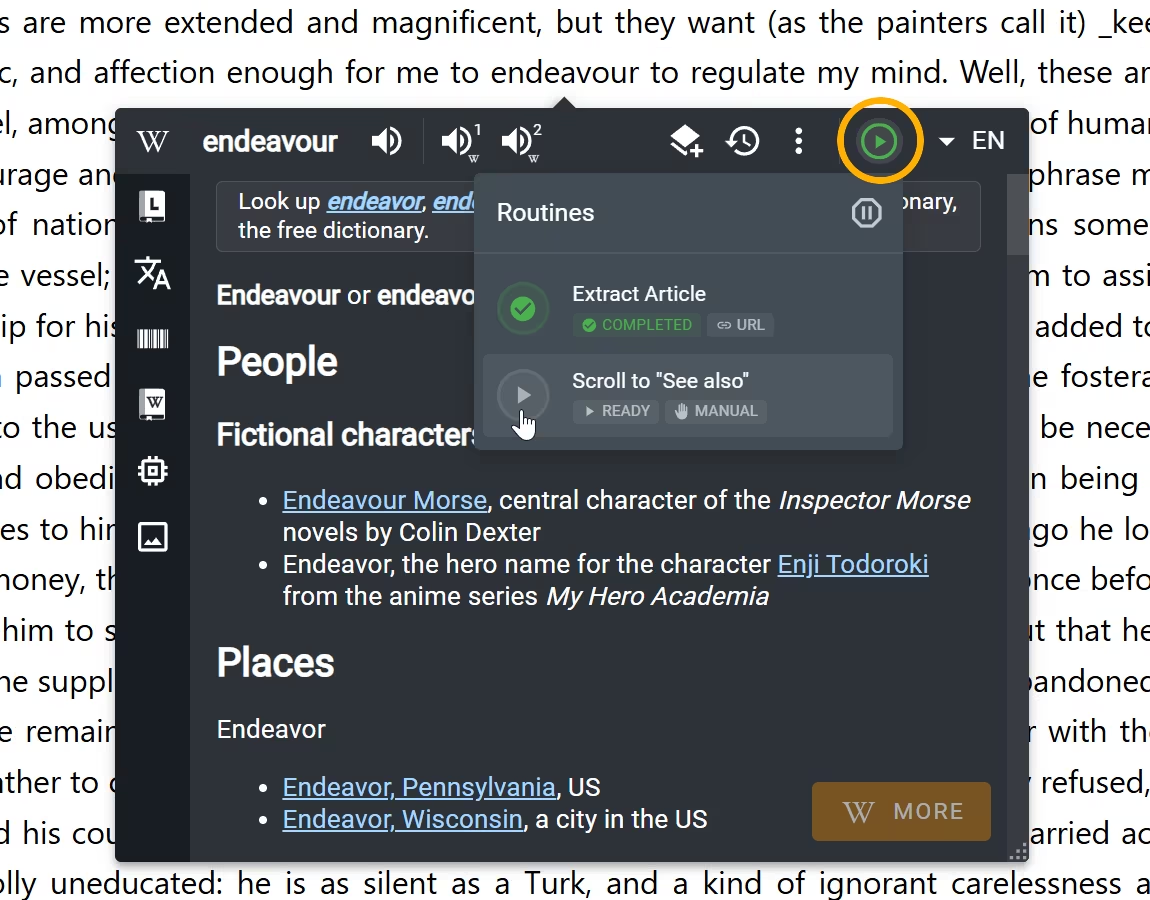
Some source results show a play-shaped Routines button beside the other header controls. A Manual Routine always makes this button available. For an automatic Routine, it appears when Show Routine Button is enabled.
Open Routines to see each Routine's status and progress. From the menu, you can run or rerun a Routine, stop one that is running, pause all Routines, or resume them.
Pin, move, or close the Bubble
Open More actions and select Pin bubble when you want the Bubble to remain open while you continue using the page. The pinned Bubble gains a top bar. Drag this bar to move the Bubble, or select the X button in the bar to close it.
When Unpin bubble is available, select it to return the Bubble near its original selection. You can also press Esc to close either kind of Bubble. An unpinned Bubble closes when you click outside it, while a pinned Bubble stays open.
Customize the Bubble
- Resize the Bubble when you want more or less room for results.
- Change the font size for the main Bubble interface or an individual Source.
- Choose how the Bubble opens with mouse, keyboard, or menu actions.
- Choose where the Bubble works with default behavior and page rules.
Choose the Bubble or Extension Window
Use the Bubble when selected page text is your starting point and you want the result beside it. Use the Extension Window when you prefer to open Definer from the browser toolbar and enter a lookup there.