Custom Audio
Introduced in v1.7, the Custom Audio source allows you to listen to any text you select or type, provided you have the URL of the audio file. This feature opens up a world of pronunciation resources that might not be available through Definer's standard audio sources.
Custom Audio is present but turned off in a new installation. Open Definer Options → Sources → Audio sources and turn on Custom Audio before using it.
Usage
Using Custom Audio is pretty straightforward:
- Configure the audio URL (see Configuration section below)
- Select or type a word/phrase
- A playable audio button appears in your results
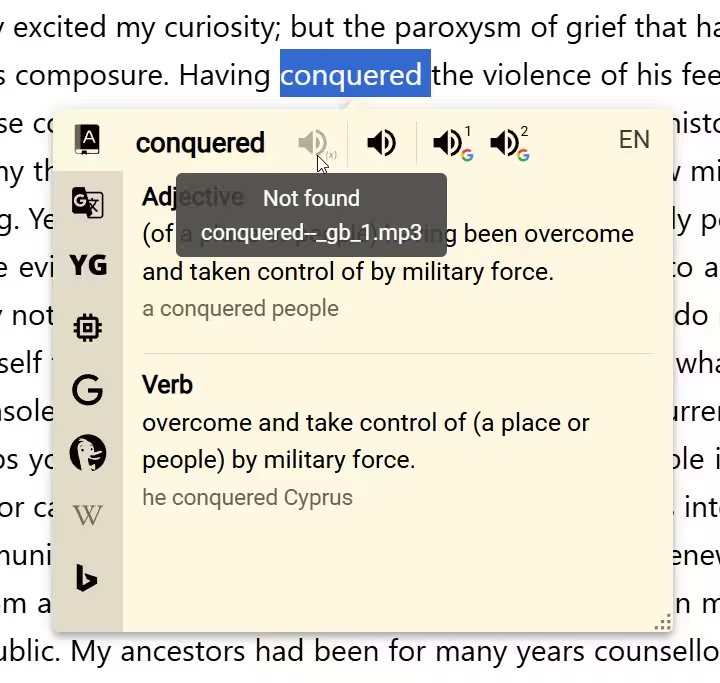
If Definer can't find an audio file at your specified URL, you'll see a disabled, grayed-out button – your visual cue that no audio is available for that selection:
Configuration
To set up or modify your Custom Audio settings, go to:
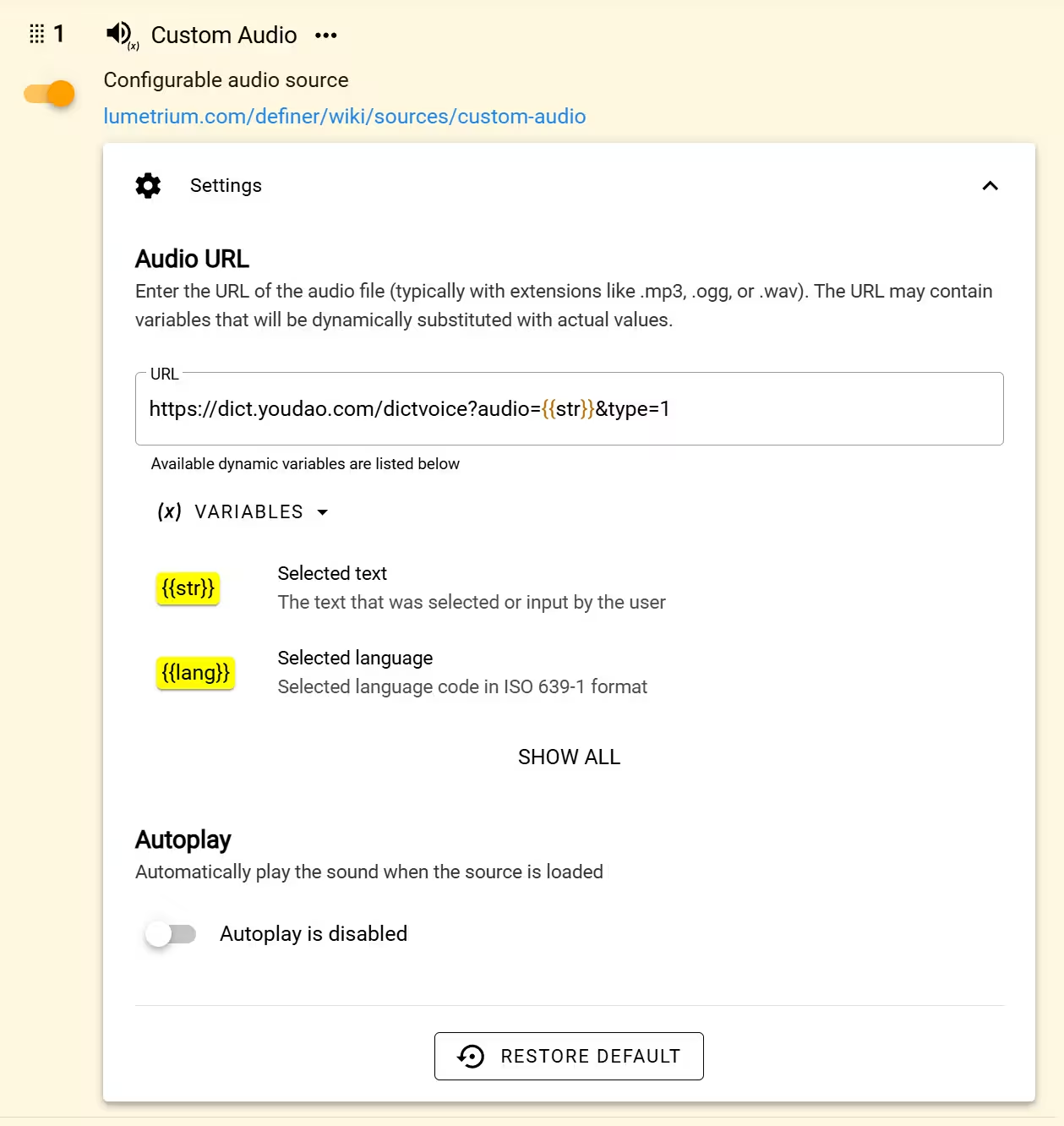
Options → Sources → Custom Audio → Settings.
URL
This is where magic happens! Enter the URL of the audio file you want to use. The field supports Liquid, which lets the URL change with the lookup. See Lookup variables for the available text, language, page, and context values.
Think of it as creating a formula rather than a fixed address. When you search for a word, Definer will plug that word into your URL formula to find the right audio file.
Let's see some examples...
Oxford Pronunciations via Google
Google hosts Oxford pronunciation recordings on their ssl.gstatic.com domain.
Try the following URL for that classic British pronunciation:
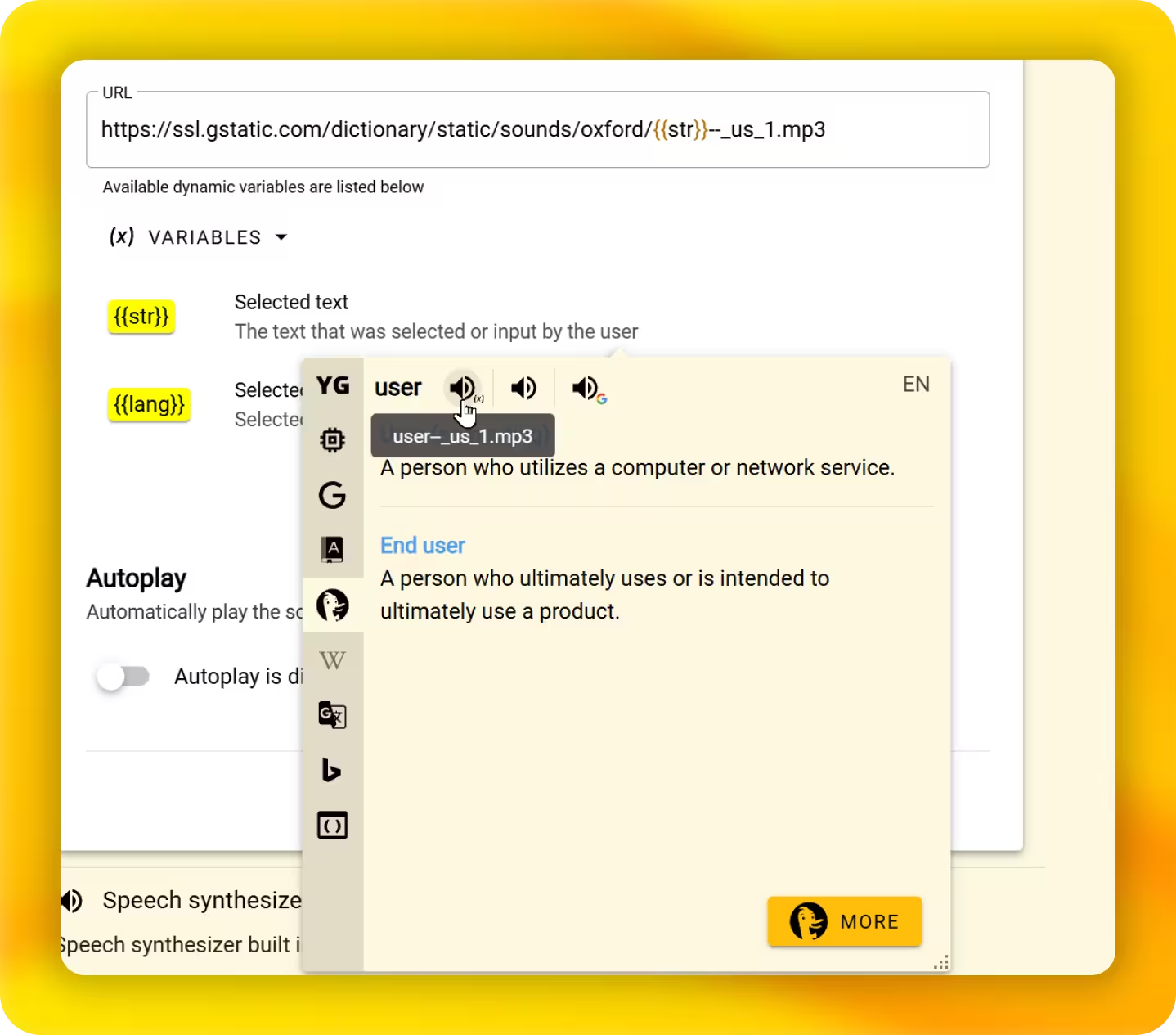
https://ssl.gstatic.com/dictionary/static/sounds/oxford/{{ str | url_encode }}--_gb_1.mp3For American pronunciation:
https://ssl.gstatic.com/dictionary/static/sounds/oxford/{{ str | url_encode }}--_us_1.mp3The {{ str | url_encode }} expression inserts the selected text and makes spaces or special characters safe in the URL. Look up "extraordinary", and Definer searches for "extraordinary--_us_1.mp3" at the specified location.
Autoplay
When enabled, audio will start playing immediately after your search completes - no need to click the play button. This option is disabled by default.