Use the Adblock Step
The Adblock Step removes many common ads, cookie notices, popups, and other page clutter from a source result. It also restores page scrolling when removed clutter had locked it.
Start with Definer's built-in block list. Add custom lists only when the built-in choice does not cover the page you use.
Add Adblock to a Routine
- Open Definer Options → Sources → [source] → Settings → Routines.
- Create or edit a Routine, open Steps, then add an Adblock Step with Use the built-in block list enabled.
- Load a representative result in the preview. Open Test, select Run, and confirm that the ads, cookie notices, or popups disappear.
- If you created a new Routine, open Config and name it
Remove ads and popups. Select Save, then open the same kind of result in a normal lookup and verify that the saved Routine removes the same page clutter when its Trigger runs.
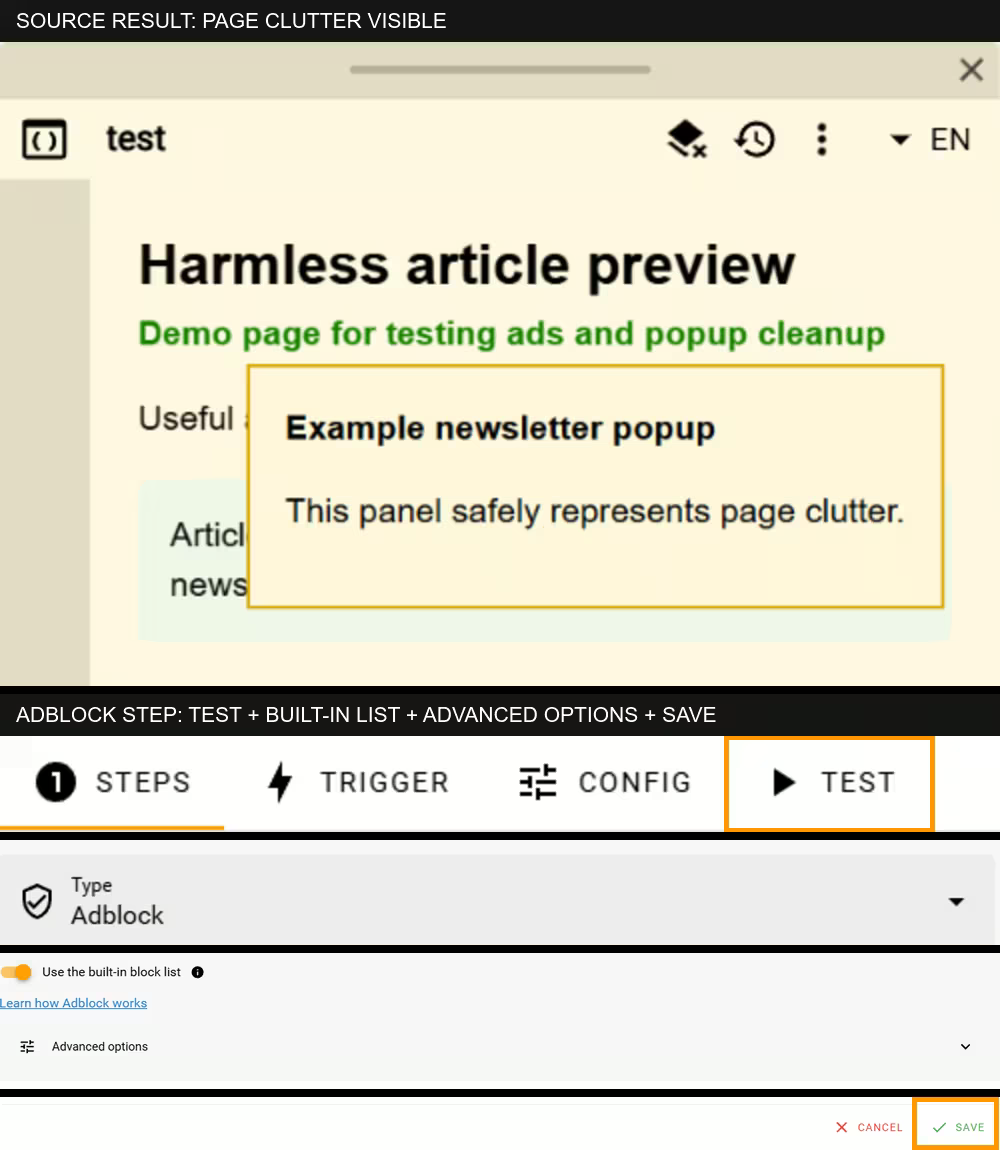
Before running the Step, confirm that the unwanted element is visible in the preview.
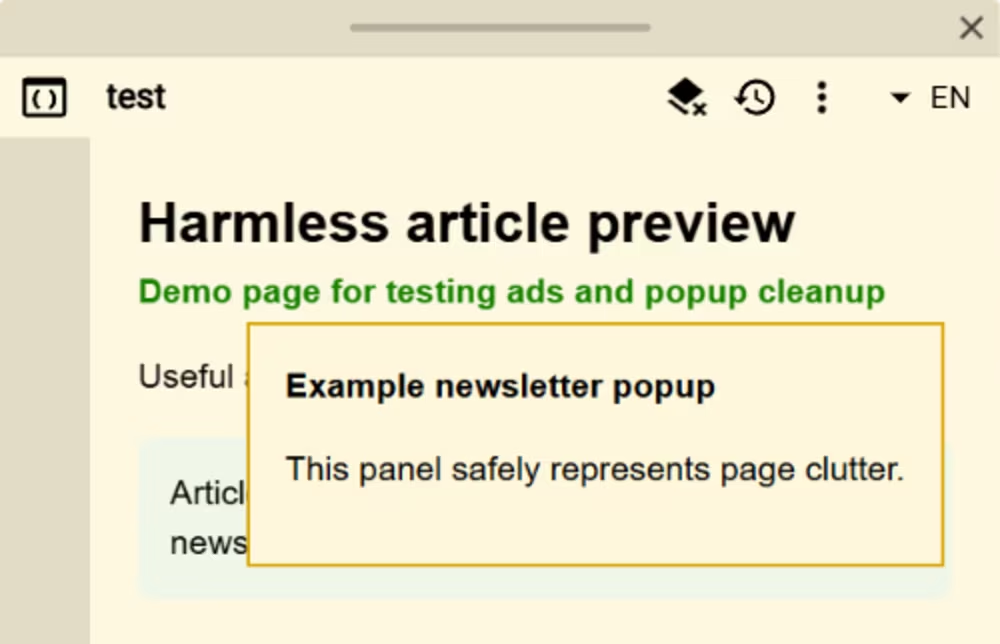
After saving, the Routines menu shows the automatic action as completed and the useful page remains readable.
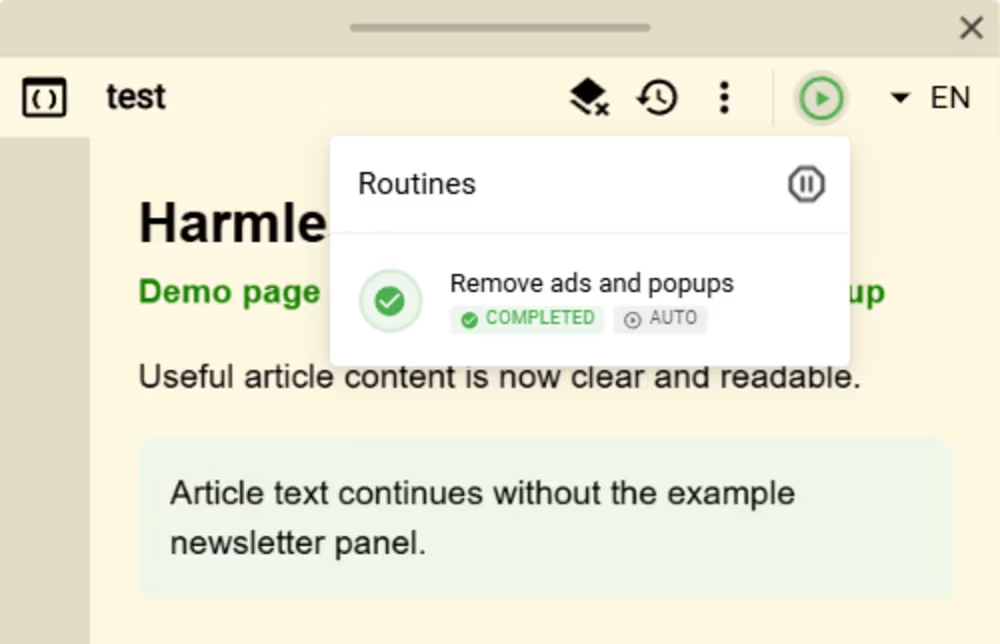
Adblock keeps handling matching ads, cookie notices, and popups that appear later while that source page remains open. You normally do not need a Wait Step before it.
Add a custom block list
You can add up to 8 custom block-list URLs.
Custom lists can hide useful content
A custom list can hide useful page content as well as unwanted page elements. Add lists only from a source you trust, and review the result before selecting Save.
- Open Advanced options, then enter one trusted HTTPS block-list URL per line under Custom block-list URLs.
- Keep Use the built-in block list enabled when the custom list should supplement Definer's normal coverage. Disable it only when you want to use the custom lists alone.
- Open Test, select Run, inspect the page, and review how many rules were accepted, ignored, or could not be used.
- Select Save only when the result is correct, then verify the same kind of source result in a normal lookup.
The FilterLists directory can help you find lists by language or purpose. Definer does not review the lists in that directory. Check the list's maintainer, license, update history, and intended blocker before using it.
Choose compatible lists
Adblock uses page-hiding rules that identify elements through CSS, together with site restrictions and exact exceptions. It ignores rules that block network requests, run scripts, redirect resources, change cookies, or perform other actions.
This means a list designed mainly for network blocking may produce little visible change in Definer. Test the Step to see how many rules were accepted, ignored, or could not be used.
Understand the visible limits
Adblock changes the page shown in the current source result. It does not stop the page from downloading an ad, image, or script before that item is hidden.
Some content embedded inside the source page may remain visible when Definer cannot access that embedded page. A page can also replace its layout or element names, which may change what a list matches.
Adblock stops affecting a result when that source page closes. It does not change the original website outside Definer.
Built-in list attribution
Definer's built-in catalog contains an adapted subset of EasyList and EasyList Cookie List for supported page-hiding rules. It does not include their network-blocking or executable rules.
EasyList material is attributed to The EasyList authors. See the EasyList license information and CC BY-SA 3.0 legal code. EasyList Cookie List remains under its stated CC BY 3.0 license.