Google Translate
Google Translate translates selected or typed text and can show alternatives, reverse translations, definitions, and audio when they are available.
Google Translate is present but turned off in a new installation. Open Definer Options → Sources → Content sources and turn on Google Translate before using it.
Usage
Google Translate automatically detects the language of your selected or typed text and translates it into your preferred language instantly. You can also manually select both source and target languages directly in the results panel or mark languages as defaults with the handy star icon.
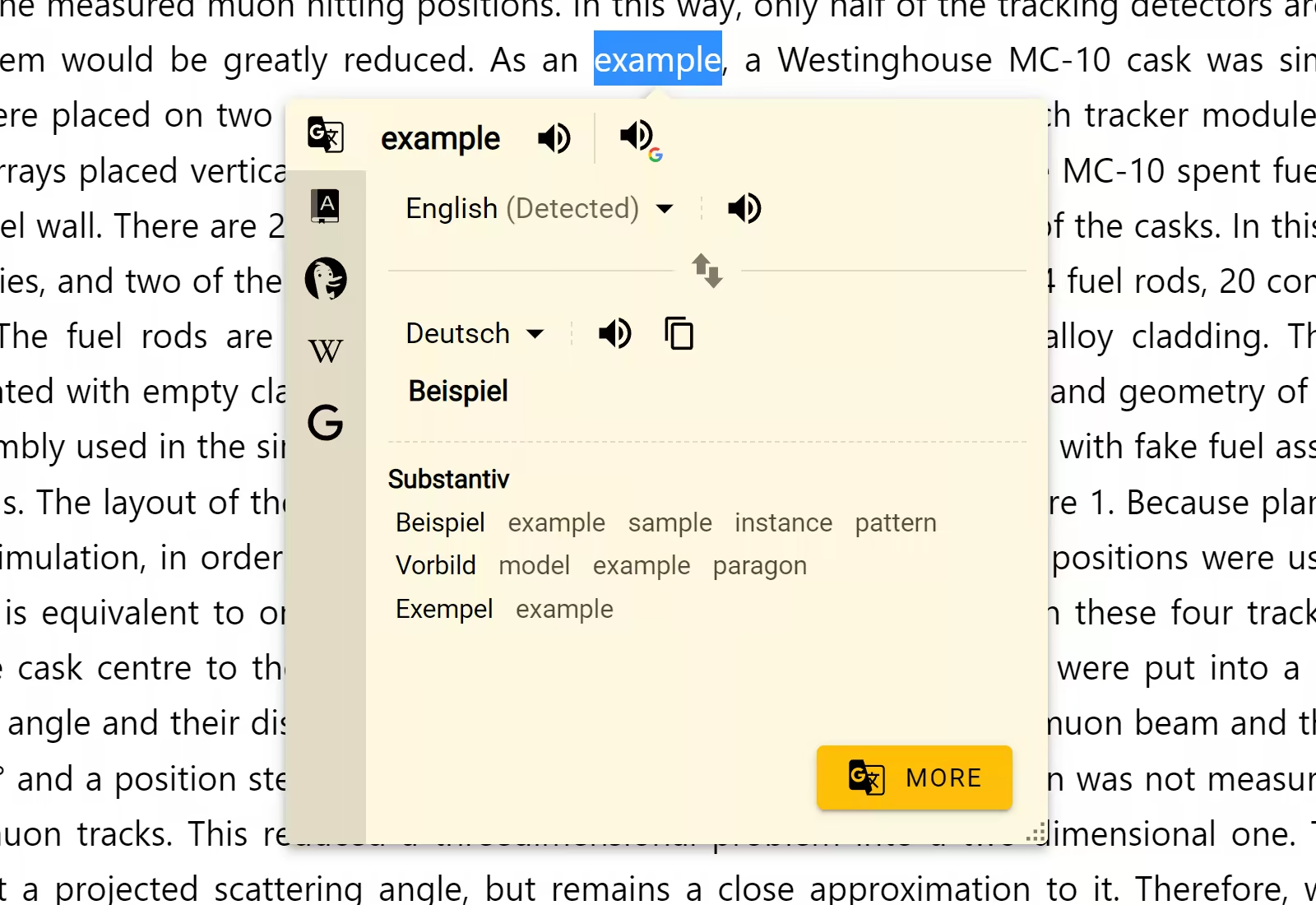
Let's walk through a typical scenario. Say you have two languages selected in the Language tab of Definer Options:
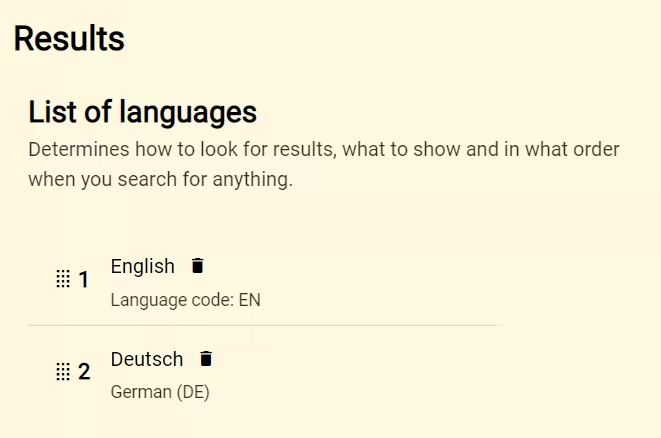 In this example, English and German are selected. If you highlight English text, it automatically translates to German, and vice versa.
When you select text in any of your preferred languages, Definer automatically translates it into your other preferred language. The only exception is if you've manually specified a default target language in settings.
Configuration
To customize Google Translate settings, navigate to:
Options → Sources → Google Translate → Settings.
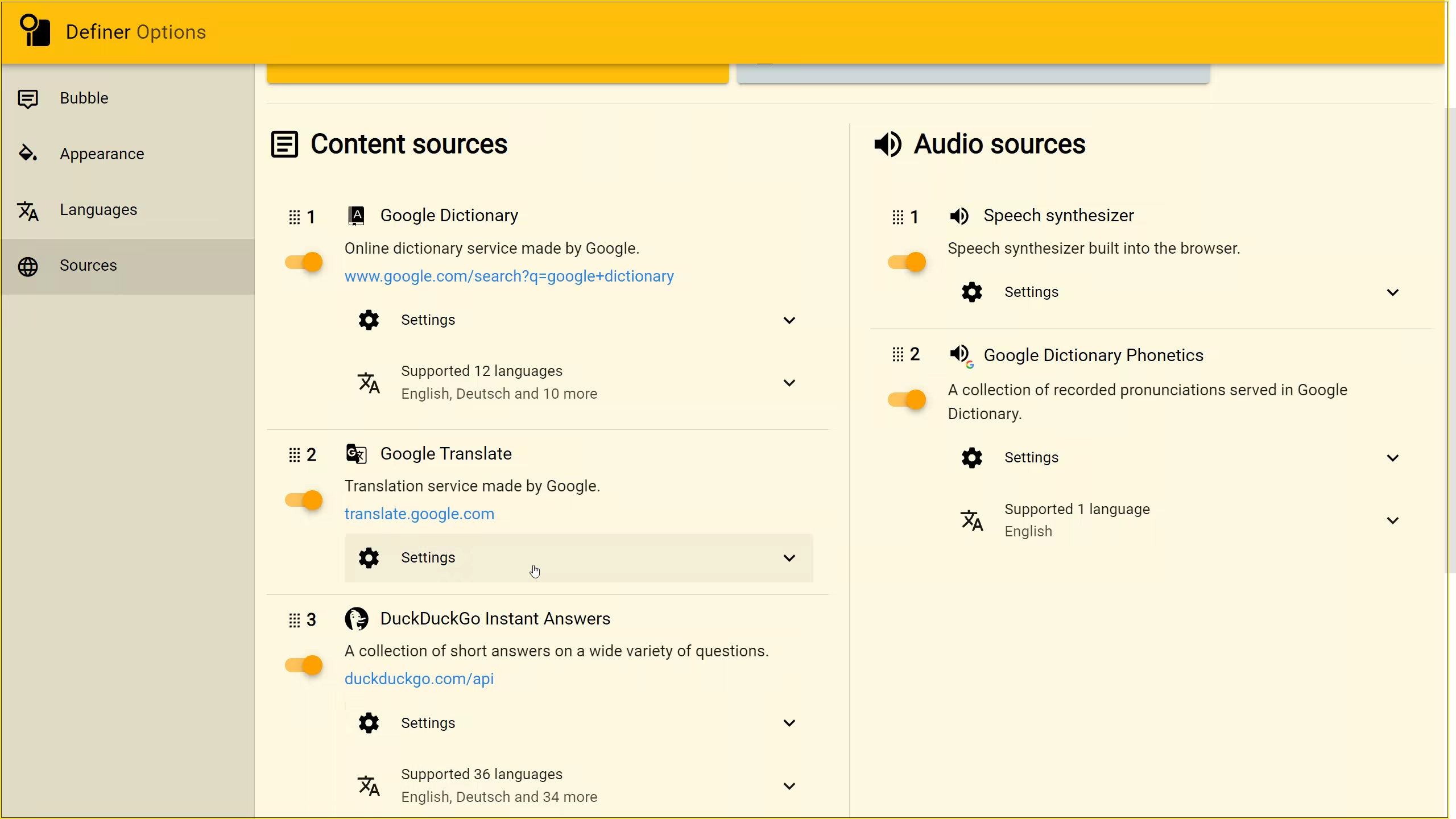 Google Translate source settings
Here, you'll be able to set your preferred languages, select your interface layout, and control autoplay features. You can also show or hide the "More" button and choose which additional translation details you want to display.
Languages
Source language
Language you're translating from. Set to "Auto-detect" by default.
Target language
Language you want to translate into.
Extras
Configure what additional information appears below your translation and in what order.
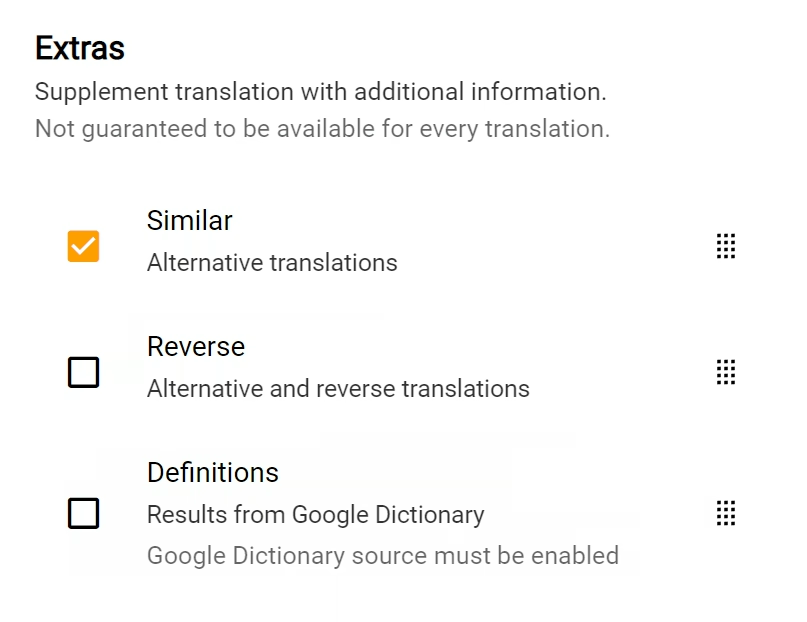
Similar
Enabled by default. Shows alternative translations for your text. Hover over these with your mouse to see reverse translations.
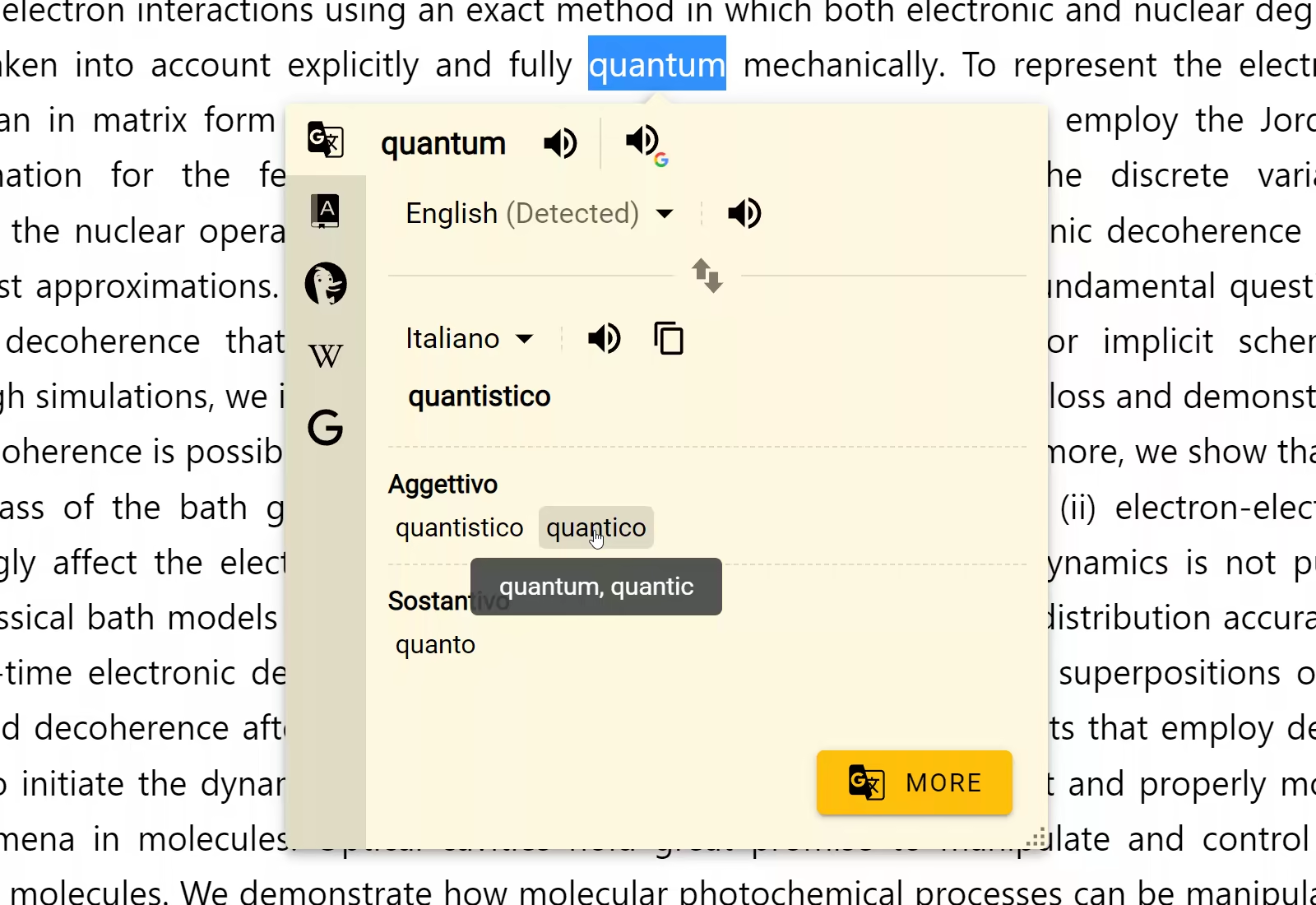
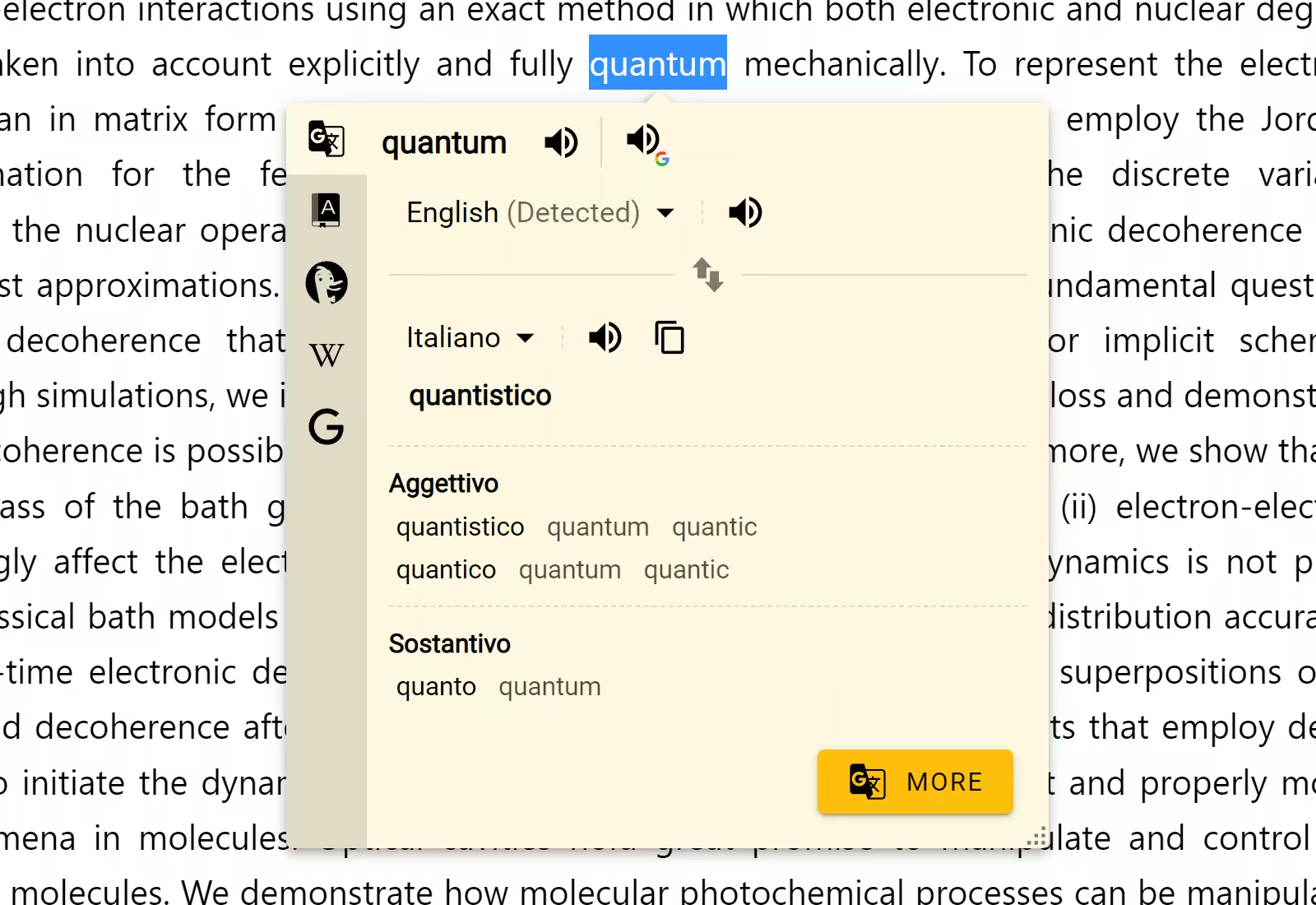
Reverse
Displays alternative translations with reverse translations right beside them. This can create a horizontal scrollbar in a narrow Bubble. Resize the Bubble when you want more room.
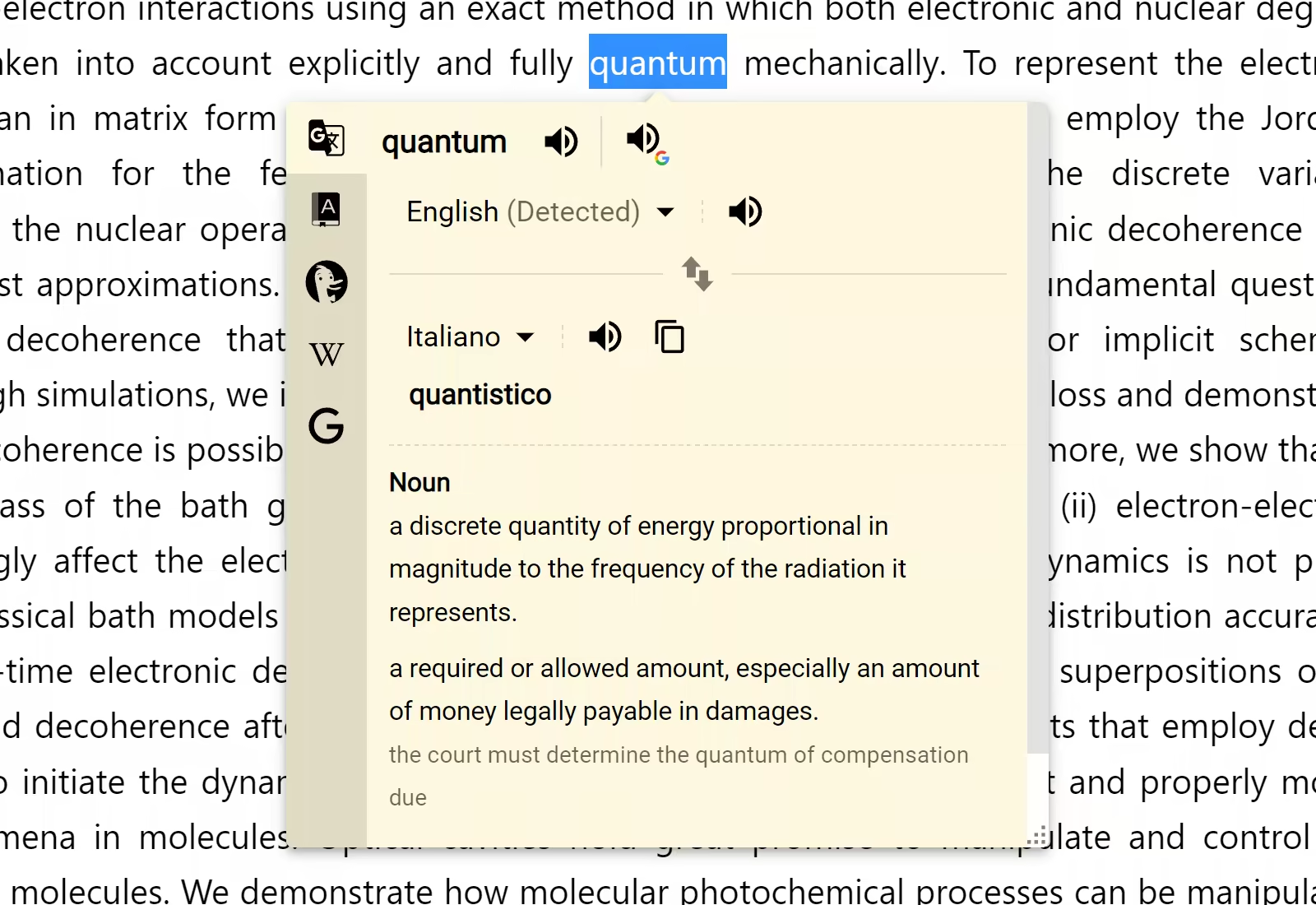
Definitions
Shows dictionary definitions for the translated word when Google Translate returns them.
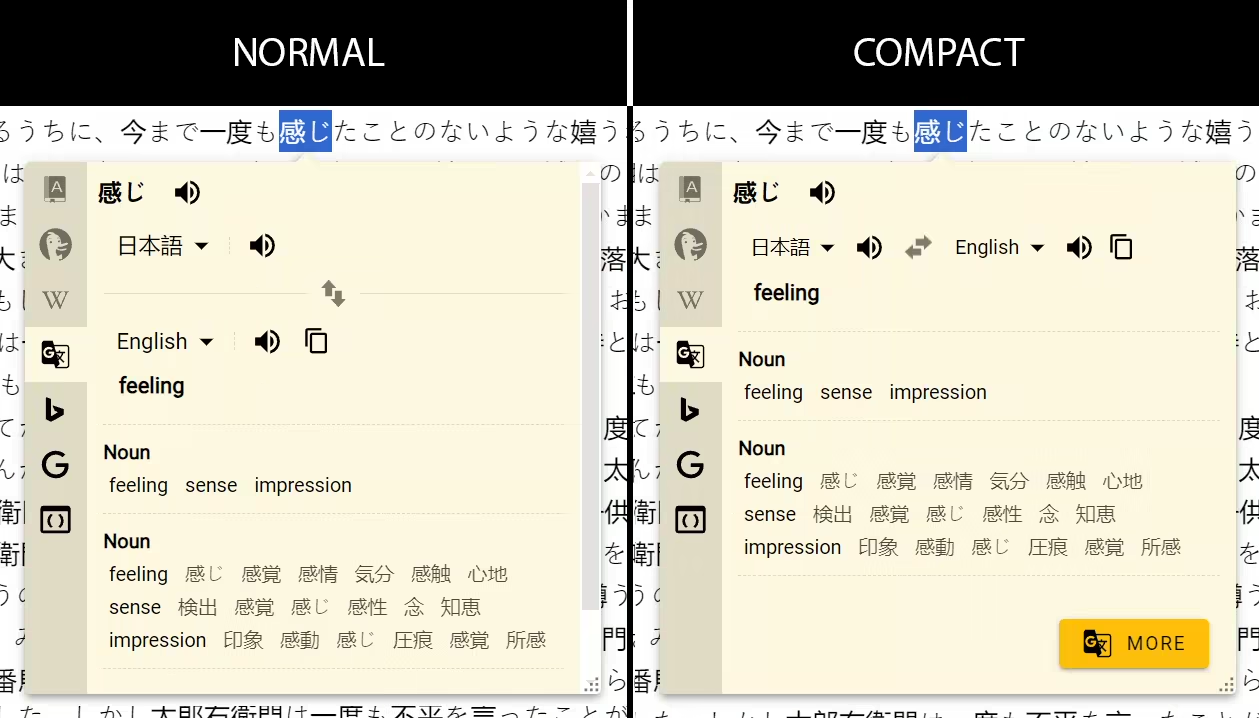
Layout
Adjust how your translation results appear on screen.
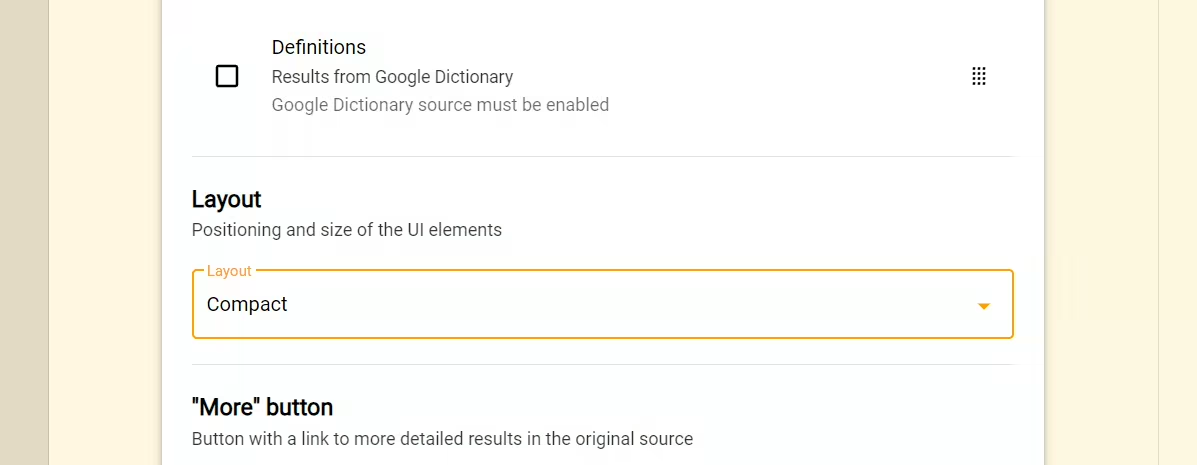
Available options:
- Normal: Default full-featured view
- Compact: Use less space for translation controls
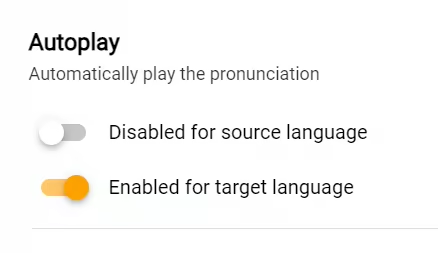
Autoplay
Let Definer automatically pronounce translations for you. You can enable or disable this feature separately for both source and target languages.
"More" Button
When enabled, a button labelled "More" appears in the results area. Clicking this button will automatically open Google Translate website and input your selected text.
Save a translation
Google Translate includes the built-in Google Translate Card Recipe. Select Save on a translation result to create a Card with the original text, translation, language pair, and available audio or supporting details.
See Recipes to choose a different Recipe or change how saved information is arranged.