Routine examples
These examples are small patterns you can adapt to different source results. A Step is one action in the sequence. A Trigger decides when that sequence starts.
Open Definer Options → Sources → [source] → Settings → Routines, then select Create Routine or edit a copy of an existing Routine. Use the element picker on your own preview instead of copying a selector from an example.
Enter a representative lookup above the preview and wait for the result you need. Depending on the example, it should contain a heading and link, delayed content, page clutter, or several repeated items.
If Create Routine or Duplicate opens an account or membership prompt, follow it before continuing, or adapt an existing Routine instead.
Collect a heading and link
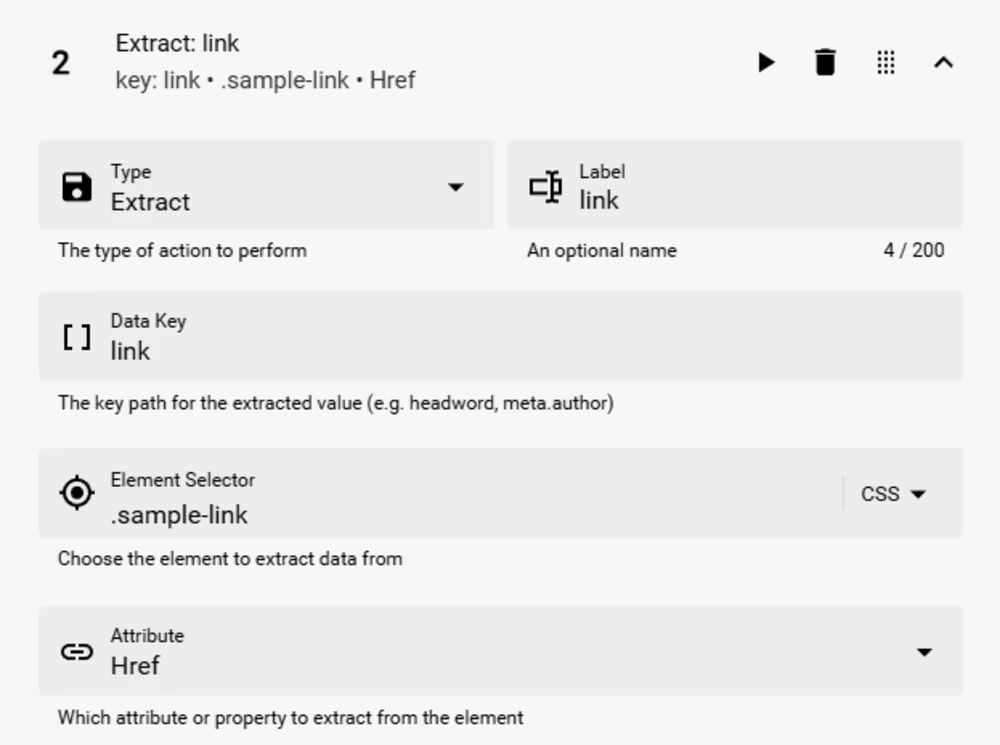
Use two Extract Steps when you want to keep a page label together with its destination URL.
- Add an Extract Step, enter
headingunder Data Key, pick the visible heading, and keep Text Content under Attribute. - Add another Extract Step, enter
linkunder Data Key, pick the relevant link, and choose Href. - Open Test, select Run, and confirm both values under Extracted Data.
- Under Config, name the Routine
Collect heading and link. Select Save, then verify the named Routine with a normal lookup.
The saved Routine now collects heading and link when its Trigger matches.
Wait for delayed content
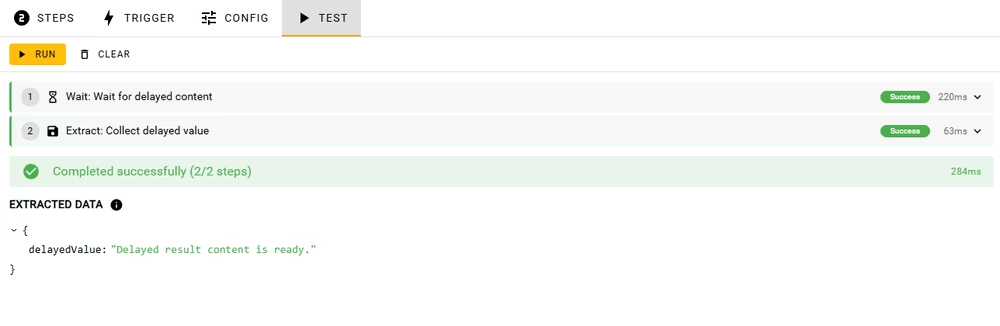
Use Wait before Extract when the page displays useful content after its initial layout appears.
- Add a Wait Step, choose Element exists, pick the delayed content, and set a suitable Timeout (ms).
- Add an Extract Step, give it a Data Key, and pick the same content or a child element.
- Test the complete Routine and confirm that Wait succeeds before Extract.
- Under Config, name the Routine
Wait for result content. Select Save, confirm that the named Routine appears in the list, then verify it with a normal lookup.
Keep the timeout close to the page's ordinary loading time. A large timeout makes a missing element take longer to report.
Create a manual cleanup action
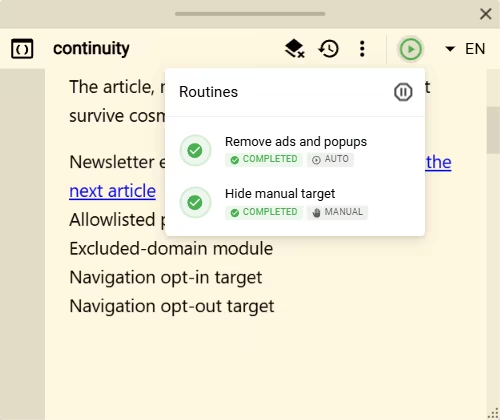
Use a Manual Trigger when you want to clean a source result only on demand.
- Add a Remove Step, choose Hide, and pick the page element you want to hide.
- Open Trigger and choose Manual.
- Test the Routine and confirm that the element disappears from the preview.
- Name and Save the Routine. In a normal lookup, open Routines and select the saved Routine.
The selected element disappears only when you run the Routine. Use an Adblock Step instead when you want a maintained block list to handle common ads, cookie notices, and popups.
Collect repeated results
Use Loop when the page repeats the same layout for several results and you want the same fields from each one.
- Add a Loop Step, enter
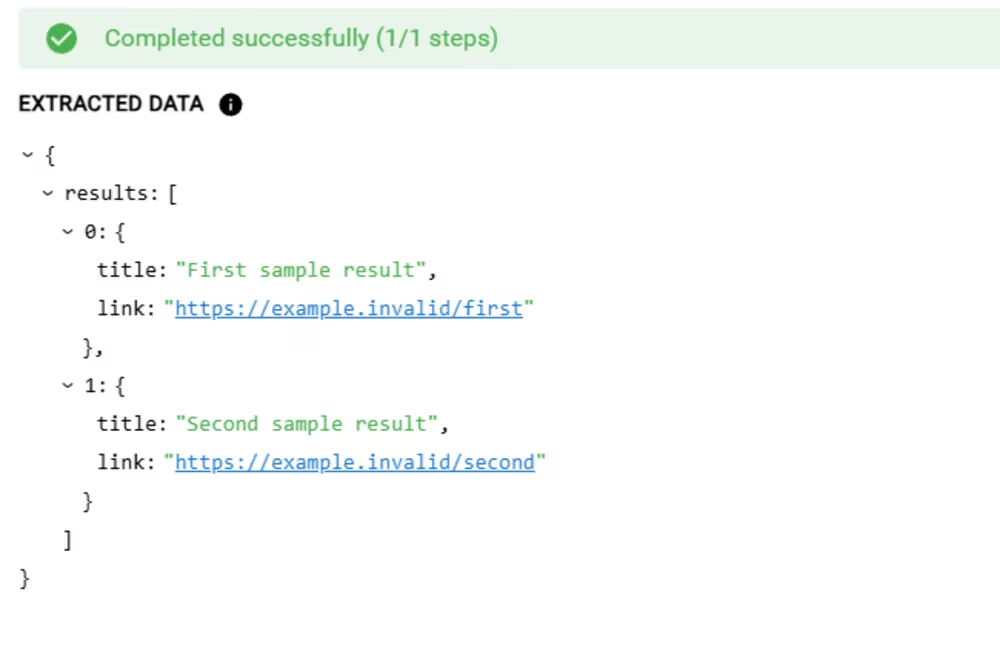
resultsunder Data Key, pick one complete repeated-result container, and set Item limit to the maximum you want, such as5. - Under Loop Steps, add an Extract Step with Data Key set to
titleand pick the title. Add another with Data Key set tolink, pick its link, and choose Href. - Open Test, select Run, and confirm that
resultsis a list whose items containtitleandlink. - Name and Save the Routine, then verify it with a normal lookup.
A Loop cannot contain another Loop or an Adblock Step. See Routine Steps for more Loop guidance.
Keep examples reliable
Third-party pages can change their structure. Test each Step after picking an element, then test the complete Routine before selecting Save.
If a saved example stops working, reload the preview and pick the affected element again. See Test and troubleshoot Routines for trigger, timeout, selector, and permission problems.