Lum Translator
Lum Translator translates words, phrases, and longer text with help from the surrounding page context. Along with the main translation, it can show a transliteration, the translated phrase in context, alternative translations, and reverse meanings. Use it when a word has several possible translations or when you want the surrounding sentence to guide the result.
Use Lum Translator
- Look up a word, phrase, or longer passage.
- Select the Lum Translator icon from the available results.
- Use its source and target language controls when you want a different language pair.
If Lum Translator is not available, open Definer Options → Sources → New source → Built-in sources and select Lum Translator.
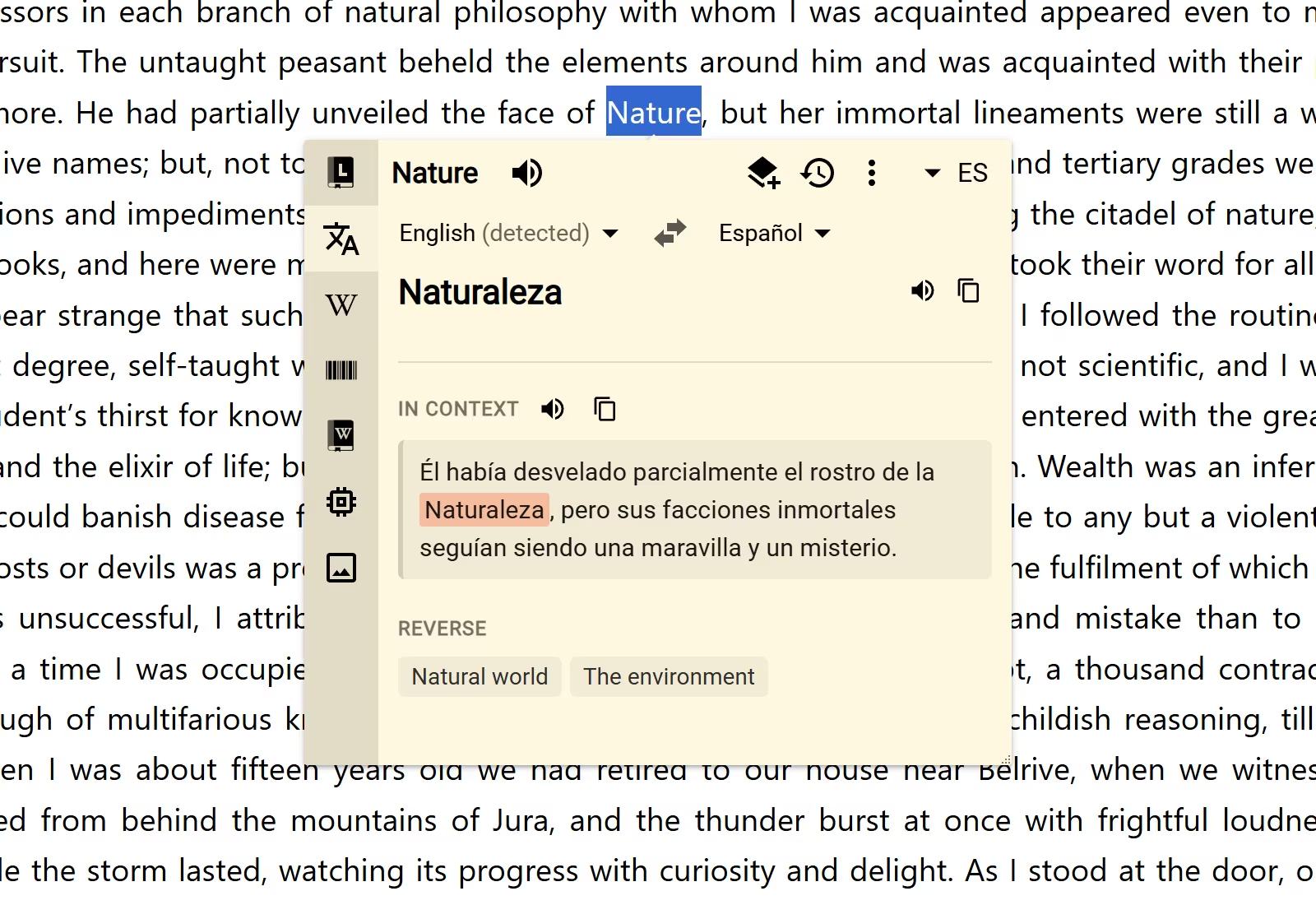
For a normal webpage lookup, Lum Translator can also use the sentence or paragraph around selected text. The In Context section shows how the selected part reads within that surrounding text when a contextual result is available.
Choose the translation languages
Lum Translator has its own source and target language controls:
- The source language starts as Auto-detect. Choose a language when you want to specify it yourself.
- The target language starts from the lookup's active result language unless you set a default for Lum Translator.
- Select the star beside a language to use it by default for this Source.
- Select Swap languages to reverse the source and target.
These controls affect Lum Translator without changing the language used by other Sources.
Choose what the result shows
Open Definer Options → Sources → Lum Translator → Settings → Main.
Under Sections, turn sections on or off and drag them into the order you want:
- Translation shows the main result.
- In Context shows the translation within the surrounding sentence or paragraph.
- Transliteration gives a Romanized or phonetic reading when available.
- Reverse shows possible meanings of the translation back in the source language.
- Alternatives shows other possible translations.
At least one section remains enabled. Under Autoplay, you can play the translated text or the translated context automatically when audio is available.
Save a translation
Lum Translator includes the Lum Translator Card Recipe. It creates a Card item with the source text, translation, language pair, available audio, and supporting sections.
Open Definer Options → History → Recipes to inspect the built-in Recipe. To customize it, change Recipe Name and select Save as copy.
Lum Translator uses the shared AI & Translation allowance. See Membership to check your usage and available options.