Collections
Collections keep related items together, so they are easier to find, edit, and export later. You can add items yourself or save lookup results with Recipes. For example, you can separate language study from research or keep one project apart from another.
Collections are available after you sign in. Open Definer Options → Collections to begin.
Create a Collection
Choose a Type
Type sets the starting Type for new items and the default fields shown in the Items list. It does not prevent the Collection from containing items of other Types.
| Type | Best fit |
|---|---|
| Mixed | Several kinds of items, or a Collection whose purpose may change |
| Raw | Flexible JSON data |
| Dictionary | Terms, meanings, usage, and pronunciation |
| Flashcards | Front-and-back study cards |
| Notes | Titled, free-form information |
| Prompts | Reusable AI prompts and their settings |
If you are unsure, choose Mixed. You can change the Type later.
Create the Collection
- Select New Collection.
- Enter Name and choose Type.
- Select Save. The new Collection should appear in the list.
Choose fields for the Items list
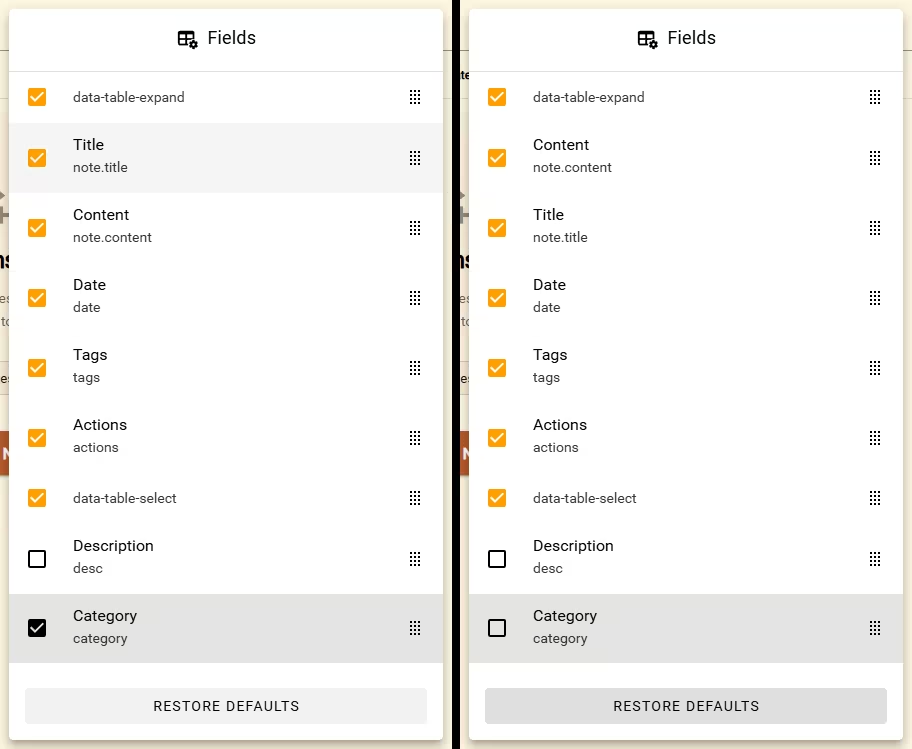
Collection Type supplies a useful starting layout. For example, a Notes Collection shows Content and Title by default, while a Flashcards Collection shows Front and Back. You can show, hide, and reorder fields without changing the items themselves.
- Open Definer Options → Collections → [Collection] → Items.
- Select the table-with-cog Fields control.
- Select a field's checkbox to show or hide it. Drag its handle to move it to a different position.
The Items list updates immediately. To undo your field changes, open Fields and select Restore defaults. If you change the Collection Type, Restore defaults applies the selected Type's standard field layout.
Work with a Collection
Change the Collection details
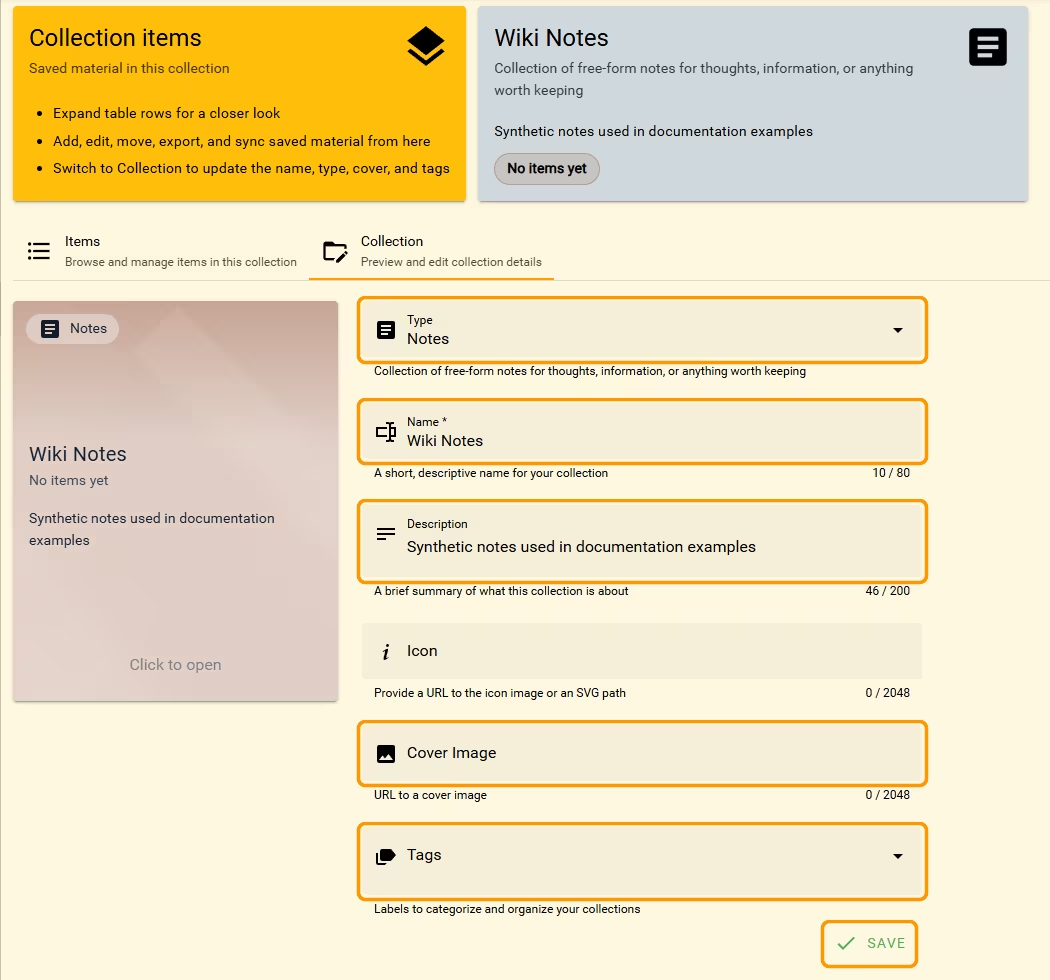
- Open Definer Options → Collections → [Collection] → Collection.
- Change Name, Type, or any optional details such as Description, Icon, Cover Image, and Tags, then select Save.
- Confirm that the preview and form show the saved values.
Changing Type does not remove existing items of other Types.
Find and arrange Collections
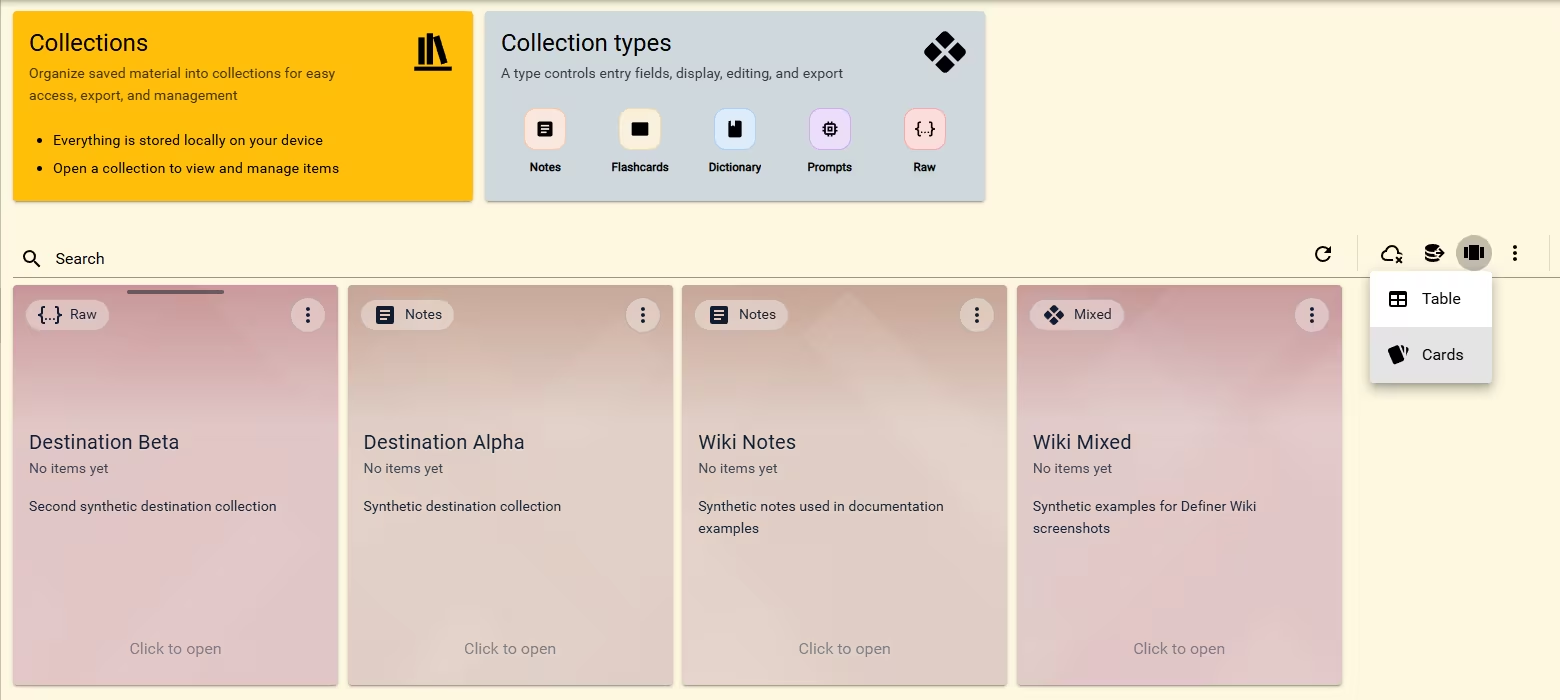
Use Search to narrow the Collections page. When Search is empty, drag a Collection by its handle to change its position. Open the layout menu to switch between the grid and table views.
Delete Collections
Open a Collection's Actions menu and select Delete to remove it. To remove several Collections, select them, open the page-level Actions menu, and choose Delete {N} selected, where {N} is the number you selected.
WARNING
Deleting a Collection permanently deletes its items. This cannot be undone.
Continue with Collection items
Open a Collection's Items tab to add, edit, duplicate, move, copy, reorder, or delete its Collection items. See Export when you want to send Collections or items to Anki, CSV, JSON, or Markdown.