Sources
Sources are where Definer's answers come from. A dictionary source can define a word, a translator can use the surrounding sentence, an image source can show visual matches, and an AI source can answer a broader question. Definer keeps these different kinds of information inside one lookup.
How sources fit into a lookup
When you select text or enter a query, Definer asks the enabled sources that support the lookup and result language. Each content source can add a result to the source bar. Audio sources add pronunciation or speech controls beside the query.
Select a source icon when you want that kind of information. The order of the icons follows the order of the enabled sources in Definer Options → Sources.
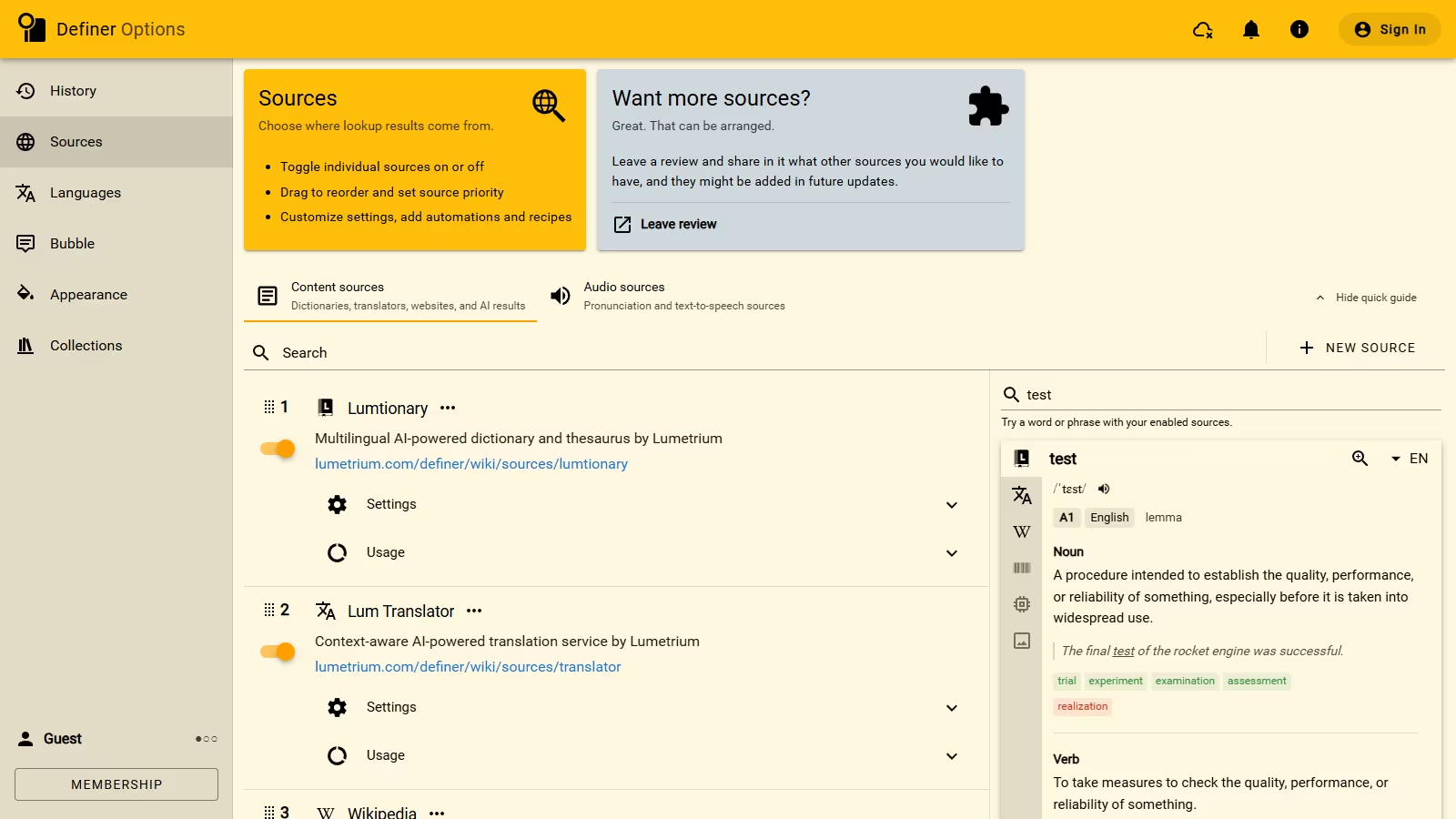
Shape the results you see
Open Definer Options → Sources to:
- turn individual sources on or off;
- drag them into the order you want;
- open a source's settings;
- enter a test query and see its result in Preview.
Source settings can change languages, result sections, appearance, prompts, voices, Recipes, or Routines depending on what that source supports.
Add or move a source
Select New source to add another built-in source, create one from a website or audio address, or import a source or Offline Dictionary from a file.
Import and export moves one configured source between Definer installations. Backup and restore is better when you want to move a broader set of Definer data together.
Built-in content sources
- Lumtionary provides multilingual dictionary and thesaurus entries.
- Lum Translator translates with surrounding context.
- Wikipedia provides encyclopedia articles.
- Wikidata provides structured facts.
- Wiktionary provides community-written definitions, examples, and lexical relations.
- AI Source answers prompts with a selected AI provider and model.
- Open Images finds openly licensed images.
- Google Translate provides translations.
- Offline Dictionary searches dictionary files stored on the device.
- Custom opens a website using the lookup text.
- Script creates a result with JavaScript.
- YouGlish shows real-world video examples.
Built-in audio sources
- Speech Synthesizer uses browser and system voices.
- Wiktionary Pronunciation plays community recordings.
- Custom Audio loads audio from an address you configure.
Keep more than one setup
You can add another copy of many sources and give each copy different settings. For example, two translator sources can keep different language pairs. Use the source's Actions → Edit menu to give each copy a clear name or icon.
Use Lookup variables when a Custom source, AI prompt, or another supported field needs information from the query or surrounding page.