Recipes
Recipes decide what Definer keeps when you save information returned by a Source. You can use them to keep only the useful parts, arrange information for study or export, add consistent labels, or create several useful items from the same result.
Many included Sources come with built-in Recipes, so their results have ready-to-use save options. By default, Save automatically runs the first suitable Recipe. Custom Recipes use the same flow. When a Recipe runs, its own choices determine the item it creates.
How a Recipe shapes a save
A source result is the information returned by one Source for a lookup. When you save it, Definer runs a Recipe that picks and arranges supported information from that result. One run of the Recipe creates one Collection item inside a Collection.
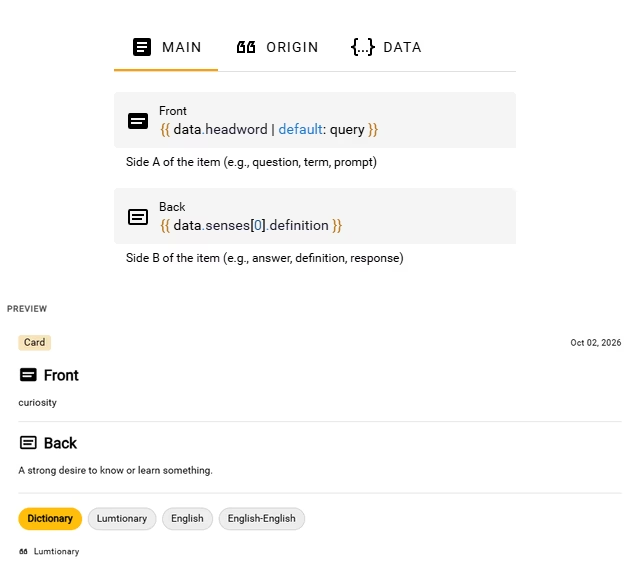
The Recipe controls the item's content and arrangement. The Collection controls where the item is kept. For example, the built-in Lumtionary Term Recipe turns a dictionary result into a structured Term with senses, examples, pronunciation, and language details. The Recipe editor's Preview shows the item it will create.
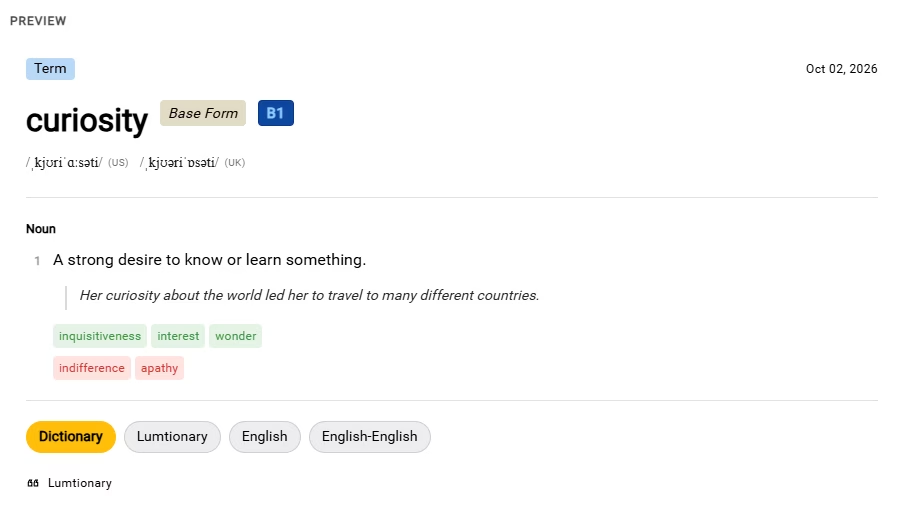
Save a source result
- Open the source result you want to keep.
- Select the stacked-layers-plus Save control. If it is not visible in the header, open More actions and select Save.
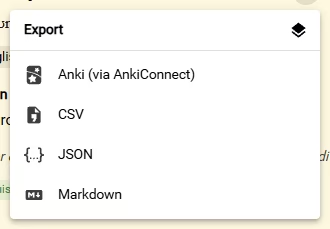
- When Save becomes Export, open it and select the stacked-layers Saves icon in the upper-right corner of the Export panel. The new item should be first in the list.
By default, you can also press S to save.
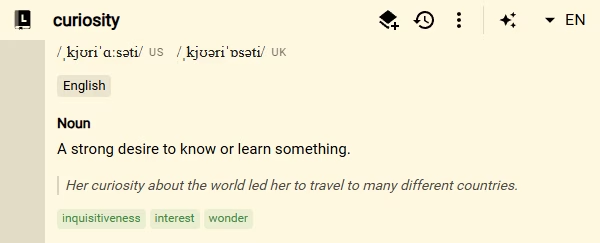
After saving, the same control opens Export. The stacked-layers Saves icon opens the list of created items.
NOTE
Definer saves to the selected Target collection when one is set. Otherwise, it uses the first existing Collection. If you have no Collections, Definer creates Inbox and saves the item there.
To change the destination, open Definer Options → History → Lookups, expand a lookup, and choose Target collection in Overview.
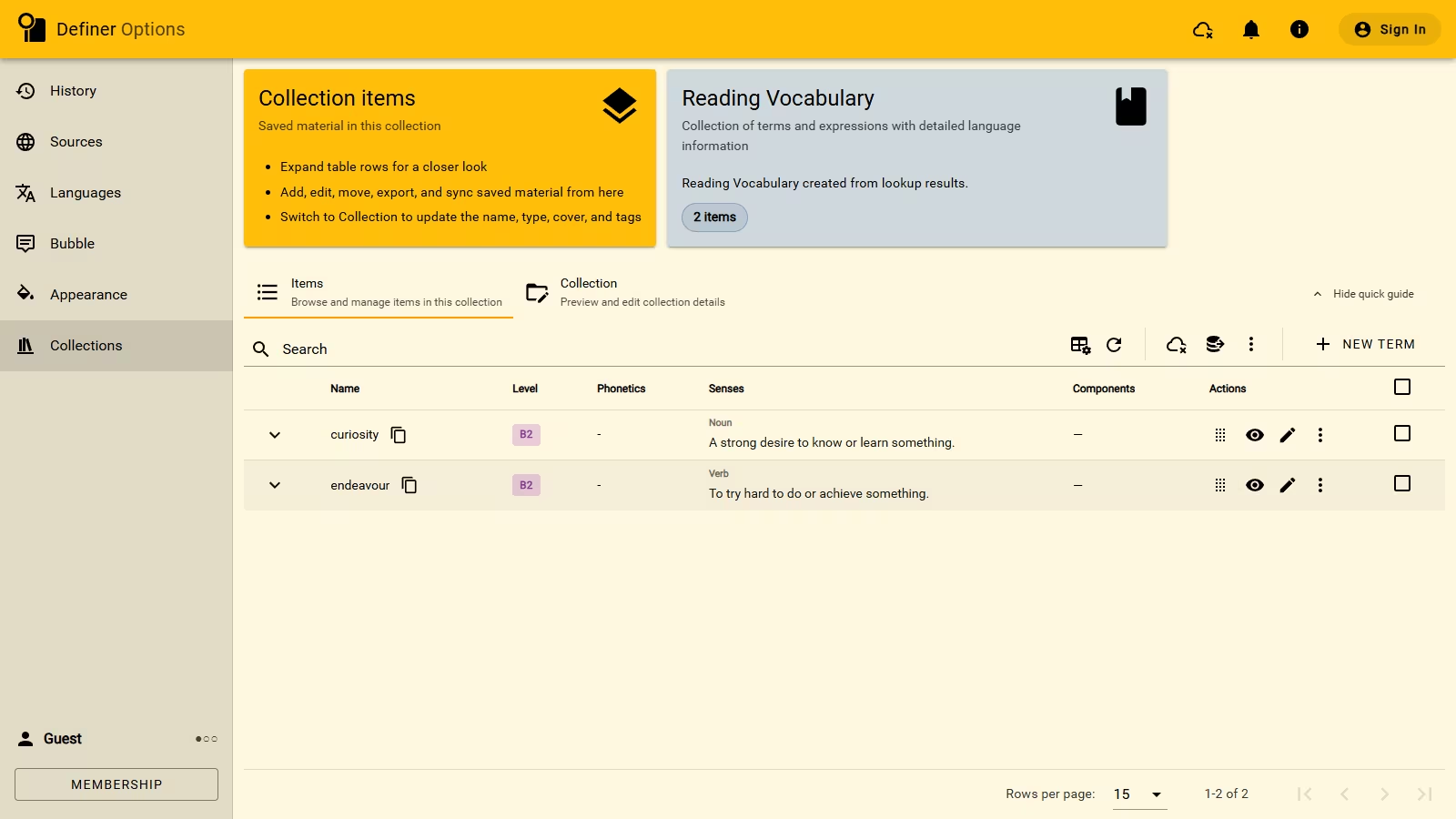
The created item appears in its target Collection. This Reading Vocabulary Collection contains two Term items created from Lumtionary results.
Choose a different Recipe
Choose another Recipe when you want the saved item arranged differently. You can also choose several Recipes when one source result should create several items.
Show the Recipe picker
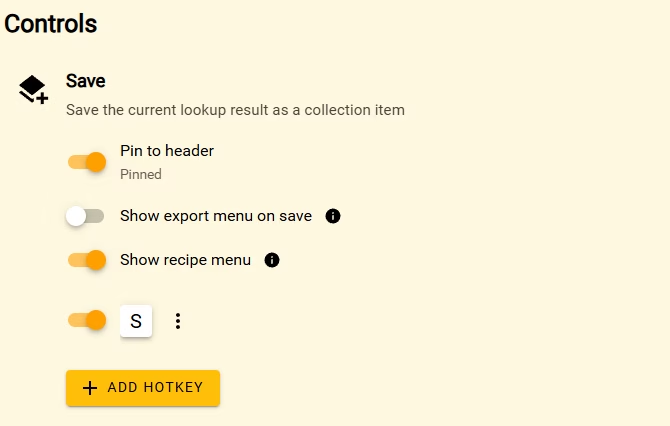
The picker is optional. Turn it on once if you want Save to ask which Recipe or Recipes to run.
- Open Definer Options → History → Settings → Controls → Save.
- Turn on Show recipe menu.
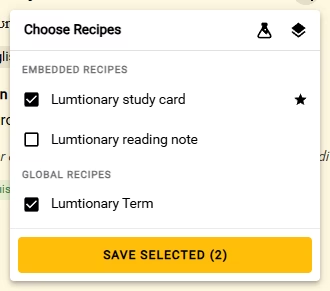
- Return to a live source result and select Save. Confirm that Choose Recipes opens.
The setting is saved immediately. From now on, Save opens the picker for each source result.
Choose Recipes for a save
The picker separates Recipes by where they belong:
- An Embedded Recipe belongs to one configured Source.
- A Global Recipe can be reused with results from any Source that matches its Source setting. The Global Recipes library is included with membership.
With the picker off, Save prefers Embedded Recipes over Global Recipes. Favorites come first within each group, followed by the list order. Favorite or reorder Embedded Recipes in Definer Options → Sources → [Source] → Settings → Recipes, or Global Recipes in Definer Options → History → Recipes.
To choose what runs:
- Open Choose Recipes from a live source result.
- Select one or more Recipes under Embedded recipes and Global recipes.
- Select the button that shows how many Recipes will run, such as Save selected (2) when two are selected.
- Open Export → Saves. Each selected Recipe should have created one new item at the top.
Customize what Save creates
For example, a Card Recipe can put the headword on the front and its definition on the back. These two views from Visual Editor show the mappings and the resulting Card.
- Create or edit a Recipe to change a built-in Recipe, build one in Visual Editor, or use JSON Editor.
- Use Liquid templates when a field should include values that change with each lookup or source result.
- Open Collections to organize, edit, or export the created items.
Fix a save problem
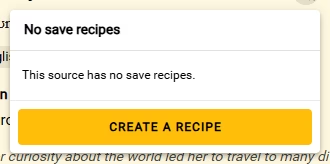
No save recipes
Select Create a recipe, then create a blank Recipe. After saving it, return to the source result and try again.
A Recipe fails and the picker opens
Choose another available Recipe, or edit the failed custom Recipe before trying it again.
Save is unavailable
Make sure the current Source has returned a usable result. If it has not, try another result.