Saves
Saves are the useful pieces you keep from lookup results. A Save becomes a Collection item, so you can edit it, organize it with related material, or export it later instead of keeping the entire lookup open.
Save while you are reading
Open the source result you want and select the stacked-layers-plus Save control, or press S. An included Recipe turns the result into a suitable Card, Note, Term, or another item type.
After saving, open Export and select Saves to go straight to the newest item.
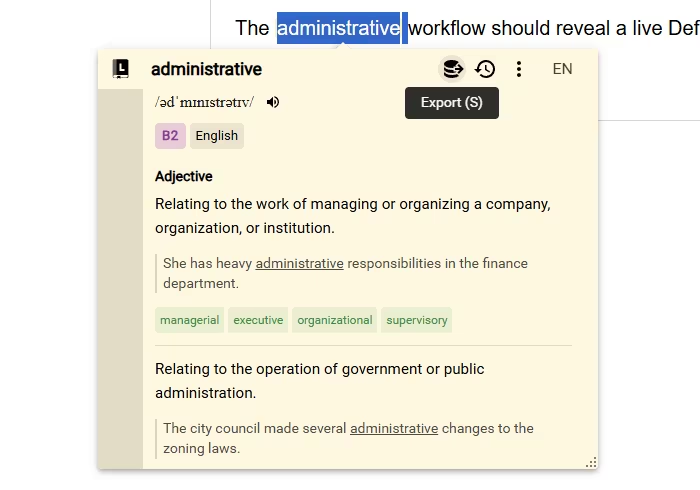
Browse everything saved from lookups
Open Definer Options → History → Saves. The newest item appears first, even when your Saves belong to different Collections.
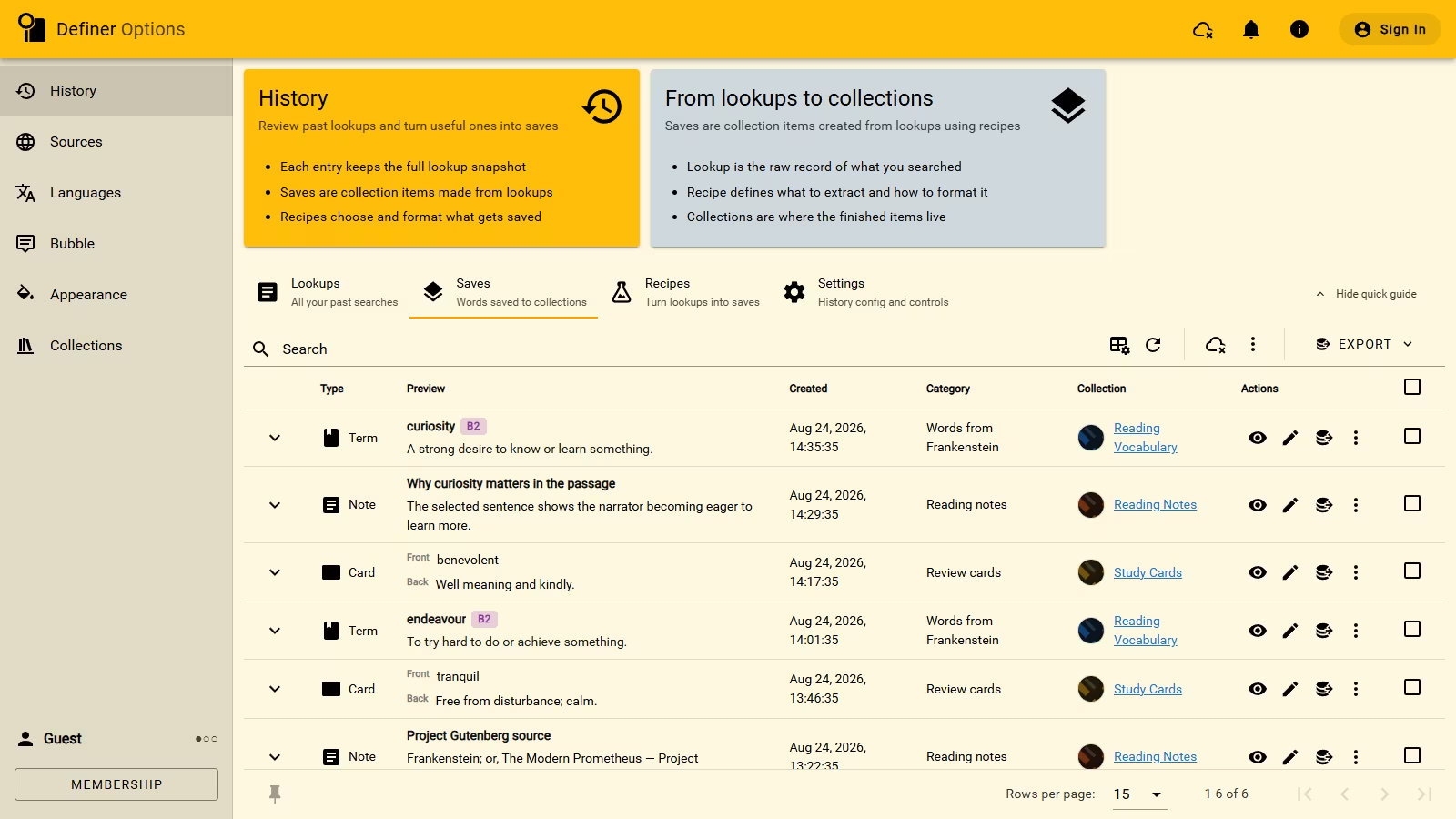
Saves is a view of the real Collection items, not another copy. A change made here also appears in the item's Collection.
Use a Save
Open the eye-shaped action to read the complete item, or use Edit Item to change its fields. The row menu can duplicate the item, move it to another Collection, or delete it. Select several rows when you want to move or export them together.
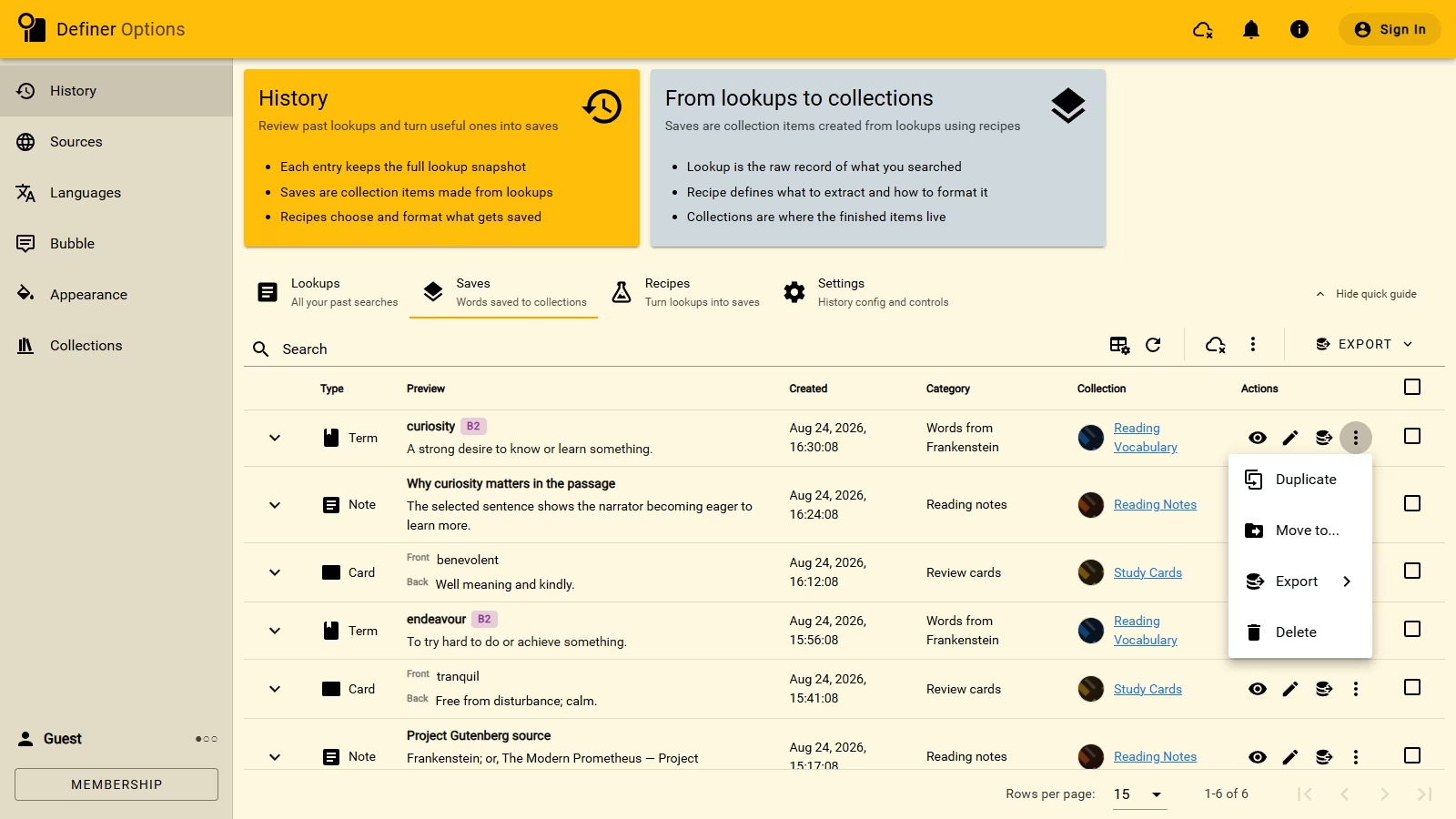
The Export menu supports Anki, CSV, JSON, and Markdown. See Export for the available options.
WARNING
Deleting an item from Saves also deletes it from its Collection and cannot be undone.
Saves and History serve different purposes
History keeps a complete lookup so you can reopen its results and context. Saves keeps the particular information you chose and lets it live with the rest of your Collections.