Import and export sources
Source files let you move or share one configured source without moving the rest of your Definer data. Importing adds another copy, so it does not replace an existing source with the same setup.
Use Backup and restore when you want a broader file that can also contain History, Collections, global Recipes, and Settings.
What a source file keeps
A source export can include:
- the source settings, name, description, and icon;
- embedded Recipes;
- source Routines;
- source-specific choices such as AI prompts, providers, and models.
It does not contain Collections or their items, History, unrelated Settings, global Recipes, or Offline Dictionary package files.
WARNING
A source export includes its saved settings. An AI source file can therefore contain API keys or other credentials. Remove them before sharing the file.
Export a source
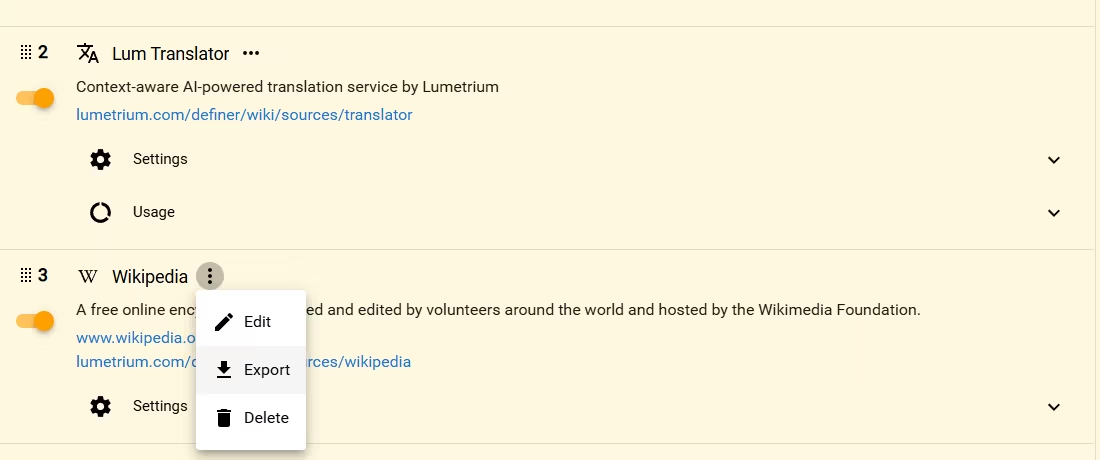
Open Definer Options → Sources, open the source's three-dot Actions menu, and select Export. Definer downloads a .json file whose name begins with definer-source-.
Import a source file
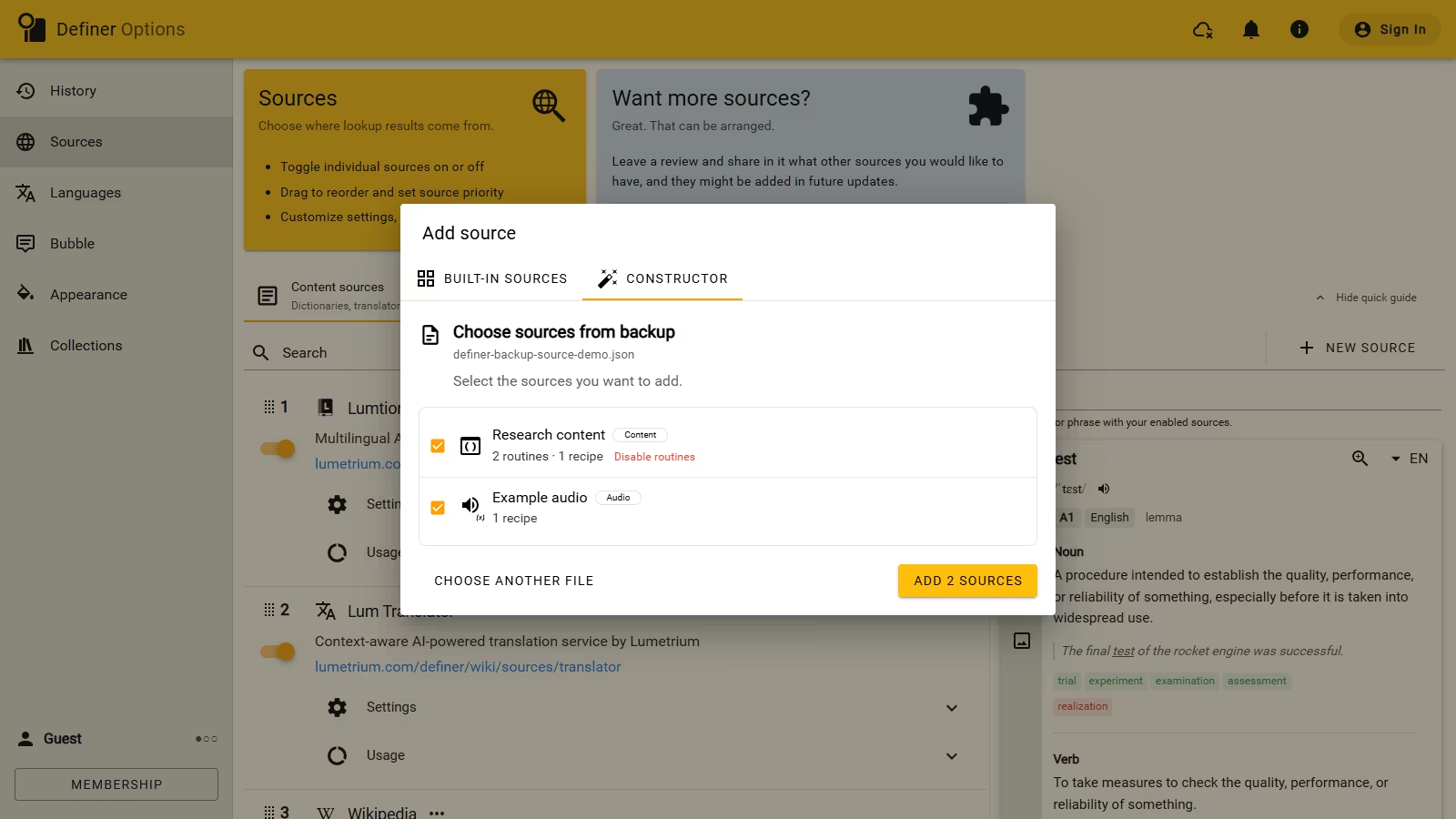
- Open Definer Options → Sources → New source → Constructor.
- Drop the
.jsonfile into the file area, or select Choose files. - Review the sources and any included Recipe or Routine counts.
- Use the red Disable routines action when an imported source should not run those actions yet.
- Select Add source.
Imported sources appear at the top of their Content or Audio list. Script sources are added disabled so you can review their JavaScript before turning them on.
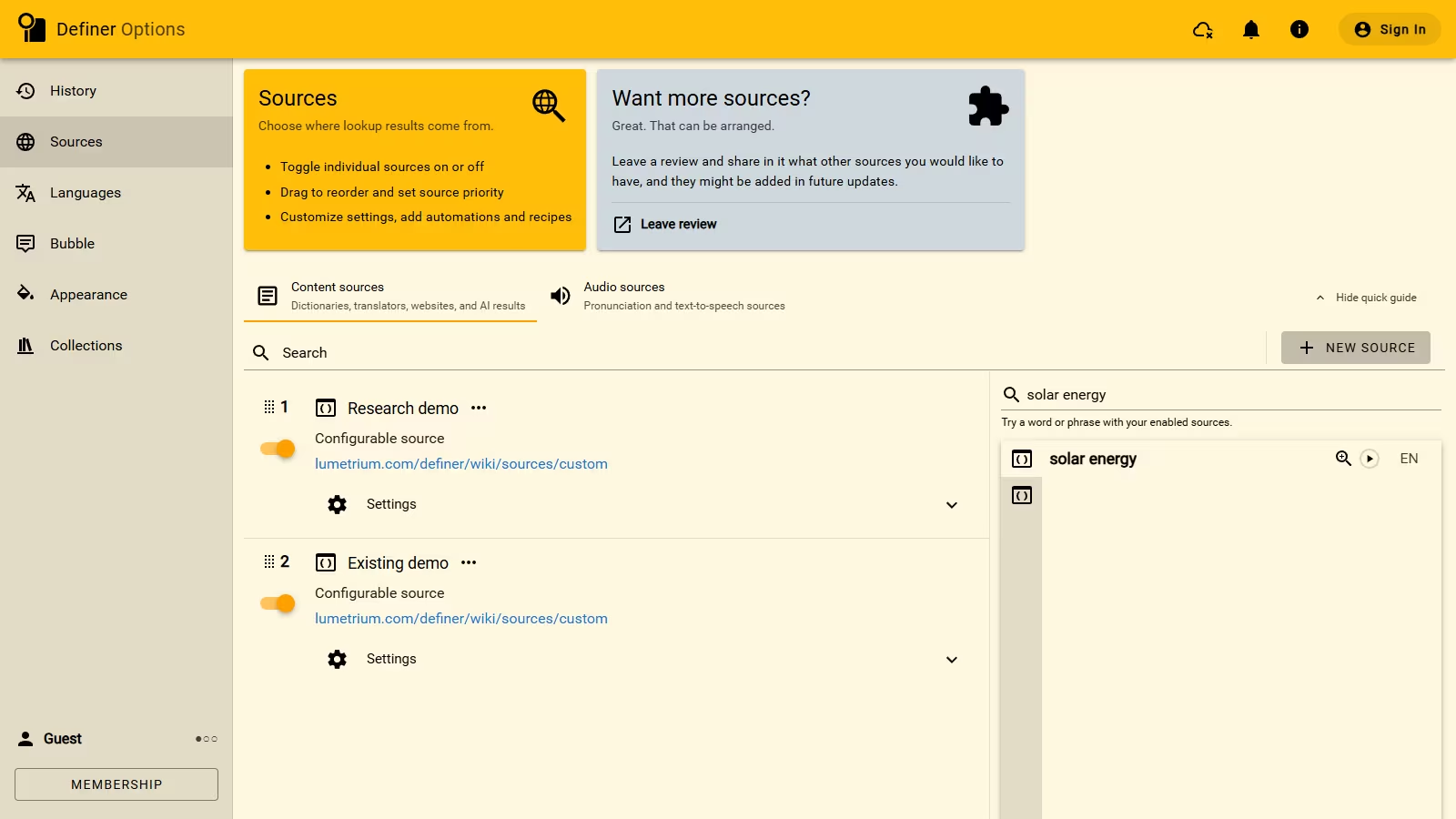
If a matching source already exists, Definer imports another copy. Unsupported sources cannot be selected, and your current source, Recipe, Routine, and AI prompt allowances still apply.
Choose sources from a backup
The same import screen can take only the sources from a Definer backup:
- Open the Constructor and choose the backup
.jsonfile. - Clear any sources you do not want.
- Review the included Recipes and Routines, then select Add sources.
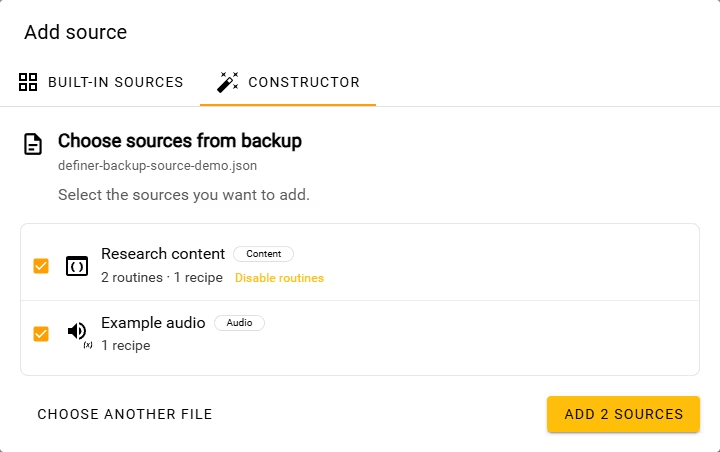
This path does not restore the backup's Collections, History, global Recipes, or other Settings. Use Restore a backup when you want those contents too.
Move an Offline Dictionary
An Offline Dictionary source file keeps the source settings, but not the dictionary package. Import the matching package on the other device, then select it in that source's Settings.