Routine steps
A Step is one action in a Routine. Steps run from top to bottom, so their order determines what the page and collected data look like when each later Step begins.
Open Definer Options → Sources → [source] → Settings → Routines, then create or edit a Routine and open Steps. Select Add Step for another action. You can also drag, remove, or test a Step from its header.
Choose a Step by goal
Use this table to choose a Step before reading its settings:
| Goal | Step |
|---|---|
| Collect text, a link, an image URL, HTML, or another page value | Extract |
| Repeat Steps for matching page items or until a page condition is met | Loop |
| Delay the next action or wait for page content | Wait |
| Enter text into a page field | Input |
| Activate a page control or link | Click |
| Move to an element or position in the page | Scroll |
| Hide or delete a page element | Remove |
| Remove common ads, cookie notices, and popups | Adblock |
| Run custom JavaScript in the source page | Script |
Use the optional Label field when the Step's purpose is not obvious from its type. Labels make longer sequences easier to scan but do not change what a Step does.
Pick page elements
Extract, Loop, Wait, Input, Click, Scroll, and Remove can target a page element. The selector field identifies that element.
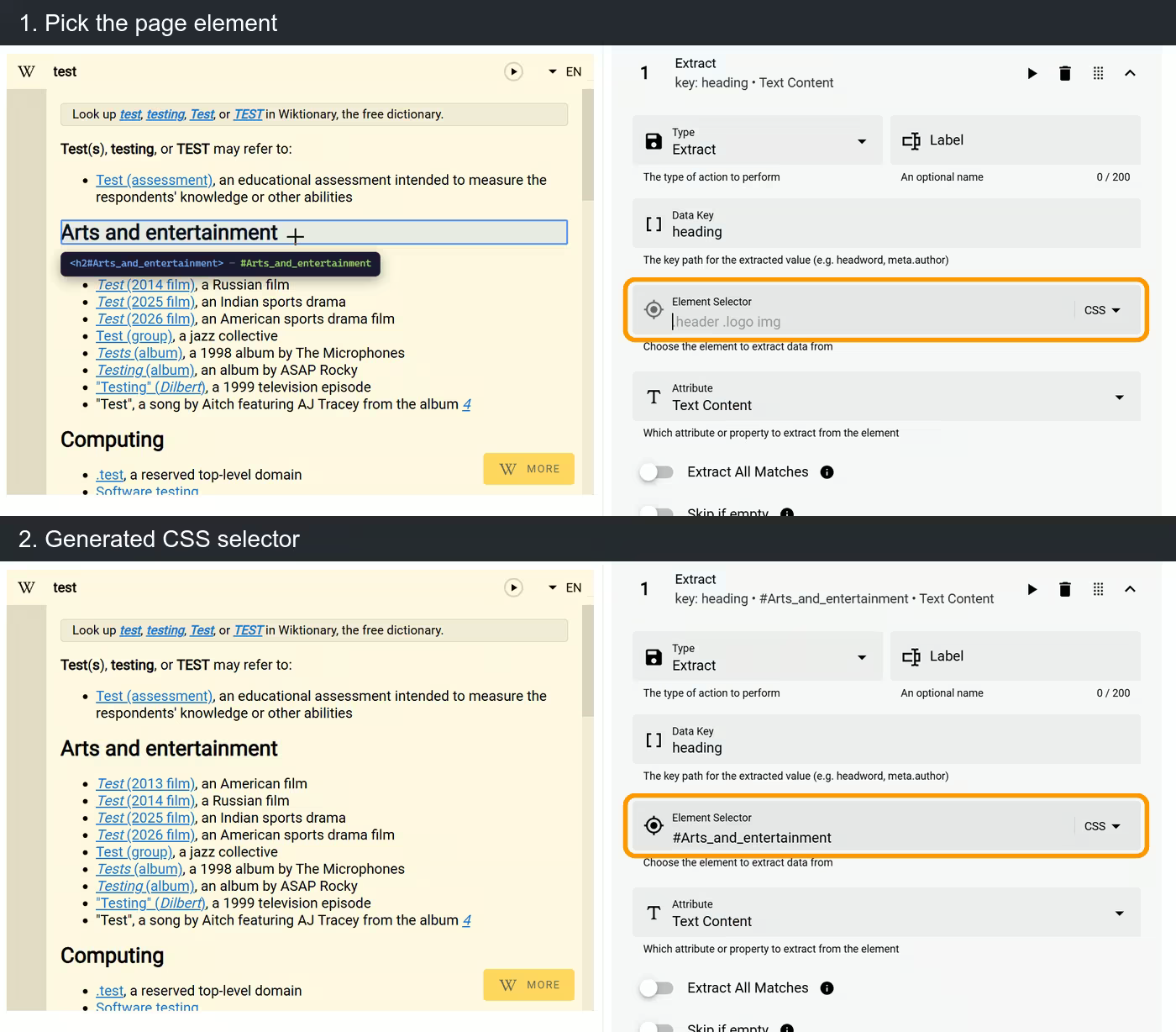
For the shortest visual path, select the crosshair button in the selector field, then select the element in the source-result preview. Definer fills the selector for you.
The selector type can be CSS or XPath. Use CSS for most page elements. XPath is useful when the relationship between elements is easier to describe through the page structure. You can type or paste either selector when you already know it.
Collect and shape data
Extract
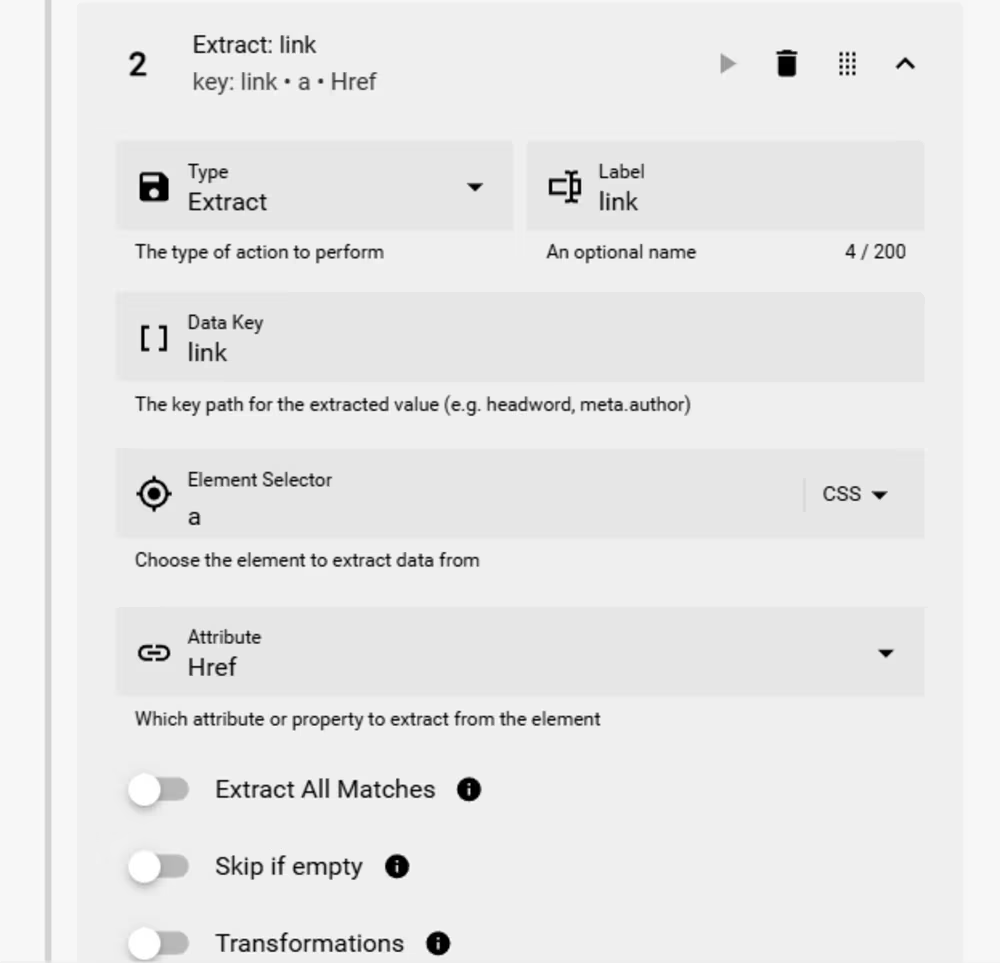
Extract reads one value from a matching page element and gives it a Data Key. For example, heading creates a value named heading in the Routine's collected data.
Choose what to read under Attribute:
| Attribute | Collected value |
|---|---|
| Text Content | The element's text content. |
| Inner HTML | The markup inside the element. |
| Outer HTML | The element and its markup. |
| Value | The current value of an input or text field. |
| Class | The element's CSS classes. |
| Href | The URL from a link. |
| Src | The source URL from an image or similar element. |
| Custom Attribute | The named attribute you enter under Custom Attribute. |
Enable Extract All Matches when the selector should produce a list instead of only the first matching value. Empty values are omitted from this list. Enable Skip if empty when an empty single value should leave that Data Key unchanged rather than writing an empty value.
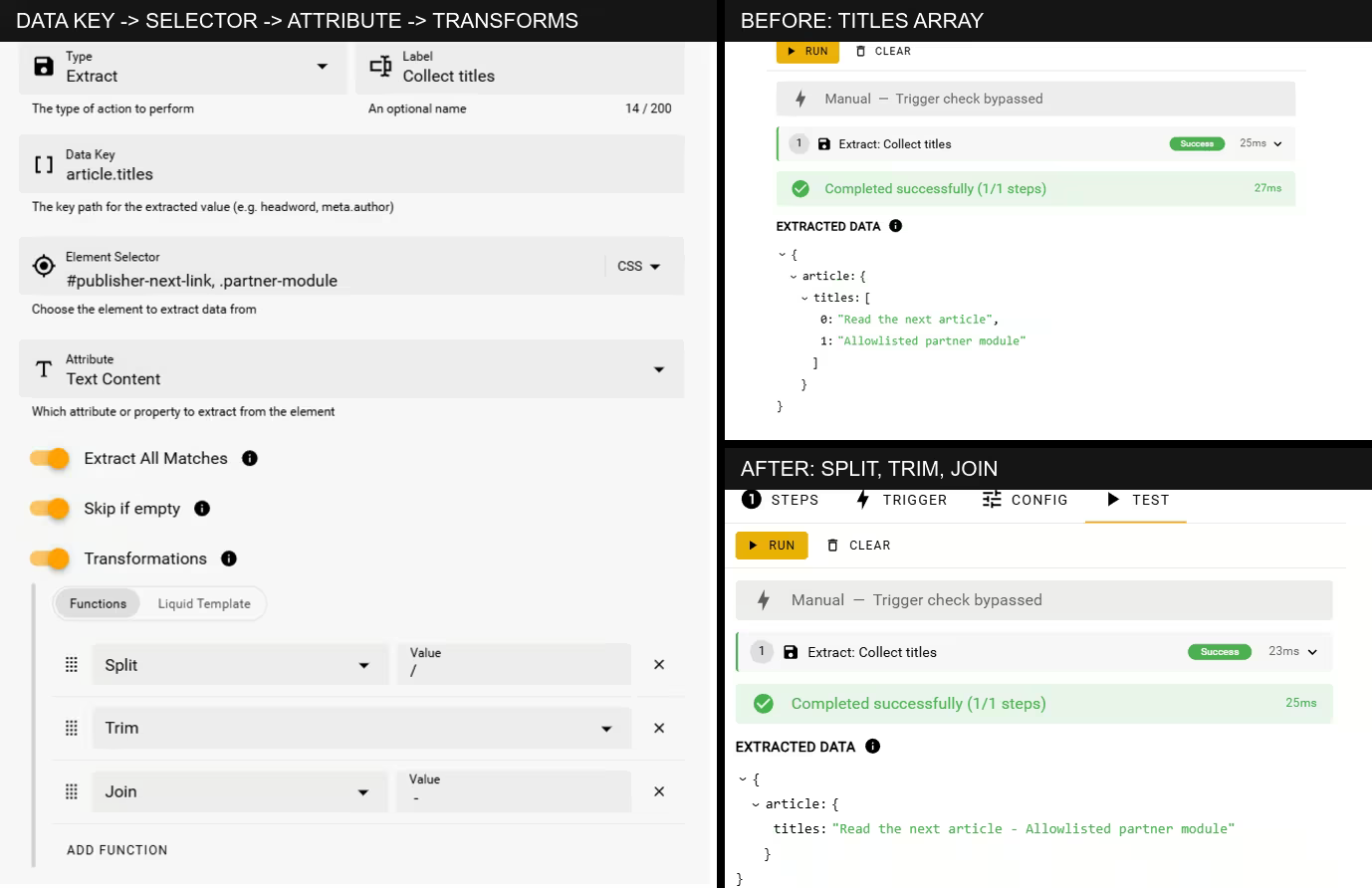
Transformations change the value before Definer adds it to Extracted Data. Choose Functions to stack common operations in order. Test the Step after each change so you can see the value passed to the next function.
Split turns text into a list by separating it at the Value you enter. If Extract All Matches already produced a list, Split separates every item and combines the pieces into one list. Join does the reverse: it combines a list into one text value and places the entered Value between its items. Their position matters, so you can Split a value, Trim each item, then Join the cleaned items.
Choose Liquid Template when you need a custom transformation. The extracted value is available as value, and lookup values use the names from Lookup variables. For example, {{ value | upcase }} converts the extracted value to uppercase. Start with Liquid basics if you have not used the template language before.
Loop
Loop repeats a group of child Steps. Choose a Loop Mode based on what controls the repetition:
| Loop Mode | Use it when |
|---|---|
| Matching Elements | The page has repeated search results, cards, rows, links, or other items that share the same structure. |
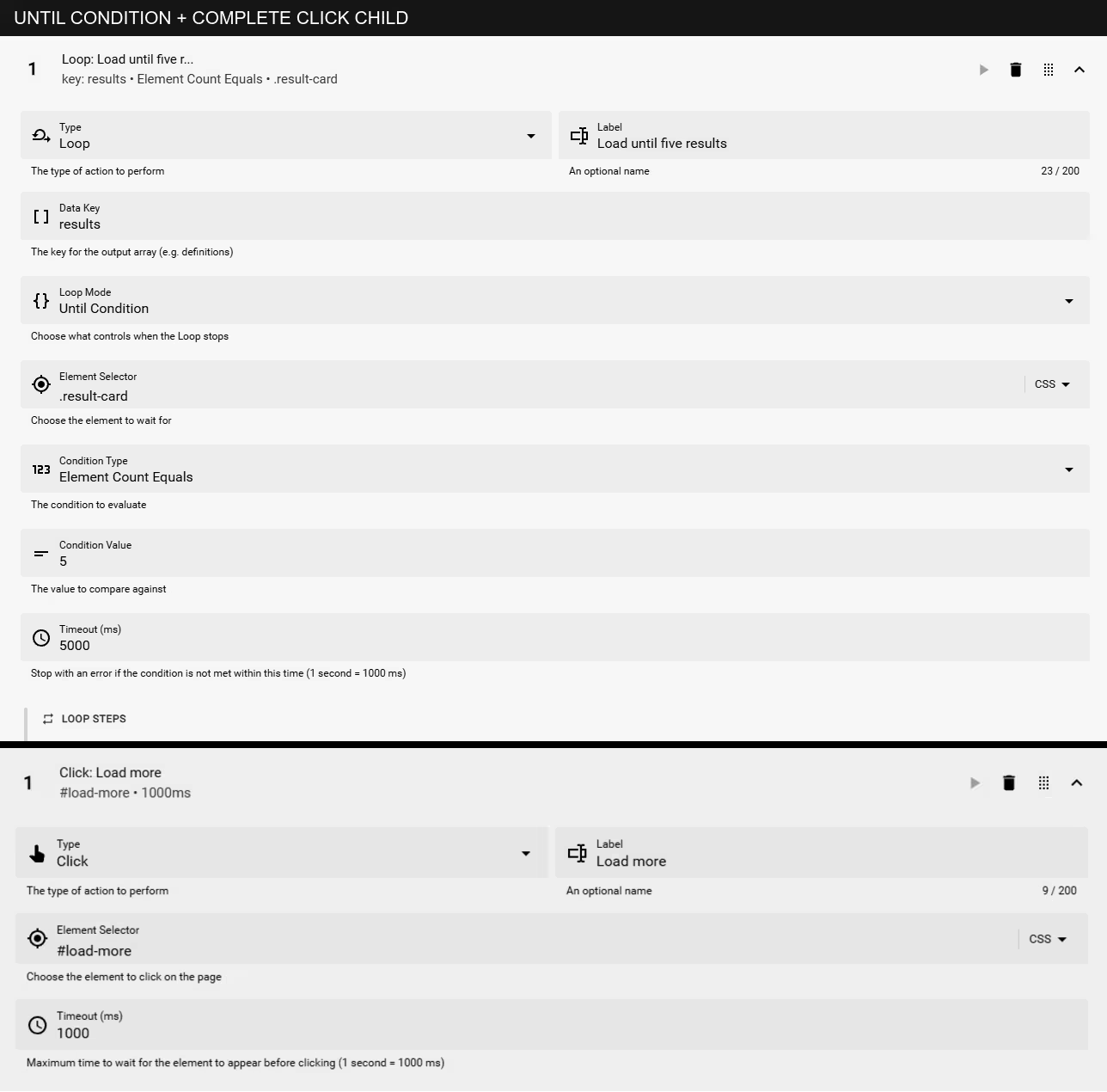
| Until Condition | The Loop Steps should keep changing or checking the page until a text, count, attribute, class, or visibility condition matches. |
For Matching Elements, enter a Data Key, pick the repeated page elements, and set the Item limit. Definer runs the child Steps once for each match and collects one output item per match. Child Extract and Script Data Keys become fields in that item.
For Until Condition, enter a Data Key, pick the page elements used by the condition, choose the condition, and add the Steps that move the page toward it. Definer checks the condition before the first repetition. If it already matches, the child Steps do not run. If the condition matches after one or more repetitions, each completed repetition adds one item under the Loop's Data Key. Child Extract and Script Data Keys become fields in that item. If Timeout (ms) is reached first, the Loop ends with an error and does not add a partial list to Extracted Data.
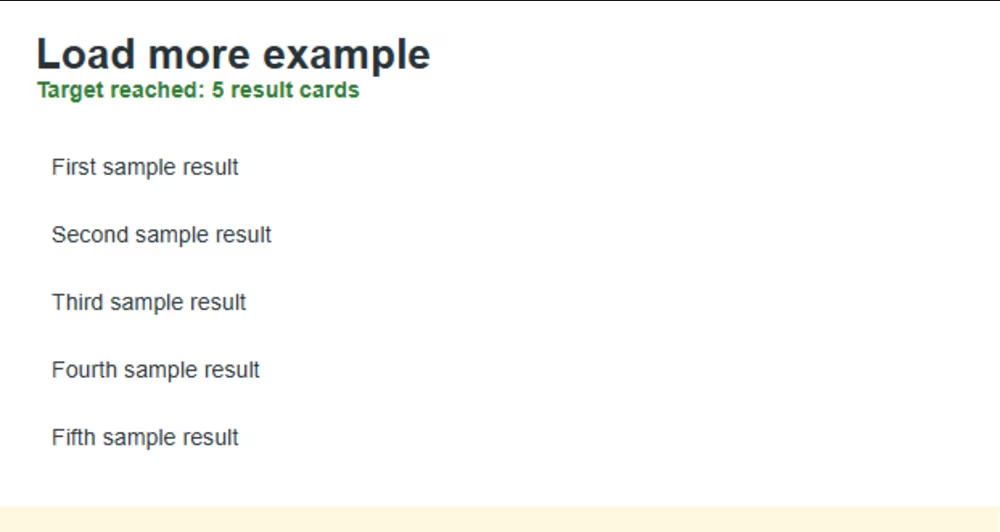
For example, an Until Condition Loop can select all result cards, wait for their count to reach the amount you need, and click a Load more button between checks.
A Loop cannot contain another Loop or an Adblock Step. Put another top-level Loop after the first one when you need a second repeated group.
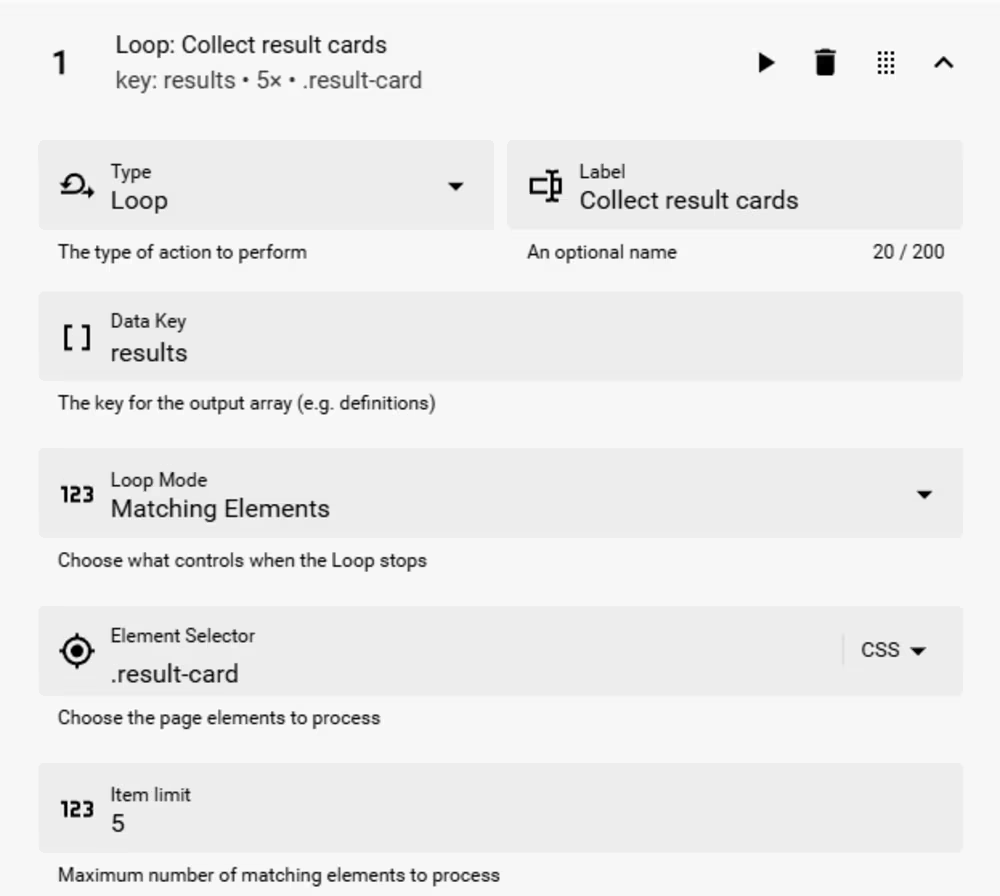
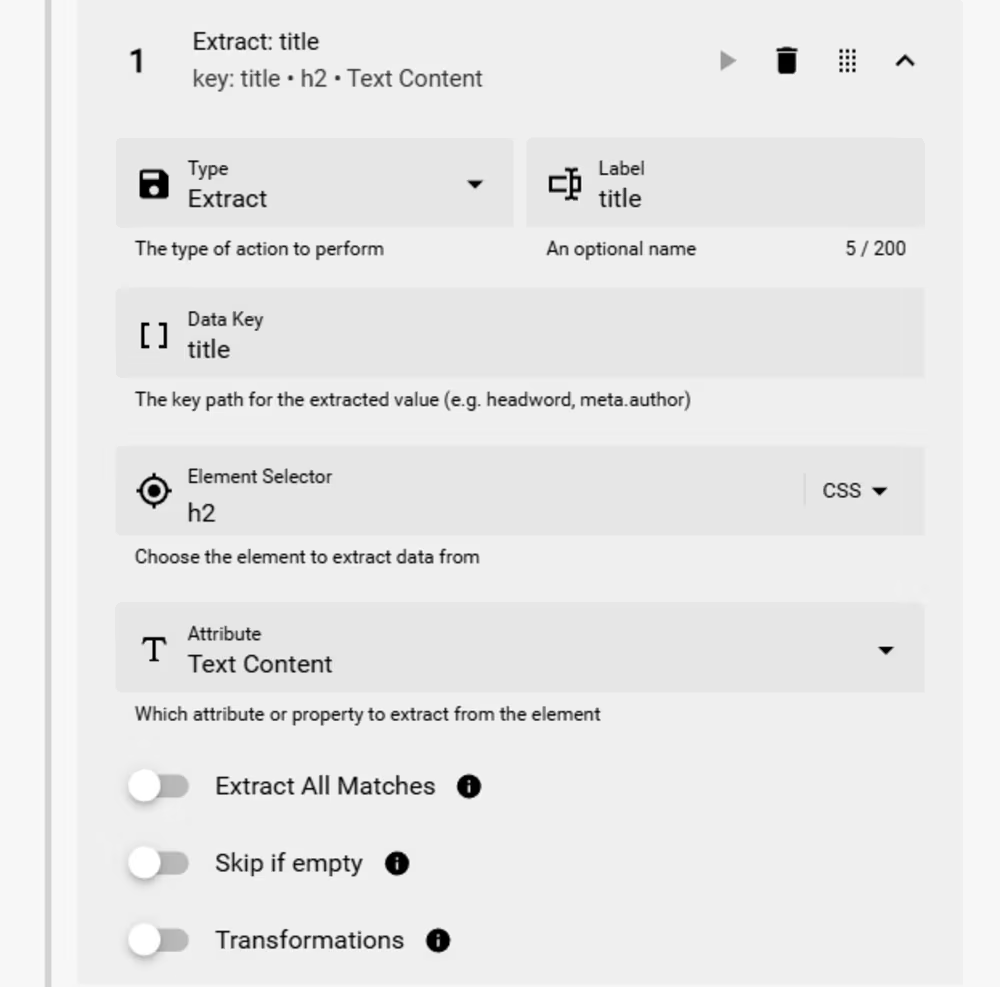
The child Steps describe the fields collected from each card. In this example, the first child reads the heading text and the second reads the link address.
Group a Routine's output
Step-level Data Keys name individual collected values. A Routine-level Data Key under Config → Behavior can place all values from that Routine under one shared name.
For example, a Routine-level Data Key of article and a Step-level Data Key of heading produce article.heading under Extracted Data. Leave the Routine-level field empty when the Step-level values should remain at the top level of the source-result data.
Wait and interact with the page
Test page actions with harmless controls
Input and Click can change or submit data through the source page. Use a Manual Trigger when an action should run only after you choose it, and test it with a harmless control before using it with personal data or an action that has an external effect.
Wait
Wait delays later Steps. Choose a Wait Mode based on what the page needs:
| Wait Mode | Use it when |
|---|---|
| Fixed delay | The next Step should wait for a known number of milliseconds. |
| Element exists | The next Step should wait until a page element is present, even if it is hidden. |
| Condition met | The next Step should wait until a value, count, attribute, class, or visibility condition matches. |
For Condition met, choose from these condition groups:
- Text: Text Contains, Text Equals, or Text Matches (Regex).
- Number of matches: Element Count Equals, Element Count Greater Than, or Element Count Less Than.
- Element details: Attribute Contains, Attribute Equals, or Has Class.
- Visibility: Is Visible or Is Hidden.
Timeout (ms) is the longest Definer waits for an element or condition. Delay (ms) is the fixed pause itself. A value of 1000 is 1 second.
Input
Input enters a value into an input, text area, or editable page element. Pick the target element, then enter the text under Value.
Choose Insert to place the rendered value directly, or Emulate Typing to send it as individual keystrokes. Value supports Liquid, so {{ str }} inserts the current lookup text. See Lookup variables for other names.
Timeout (ms) controls how long Definer waits for the target field.
Click
Click activates a matching page element. Pick the button, link, or other control, then set Timeout (ms) if the element may appear after a delay.
A Click can navigate the source page. If the Routine uses Every Open and Navigation, that navigation can start it again. See Run Frequency.
Scroll
Scroll moves the source page to one of three targets:
- Element moves to the page element you pick.
- Pixels moves to an offset from the top of the page.
- Percentage moves to a percentage of the page height.
Only the Element target uses Timeout (ms) because Definer may need to wait for that element to appear.
Remove
Remove changes a matching page element in one of two ways:
- Delete removes the element from the source result.
- Hide keeps the element in the page but prevents it from being displayed.
Pick the element and set Timeout (ms) if it may appear after a delay. Use Adblock instead when you want a maintained list to handle many common ads, cookie notices, and popups.
Use advanced Steps
Adblock
Adblock removes common ads, cookie notices, popups, and other page clutter. The built-in block list is the normal starting point. See Use the Adblock Step for custom lists, testing, and visible limits.
Script
Script runs JavaScript in the source page. Use it when the visual Steps cannot express the action or calculation you need.
Script can read the source page and available lookup variables, change the page, and make requests allowed by that page. Run only code you wrote or reviewed, and test it without personal data first.
Read a lookup variable by its literal name:
const query = definer.lookup.getVariable('str')
return query?.length
Enter a Data Key when Definer should add the returned value to the Routine's collected data. Without a Data Key, the code can still change the page, but its return value is not collected.
Wait limit (ms) controls how long Definer waits for the Script to finish. When the limit is reached, Definer reports an error instead of continuing to wait. It does not cancel code that is already running. Stop on Error determines whether later Steps can run after this error. If the Script keeps the page busy without pausing, the limit cannot appear; reload the preview before testing again.
Script Steps require browser support for user scripts and your permission to use it. Accept the browser's permission request when you add a Script Step. If Definer still reports that user scripts are unavailable, update the browser and open its extension settings. Current Chrome versions show Allow User Scripts; older Chrome versions may require Developer mode. Firefox manages this through Definer's extension permissions.
Routine Script supports definer.lookup.getVariable('name') for lookup data. See Lookup variables for the available names and Use Lookup variables in Script for Script-specific rules. Use Test after every Script change.
Test, save, and verify
Test a changed Step from its header, then open Test and select Run for the complete Routine. Confirm the page action or the value under Extracted Data.
Select Save, open a representative lookup for the source, and verify that the Routine produces the same visible result. If the page structure changes later, return to the editor and pick the affected element again.