AI prompts
Prompts are reusable instructions for the AI Source. Choose one when you want a consistent kind of answer, such as an explanation, summary, tone analysis, or writing improvement.
Choose a prompt
A new installation includes Explainer, Summary, Tone & intent, and Improve writing. The favorite prompt runs first. Open another enabled prompt from the AI result when you need a different task.
The included Explainer adds the surrounding paragraph when Definer can locate the exact lookup occurrence. It marks that occurrence for the model, which helps when the same text appears more than once with different meanings. If Definer cannot provide a usable paragraph and range, the whole context section is omitted. Prompts already saved in an AI source keep their existing Content.
Open Definer Options → Sources → AI → Settings → Prompts to enable, disable, favorite, reorder, edit, duplicate, or remove prompts.
Create a prompt
- Select New prompt under Prompts.
- Choose Blank Prompt. The same menu offers From Collection and Import File when you already have a prompt to add instead.
- Enter a clear Name and the instructions under Content.
- Use Playground to test the rendered instructions with sample values.
- The prompt updates as you edit it. Try it in a normal lookup when the Playground output is correct.
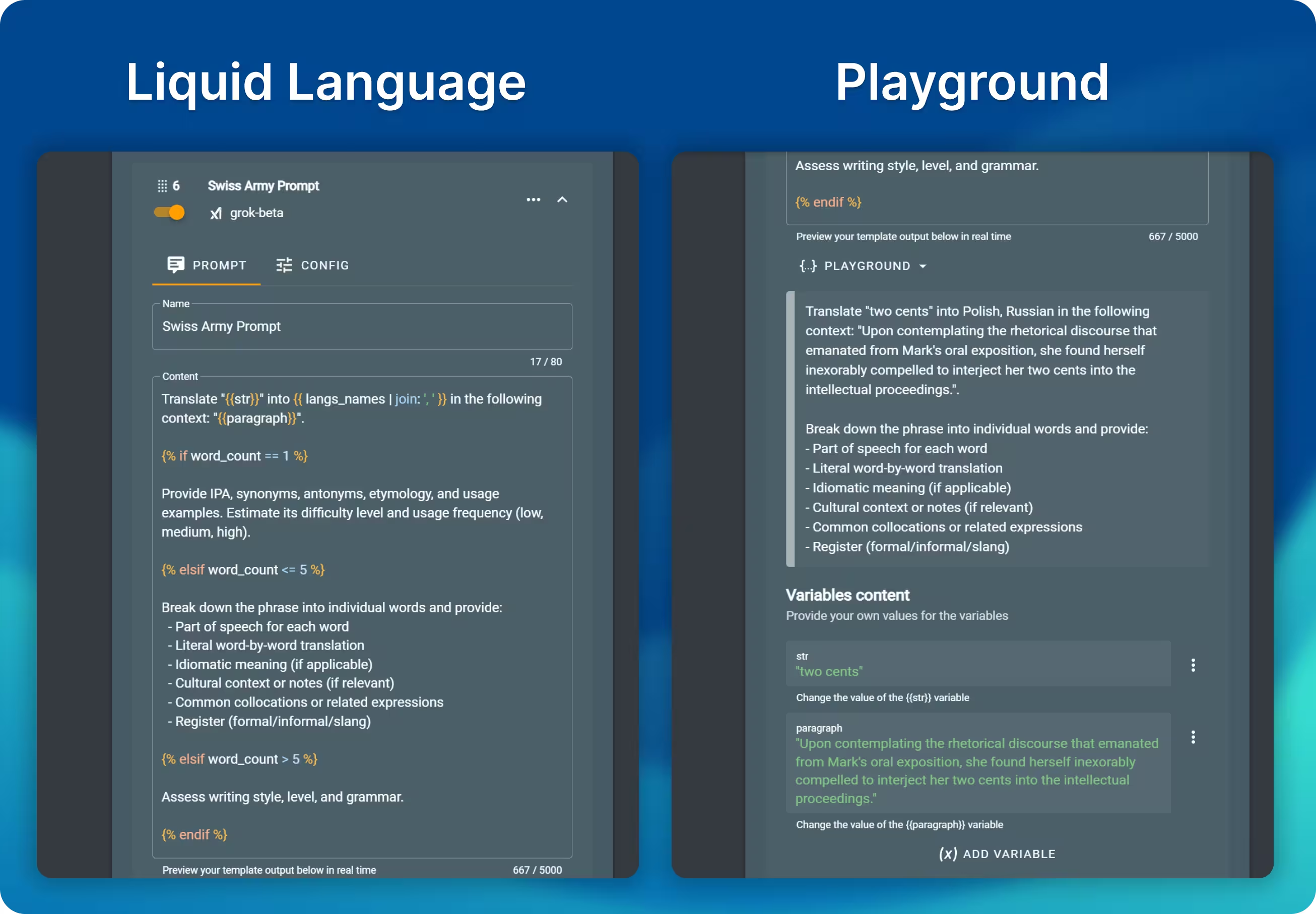
Start with direct, plain-language instructions. Prompts also support Liquid, which lets the instructions adapt to the lookup text and its context.
For example, you can:
- Ask AI to explain a word within the context of your current sentence
- Generate summaries of lookup passages
- Translate text while preserving formatting
- Analyze the tone or style of writing

Add changing lookup details
Use Lookup variables when a prompt needs the lookup text, surrounding sentence, page title, language, or another value from the current lookup. For example:
Explain "{{str}}" clearly and briefly in {{lang | language_label: "both"}}.
{{ paragraph | mark: paragraph_range | with_prefix: "Context:", newline }}
With str set to bank, lang set to en, and the second occurrence of bank identified by paragraph_range, the prompt renders as:
Explain "bank" clearly and briefly in English.
Context:
The bank raised its fees, but she sat on the <mark>bank</mark> of the river.
paragraph_range identifies the exact occurrence inside paragraph, and mark wraps that range in <mark> tags. If the paragraph or range cannot be used, mark returns nothing. with_prefix therefore adds Context: and the newline only when marked context exists. This avoids an empty context heading without a Liquid condition.
See Liquid filters for mark, with_prefix, with_suffix, and examples for other optional details such as a page title.
Advanced prompts can still use Liquid conditions when their behavior genuinely needs to branch, such as by text length or language. Prefer filters when you only need to format or omit one value.
Find variables and filters
Variables and filters are searchable directly in the interface. The Lookup variable reference documents the variable names, value types, real examples, and patterns for lists and objects.
The built-in Playground feature lets you preview rendered prompts and test variable values in real-time, so you can perfect your prompts before using them.
Copy prompts between AI and Collections
Prompt items let you keep a reusable prompt library outside one AI Source.
- From the prompt's Actions menu, select Save to Collection to create a Prompt item.
- Select New prompt → From Collection to copy a saved Prompt item into this AI Source.
The copies are independent. Editing one does not update the other. See Prompt items for the complete workflow.
Add more prompt templates
The Wiki catalog also includes task-specific templates such as Dictionary, Translator, IPA Translator, and Grammar Checker. These are optional catalog examples, not the prompts created by a new installation.
You can also visit r/lumetrium_definer to find more prompts shared by the community or contribute your own creative solutions.
Prompts catalog
Explore the full list of available prompts in the Prompts Catalog.