Prompt items
Prompt items keep reusable AI instructions in your Collections. Use them to build a prompt library that is separate from one configured AI Source, then copy prompts into an AI Source whenever you need them.
A Prompt can contain its template and optional AI settings. Lookup variables can insert changing values when the prompt runs in a supported context.
Create a Prompt item
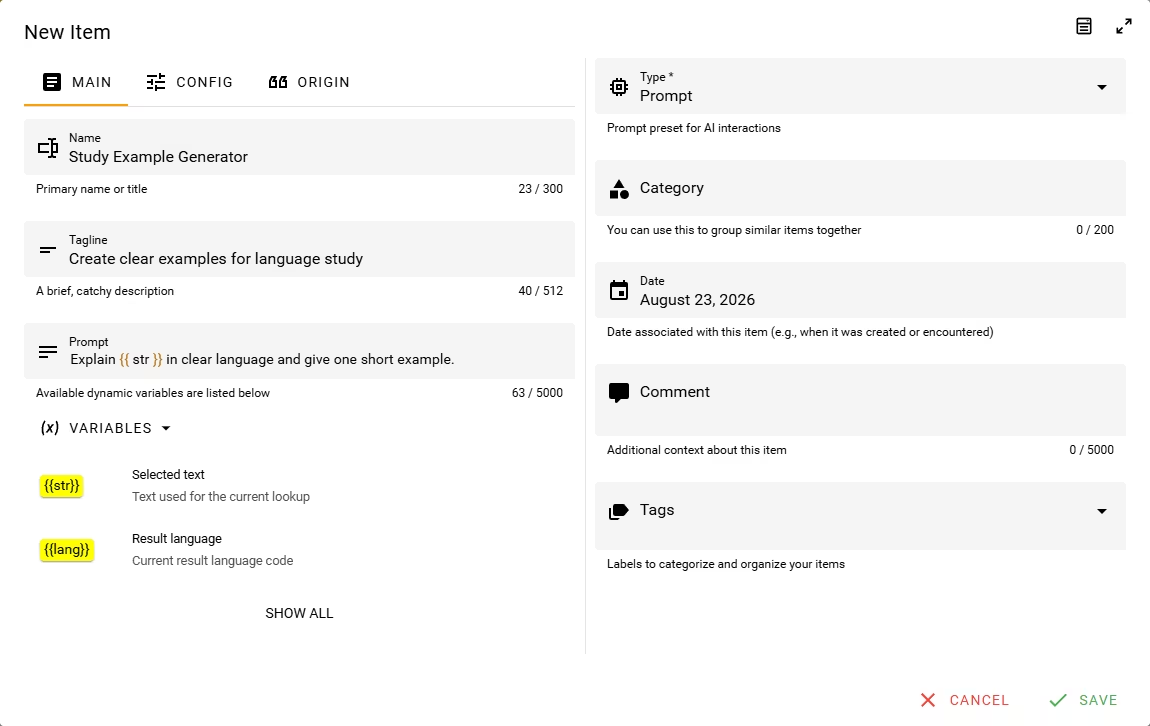
- Open Definer Options → Collections → [Collection] → Items and select New Prompt or New Item.
- Choose Prompt under Type. On Main, enter Name, an optional Tagline, and the prompt instructions.
- Open Config only if the Prompt should retain a particular AI provider, model, or generation settings.
- Select Save. The Prompt appears in the Collection.
Copy a prompt between a Collection and an AI Source
The AI Source can copy prompts in both directions. This lets you keep a reusable library in Collections while choosing which prompts appear in a particular AI Source.
Save an AI Source prompt to a Collection
- Open Definer Options → Sources → [AI Source] → Settings → Prompts.
- Open the prompt's Actions menu and select Save to Collection.
- Choose Collection and edit Name or Tagline if needed. Leave Include AI config off for a prompt-only copy.
- Select Save to Collection. Definer creates a Prompt item in the chosen Collection.
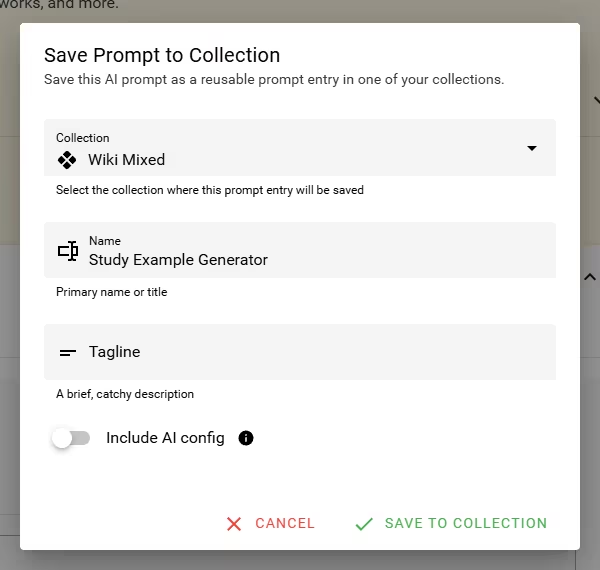
Turn on Include AI config only when the Collection item should also keep the prompt's provider, model, generation settings, and current API key. Leave it off for a Prompt item you plan to share.
Add a Collection Prompt to an AI Source
- Open Definer Options → Sources → [AI Source] → Settings → Prompts and select New prompt.
- Choose From Collection.
- Select a Prompt Entry. Turn on Copy AI config only when its saved provider, model, generation settings, and API key should replace the defaults for this AI Source prompt.
- Select Add prompt. The copied prompt appears in that AI Source's prompt list.
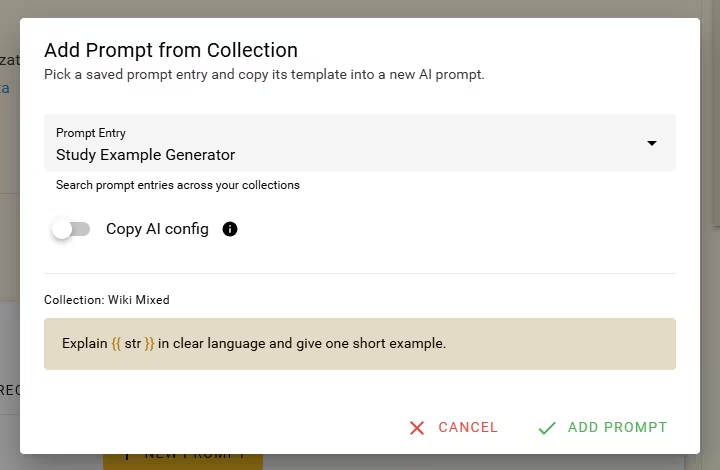
These are copies, not linked versions. Changing the Collection item does not update a prompt already added to an AI Source, and changing the AI Source prompt does not update the Collection item.
Write reusable instructions with Liquid
Liquid expressions can insert Lookup variables or transform a value with Liquid filters when the Prompt is used in a context that provides those variables. For example:
Explain {{ str }} in clear language and give one short example.Keep the first version of a Prompt concrete. Add variables only after the plain instructions produce the kind of result you want. The Lookup variables article explains where the values come from and how to test them.
Edit and preview a Prompt
Open Edit Item to change the Prompt. Use Preview to inspect its name, instructions, and saved Config, then return to Visual Editor and select Save.
Changing a Prompt item does not update copies that you already added to AI Sources. Add the Prompt from the Collection again when you want a new copy of the revised instructions.