AI Source
AI Source can explain lookup text, answer a question, transform writing, or follow reusable instructions. It works with Lumetrium AI, external providers that use API keys, and supported AI software running on your computer.
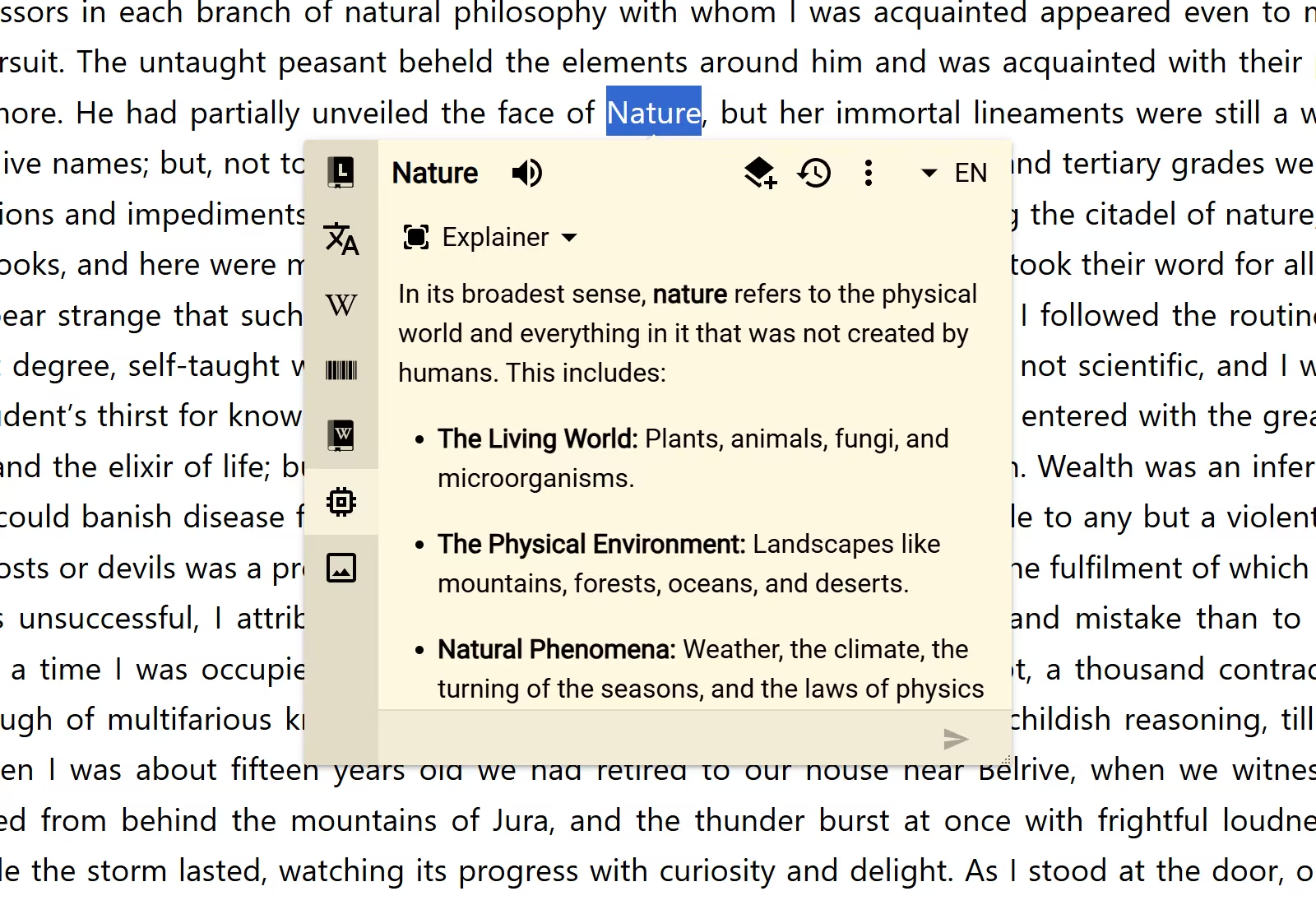
Try AI with Lumetrium
The AI Source is ready to use after a new installation. It starts with Lumetrium AI, the Fast model, and the Explainer prompt, so you do not need a separate provider account or API key.
- Look up a word, sentence, or short passage.
- Open the AI result. The favorite Explainer prompt runs first.
- Ask a follow-up question in the same result when you want more detail.
The included Explainer keeps its main instruction short. When Definer can locate the lookup text inside a surrounding paragraph, it also gives the model that paragraph and marks the exact occurrence. If usable context is unavailable, the context section is omitted.
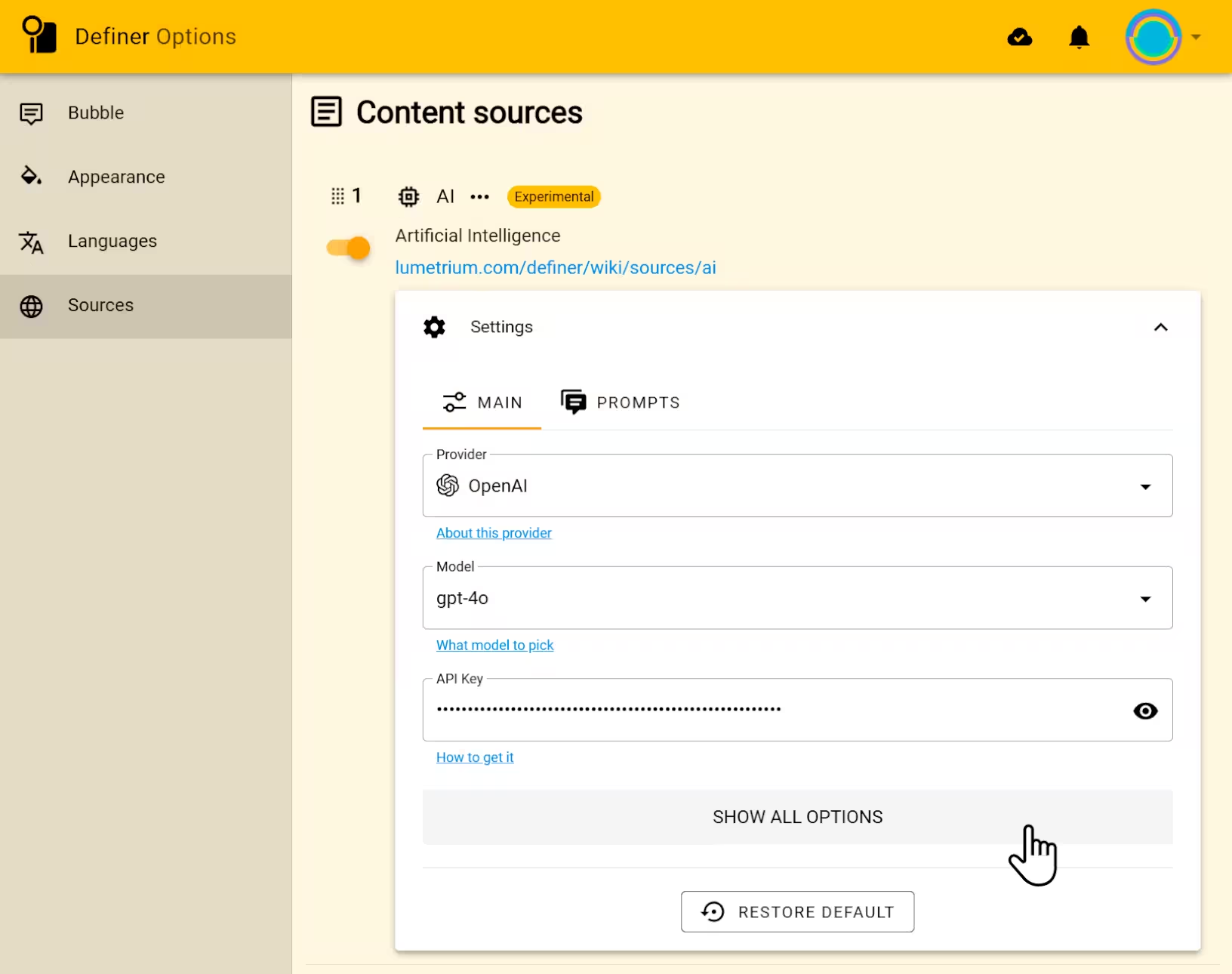
If you previously changed or removed the default setup, open Definer Options → Sources → AI → Settings → Main, choose Lumetrium and Fast, then open Prompts and choose Explainer.
The same provider and model are used for ordinary AI lookups unless a prompt has its own settings. See Lumetrium AI for the available choices and what to do when included usage runs out.
Ask for what you need
Without a prompt, AI Source opens an input where you can ask what you want to know about the lookup text. After the first response, you can ask a follow-up question without starting another lookup.
A Prompt saves instructions you want to reuse, such as translating into a chosen language, explaining code, checking grammar, or creating a study example. When several prompts are enabled, Definer uses the favorite prompt first or lets you choose one.
Create a prompt
- Open Definer Options → Sources → AI → Settings → Prompts.
- Select New prompt, then choose Blank Prompt. The same menu offers From Collection and Import File when you already have a prompt to add instead.
- Give it a clear Name and enter its instructions under Content.
- Use Playground to check the rendered instructions. The prompt updates as you edit it, so you can then run a representative lookup and choose it from the AI result.
Start with plain instructions. Add Lookup variables when the prompt needs the lookup text, surrounding sentence, page title, or another value from the current lookup. For example:
Explain {{ str }} in clear language and give one short example.Use Prompts for prompt settings, copies stored in Collections, and the prompt catalog.
Give one prompt different AI settings
Open the prompt's Config when it should use a different provider, model, or generation setting from the defaults under Main. Prompts without their own Config continue to use the Main settings.
Choose an AI provider
The provider is the service or local software that runs the model. Open Definer Options → Sources → AI → Settings → Main, then choose the provider that matches how you want to use AI.
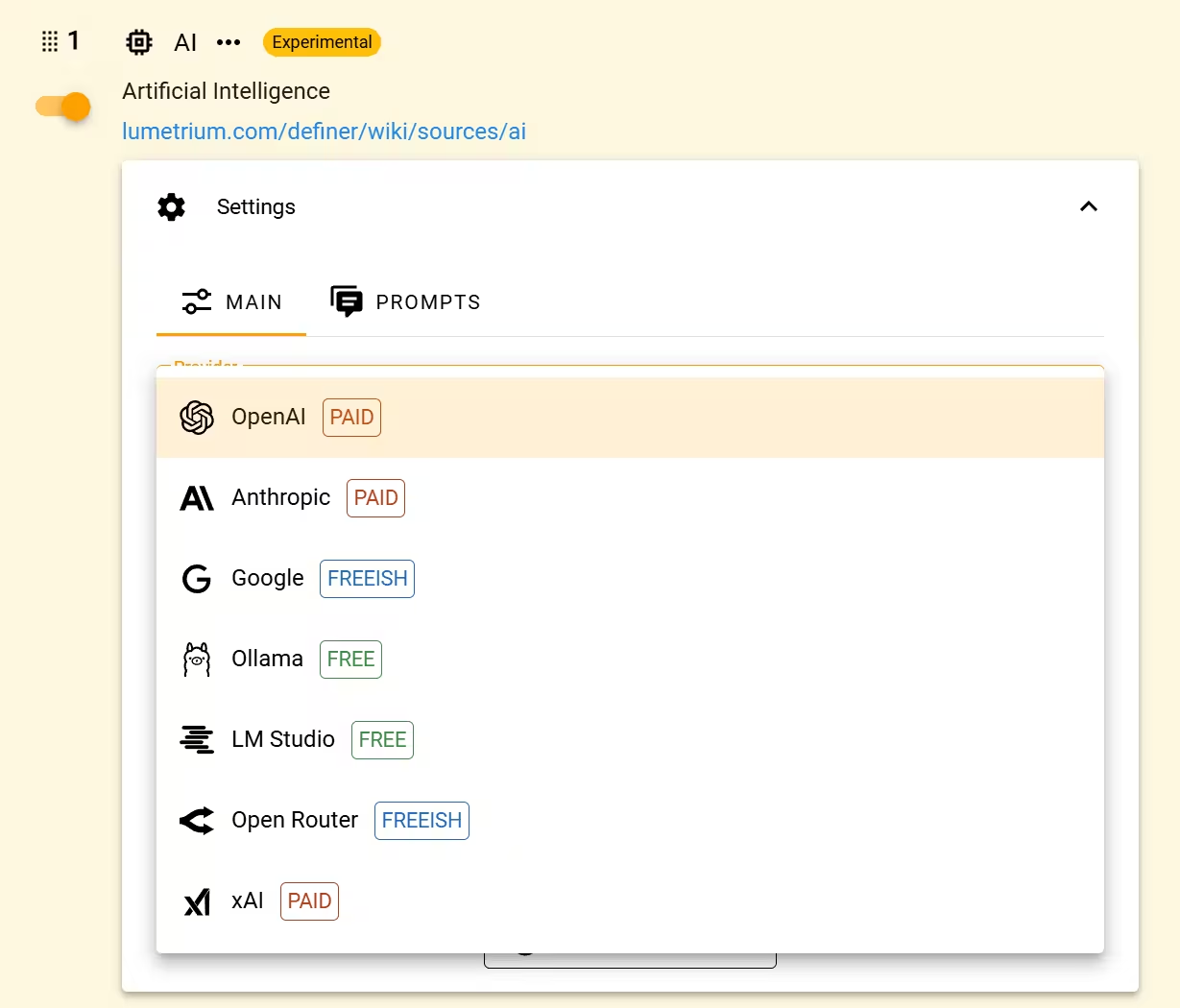
- Lumetrium AI is the easiest starting point and does not need a separate provider API key.
- OpenAI, Anthropic, Google, OpenRouter, and xAI use provider accounts and API keys.
- Ollama and LM Studio run supported models through software on your computer.
- Custom connects a compatible provider or server that is not listed separately.
See AI Providers for a side-by-side starting point. The API-key guides keep their full provider-specific instructions and screenshots.
Choose a model
The Model menu changes after you choose a provider. Models differ in speed, response quality, supported tasks, and provider cost. Start with the provider's default or recommended general-purpose model, then test the same representative lookup before switching permanently.
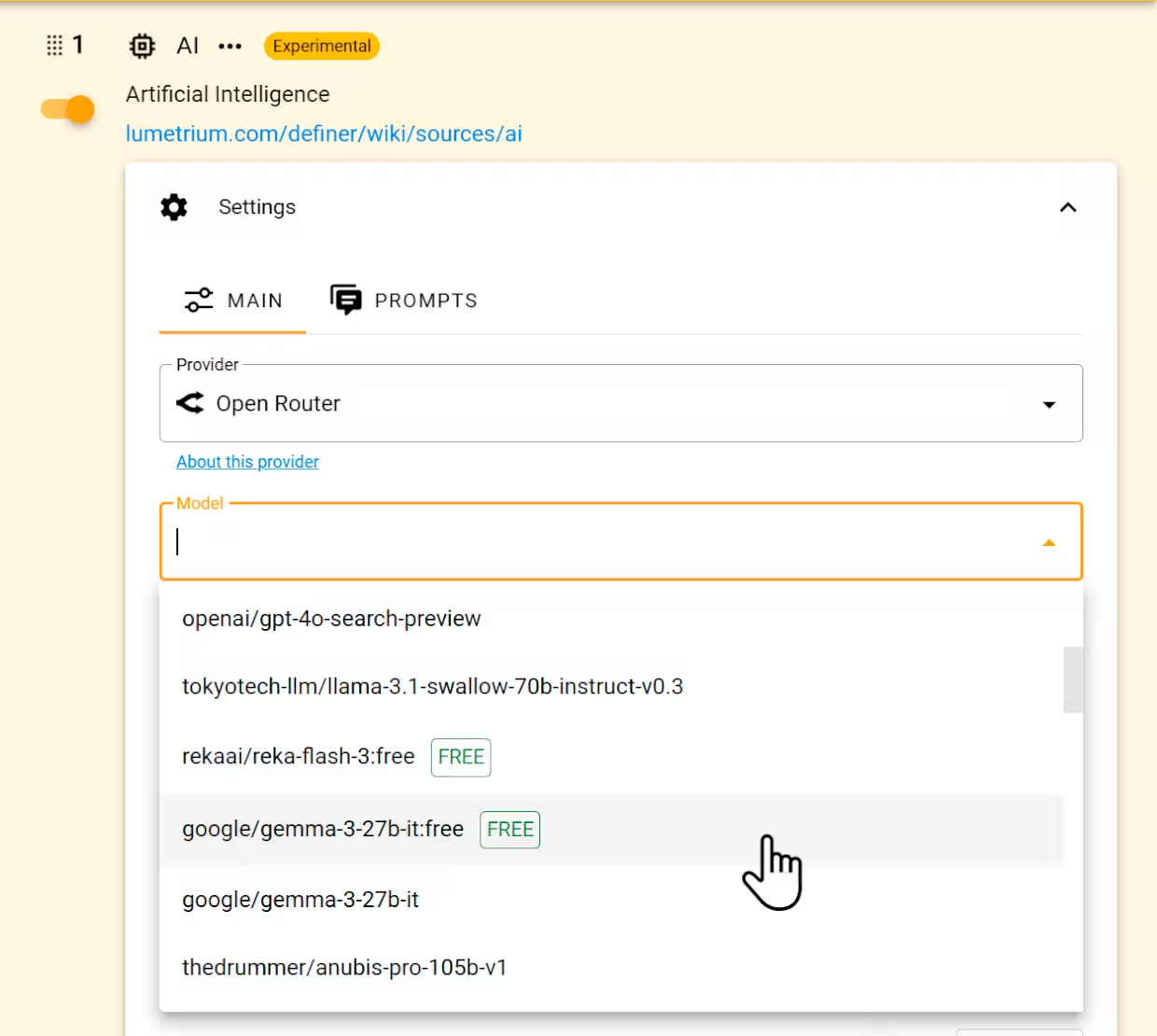
For external or local providers, use the exact model name offered by that provider. See AI Models for research and comparison guidance.
Enter an API key
When the selected provider needs an API key, API Key appears under Main. Create the key in that provider's account, then paste it into Definer and verify the setup in Preview.
Use the detailed guide for your provider:
Lumetrium AI, Ollama, and LM Studio do not require an external provider API key in their ordinary setup.
Adjust advanced settings
Select Show all options under Main when a provider guide or a specific task requires more control.
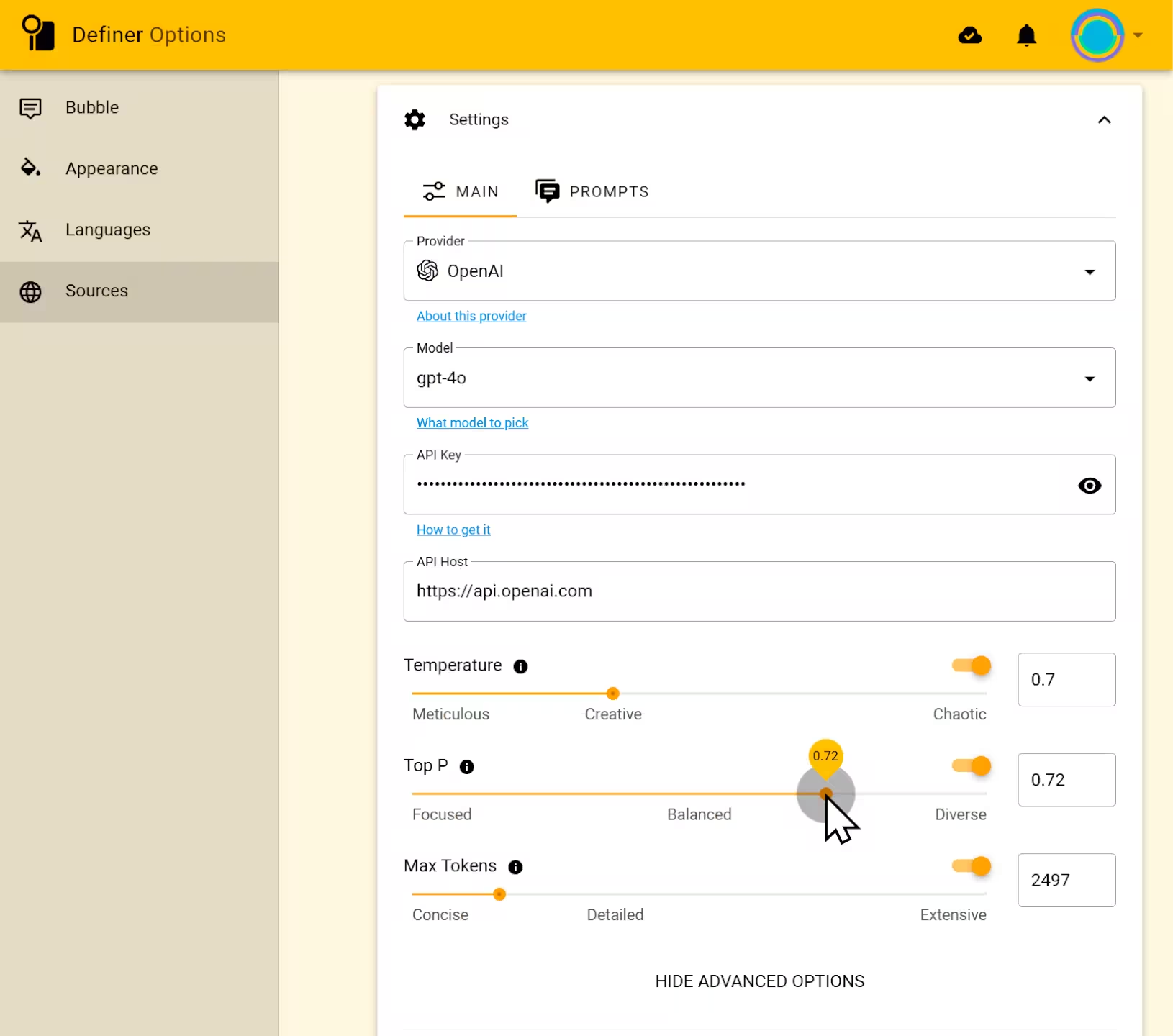
- API Host changes the provider address. Leave the built-in value unchanged unless you are using a proxy, compatible service, or local server that gives you another address.
- Temperature changes how varied the responses can be. Lower values are usually more repeatable; higher values allow more variation.
- Top P offers another way to control variation. Change one variation setting at a time so you can tell what affected the result.
- Max Tokens limits the length of the generated response.
Use Preview with the same query after each change. If the provider or prompt already gives good results, you do not need to adjust these settings.
Save an AI response
AI Source includes the built-in AI Chat Card Recipe. Select Save on an AI result to keep the current question and response as a Card in your Collections. If you continued the conversation, the Card also keeps the visible follow-up messages.
See Recipes to choose a different Recipe or change how saved information is arranged.