How to Connect Your xAI Account with Definer's AI Source
This guide will walk you through the steps to link your xAI account with Definer's AI source, allowing you to make the most of its features.
Step 1: Access Your xAI Account
Go to xAI homepage and click on the "API" tab. 
Step 2: Select "Start building now"
Click the "Start building now" button to proceed. 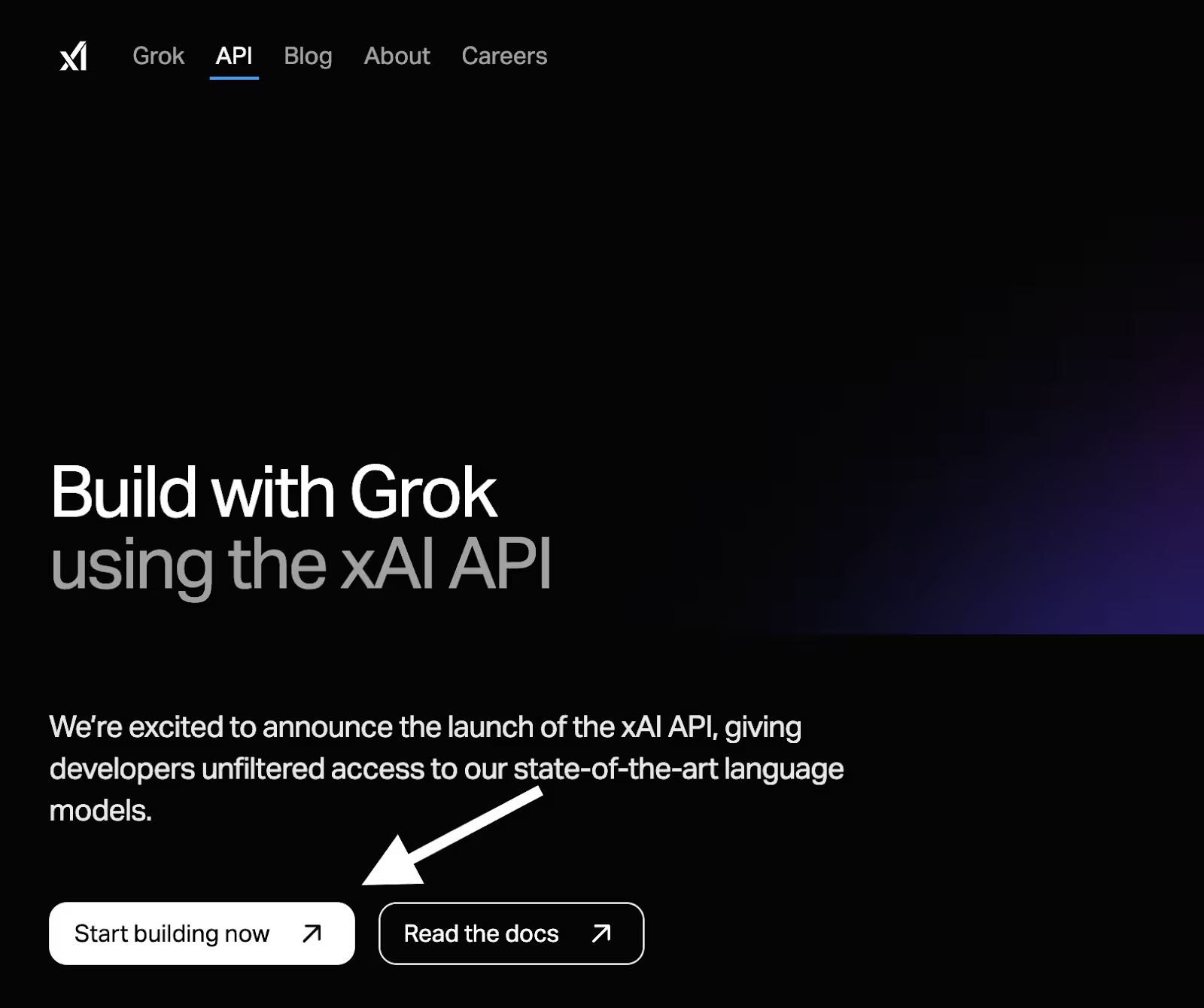
Step 3: Log in or Create an xAI Account
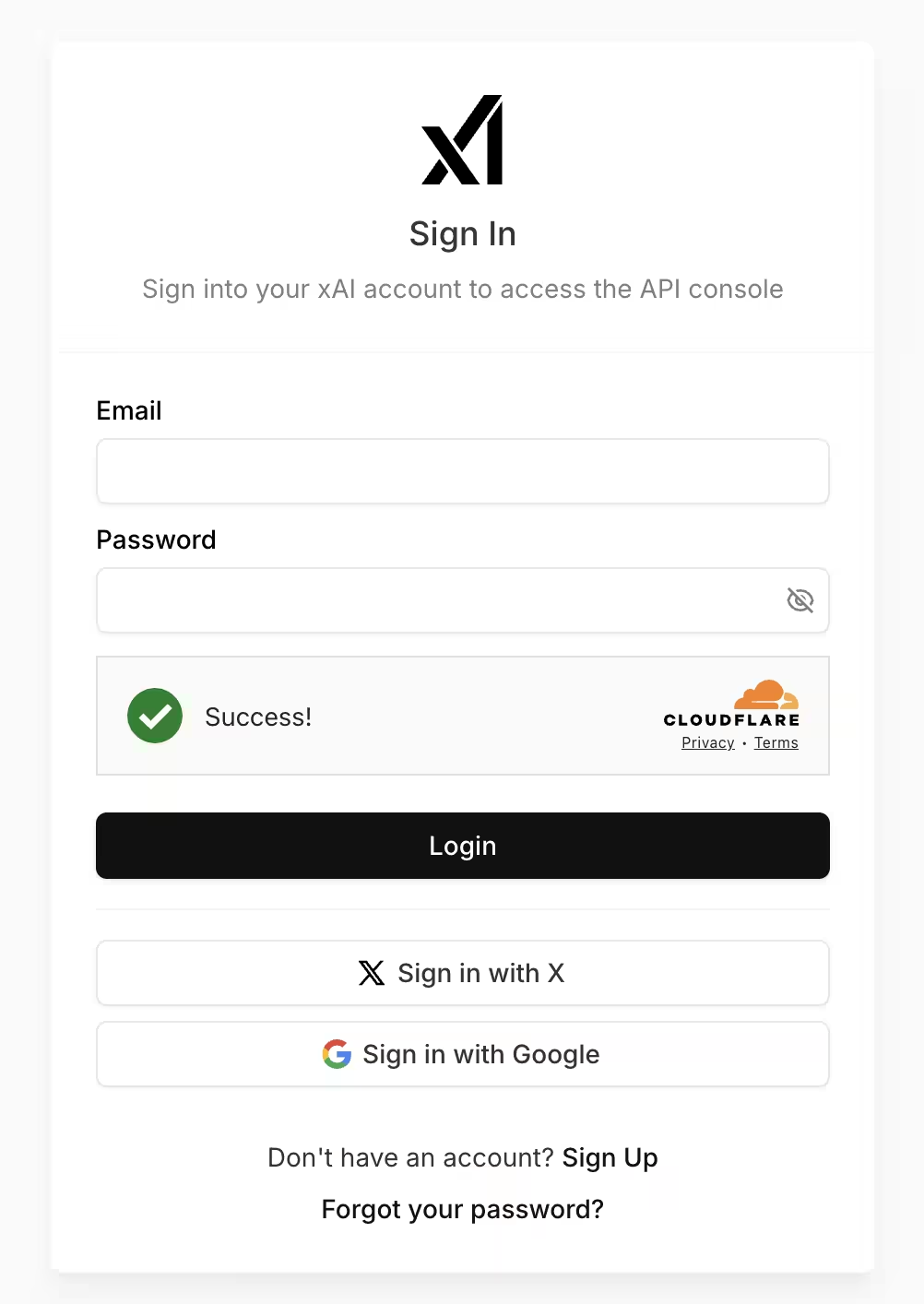
To access the API console, either:
- Enter your email address and password manually
- Sign in through Twitter or Google.
Step 4: Open API keys
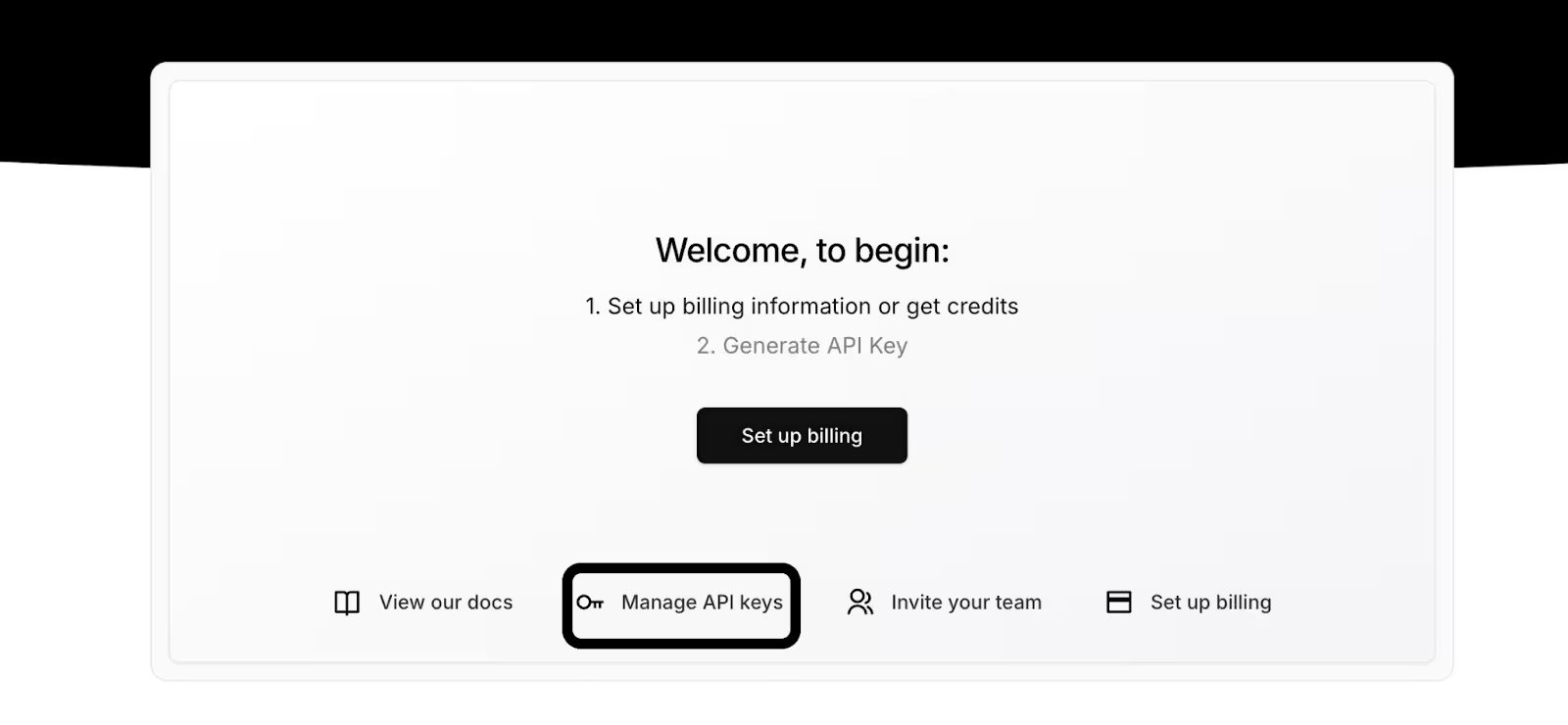
After logging in, open API keys, Keys, or Manage API keys, depending on the dashboard version. The screenshot below shows Manage API keys below the welcome message in one version of the xAI console.
Step 5: Create your API key
Select Create API key. Follow the current form to name the key and choose the access it needs, then create and copy it.
Once you've created it, you'll be able to view its usage and edit, disable, or delete it. You can also create an entirely new key by clicking on Create API key.
Step 6: Enter Your API Key into Definer
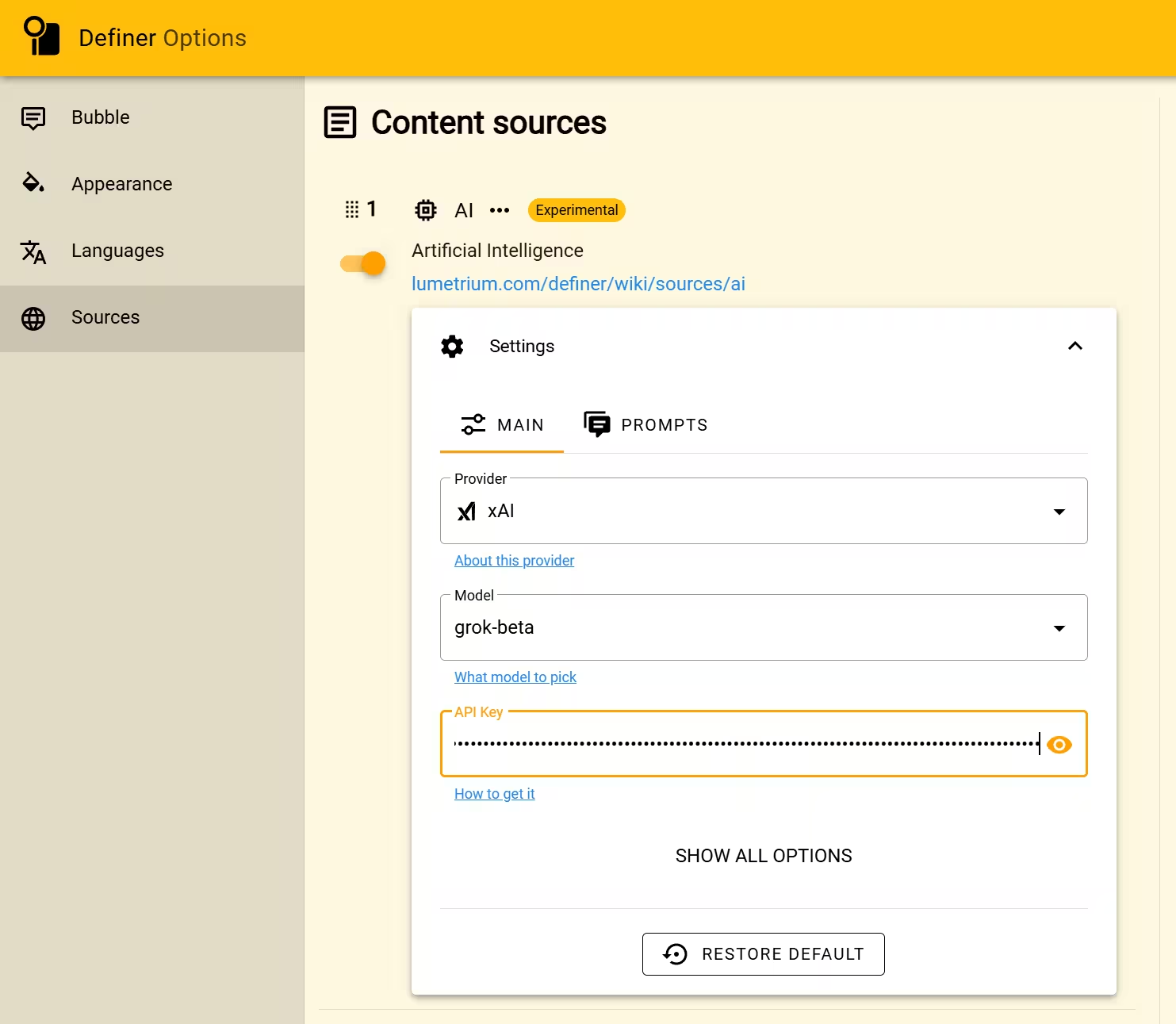
- Right-click the Definer icon next to the address bar, then select "Definer Options".
- Go to the "Sources" page and find the "AI" source in the list.
- Click on "Settings".
- In the "Provider" field, choose "xAI".
- Paste your newly created API key into the "API Key" field.
- Choose a supported model and enter a representative question in Preview to verify the connection.
By following these steps, you've successfully integrated xAI Grok with the Definer AI language translator browser extension.
If you need help, feel free to create a new post with "Help" flair in the r/lumetrium_definer subreddit.