Connect LM Studio
LM Studio lets you download an AI model and make it available to Definer through its local server. The setup has 3 parts: download a model, start the server, and choose the loaded model in the AI Source.
Install LM Studio
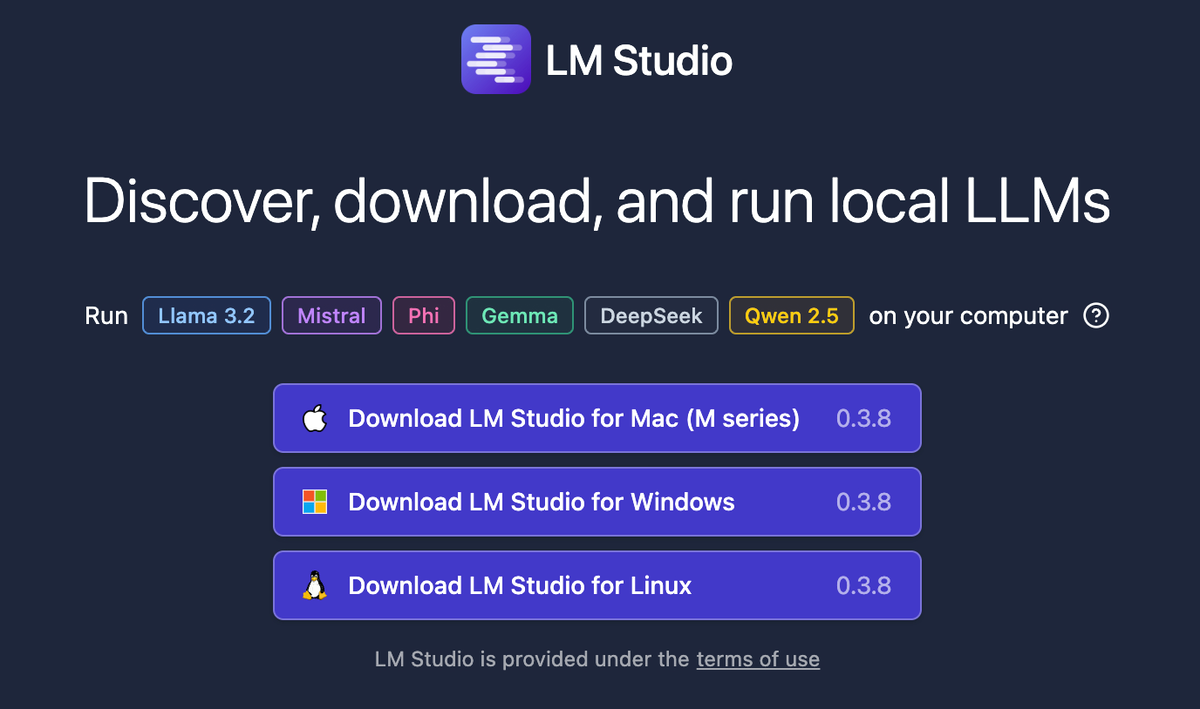
Step 1: Download LM Studio
- Visit lmstudio.ai in your web browser
- Click the download button for your operating system (Windows, macOS, or Linux)
- Follow the standard installation process for your platform
Step 2: Explore the interface
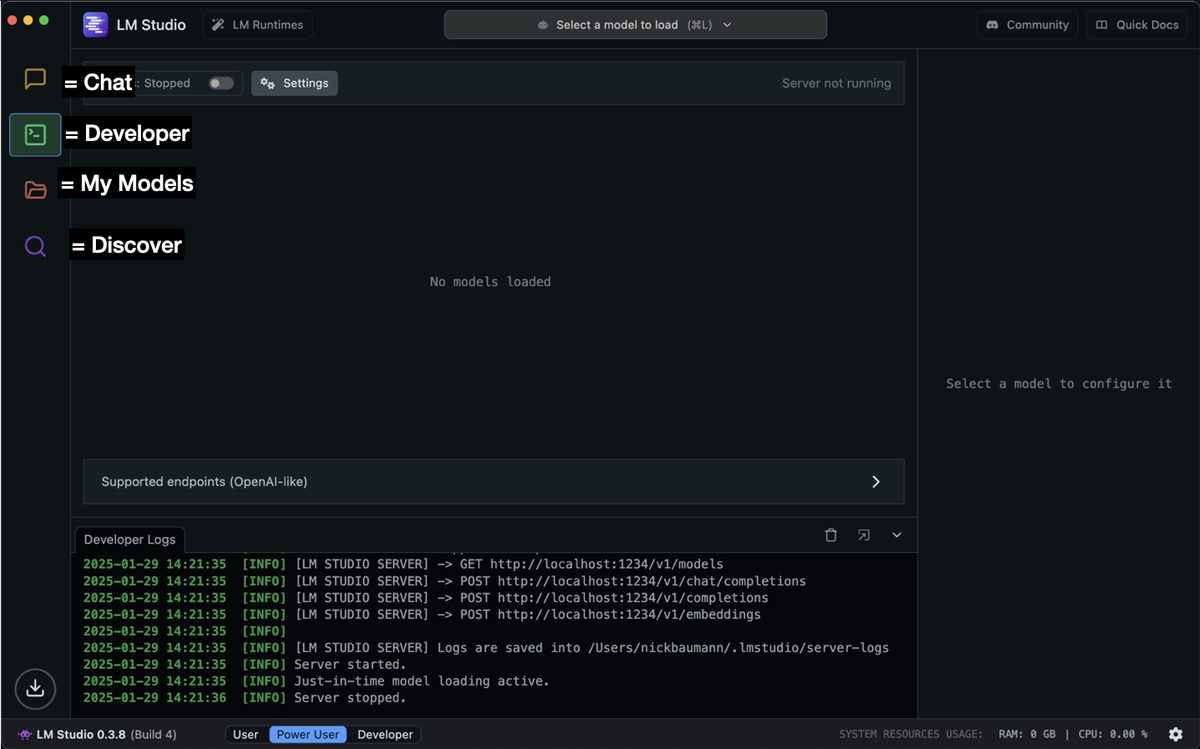
After installation, open LM Studio to explore its clean, organized interface with four main navigation tabs:
- Chat - Interact directly with models through a conversational interface
- Developer - Configure and manage the local API server
- My Models - Access and organize your downloaded model library
- Discover - Browse and download new models from the model hub
Step 3: Download a model
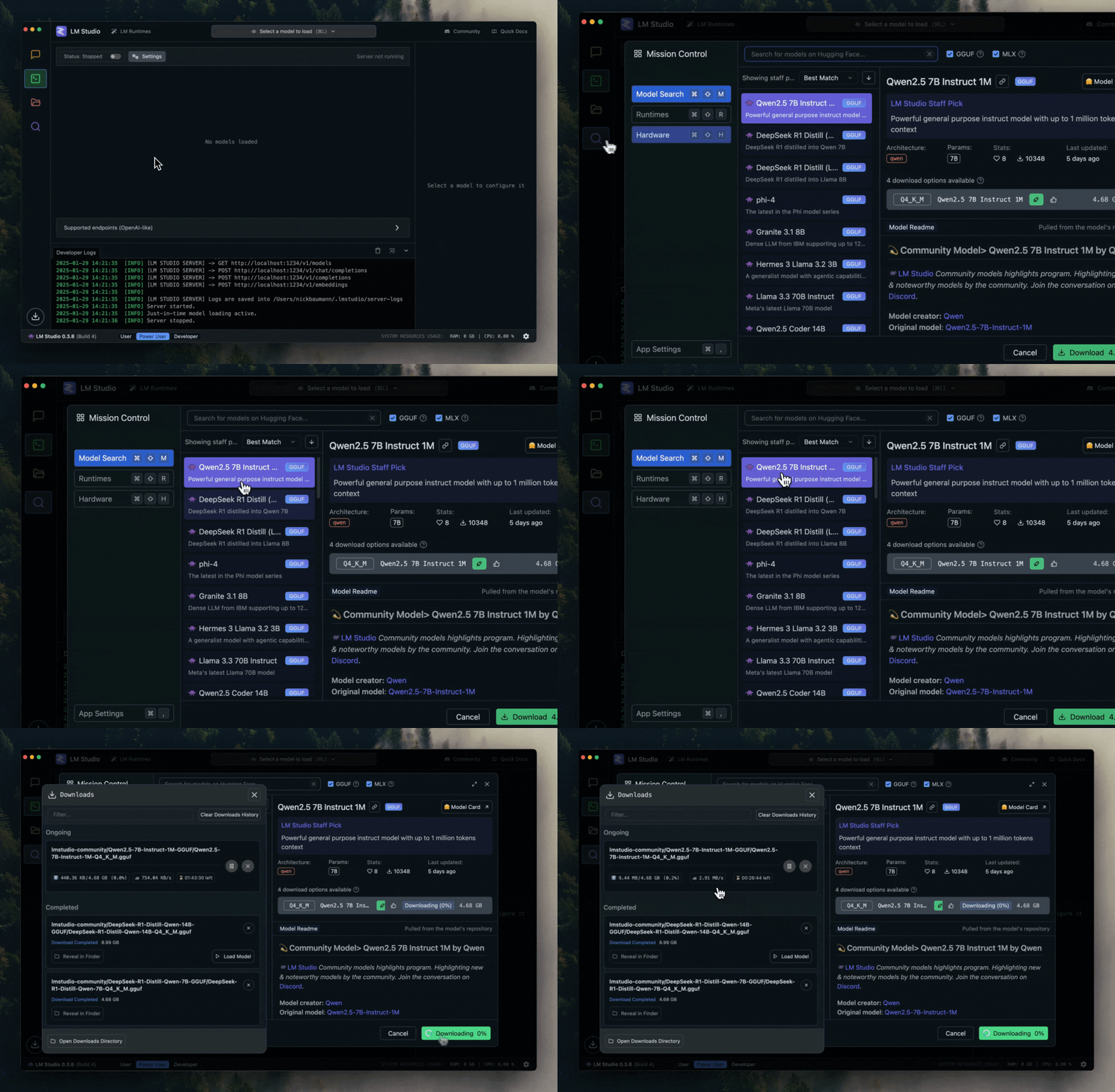
- Navigate to the Discover tab
- Browse available models (you can filter by size, capability, or popularity)
- Click on a model card to view details and performance metrics
- Click the download button on your chosen model
- Wait for download to complete (larger models may take several minutes)
Step 4: Start the local server
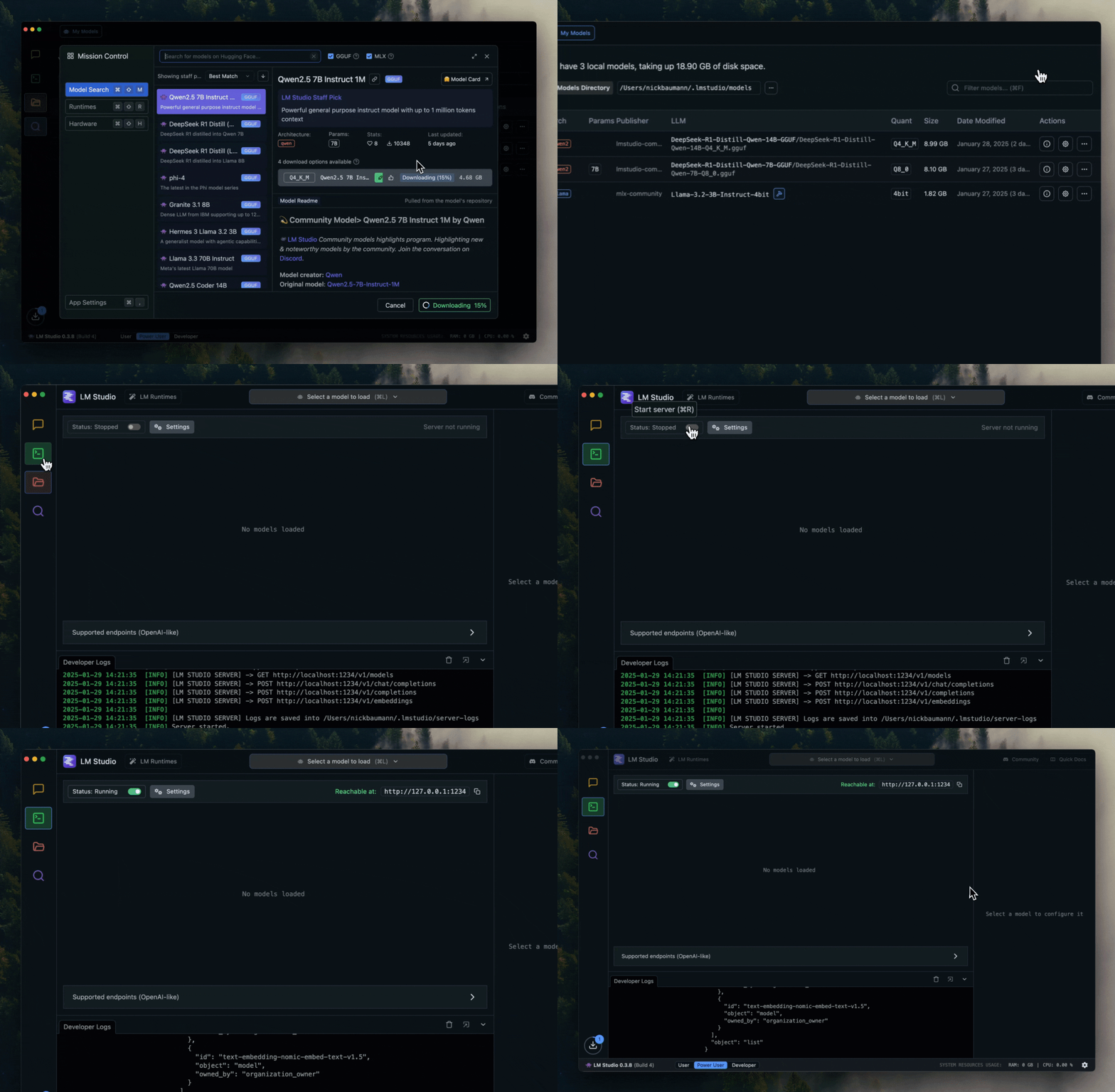
- Switch to the Developer tab in the left sidebar
- Toggle server switch to "Running"
- Confirm the server is active (status will change to "Running" with a green indicator)
- Note the server address (default:
http://localhost:1234)
Connect LM Studio to Definer
Follow these simple steps to connect your local LM Studio models to Definer:
- Right-click Definer icon next to address bar
- Select "Definer Options".
- Go to "Sources" page and find the "AI" source in the list.
- Click on "Settings".
- In "Provider" field, choose "LM Studio".
- Under Model, choose the model currently loaded by the LM Studio server.
- Enter a representative question in Preview and confirm that the model responds.
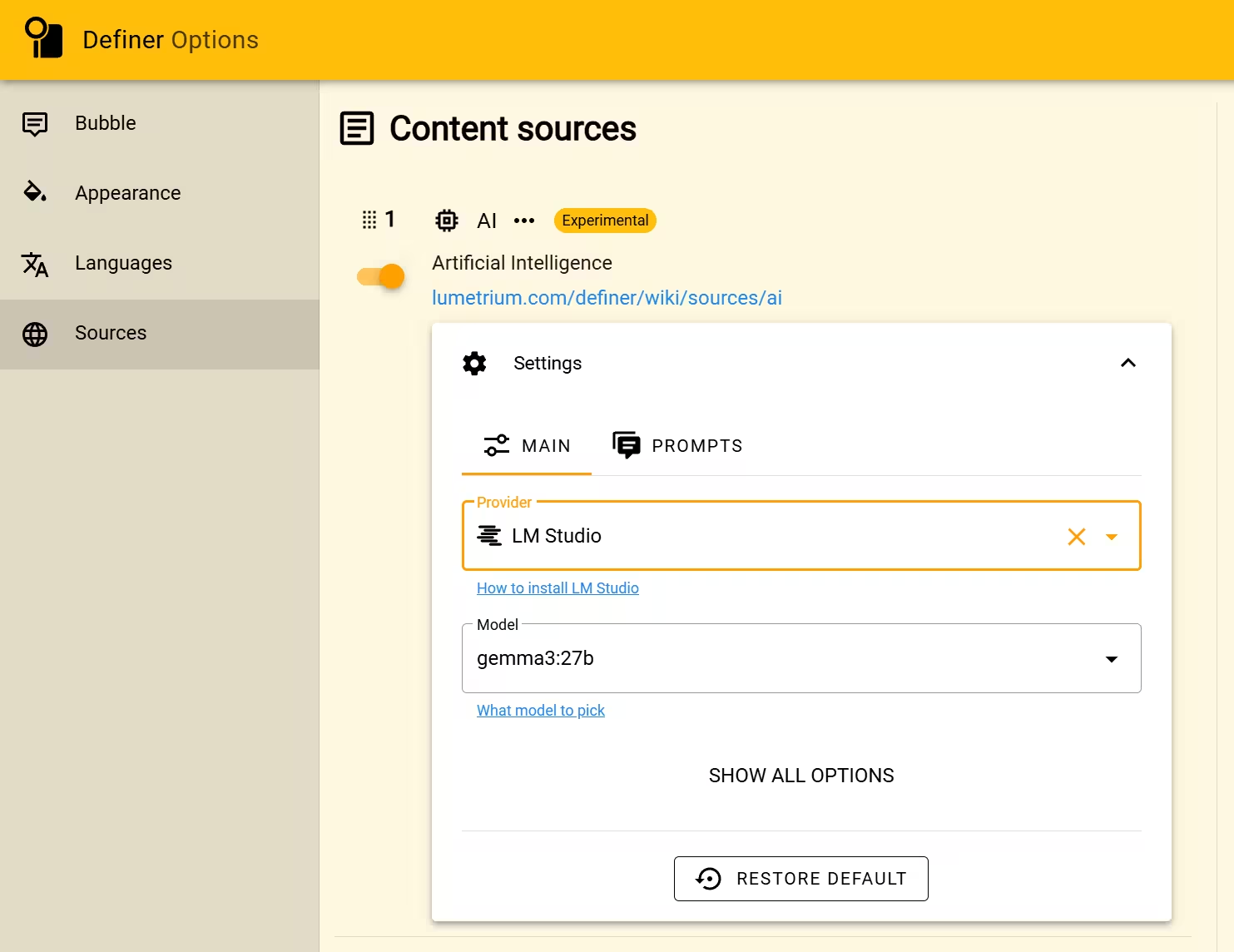
The AI Source now uses the selected LM Studio model for prompts that inherit its Main settings.
Fix a problem
- Model Not Responding: Ensure your selected model is fully loaded in LM Studio
- Connection Errors: Verify server is running and port isn't blocked
- Out of Memory Errors: Close other resource-intensive applications or switch to a smaller model
If you need help, feel free to create a new post with the "Help" flair in the r/lumetrium_definer subreddit.