Getting started
Definer helps you understand a word or passage without losing your place. Select text on a page and a small result window, called the Bubble, opens beside it.
Try the Bubble
- Open a web page with text you can select.
- Double-click a word.
- Read the result in the Bubble beside it.
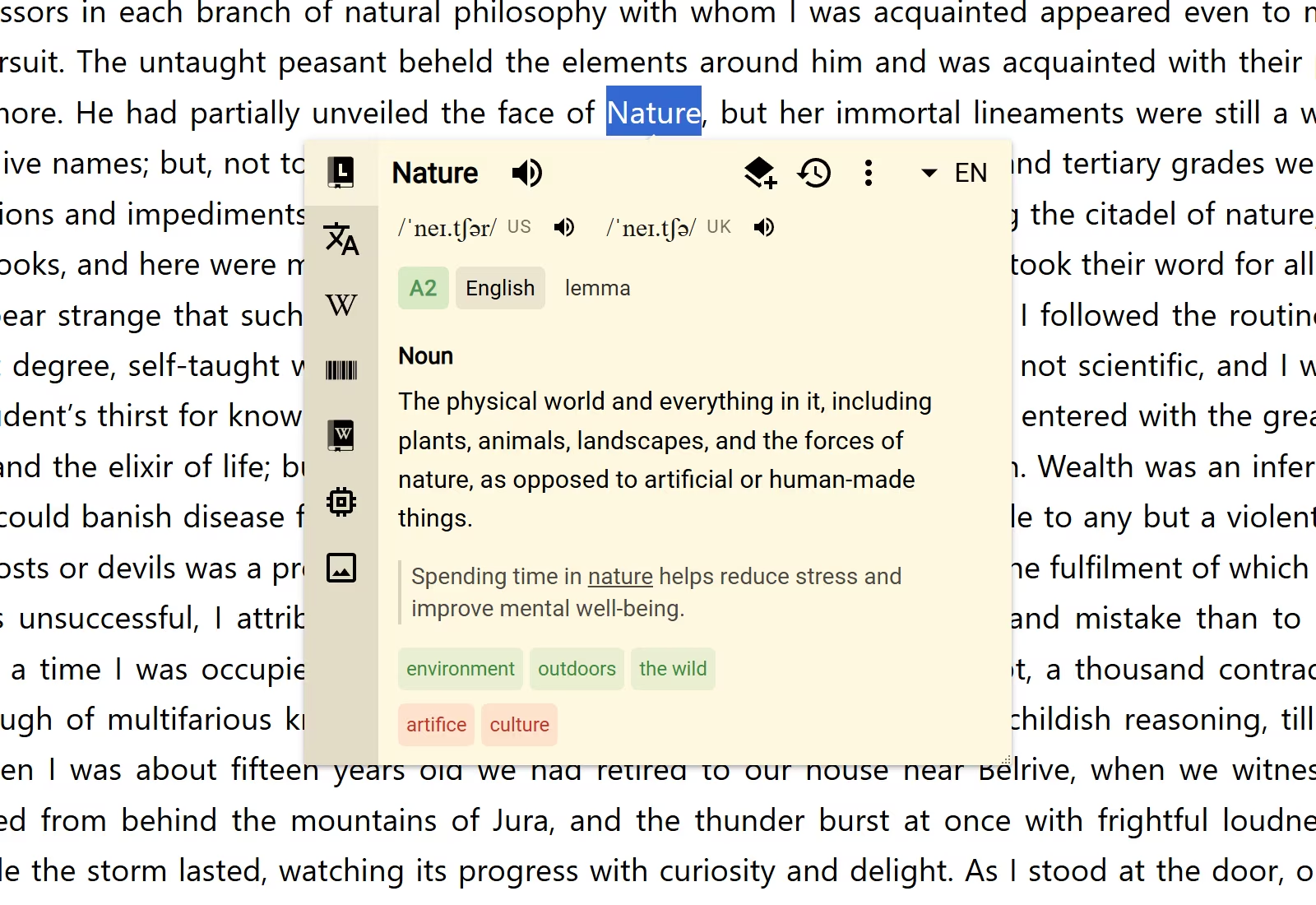
That is enough to start using Definer. If double-click does not open the Bubble, select the text and press Alt+G. You can change these actions later in Bubble triggers.
Search for anything
The Extension Window lets you type a word, phrase, or question even when there is nothing useful to select on the page.
- Select the Definer icon in your browser toolbar.
- Type in Search anything.
- Press Enter. With Autosend enabled, Definer can start after a brief pause instead.
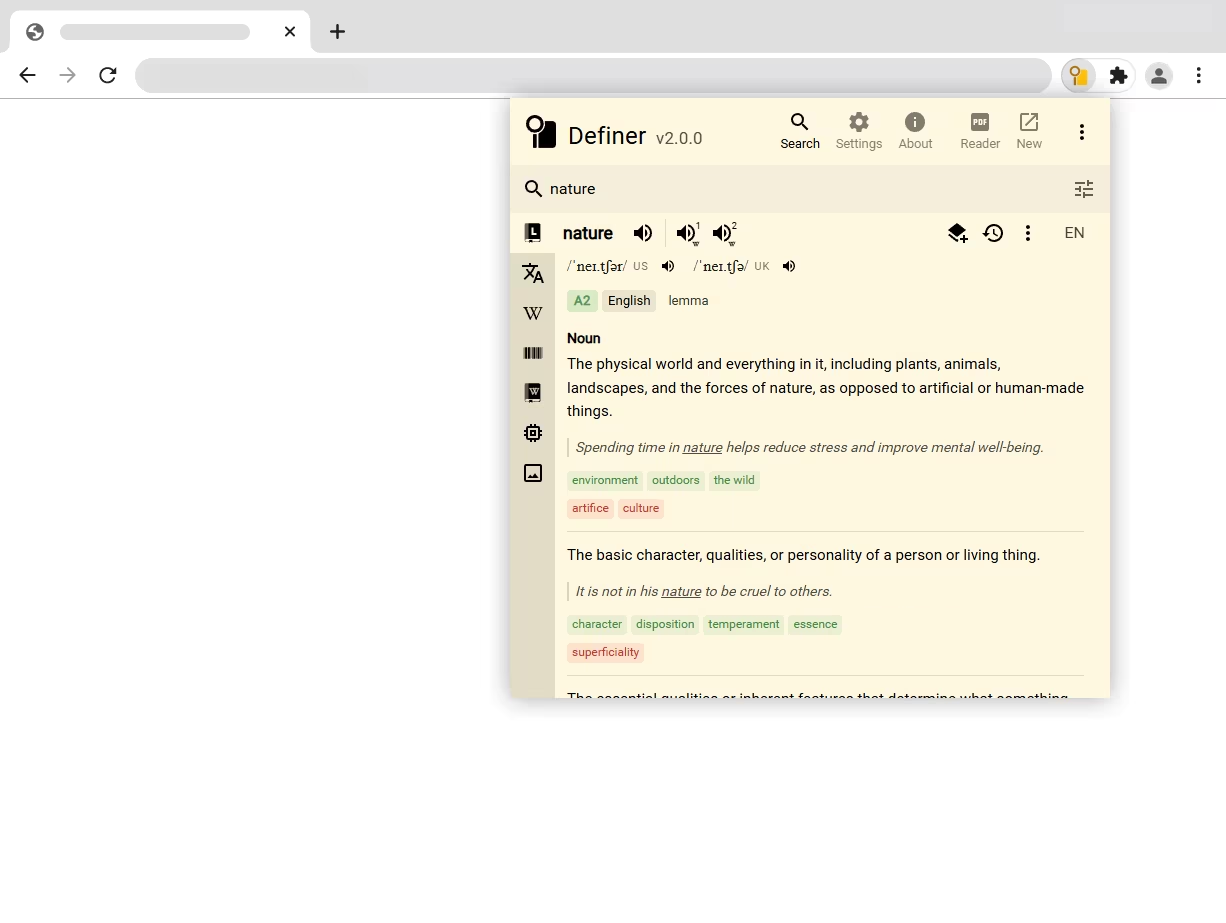
The Bubble and Extension Window show the same kinds of lookups. The only difference is how you begin: select text while reading, or type what you want to find.
Explore Definer
Each lookup can include definitions, translations, explanations, images, and audio from your enabled sources. You can save useful information, return to an earlier lookup in History, organize material in Collections, or use the Reader for PDFs and EPUBs.