Billing
Billing lets you check a paid Definer subscription, update payment details, change renewal, and review subscription changes before they take effect. In Definer Options, open the profile menu from your avatar, then go to Profile → Membership. The billing cards appear below your current tier and usage.
Check payment details
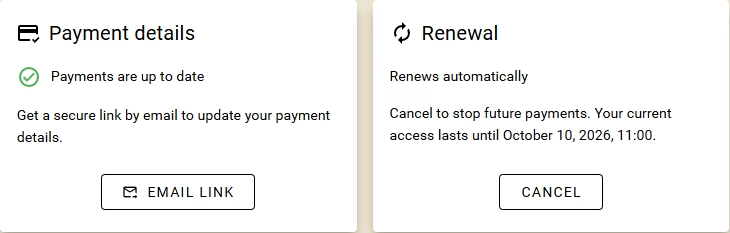
The Payment details card shows the current payment status. To update your payment details, select Email link and wait until the card says Check your email for the payment link. Open the newest payment-link email.
If the card says Payment needs attention, request the link and update the payment details to keep the subscription active.
Change renewal
The Renewal card shows whether the subscription renews automatically. While automatic renewal is active, its description also gives the date through which your current paid access lasts.
Stop automatic renewal
WARNING
Cancelling renewal stops future payments. Your paid access continues until the end date shown in the Renewal card.
- Select Cancel.
- In Turn off automatic renewal?, confirm the change.
- Follow the request in Billing requests until Definer confirms the change.
- Confirm that the Renewal card says Ends after the paid period.
Resume automatic renewal
- Select Resume renewal.
- In Resume automatic renewal?, confirm the change.
- Follow the request in Billing requests until Definer confirms the change.
- Confirm that the Renewal card says Renews automatically.
Change the subscription
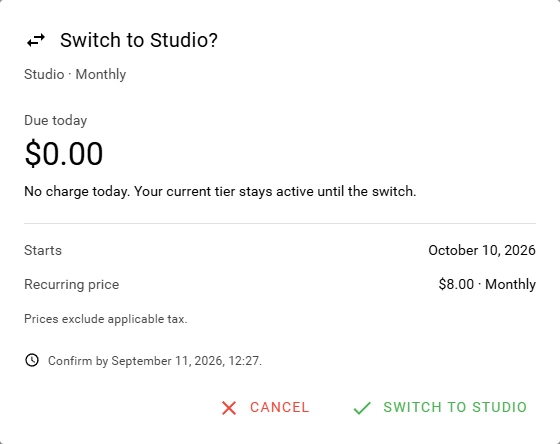
Definer shows Due today, Starts, Recurring price, the applicable-tax notice, and a confirmation deadline before you submit a tier or billing-interval change. The displayed amounts exclude applicable tax. A change may start after payment is confirmed or at the date shown in the review.
Tier and billing-interval changes are available while the paid subscription is active, renews automatically, and has no other change scheduled. If you stopped renewal, resume it and wait for confirmation first. If another subscription change is already in progress, wait for it to finish before starting another.
Switch to another tier
- In the Change tier card, open Switch to.
- Choose a tier and billing period.
- Select Review change.
- Check Due today, Starts, Recurring price, the applicable-tax notice, and the confirmation deadline.
- If the terms are correct, select the button that names the tier you chose.
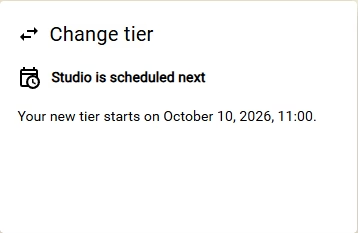
After a scheduled change is confirmed, the Change tier card shows the next tier and its start date. Your current tier remains active until that date.
Switch between monthly and yearly billing
- Open the profile menu and select Upgrade or Membership. This menu item opens the plans page, not the account's Membership tab.
- Choose Monthly or Yearly, then select Switch to monthly or Switch to yearly on your current tier.
- Review the amount, start date, recurring price, and deadline, then confirm the change if the terms are correct.
To move to a lower paid tier, use the Change tier card on the account's Membership tab. The plans page shows lower tiers as Included instead of offering a downgrade there.
Follow a billing request
The Billing requests card shows subscription and checkout changes until their outcome is known. Requests for an emailed payment link stay in the Payment details card instead.
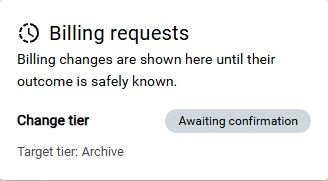
- For Queued, Processing, or Awaiting confirmation, wait for the status to change before trying the action again.
- For Needs review, do not repeat the request while Definer checks its outcome.
- If checkout offers Continue to checkout, select it to return to checkout.
- If payment is pending, select Check payment status before starting another checkout.
- If checkout has expired, select View Plans to begin again.
- If Definer asks you to resolve checkout with support, select Contact support.
Check the Current tier, Renewal, or Change tier card for the confirmed subscription result. A billing request can finish before the provider confirms the membership change.
If Billing is temporarily unavailable appears, select the circular-arrow Refresh button beside the message and try again later. If Billing is being prepared appears, billing actions are not available yet, so return later. Your current membership remains unchanged in either case.