Lumtionary
Lumtionary turns a word or short phrase into a multilingual dictionary entry. It can show pronunciation, definitions, examples, translations, related words, and learning details when they are available. Use it when you want to understand the meaning that fits the surrounding sentence, not only see a short definition.
Use Lumtionary
- Look up a word or short phrase.
- Select the Lumtionary icon from the available results.
- Change the result language in the lookup header when you want the explanation in another language.
If Lumtionary is not available, open Definer Options → Sources → New source → Built-in sources and select Lumtionary.
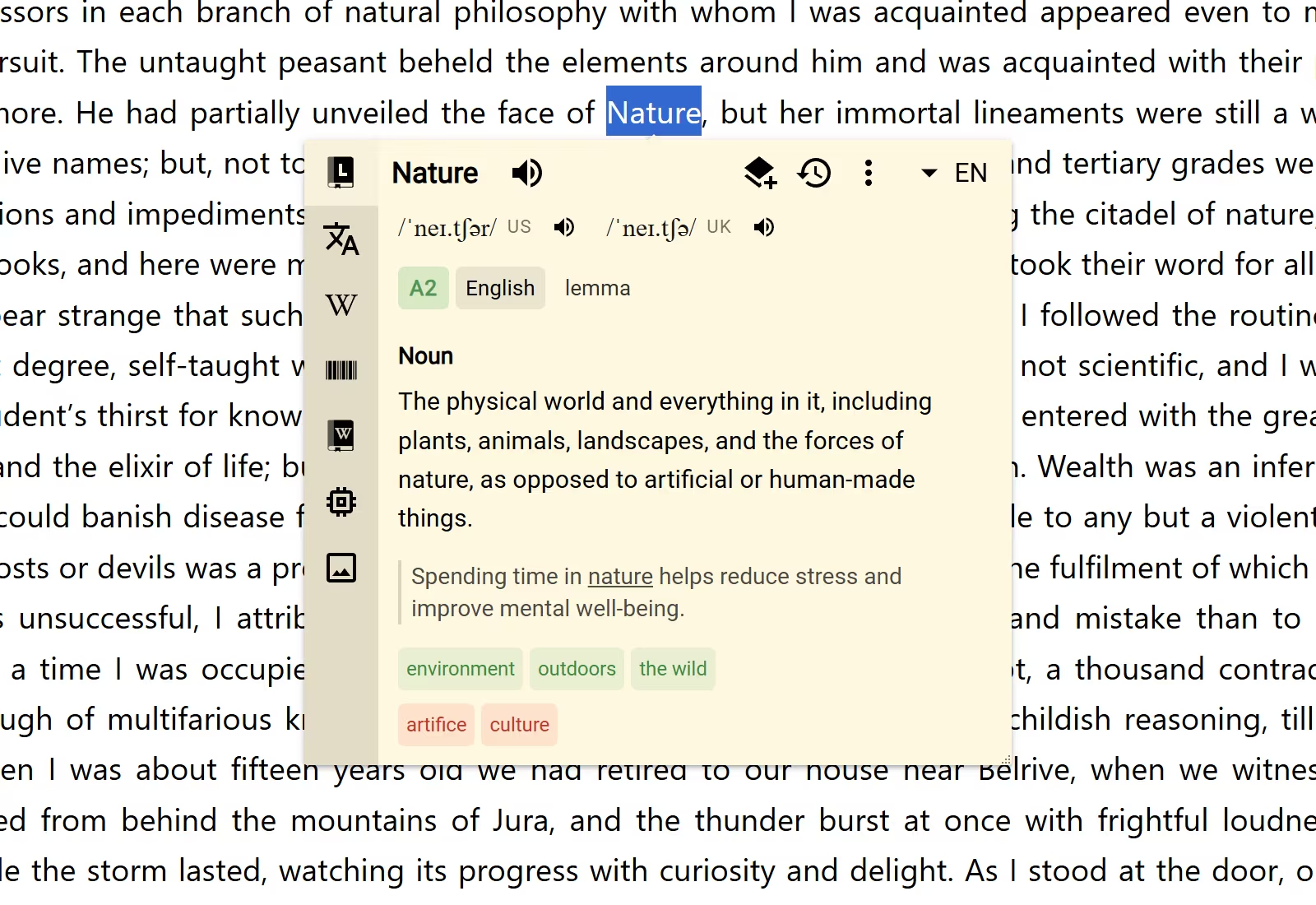
Lumtionary is especially useful for:
- choosing the intended meaning of a word with several senses;
- reading a definition and translation together;
- checking pronunciation, examples, synonyms, and antonyms in one result; and
- seeing learning details such as proficiency level or word components when Lumtionary provides them.
Choose the result language
Lumtionary detects the language of the word and writes its explanations in the current result language. Change the result language from the lookup header when you want the same word explained in another language.
For example, you can look up a Spanish word while using English as the result language. Lumtionary identifies Spanish as the source language and presents the definition and translation for an English reader.
Shape the entry
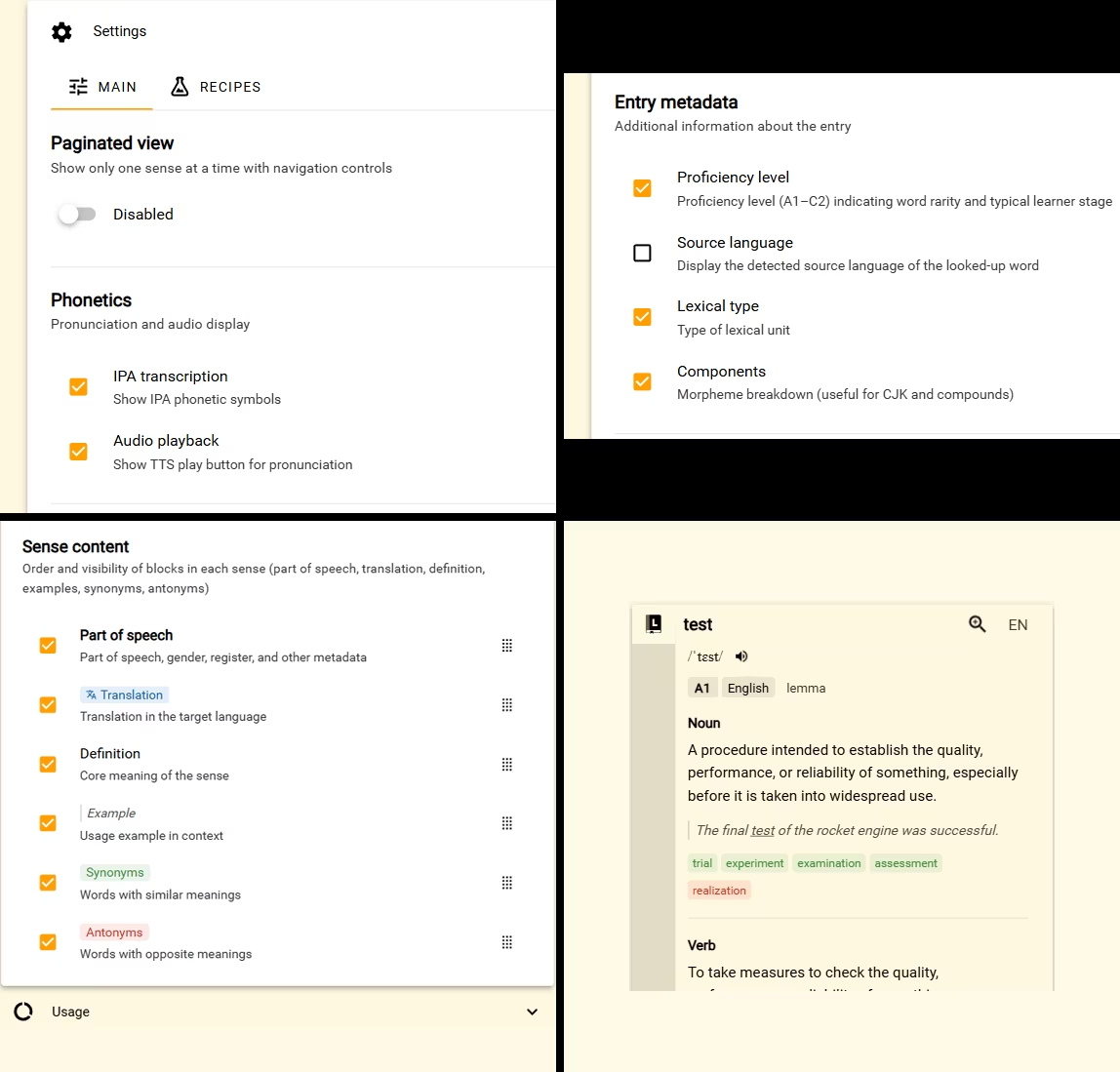
Open Definer Options → Sources → Lumtionary → Settings → Main. These choices change what each entry shows:
- Paginated view shows one sense at a time with navigation controls. Leave it off to read all senses in one list.
- Phonetics lets you show or hide IPA transcription and Audio playback.
- Entry metadata lets you show or hide Proficiency level, Source language, Lexical type, and Components.
- Sense content lets you show or hide Part of speech, Definition, Example, Translation, Synonyms, and Antonyms. Drag the dotted handle on the right to reorder them.
Changes appear in Preview, so you can compare the layout before returning to a lookup.
Save a Lumtionary entry
Lumtionary includes the Lumtionary Term Recipe. When you save a Lumtionary result with that Recipe, Definer creates a Term item with the available headword, pronunciation, senses, examples, related words, and source details.
Open Definer Options → History → Recipes to inspect the built-in Recipe. To customize it, change Recipe Name and select Save as copy.
Lumtionary uses the shared AI & Translation allowance. See Membership to check your usage and available options.