Term items
Term items keep a word or phrase together with the language details you care about. Use them when one definition is not enough, or when you want meanings, examples, pronunciations, spelling variants, and word components to remain organized instead of becoming one block of text.
You can create a Term yourself or use a Recipe to create one from a dictionary or pronunciation source result.
Create a basic Term
- Open Definer Options → Collections → [Collection] → Items and select New Term or New Item.
- Choose Term under Type and enter the word or phrase in Term.
- Open Senses. Enter Part of Speech, Definition, and an optional Example or Translation for the first sense.
- Select Save. The Term appears in the Collection.
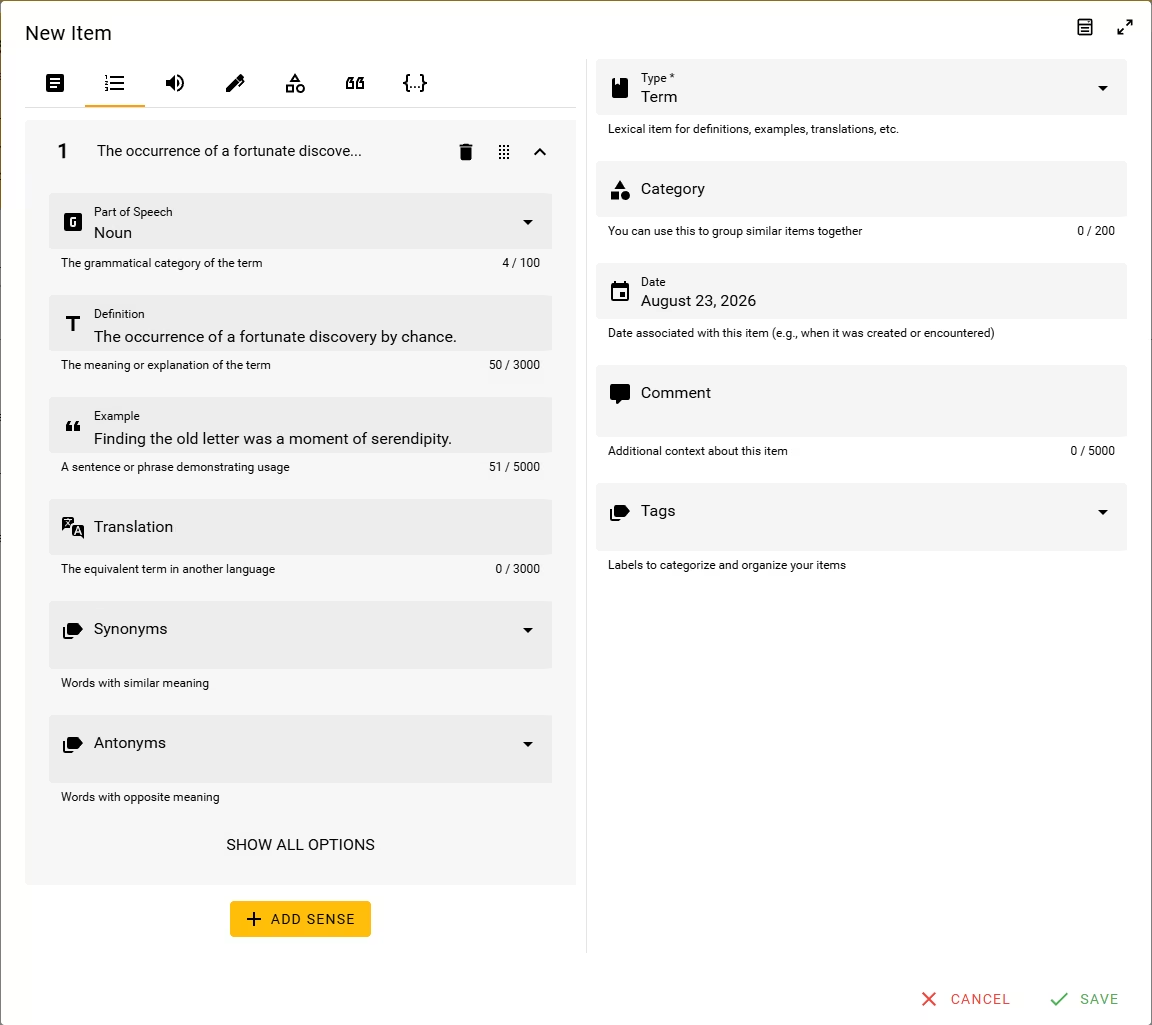
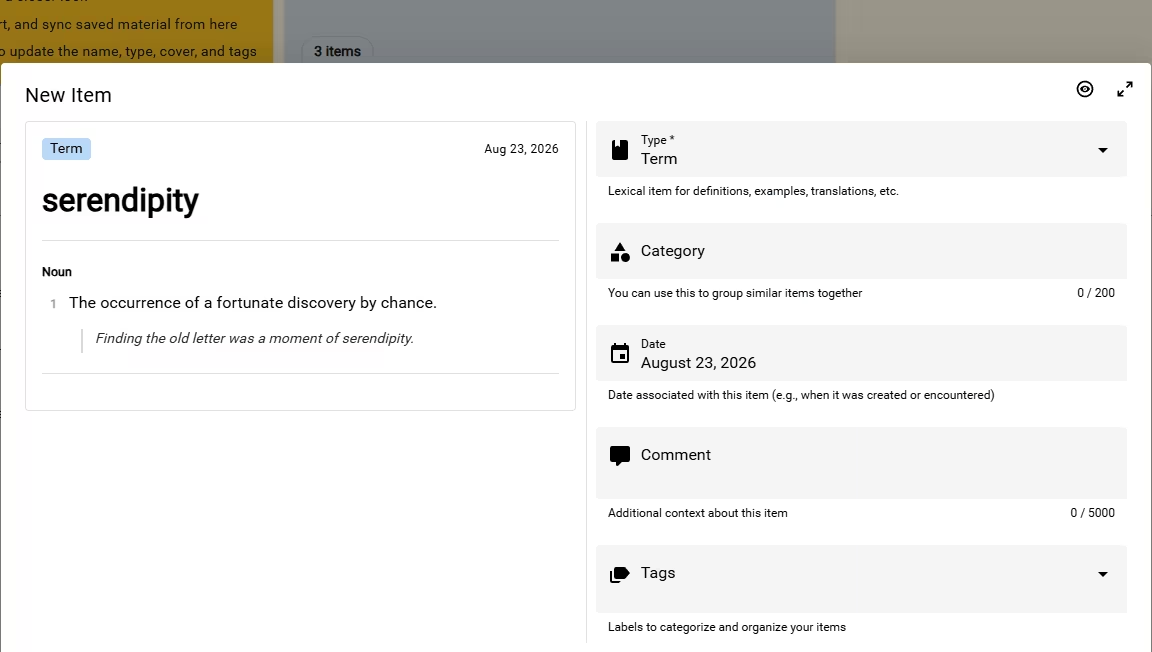
Use Preview to check how the saved information will read before selecting Save.
Organize several meanings
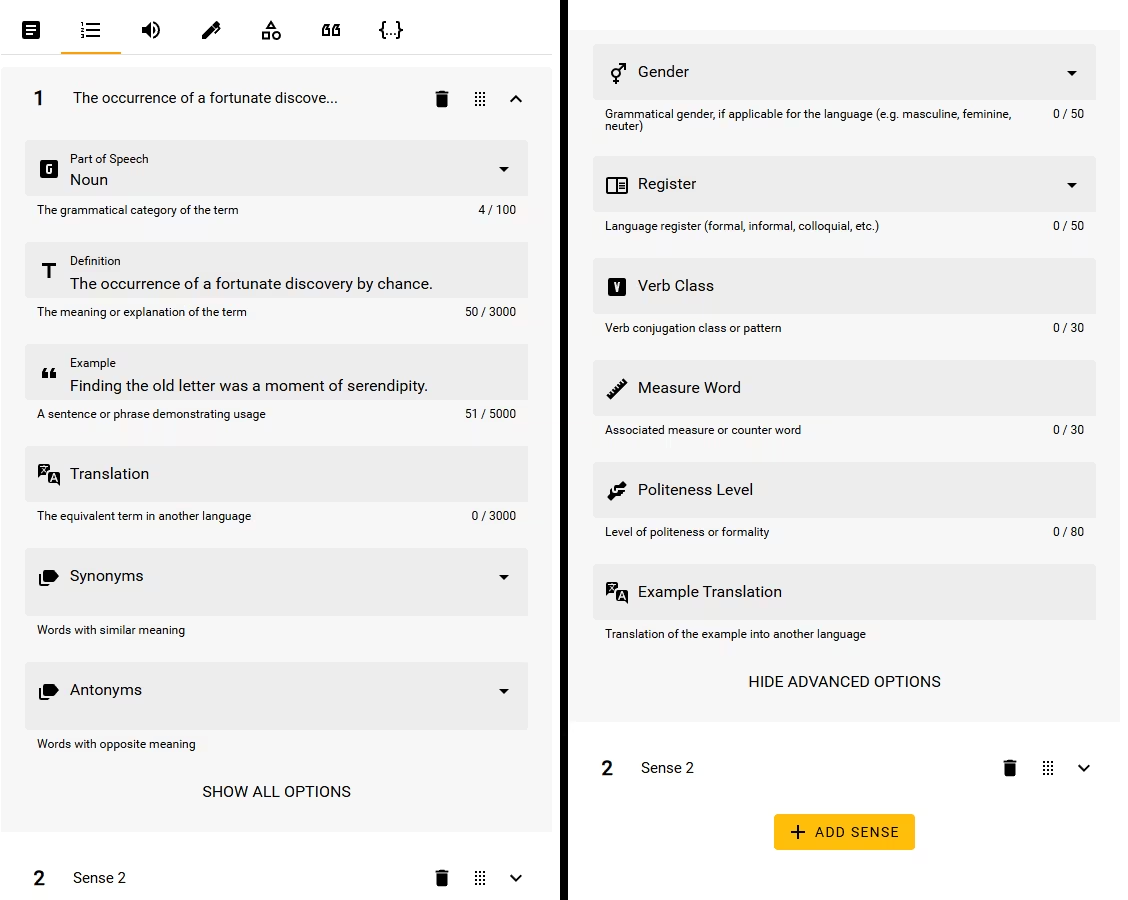
Each entry under Senses represents one meaning or use of the Term. Select Add sense for another meaning, then drag the sense handles to put the most useful meaning first.
The main fields cover Part of Speech, Definition, Example, Translation, Synonyms, and Antonyms. Select Show all inside a sense for details such as Gender, Register, Verb Class, Measure Word, Politeness Level, and Example Translation.
Add identity and level details
Open Identity to keep the Term itself together with details that help you recognize or organize it:
- Lexical Type identifies what kind of expression it is, such as a word, phrase, or abbreviation.
- Aliases keep alternative names for the same Term.
- Level records a learning or proficiency level when one applies.
These fields are optional. Add them when they make the Term easier to find or study.
Add pronunciation
Open Pronunciation and select Add pronunciation for each pronunciation you want to keep. Add separate entries for different regions, accents, or readings.
Use:
- Transcription for the written pronunciation.
- Notation to identify the system, such as IPA.
- Region and Tone when they help distinguish the recording or pronunciation.
- Audio URL for a playable recording, with Audio Attribution when one is provided.
- Show all for Accent, Speaker Type, and Syllables.
You can drag pronunciations into the order you want Definer to show them.
Add spelling and components
Use Orthography for how the Term is written or read:
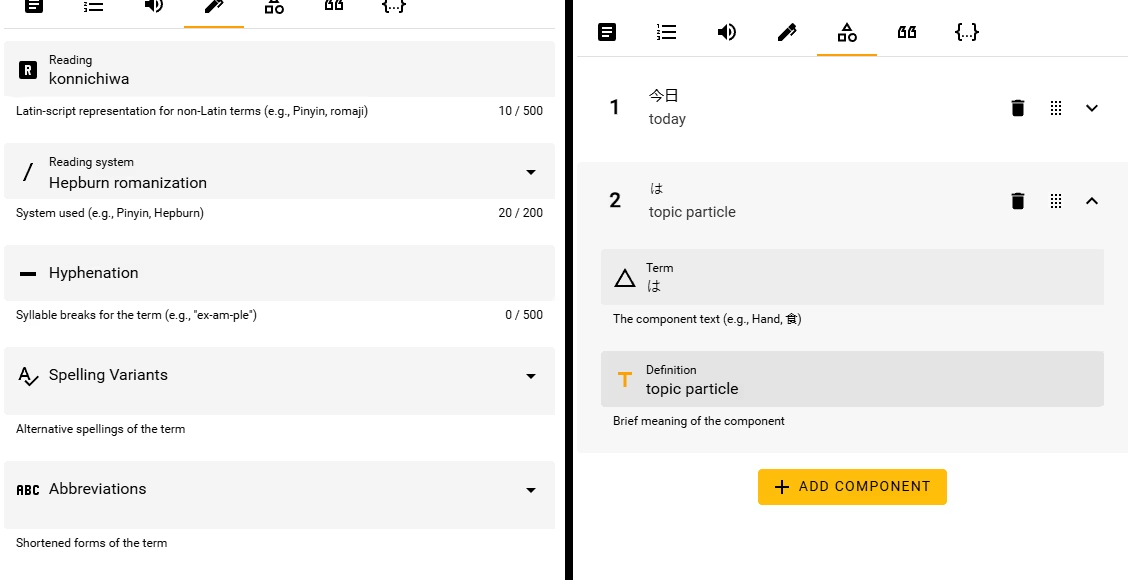
- Reading and Reading System are useful for another script or a romanized reading.
- Hyphenation records syllable or word breaks.
- Spelling Variants and Abbreviations keep alternative written forms together.
Use Components to break a compound word, expression, or character-based term into meaningful parts. Each component can have its own text and short meaning.
Keep only the detail you need
The Term editor is designed to hold rich dictionary information, but most Terms do not need every tab. Start with Term and one Sense, then add pronunciation, spelling, or components only when they make the item more useful.
To choose what appears in the Collection table, open the table-with-cog Fields control. A Dictionary Collection starts with Name, Level, Pronunciation, Senses, and Components, and you can show or hide other Term fields at any time.