Open Images
Open Images finds openly licensed images from cultural collections and shows them as one gallery. Use it to add a visual reference to a study card, identify a place or artwork, or compare several views of the same subject. Each card shows a title, a shortened attribution line, and a license badge. Open the image or title when you need the complete source details.
Use Open Images
- Look up a concrete subject, such as
Eiffel Tower. - Select the Open Images icon from the available results.
- Select an image or its title to open the original source page.
If Open Images is not available, open Definer Options → Sources → New source → Built-in sources and select Open Images.
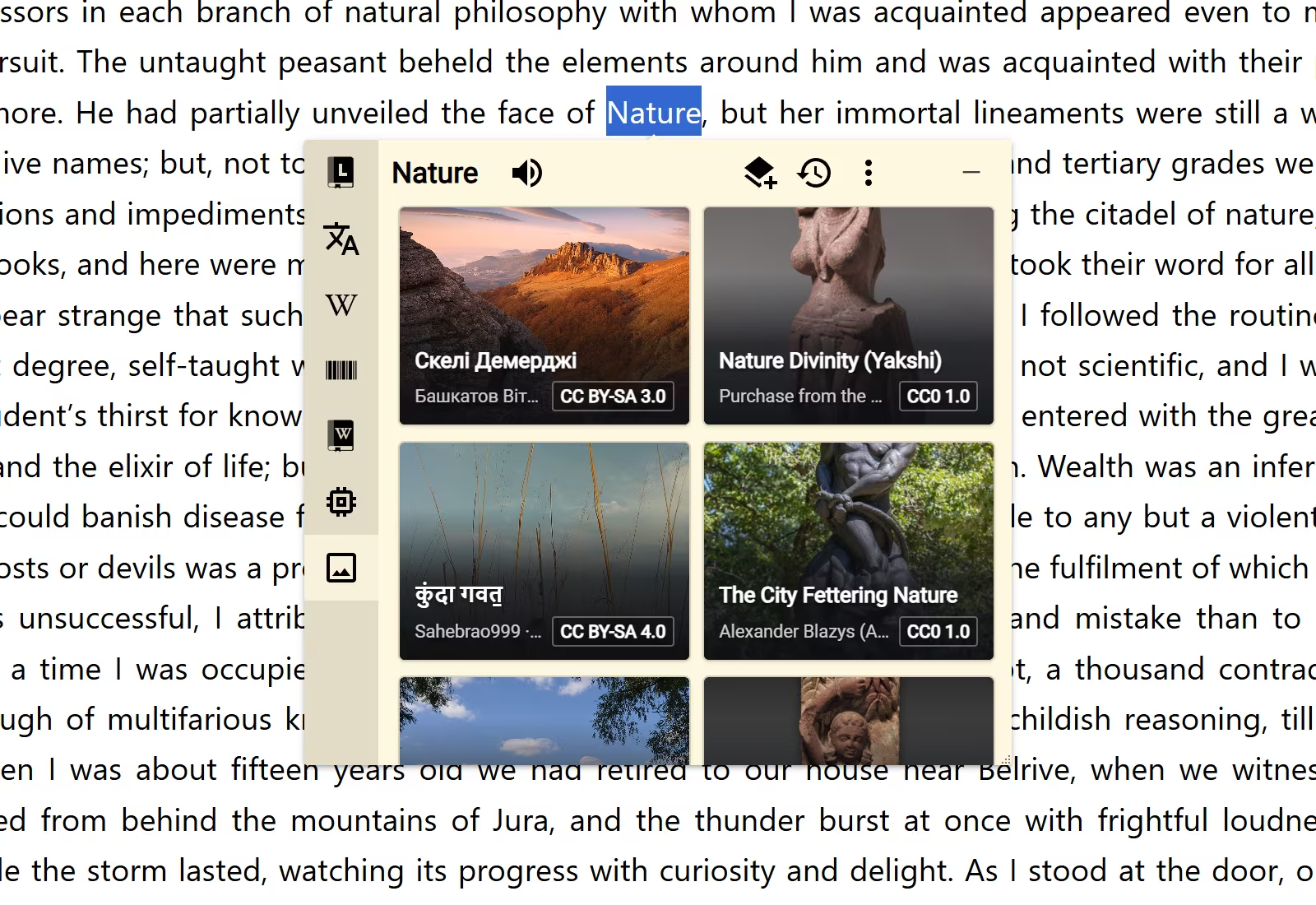
The collection labels and full captions below these live cards are annotations. Definer's compact cards shorten long titles and attribution lines to keep the gallery scannable.
How languages work
Open Images does not use the normal result-language picker. Search in the language you are reading. Equivalent names in different languages can lead to a similar gallery.
This works best for concrete named subjects and common visual concepts. A broad, figurative, or very short query may not identify one clear subject.
Use the image details
Each gallery item includes the information you need to understand where it came from:
- Select the image or title to open its original page.
- Use the attribution line to identify the creator or contributing collection. If the line is shortened, open the image or title for complete source details.
- Select the license badge to read the license terms on the linked page.
Open Images combines results from Wikimedia Commons, the Art Institute of Chicago, and the Cleveland Museum of Art. The mix changes with the subject and the images available in each collection.
Save an image gallery
Open Images includes the Open Images Card Recipe. It creates a Card item with the lookup text and several gallery images while keeping their source and license details.