Connect Ollama
Ollama runs downloaded AI models through software on your computer or another computer you control. Definer connects to the running Ollama server and uses the model you choose.
The setup has 3 parts: install Ollama, download a model, and choose that model in the AI Source.
Install Ollama
Ollama is a lightweight application that lets you download and run sophisticated open-source AI models like Llama, Qwen, DeepSeek, and others directly on your Windows, Mac, or Linux machine.
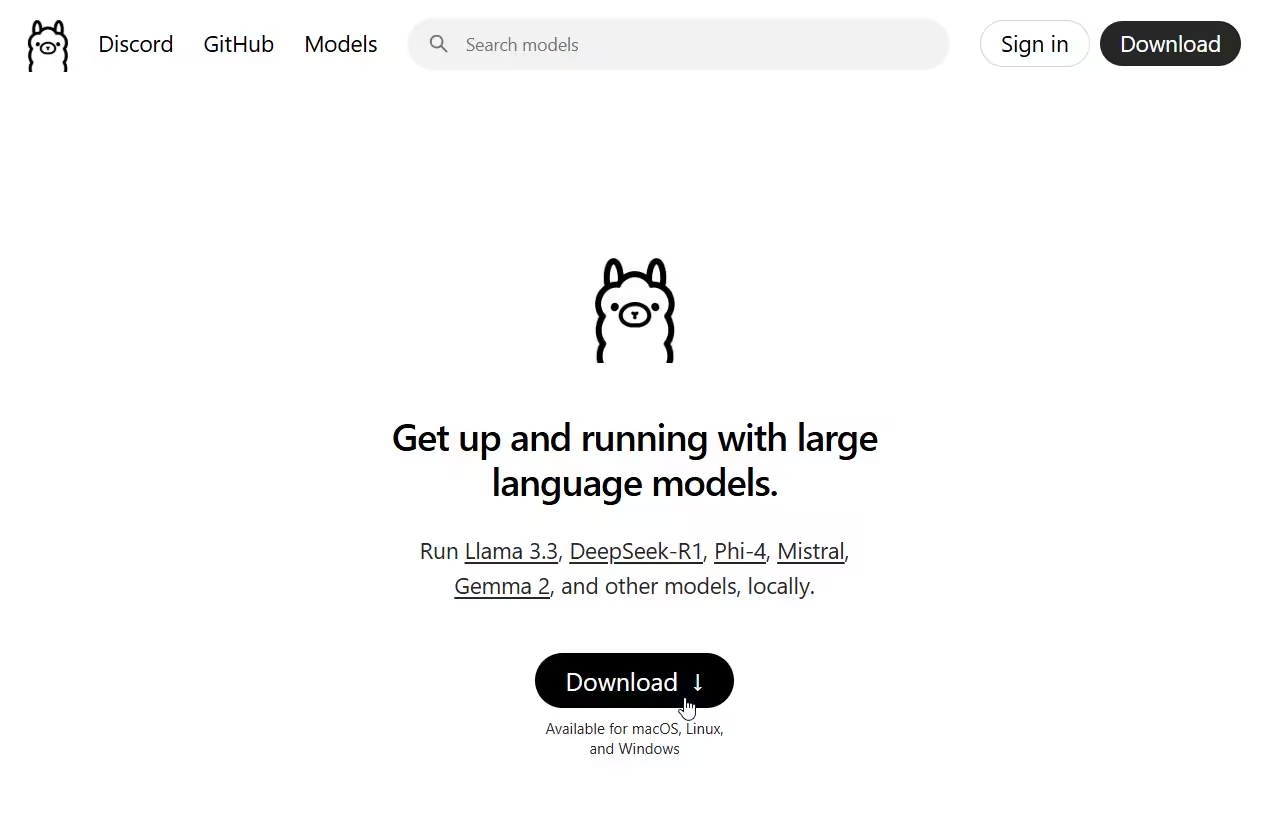
- Download Ollama here
- Follow the standard installation process for your operating system
- No account creation required
Run your first local model
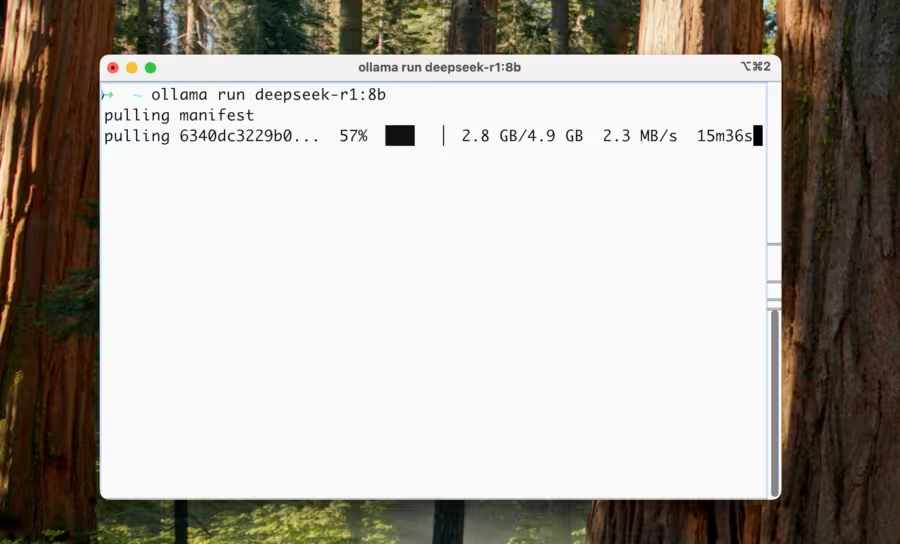
After installing Ollama, you can quickly get started with powerful models:
- Open your terminal or command prompt
- Run one of these commands to download and start a model:
# Latest Llama 3.2 model
ollama run llama3.2

# Lightweight but capable DeepSeek model
ollama run deepseek-r1:8b
Browse all available models at Ollama's model hub.
Use Ollama with Definer
Setting up Definer to use your local models is very straightforward:
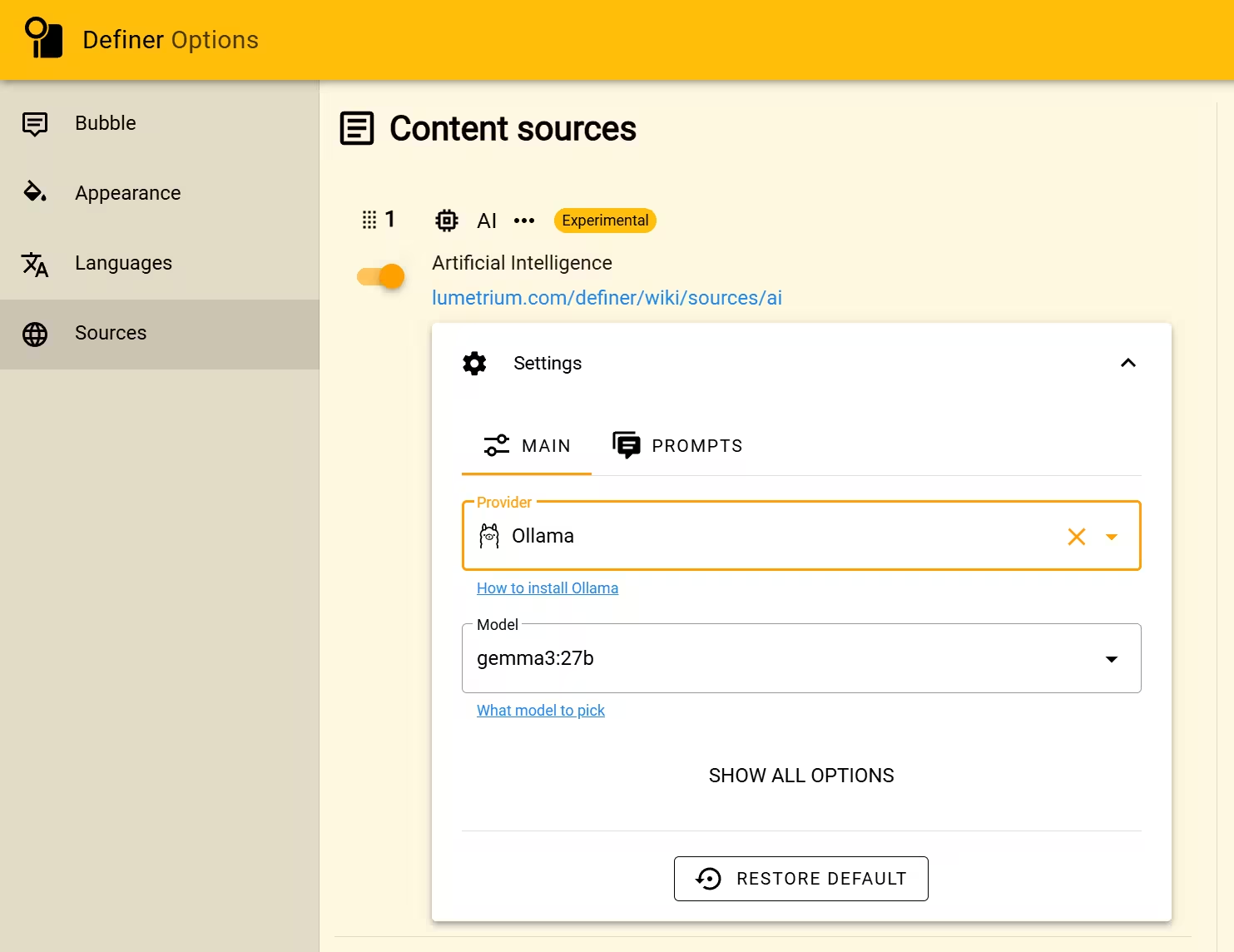
- Right-click the Definer icon next to the address bar
- Select "Definer Options".
- Go to the "Sources" page and find the "AI" source in the list.
- Click on "Settings".
- In the "Provider" field, choose "Ollama".
- Under Model, choose one of the models you downloaded with Ollama.
- Enter a representative question in Preview and confirm that the model responds.
The AI Source now uses the selected Ollama model for prompts that inherit its Main settings. If you need help, feel free to create a new post with "Help" flair in the r/lumetrium_definer subreddit.
Connect to Ollama on another computer
You can run Ollama on one machine (like a powerful desktop) and access it from another device (like a laptop) over your local network. This is ideal when you have a high-performance GPU on one machine but want to use AI from multiple devices.
Configure remote access
By default, Ollama only accepts local connections. To enable remote access, you need to configure two environment variables:
OLLAMA_HOST=0.0.0.0
OLLAMA_ORIGINS=*
macOS setup
- Open command line terminal and enter the following commands:
launchctl setenv OLLAMA_HOST "0.0.0.0"
launchctl setenv OLLAMA_ORIGINS "*"- Restart Ollama application to apply settings.
Windows setup
On Windows, Ollama inherits your user and system environment variables.
- Exit Ollama via taskbar.
- Open Settings (Windows 11) or Control Panel (Windows 10), and search for "Environment Variables".
- Click to edit your account's environment variables.
- Edit or create a new variable
OLLAMA_HOSTfor your user account, with the value0.0.0.0; Edit or create a new variableOLLAMA_ORIGINSfor your user account, with the value*. - Click OK/Apply to save the settings.
- Launch the Ollama application from the Windows Start menu.
Linux setup with systemd
If Ollama is running as a systemd service, use systemctl to set the environment variables:
Invoke
systemctl edit ollama.serviceto edit the systemd service configuration. This will open an editor.Under
[Service]section, add a line for each environment variable:
[Service]
Environment="OLLAMA_HOST=0.0.0.0"
Environment="OLLAMA_ORIGINS=*"
Save and exit.
Reload systemd and restart Ollama:
systemctl daemon-reload
systemctl restart ollama
Connect from another device
After configuration, Ollama service will be available on your current network (such as home WiFi). You can use Definer on other computers to connect to this service.
IP address of Ollama service is your computer's address on the current network, typically in the form:
192.168.XX.XXIn Definer, set the API Host to:
http://192.168.XX.XX:11434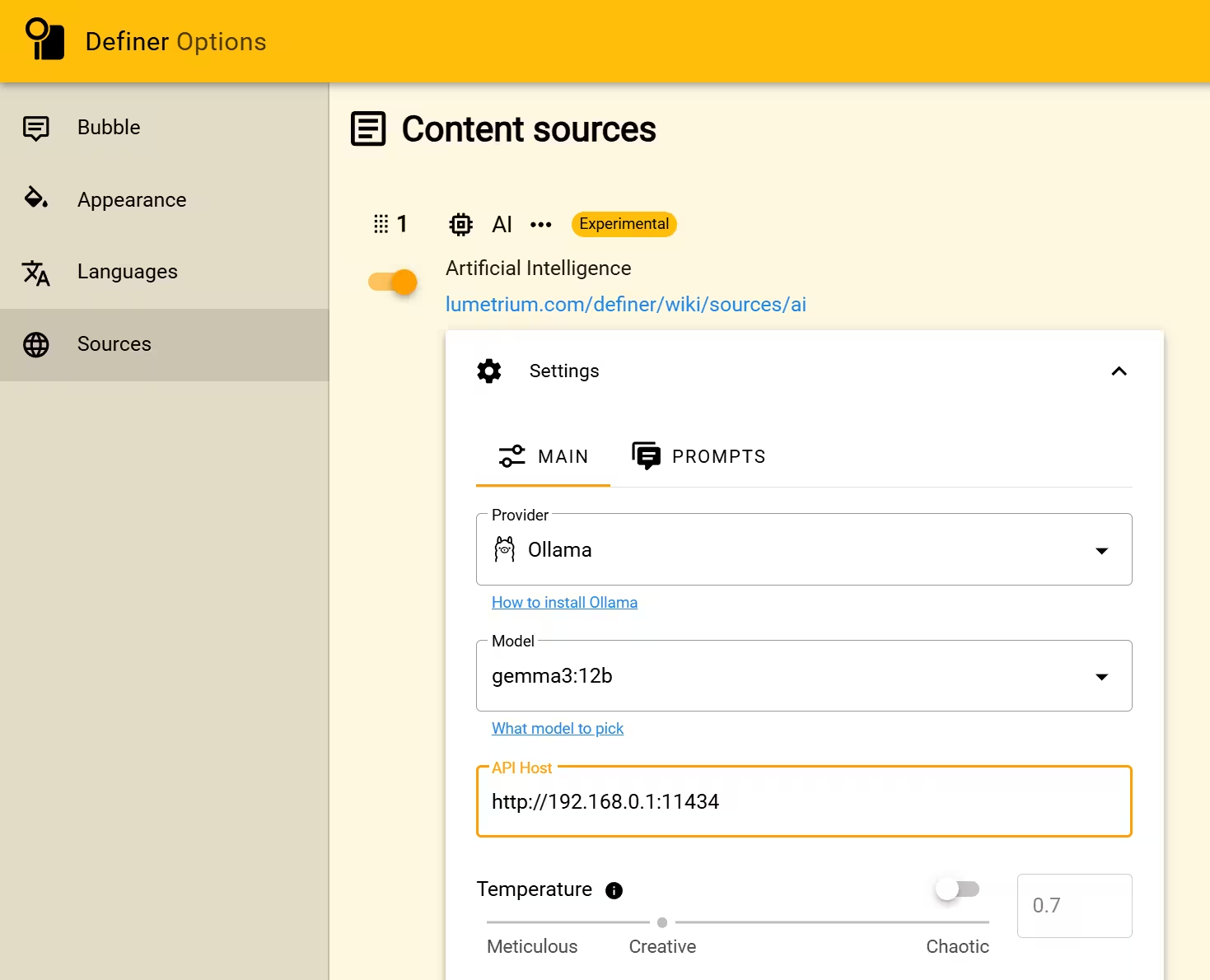
Protect a remote server
- Configure your firewall to allow traffic on port 11434
- Only use this setup on trusted networks like your home WiFi
- Never expose your Ollama instance to the public internet without proper security measures
Fix a problem
- Connection errors: Check firewall settings and ensure correct IP address
- Out of memory errors: Close other applications or try a more efficient model