Move Cloud History
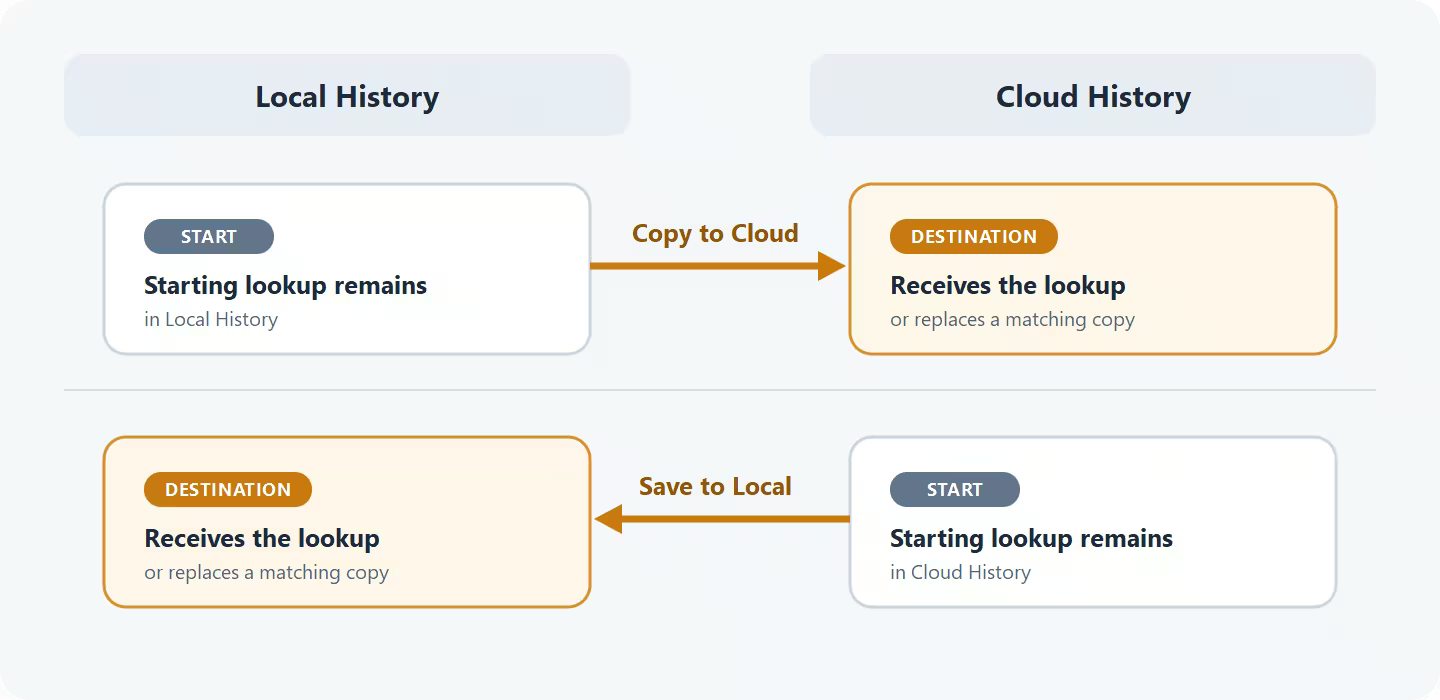
This guide covers the less common actions for moving existing lookups between a device and Cloud History. Copying keeps the starting lookup in place.
Copy one lookup
Open Definer Options → History → Lookups.
- In the device History, use Copy to Cloud on the lookup you want to keep with your account.
- In Cloud History, use Save to Local to bring the lookup onto the current device.
If a matching lookup already exists at the destination, the copy action replaces that matching copy.
Copy several lookups
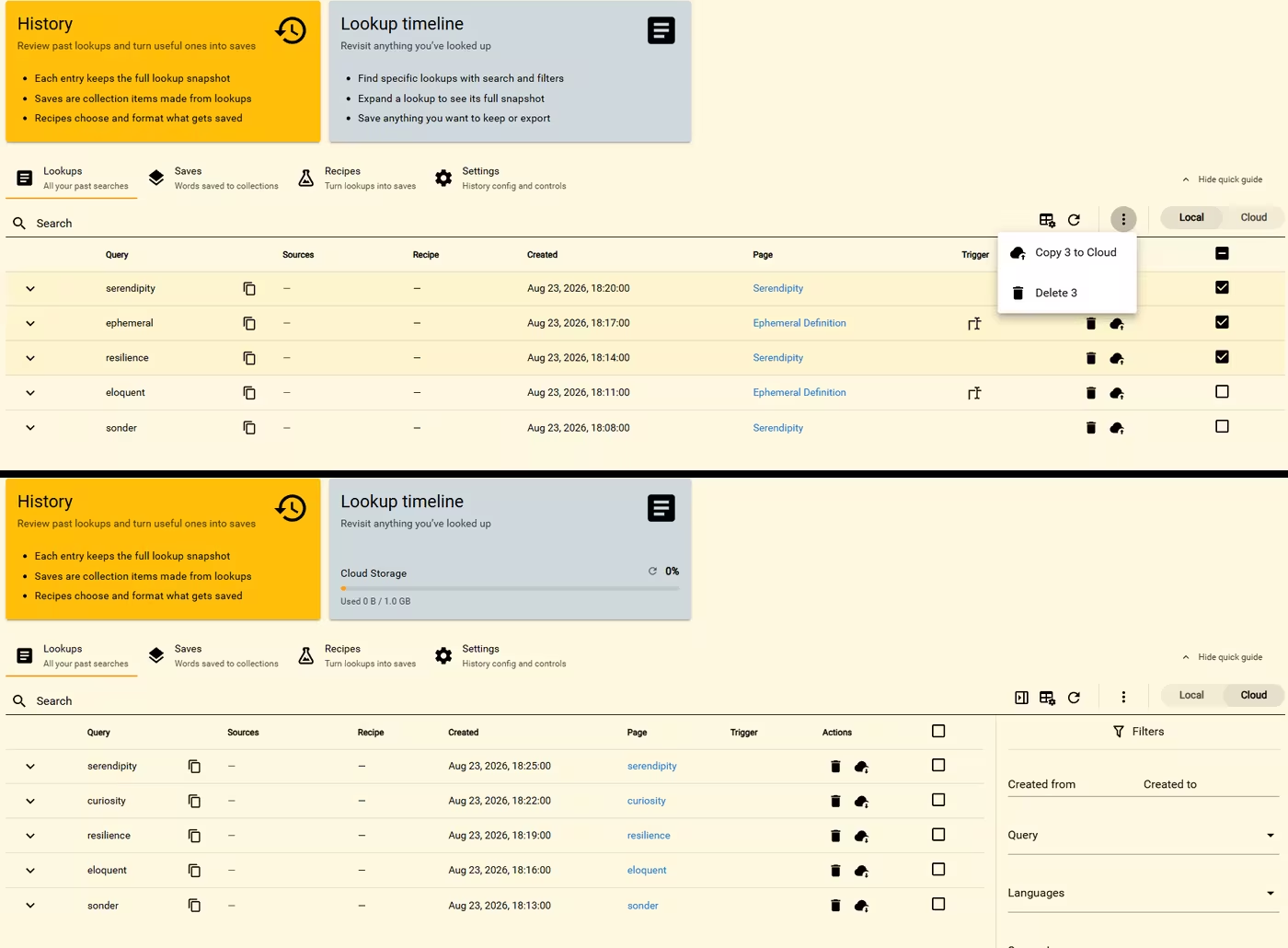
Select the lookups you want, open the page-level Actions menu, and use the copy action with the selected count. Open the destination History space to see the new copies.
Copy the remaining timeline
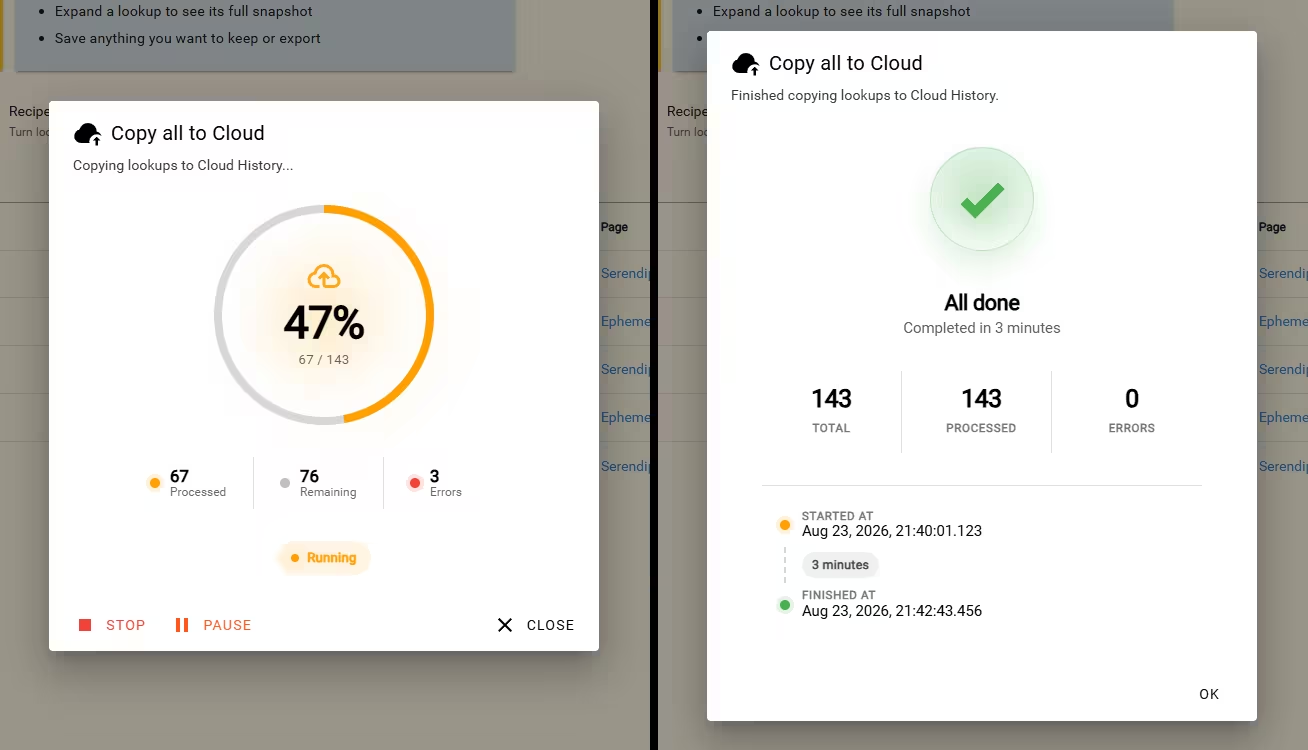
With no rows selected, the Actions menu offers Copy all to Cloud or Save all to Local. The ordinary all action sends only lookups that have not already been copied in that direction.
The progress dialog shows how many lookups were processed and whether any failed. You can pause, resume, or stop the remaining work.
WARNING
Resend all and Resave all send the complete starting timeline again and replace matching destination copies. Use them only when the starting History should win.