Raw items
Raw items keep flexible information that does not fit a Term, Card, Note, or Prompt. They are useful for structured data you want to inspect or export without forcing it into a more specific item Type.
Raw data uses JSON, so this Type is best for readers who are comfortable with quotation marks, braces, brackets, and commas. An object is usually the easiest shape to inspect and export, but the editor accepts any valid JSON value.
Create a Raw item
- Open Definer Options → Collections → [Collection] → Items and select New Item.
- Choose Raw under Type and enter a Name.
- Enter a valid JSON value in Data. Use an object when you want to keep several named fields together.
- Select Save. The item appears in the Collection.
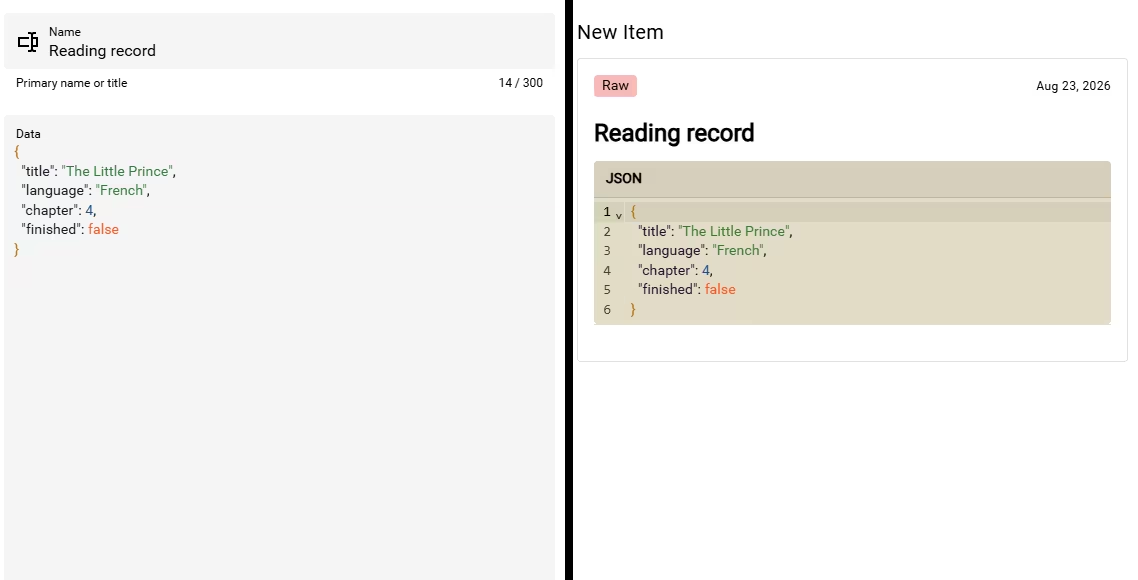
For example, this item keeps a short reading record:
{
  "title": "The Little Prince",
  "language": "French",
  "chapter": 4,
  "finished": false
}
Keep the JSON valid
JSON needs double quotation marks around object names and text values. Separate object fields and list items with commas, and do not put a comma after the final entry.
If Data shows an error, fix the highlighted JSON before saving. For an object, start with {, end with }, and keep each piece of information under a clear name. Lists use [ and ] instead.
Choose between Data and JSON Editor
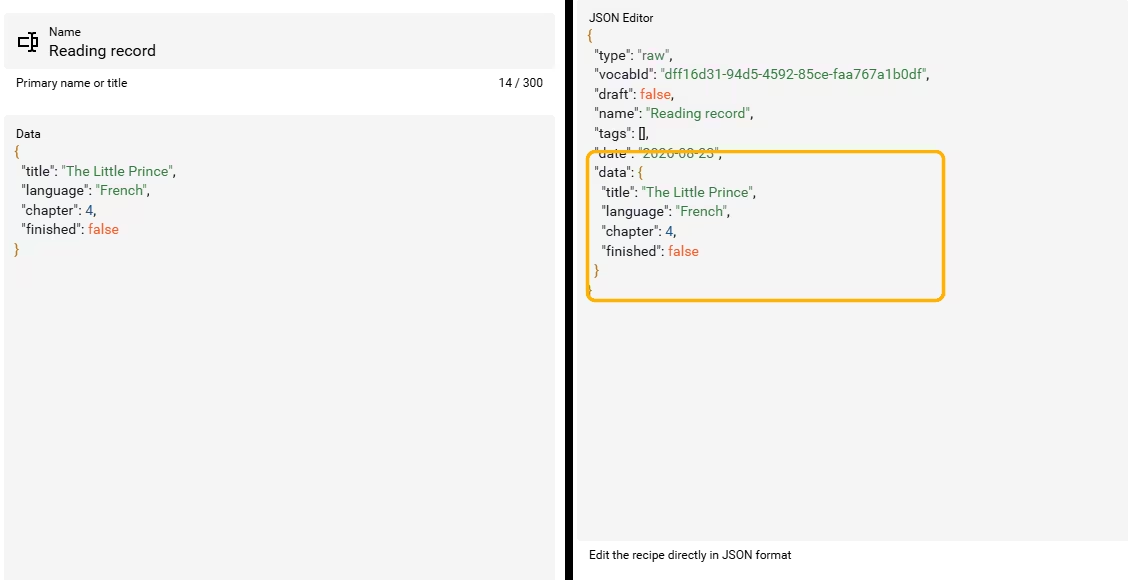
The Data field belongs to the Raw item and contains the flexible information you want to keep. JSON Editor is a separate editor mode for the complete Collection item, including its Type, Name, Data, Category, Date, Comment, and Tags.
Use the Data field for ordinary Raw item editing. Switch to JSON Editor only when you need to inspect or change the complete item structure.
Show Raw data in the list
A Raw Collection shows Name, Data, Comment, and Category by default. Open the table-with-cog Fields control to hide, show, or reorder fields. These list choices do not remove anything from the Raw item.
Use JSON export when another tool needs the richest structured representation of Raw items. Use CSV export when the data needs to become cells in a spreadsheet.